




In this Blog, we’ll explore the seamless integration of Terraform and Amazon EKS (Elastic Kubernetes Service). Learn how to efficiently set up your environment, create EKS clusters, connect to them, deploy applications, and troubleshoot common issues. Whether you’re new to Kubernetes or a seasoned pro, this article will equip you with the skills to optimize your infrastructure management on AWS. Let’s get started!
In this article, we will discuss:
- Introduction to EKS
- Overview of Terraform
- Setting up an AWS account
- Installing Terraform
- Writing Terraform configuration files
- Running the Terraform Code
- Install & Configure KubeCTL
- Destroy the EKS Cluster
- Conclusion
- FAQs
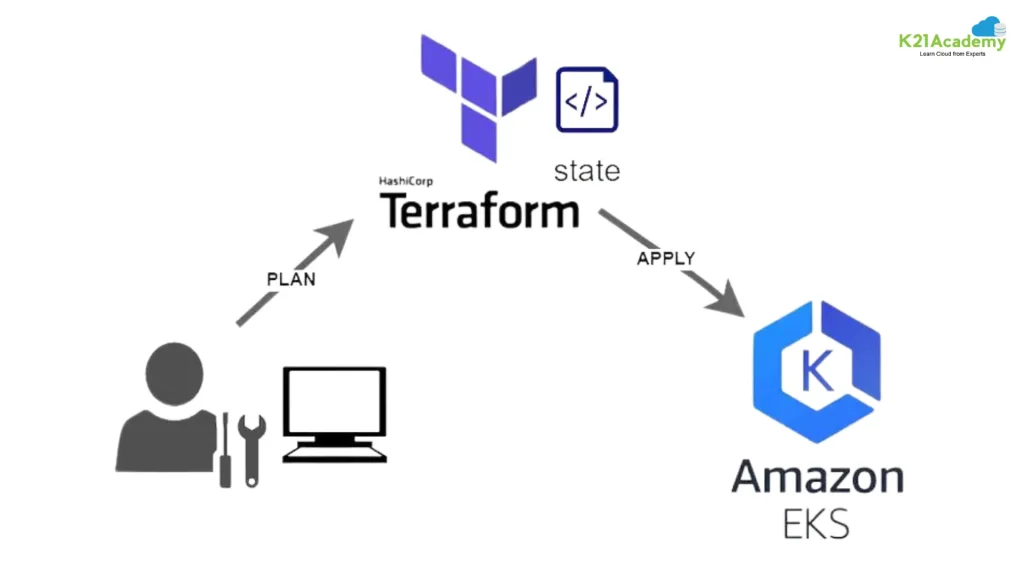
Introduction to EKS
Amazon Elastic Kubernetes Service (EKS) is a managed Kubernetes service offered by Amazon Web Services (AWS). It simplifies the process of deploying, managing, and scaling containerized applications using Kubernetes. With EKS, users can leverage the power of Kubernetes without the hassle of managing the underlying infrastructure.
Benefits of using EKS
EKS offers several advantages, including:
- Fully managed Kubernetes control plane
- Seamless integration with AWS services
- Automatic scaling and high availability
- Enhanced security features
To Know More: Amazon EKS (Elastic Kubernetes Service)
Overview of Terraform
Terraform is an open-source infrastructure as code (IaC) tool developed by HashiCorp. It allows users to define and provision infrastructure resources using a declarative configuration language. Terraform supports multiple cloud providers, including AWS, Azure, and Google Cloud Platform, making it a versatile choice for managing cloud infrastructure.
What is Terraform?
Terraform uses a simple, human-readable syntax called HashiCorp Configuration Language (HCL) to describe the desired state of infrastructure resources. It then automates the process of provisioning and managing those resources, ensuring consistency and reproducibility.
To Know More: Terraform
Setting up an AWS account
Before getting started with EKS and Terraform, you’ll need an AWS account. If you don’t have one already, you can sign up for a free tier account on the AWS website. Once you have an account, you’ll need to set up an IAM user with the necessary permissions for managing AWS resources.
- To create an AWS account, visit the AWS website and follow the instructions for creating a new account. You’ll need to provide some basic information, such as your email address, phone number, and payment method.
- After creating your AWS account, you’ll need to set up an IAM user with programmatic access and the necessary permissions for managing EKS clusters. This includes permissions to create and manage EC2 instances, IAM roles, and other resources required by EKS.
To Know More: Get Started with AWS
Installing Terraform
To use Terraform for provisioning infrastructure, you’ll need to install it on your local machine.
Installing Terraform on your local machine
Terraform provides precompiled binaries for various operating systems, including Windows, macOS, and Linux. You can download the appropriate binary from the Terraform website and install it using the provided installation instructions.
Verifying Terraform installation
Once Terraform is installed, you can verify the installation by running the terraform command in your terminal. If the installation was successful, you should see the Terraform version number printed to the console.
To Know More: Install Terraform on Windows, MAC, Linux
Writing Terraform configuration files
Terraform uses configuration files to define the desired state of infrastructure resources.
Provider.tf
Create provider.tf file to specify aws terraform provider.
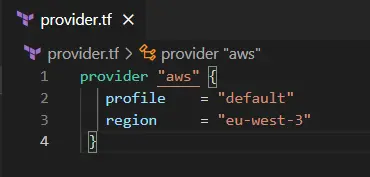
Copy-paste the provider file form below GitHub Link
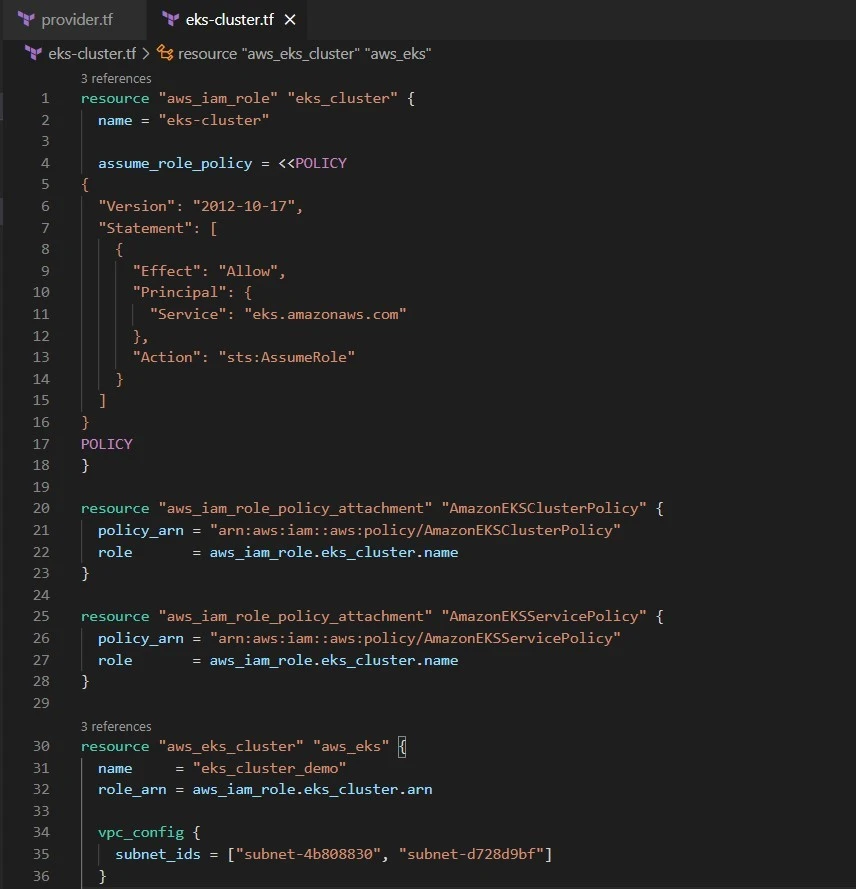
eks-cluster.tf
Create a new file named eks-cluster.tf. In this file we will add the code to create all the required Policies, Master nodes, and worker nodes.
The following arguments we are using for eks cluster:
- name – Name of the
- role_arn – ARN of the IAM role that provides permissions for the Kubernetes control plane to make calls to AWS API operations on your
- vpc_config – Configuration block for the VPC associated with your
- tags – Key-value map of resource
The following arguments we are using for eks node group:
- cluster_name – Name of the EKS
- node_group_name – Name of the EKS Node
- node_role_arn – Amazon Resource Name (ARN) of the IAM Role that provides permissions for the EKS Node
- subnet_ids – Identifiers of EC2 Subnets to associate with the EKS Node
- scaling_config – Configuration block with scaling settings.
The following argument is for the policy attachment resource block:
- policy_arn – The ARN of the policy you want to apply
Copy-paste the cluster creation file form below GitHub Link
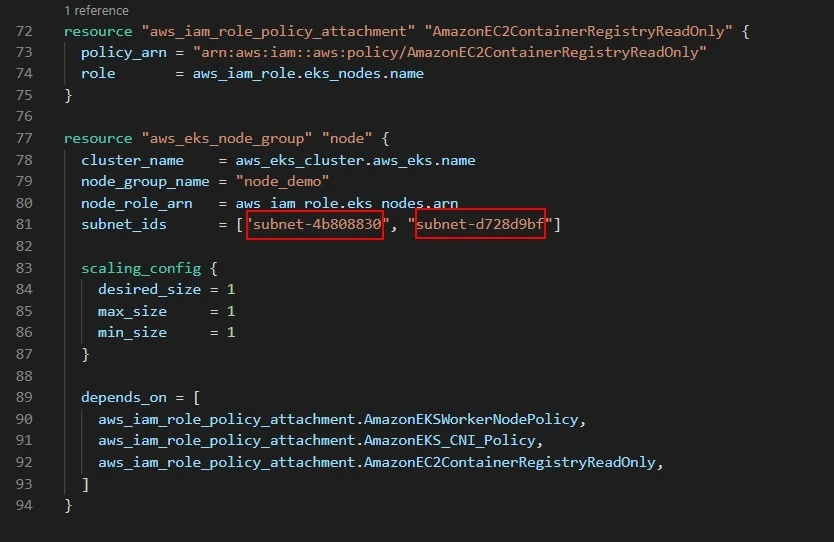
Note: Replace the Subnet ID’s with your default VPC’s subnet ID’s in both the “aws_eks_node_group” and “aws_eks_cluster” resource blocks.
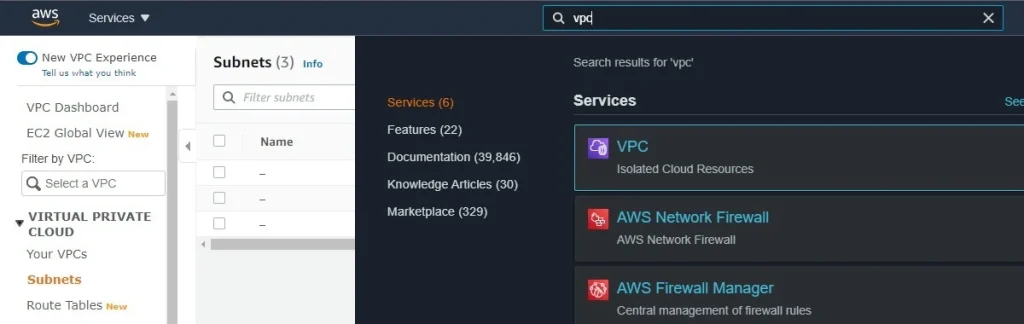
- To do so, open the AWS console and go to VPC
- Open Subnet, make sure the eu-west-3 region is selected as in the above code we have used the eu-west-3 region. If you are using a different region, use the subnet ID according to your region.
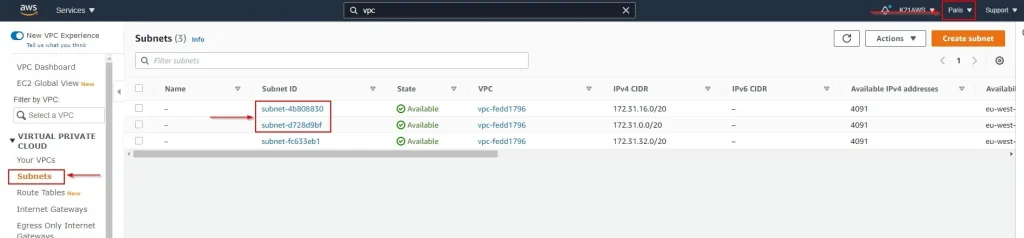
- Copy the subnet IDs and paste them in the terraform.
Outputs.tf
At last, we will create an output.tf file to show us the required output after the cluster is created.
Note: After creating the EKS cluster this will give you the cluster name and resource group name which we will be using in the next section.
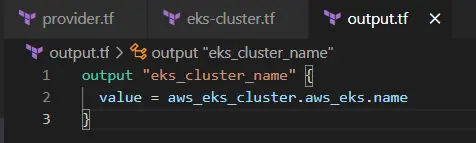
Copy-paste the output creation file form below GitHub Link
Running the Terraform Code
1. For that open the command prompt and go to the folder in which you have the above code file and run the below It will install all the required plugins needed.
terraform init
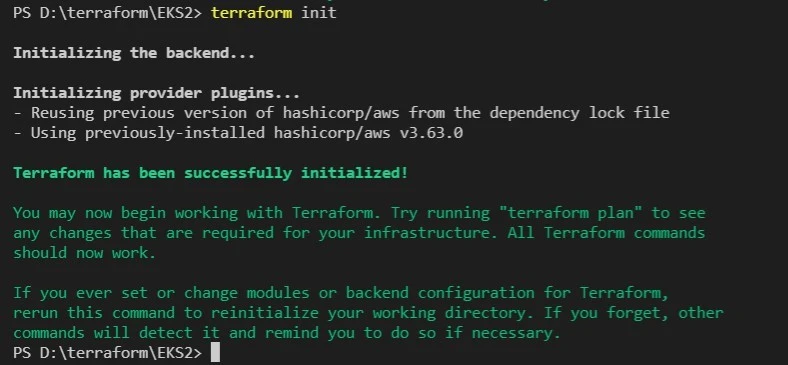
2. Run the following command. This will do the dry run and tell what all resources it will build, without actually building.
terraform plan

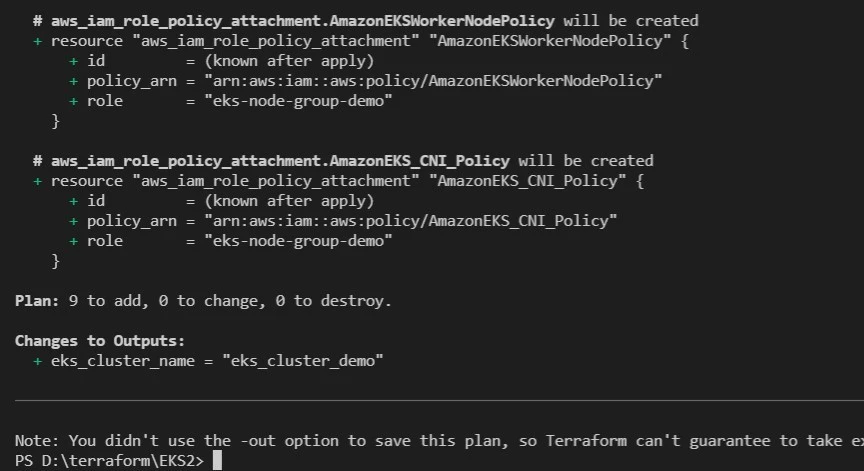
3. At last, run the below command it will build all the infrastructure required.
terraform apply
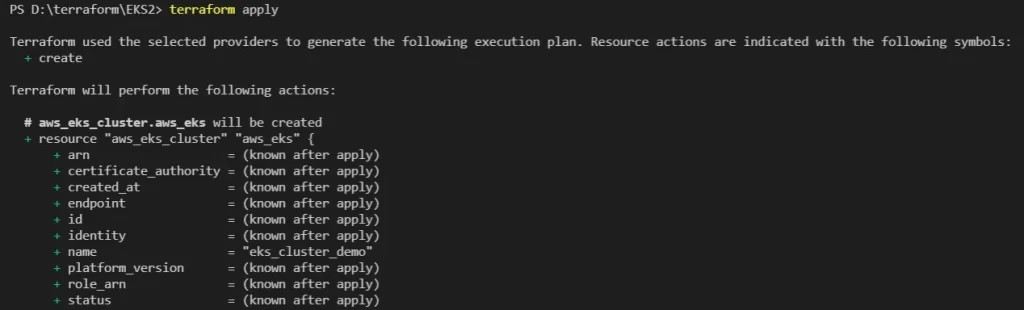
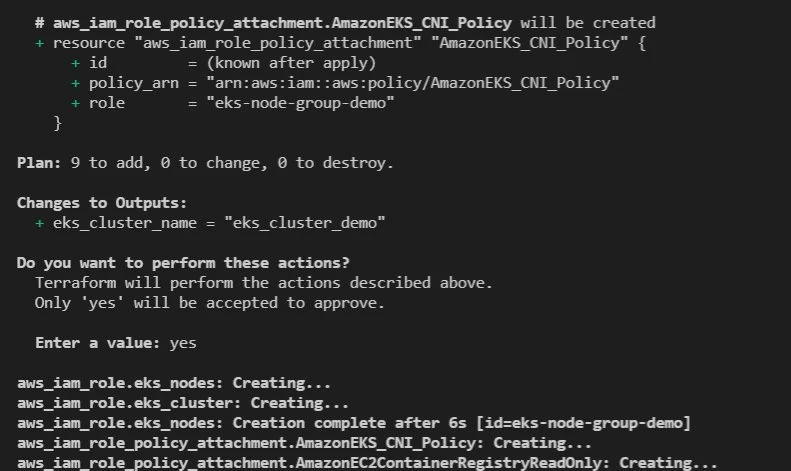
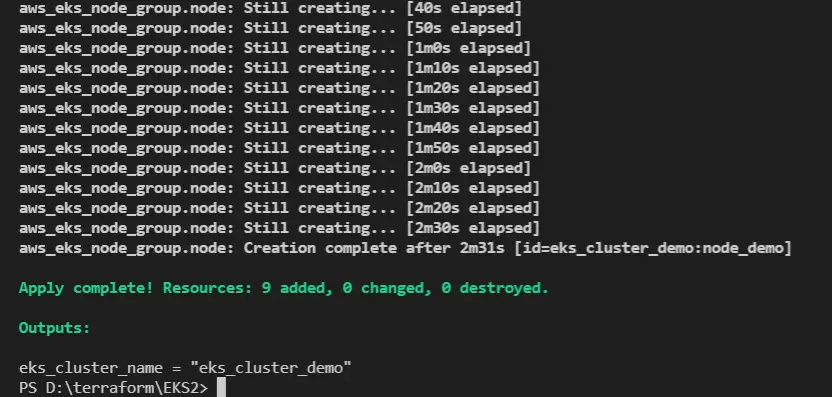
Note: It can take 10-15 minutes to create the cluster.
4. Now, we can check the EKS cluster has been To check follow the below steps:
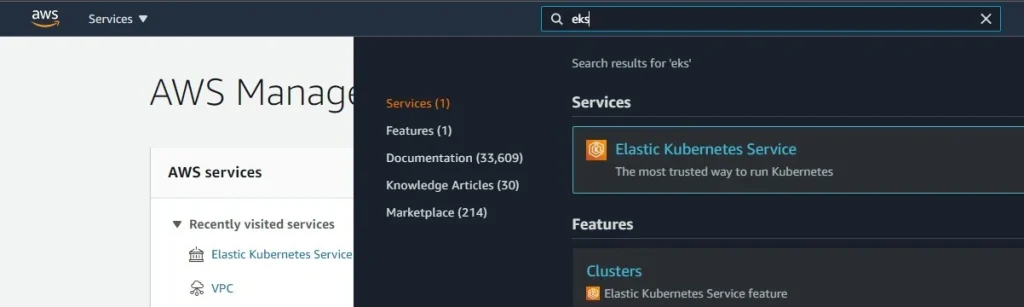
- Login to AWS
- Search for EKS from the search bar
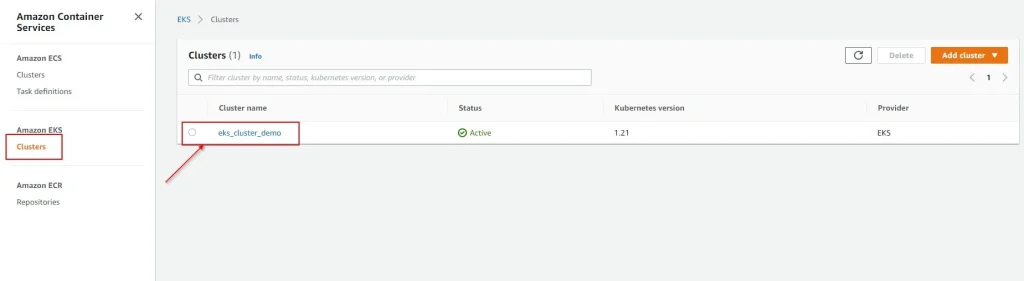
- Look for eks-cluster-demo cluster that we created
- To check the worker node, click on the cluster > configuration > compute.
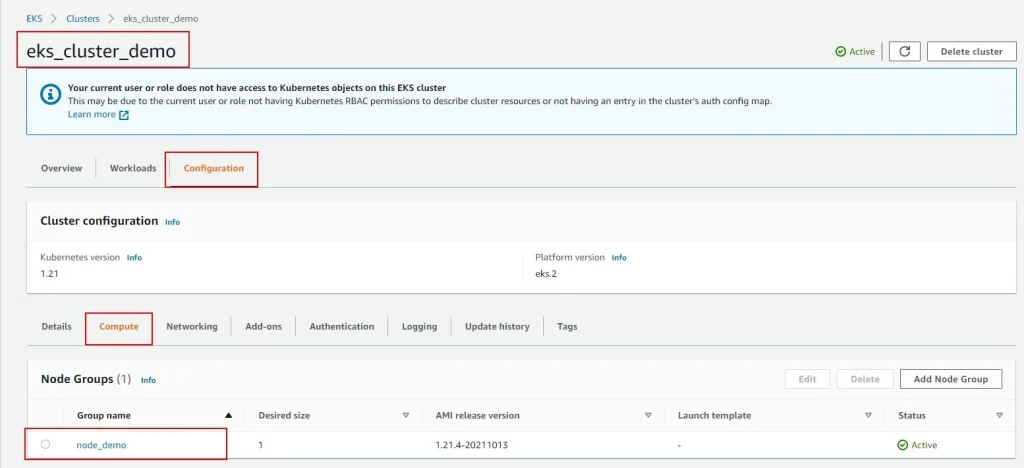
Now we have successfully created our EKS cluster using Terraform.
Install & Configure KubeCTL
Note: The kubectl command-line tool lets you control Kubernetes clusters.
1. To install kubectl utility the refer to the below link and download it according to your Operating System:
2. Check your Cluster Name & Region Name where the EKS Master node is running from the console
3. Check the status of the Cluster as
aws eks --region [EKS_Region] describe-cluster --name [EKS_Cluster_Name] --query cluster.status
Note: Change [EKS_Region] & [EKS_Cluster_Name] values according to your values.
4. Configure kubectl with EKS API Server credential
aws eks --region [EKS_Region] update-kubeconfig --name [EKS_Cluster_Name]
5. Validate kubectl configuration to master node
kubectl get svc
6. Watch the status of your nodes and wait for them to reach the Ready.
kubectl get nodes --watch
Note: After creating the cluster if you are no longer using that clusteí then teíminate/delete the clusteí to avoid the changes.
Destroy the EKS Cluster
To destroy the whole infrastructure created use the below command. It will destroy all the above-created.
terraform destroy
All the created resources will be deleted. We can check on the AWS console as well.
- Log in to the console and search for EKS and you will see all the resources of EKS Cluster have been deleted.
Conclusion
In conclusion, creating and connecting an EKS cluster using Terraform is a straightforward process that allows you to leverage the power of Kubernetes in a managed AWS environment. By following the steps outlined in this article, you can quickly deploy and manage containerized applications on EKS with ease.
FAQs
Can I use Terraform to manage existing EKS clusters?
Yes, Terraform supports both provisioning new EKS clusters and managing existing ones by importing their configurations.
Is EKS suitable for production workloads?
Yes, EKS is designed to support production-grade workloads, offering features such as automatic scaling, high availability, and integration with AWS services.
How does Terraform help with infrastructure provisioning?
Terraform automates the process of provisioning infrastructure resources, allowing you to define your infrastructure as code and manage it more efficiently.
What are some alternatives to Terraform for managing EKS clusters?
Other tools such as AWS CloudFormation and eksctl can also be used to provision and manage EKS clusters, but Terraform offers greater flexibility and support for multi-cloud environments.
Is it possible to automate EKS cluster updates with Terraform?
Yes, Terraform allows you to automate updates to your EKS cluster by modifying the configuration files and applying the changes using the terraform apply command.
Related/References
- Terraform Installation Overview
- HashiCorp Infrastructure Automation Certification: Terraform Associate
- Resource Manager In Oracle Cloud Infrastructure
- HashiCorp Certified Terraform Associate
- How to Provision AWS Infrastructure with Terraform?
- Terraform Cheat Sheet
- Why Choose Terraform Over Chef, Ansible, Puppet or CloudFormation?
Join FREE Class
🚀 Master Terraform & DevOps to get High-Paying Jobs! 🔥 Join our EXCLUSIVE Free class! 🚀
Get your hands dirty with lots of projects and labs based on Terraform and DevOps in our Program. Click on the below image to Register for Our FREE Class Now!


![Microsoft Agentic AI Business Solutions Architect [AB-100] | K21 Academy](https://test.k21academy.com/wp-content/uploads/2025/11/Microsoft-Agentic-AI-Business-Solutions-Architect-AB-100-Exam-Overview1.png)