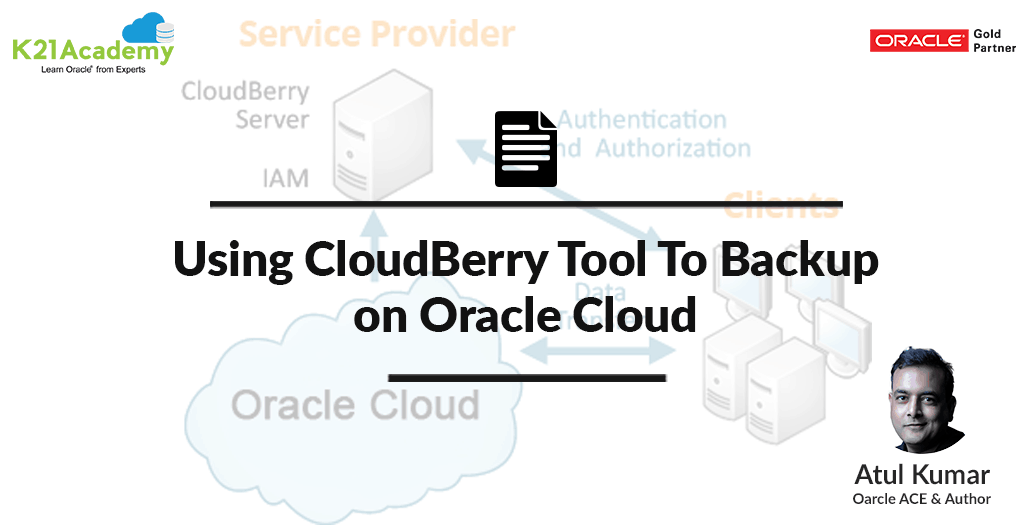





This post covers how to Configure Oracle Cloud with CloudBerry Backup Tool, a powerful solution that allows you to automate your backup & restore process.
Things Good to Know About CloudBerry Tool
- CloudBerry Lab is a software company that develops online backup and file management solutions integrated with more than 20 cloud storage providers. CloudBerry Backup and CloudBerry Explorer are offered for personal use in a “freemium model”
- 256-bit AES encryption
- Image-based backup
- Support for many different platforms
- Local backup, cloud backup, and direct cloud-to-cloud backup
- Restore images as VMs in the cloud (OracleCloud, Amazon EC2 or Azure VM)
- Bare metal restore
- Restore backups to new and different hardware
- Data deduplication
Connecting Your Oracle Storage to CloudBerry Tool to Take Backup’s
Download and Install CloudBerry Backup
You can find the latest version of CloudBerry Backup on the website: CloudBerry Backup for Windows
Configure CloudBerry Backup for Oracle Cloud Storage
Launch CloudBerry Backup, click on the Menu Icon in the upper-left corner of the screen and click Add New Account

Backup Options Available
- Local to Cloud
- Cloud to Local
- Cloud to Cloud
In the list of available cloud storage providers, click on OracleCloud icon

In the dialog box, specify the account settings:
– Display name: It can be any name you want.
– User Name: “Storage – Identity Domain: Oracle Cloud User Name”. For example, “Storage-amitk21:amit.pancholia@gmail.com”
– Api key: This is a password for your Oracle Cloud account.
– Authentication Service: It is put automatically once you choose your account location from the drop-down menu

Note: You can create Container during the time of configuration or you can select the container which you created previously. A container is nothing but a object storage where you can put your backup on Oracle Cloud.
Once you specified all the required settings, click OK. You will see your new Oracle account displayed in the list of registered accounts.

How to Select Oracle Account in Backup Wizard
You can select or create a new Oracle Cloud Storage account in Backup Wizard when creating a new backup plan.
Click Files button to start Backup Wizard and select your new Oracle account from the list of registered accounts.

Once your Oracle account is selected, click Next and complete the rest of the Backup Wizard steps to create and customize your backup plan!
Note: This Overview of CloudBerry on Oracle Cloud is from our “Oracle Cloud DBA 6 Weeks Step by Step Training Program” with 3 Years On-Job Support and Unlimited FREE Retakes (If you need to know more about this program then reach out to our team at contact@k21academy.com )
Related/Further Reading
If you are just starting out in Cloud then I highly recommend you to go through these posts first
- Cloud for Beginners (Facebook Live): SaaS | PaaS | IaaS and which one is right for DBAs
- 12 Point Checklist for DBA for Beginner to Expert Cloud DBA (Facebook Live)
- If you are confused to pick Amazon AWS or Oracle Cloud then check this
- Check tasks performed by Oracle DBAs in Cloud here
Did You Start Your Cloud Journey?
Get a FREE Copy in your Inbox with Steps to Register for Oracle Cloud and get 300 USD FEE Credit to Practice and Join our Private Closed Facebook Group for Oracle Cloud Community


![Microsoft Agentic AI Business Solutions Architect [AB-100] | K21 Academy](https://test.k21academy.com/wp-content/uploads/2025/11/Microsoft-Agentic-AI-Business-Solutions-Architect-AB-100-Exam-Overview1.png)