



This post covers one of issue that our trainee faced while accessing forms via Java Applet.
In Oracle E-Business Suite, there are self-service pages that are based on HTML and open as a web page and there are two ways to open forms:
One is an old way of using Java Applets while the other is the new way of using Java Web Start (JWS).
So let’s understand what is Java Applets and Java Web Start (JWS)
Java Applets are launched by the Java Plug-in using a browser that supports plug-ins via the Netscape Plug-in Application Programming Interface (NPAPI) protocol.
Java Web Start (JWS) provides a browser-independent architecture for deploying Java technology-based applications to the client desktop.
Java Web Start applications are launched from browsers using the Java Network Launching Protocol (JNLP).
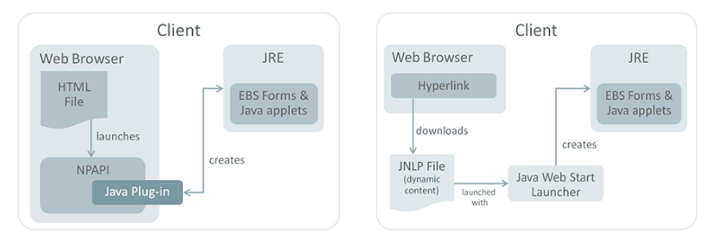
The Oracle E-Business Suite migration to Java Web Start is primarily driven by modern web browsers ending support for the NPAPI, which is used by the Java Plug-in. Oracle plans to deprecate the Java Plug-in for web browsers starting with the release of Java SE 9.
Java Web Start applications can be launched independently of a browser since they do not rely on a browser plug-in, it provides a migration path from Java Applets.
In our training, one of trainee faced issue while accessing forms via Java Applets so to resolve this error “FRM-92095: Oracle JInitiator version too low.” follow the below steps:
If you are looking for steps on how to configure Java for forms check here
Also check: Steps to download EBS R12 software from Edelivery Oracle site
Issue
While accessing Oracle EBS (R12) forms
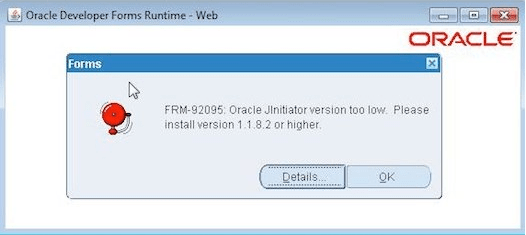
Cause
The cause is the JRE version is not compatible. Oracle made an internal changed in the Java plugin after Java 7 that causes Oracle Forms (Banner) to not recognize that Java is correctly installed.
Solution
1. Go to start and search for ‘Java’
2. Click on Java tab and then View
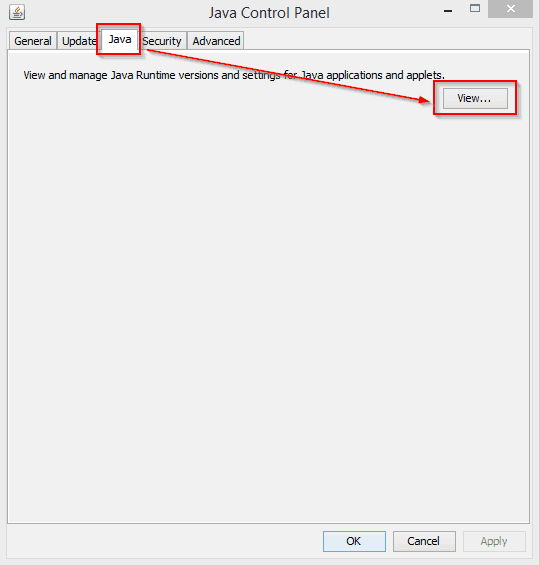
3. Add the following text in the ‘Runtime Parameters’ box and then click OK
-Djava.vendor=”Sun Microsystems Inc.”

4. Click Apply
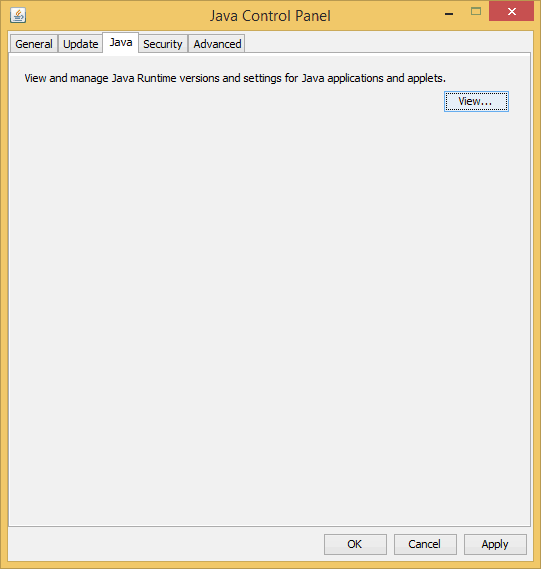
5. Close browser and retest, forms should be accessible now
After adding Runtime Parameters Djava.vendor=”Sun Microsystems Inc.” in Java Runtime Environment Settings, we could access forms with no issues.
Related/Further Readings
- Solution for Error FRM-92095: Oracle Jnitiator version too low
- Recommended Browsers for Oracle E-Business Suite Release 12 (Doc ID 389422.1)
- Troubleshooting Blank Page Issue In Oracle EBS 12.2
- Oracle AppsDBA (R12): Step by step Activity Guides
This post is from our Oracle Apps DBA (R12.2) Training, in which we cover Architecture & Changes in Oracle E-Business Suite R12.2, Staging & Installation, File System & Important Files in R12.2, Start/Stop, Patching, AD Administration, Cloning, Concurrent Managers, AutoConfig, Password Management, and Troubleshooting and much more
Next Task For You
We cover Oracle E-Business R12.2 Architecture & concepts in our Oracle Apps DBA For Beginners Training along with the Installation, Patching, Cloning, and Troubleshooting and also, Database upgrade to 19c and much more including the hands-on labs you must perform to upgrade your skills and get a good job with a high package.
Begin your journey towards becoming an Apps DBA by joining our FREE Masterclass on How To Learn Oracle Apps DBA (R12) & It’s New Features.


![Microsoft Agentic AI Business Solutions Architect [AB-100] | K21 Academy](https://test.k21academy.com/wp-content/uploads/2025/11/Microsoft-Agentic-AI-Business-Solutions-Architect-AB-100-Exam-Overview1.png)


