



This post covers the Console Walkthrough of Oracle Integration Cloud (OIC) Service.
If you are new to Oracle Integration Cloud (OIC), then check out our blogs below as these contain all the key points that a beginner should know about Oracle Integration Cloud (OIC) and create Oracle Integration Instance.
You will use below consoles in Oracle Integration Cloud:
For Oracle Integration Cloud, there are five consoles you should know. What are these five consoles and how you can access these consoles, check it out here.
- Oracle Cloud Infrastructure (OCI) Console
- Oracle Integration Console : (Accelerators & Recipes Tab, Recent Tab, My Tasks tab, Go To tab)
- Oracle Integration Processes Console
- Oracle Integration Visual Builder Console
- Oracle Integration Designer Console
When you register to the Oracle cloud to create a cloud Account (Follow our step-by-step guide Here for (FREE Oracle Cloud Trial Account), then after login to your Oracle Cloud account, you will be able to check the first console that is Oracle Cloud Infrastructure Console.
But to check the last four consoles, you first need to provision the Integration Instance and after that only you will be able to see these four consoles. To Create an OIC instance, check our previous post here.
1. Oracle Cloud Infrastructure (OCI) Console
- Once you register to the Oracle cloud Account and login via your credentials then the first screen you will see is OCI Console home page.
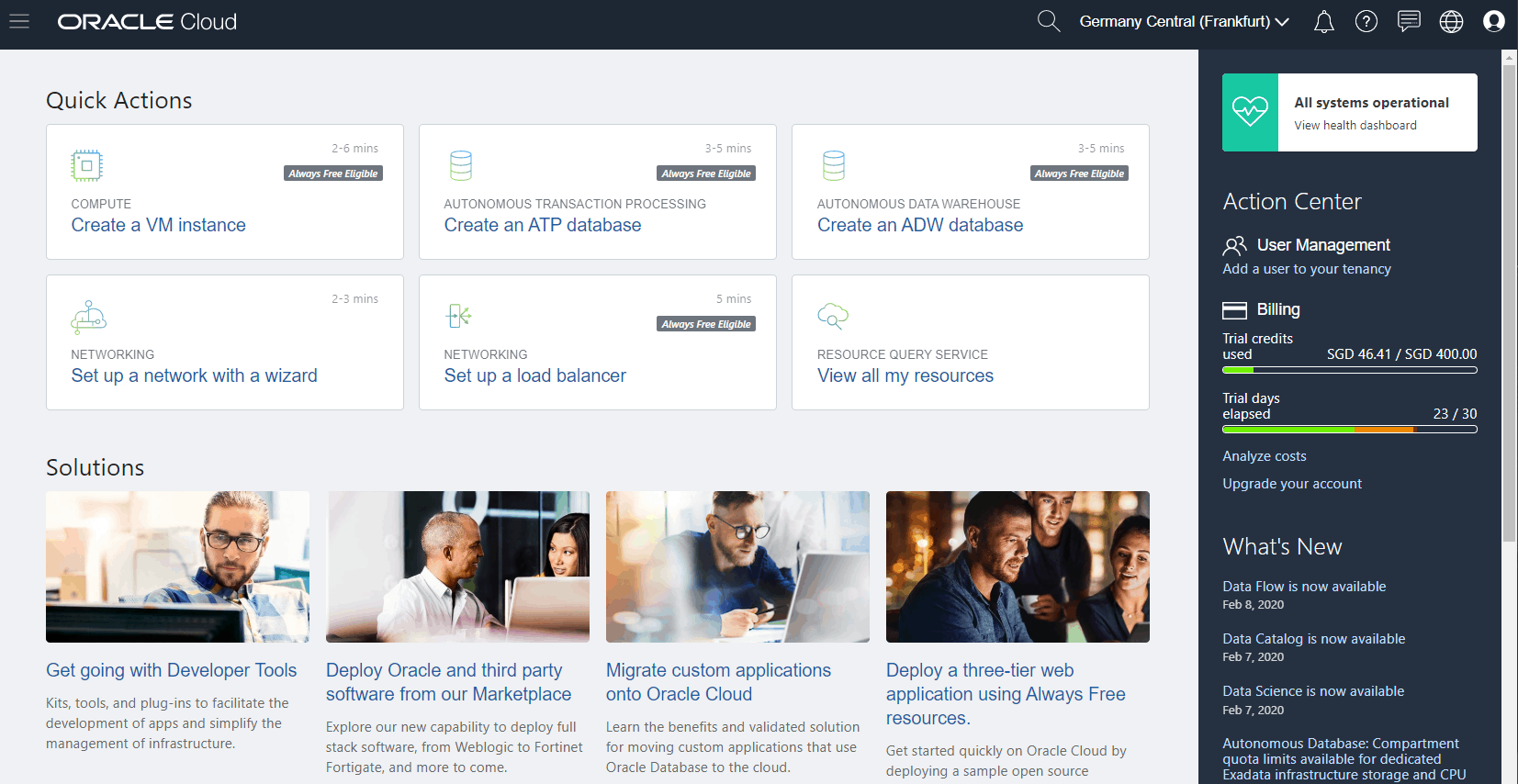
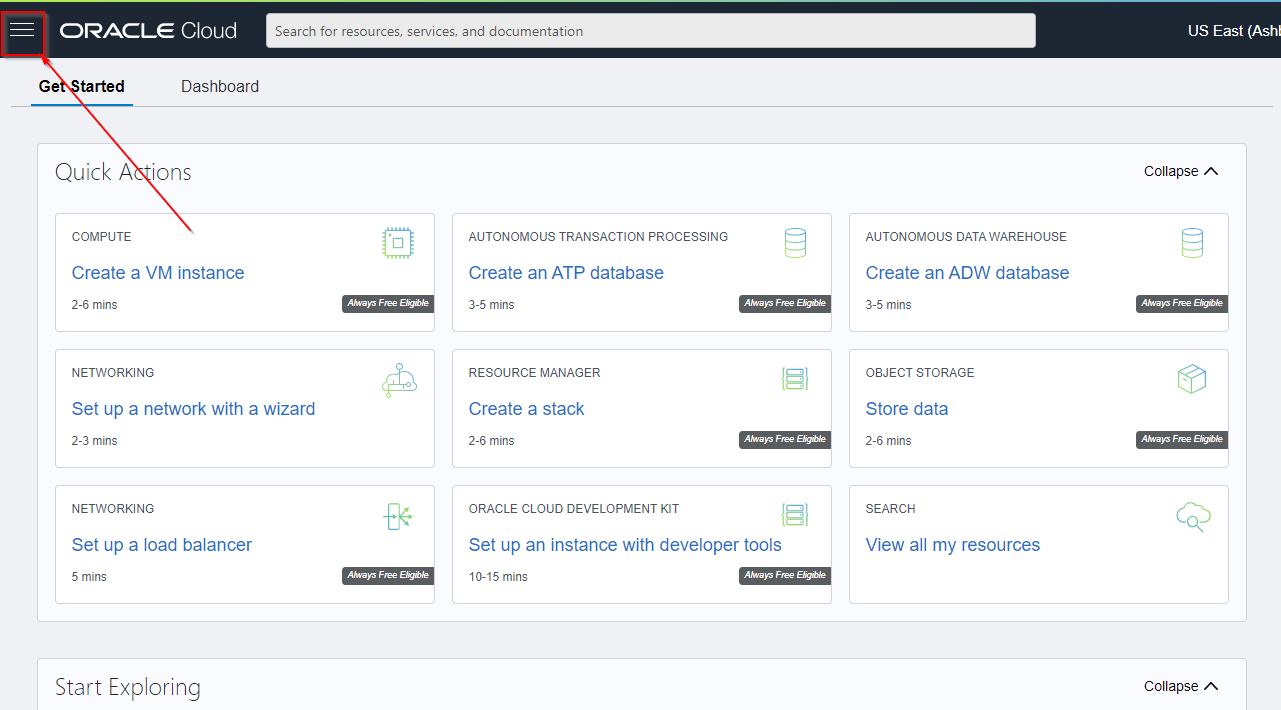
- Use the Navigation menu in the upper left to navigate to the service pages where you create, manage, and view your cloud resources and lots of other options are there.
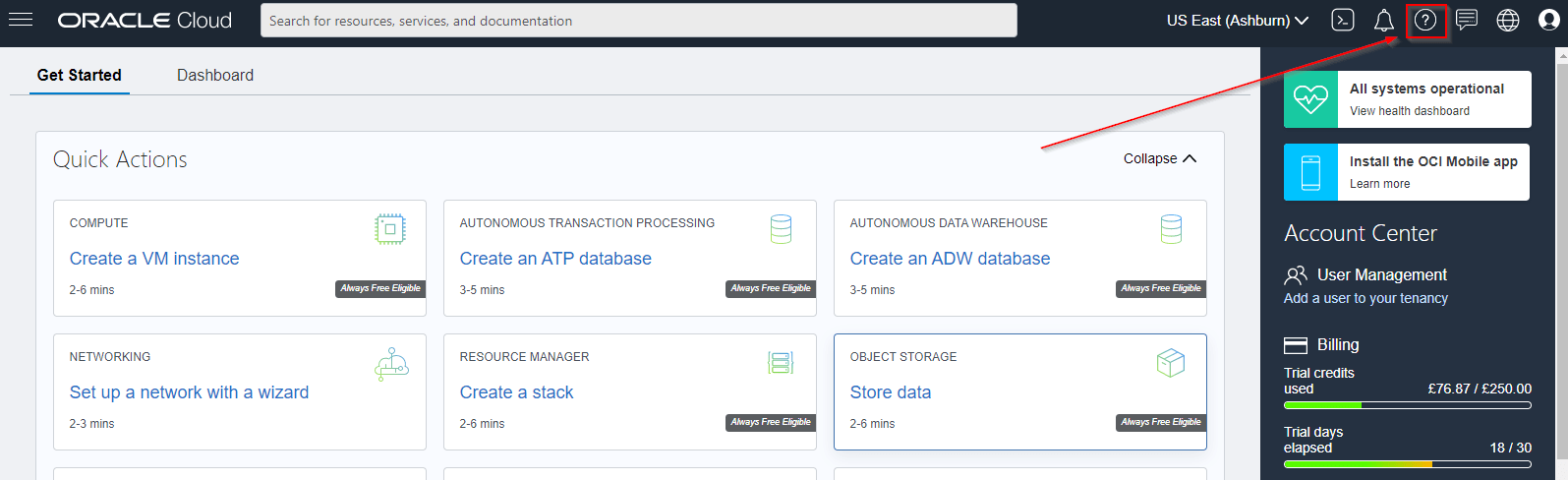
- The Help menu (
 ) provides links to the documentation and Oracle Support
Also Check : New Homepage Of Oracle Integration Cloud.
2. Oracle Integration Console:
Note: To navigate through the Integration Designer Console, You first need to Create an integration Instance.
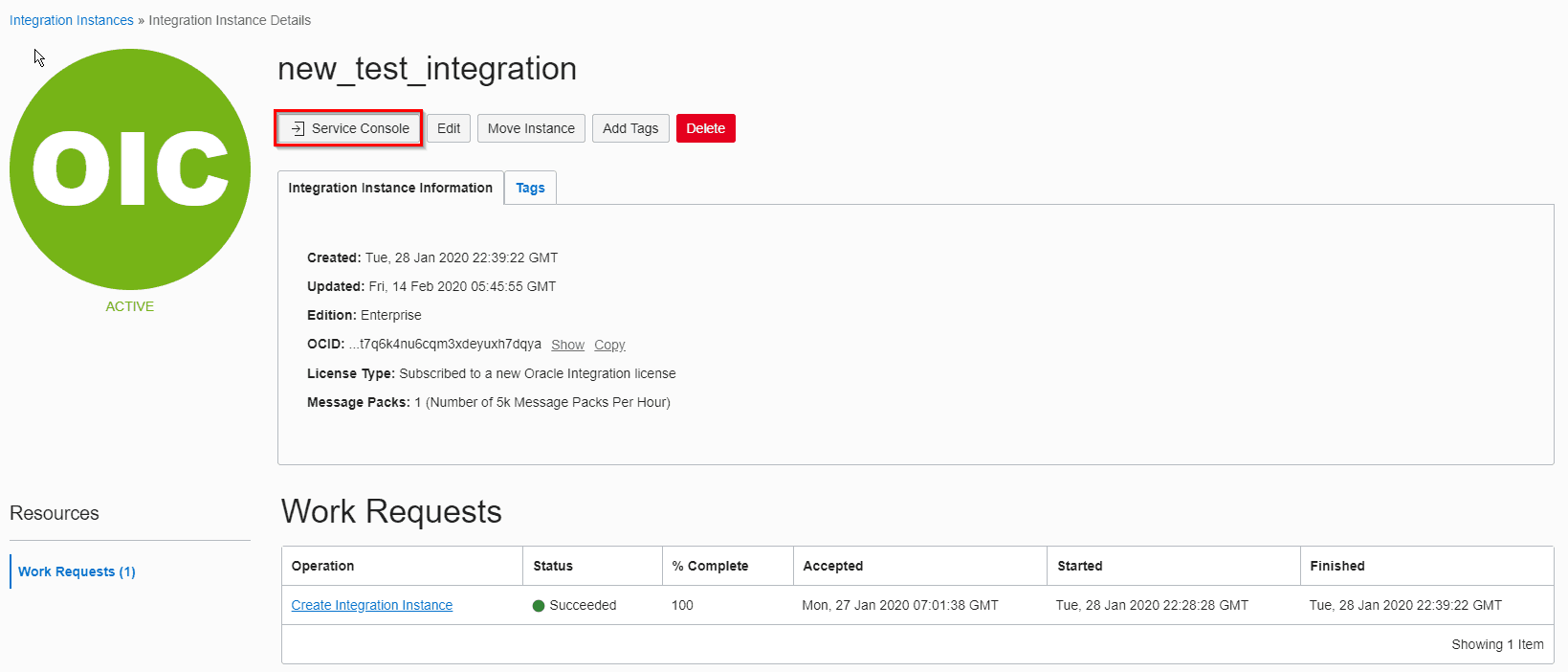
- Once you create an OIC instance, then Click on Service Console to open the Oracle Integration Cloud Console.
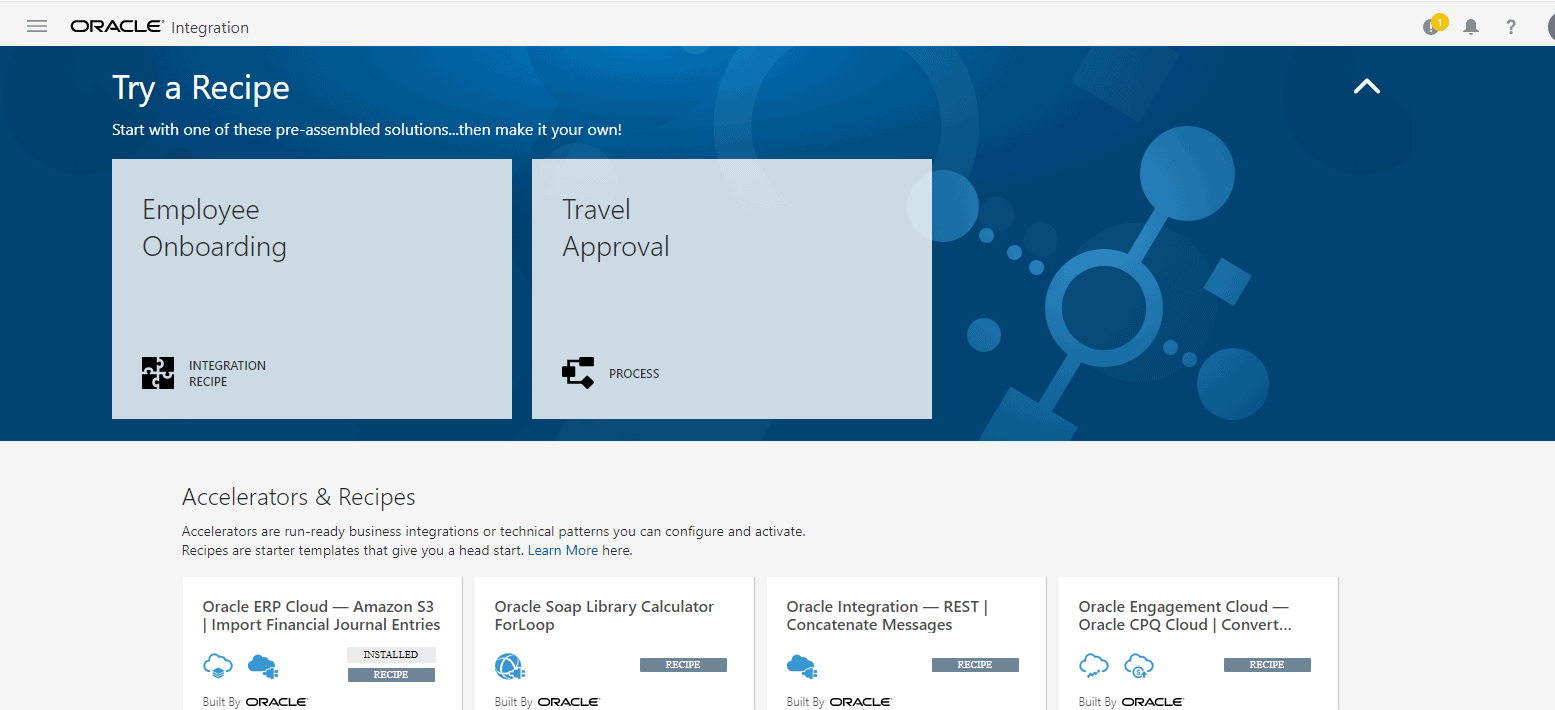
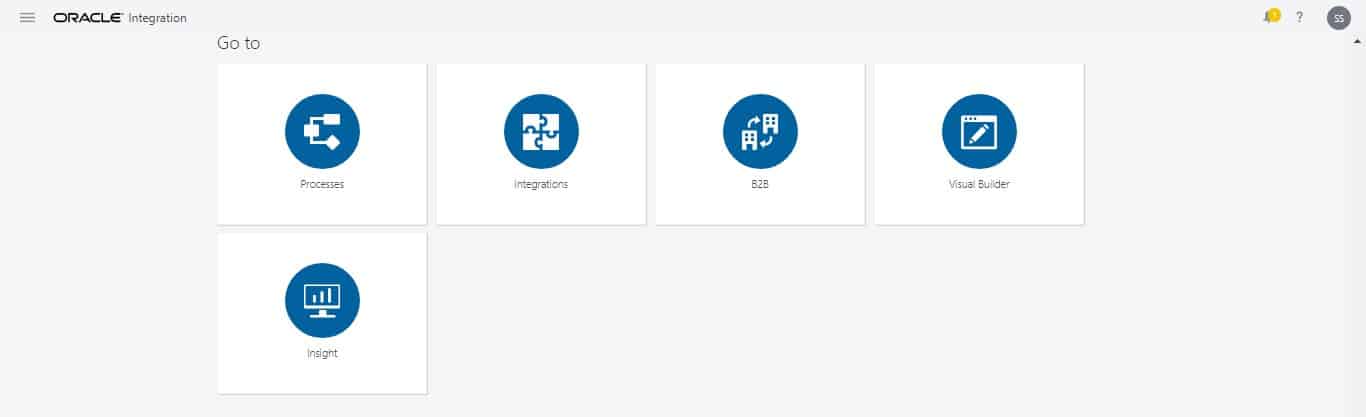
- The home page provides links to the features of Oracle Integration Cloud Service such as Accelerators & Recipes, Recent (Recent Integrations, connections created), My Tasks and Go To tabs.
Check Out: Our blog post on Cloud Connect Oracle.
Accelerators And Recipes in OIC
Accelerators are run-ready business integrations or technical patterns that you can configure and activate. These are managed and supported by the producer and are configurable as well as extendable. Certain upgrades are also provided. Accelerators are paid offerings and the price is decided by the producer.
The recipe is a template that gives you a head start. They can be fully edited in the Oracle Integration Designer but cannot auto-upgrade to a new version. Recipes are always free and there are no charges for using them, unlike Accelerators.
Recent Tab
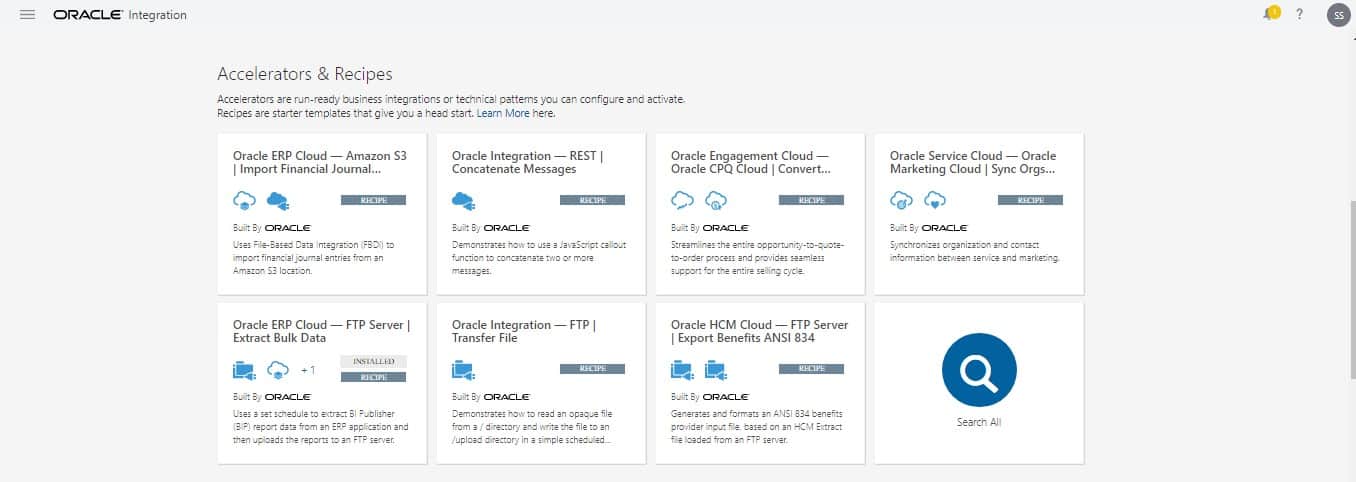
Here you can check your most recent activities as if you have created an integration or a connection that will be displayed under this Recent menu. It is a very helpful feature and was also present in the previous home page of the Oracle Integration Cloud OIC. It is very helpful as we can quickly get to know our recent activities that too on the home page but this time in a more organized way.
My Tasks Tab
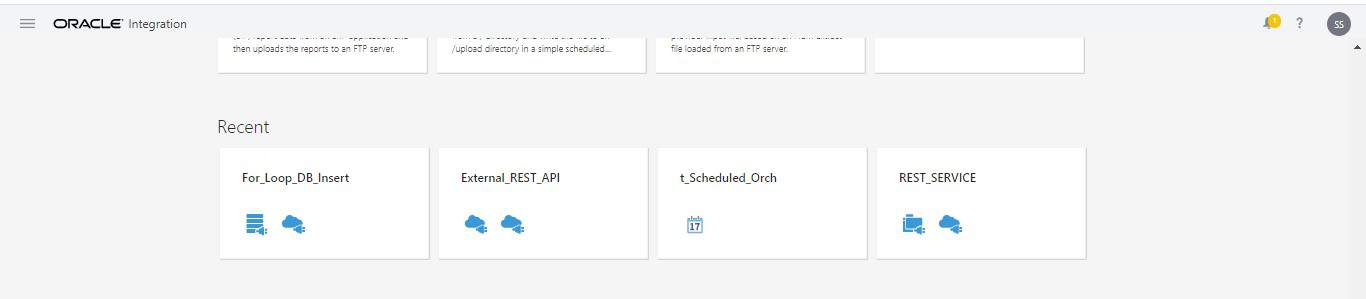
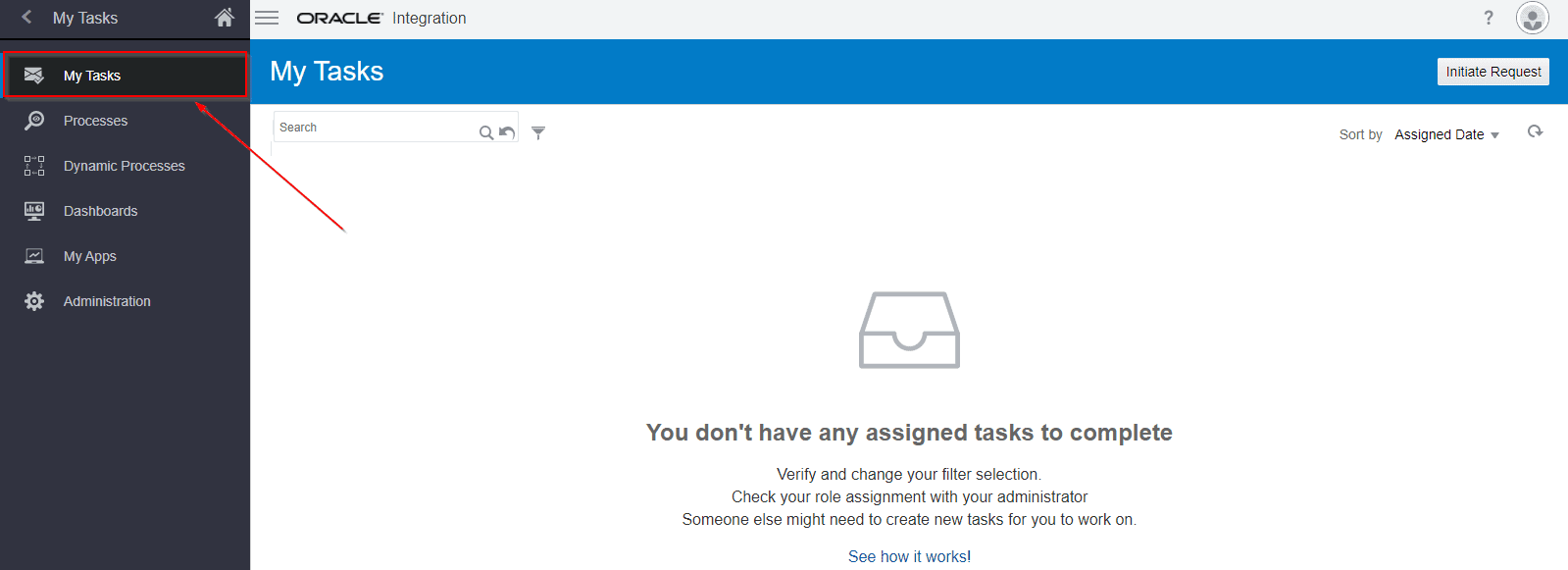
Depending on your role, the My Tasks feature is used to work on, monitor, troubleshoot, or administer process tasks. In the earlier version of the Oracle Integration home page, this feature was on the sidebar and we could not see our pending tasks on the home page. We had to click on My Tasks and then monitor the tasks but with this new home page, we can see the tasks lined up on the home page.
Go To Tab
Go To is a new feature that has been included in the new home page of the Oracle Integration Cloud OIC. It provides quick navigation to any service and also saves time. It is a very beneficial feature that has been incorporated in the new home page as it directly takes you wherever you want to go on the console, as is suggested by its name. This feature is sure of great use.
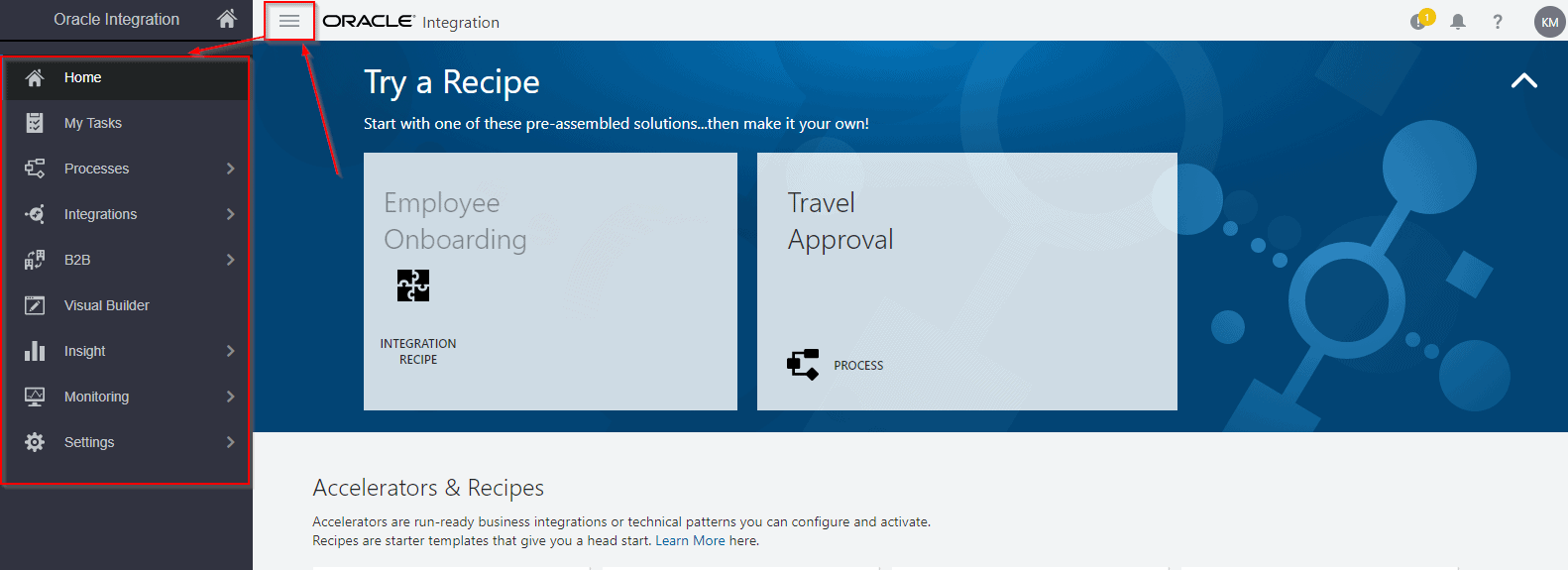
- The Navigation Pane in the upper left corner provides you with access to all the development features in Oracle Integration Cloud Service.
- Once you have created an Instance of Oracle Integration, navigate to Oracle Integration home page and click My Tasks to view your tasks and manage your work.
3. Oracle Integration Processes Console:
- From the Navigation Pane, Use the Processes feature to rapidly design, automate, and manage business processes in the cloud.
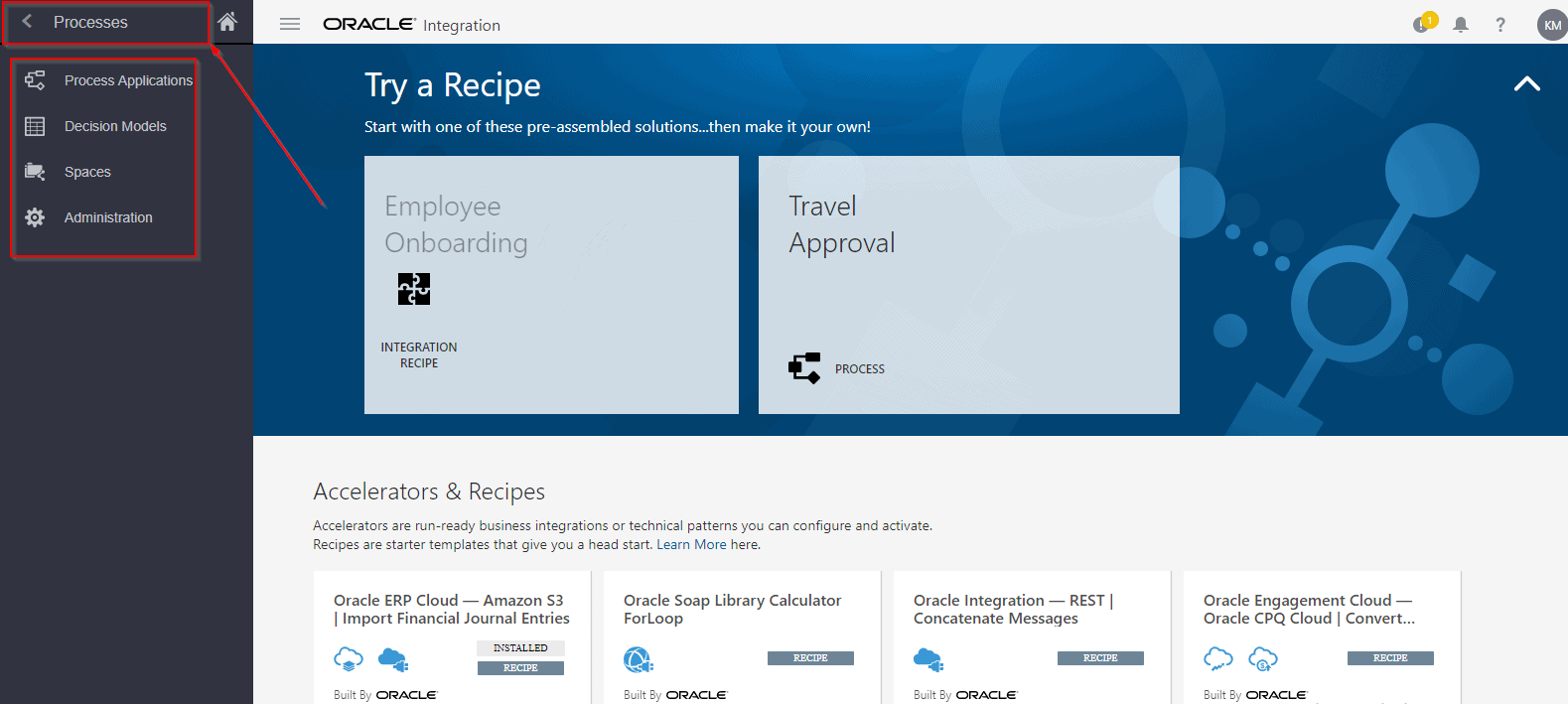
- There are several tabs available on the homepage under the Hamburger menu. Here is a short introduction to each of these Tabs:
a) Process Applications: The Process Applications page provides access to common process application-related features. Using Process Applications, you can create applications from scratch, based on a QuickStart App, or by importing and Manage your applications, including viewing, unlocking, cloning, downloading, and deleting.
b) Decision Models: Create decision models to make your business processes less complex, easier to manage, and more robust in the face of change. Instead of creating multiple decisions, you can create a decision model consisting of decisions and sub-decisions, and associated decision services to allow you to use the decision model in your business processes.
c) Spaces: Use this option to create, manage and delete spaces.
d) Administration: This is used for the Administration of spaces, Applications, Quickstart apps, Player and Import.
4. Oracle Integration Visual Builder Console:
- From the Navigation Pane, Use the Visual Builder feature to quickly build custom web and mobile applications that can integrate with Oracle SaaS and PaaS using Fusion Applications REST services.
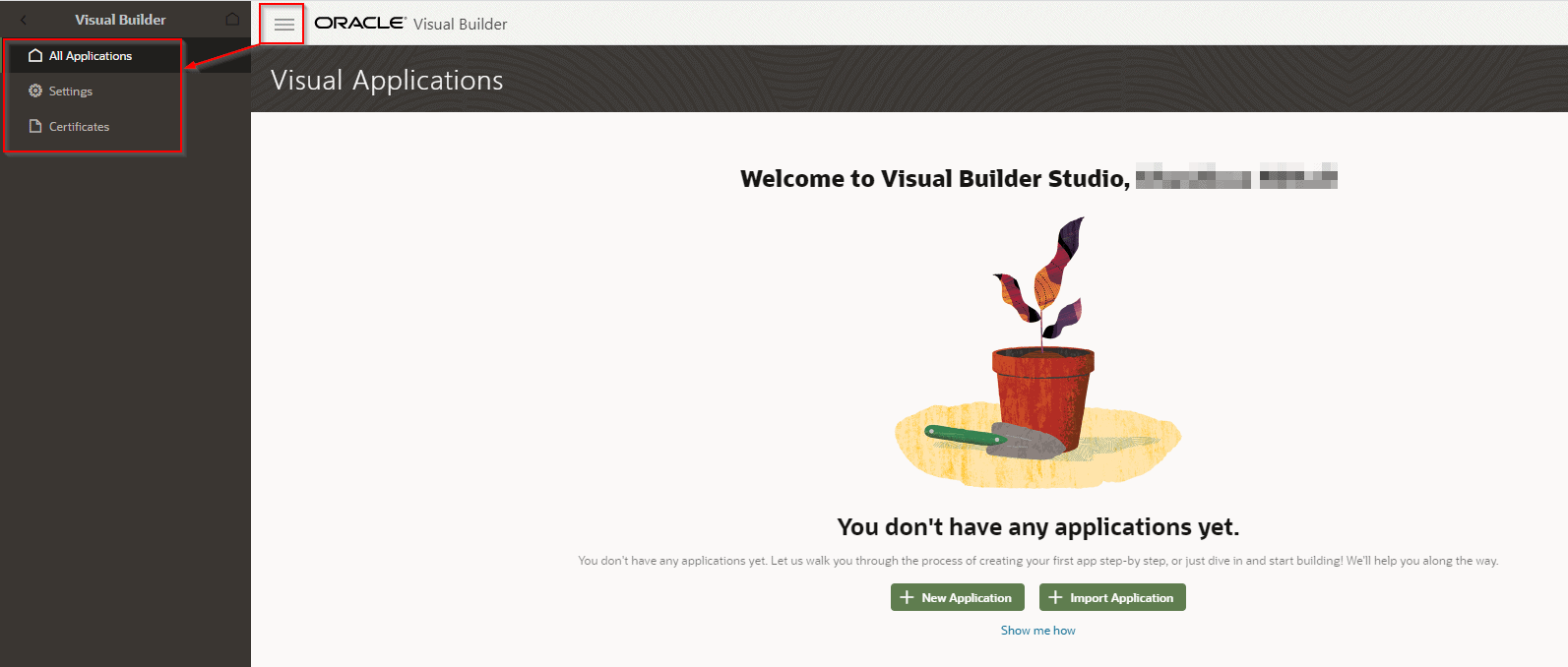
- There are several tabs available on the homepage under the Hamburger menu. Here is a short introduction to each of these Tabs:
a) All Applications: It will show all the applications that you have created or imported. You only see the above Landing page if you log in to Visual Builder and you do not have any applications. You can click New Application to open the Create Application wizard or you can Import Application.
b) Settings: You can check and set the Tenant settings here.
c) Certificates: You can check all the certificates here.
5. Oracle Integration Designer Console:
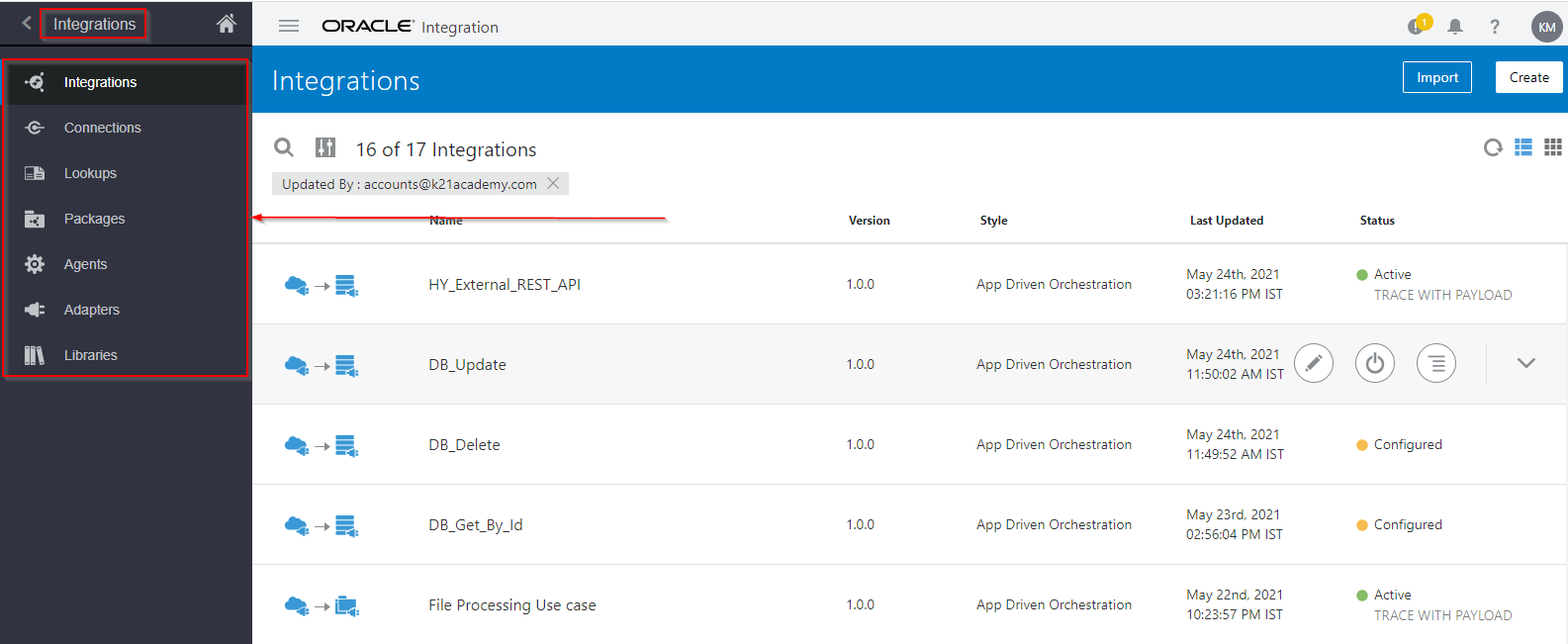
- Once you have created an Instance of Oracle Integration, navigate the Oracle Integration home page and click on Integrations from Navigation pane and it will show all the options available therein Designer Console.
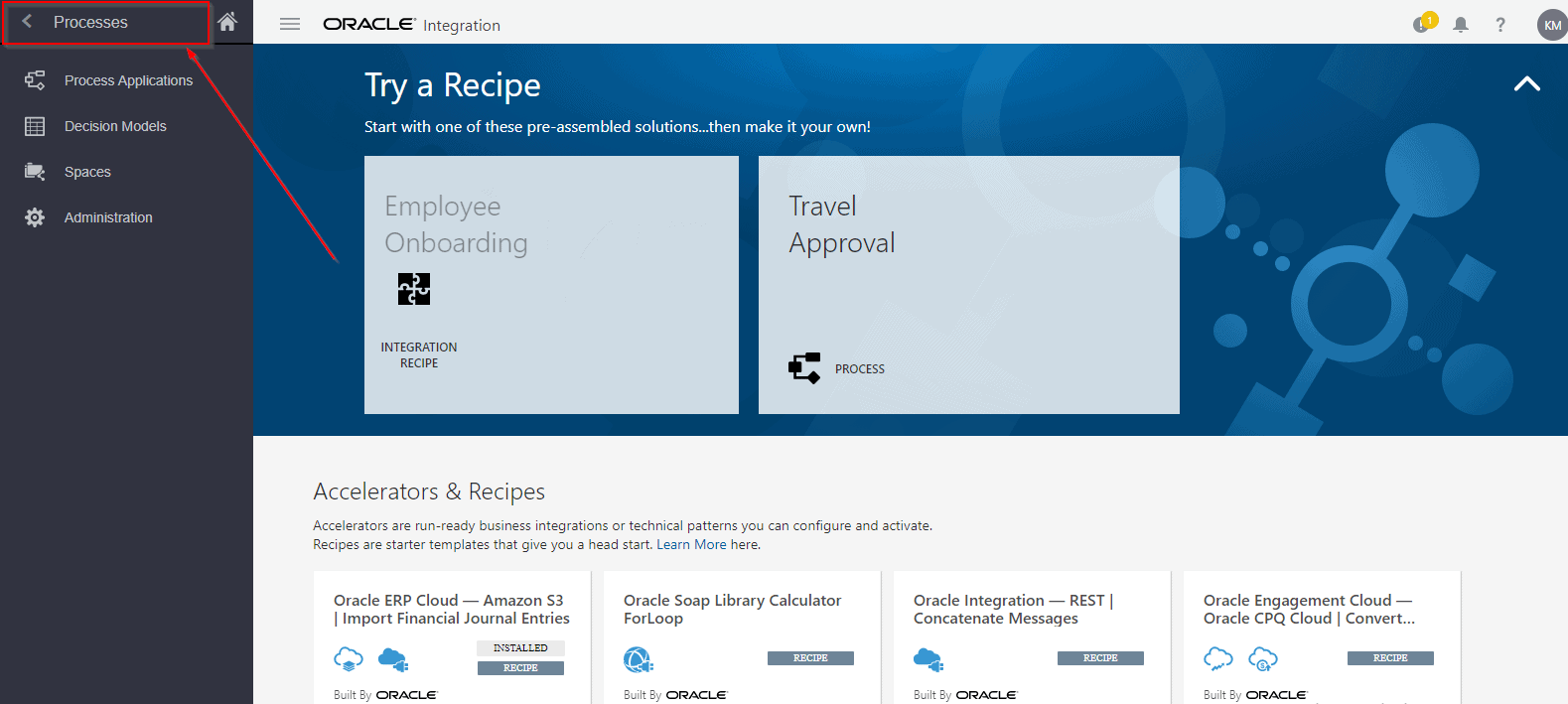
There are several tabs available on the homepage under the Hamburger menu. Here is a short introduction to each of these Tabs:
a) Integrations: Integrations are processes that utilize connections (among other things) to implement a business process.
b) Connections: Connections are the various connectors that can be utilized to communicate with external applications. Communication can be done with conventional systems like File, FTP, etc., and also with new social media and other applications, like LinkedIn, Facebook, Twitter, Evernote, etc.
c) Lookups: A bit like DVMs in SOA Suite, can cross-reference values of the same attribute/element when mapping from one system to another.
d) Packages: A bit like partitions in EM console, can be used to group similar integrations.
e) Agents: Agents are used to connecting to on-premise applications. For example, if you are using on-premise systems like ERP/SAP and also using Oracle OIC in the same implementation, you would have to use an agent to connect to the OIC application.
f) Adapters: Adapters lists all the adapters that are available for external communication. Currently, about 50 adapters are offered.
g) Libraries: A library is a file or a collection of multiple files bundled in a JAR that contain Javascript functions. Library is used within an integration and is executed by a Java-script engine on the server as part of an integration flow.
This is all in nutshell about Oracle Integration Cloud Consoles. We cover this in Provisioning Instance and Console walkthrough module of our Oracle Integration Cloud Services Training (To register for FREE Masterclass, click here) where we also cover about configuring Adaptors and connections, Configuring integrations, Data Mapping, Lookups, SaaS, On-premises integration agents, Security, Schedules, Versioning, Activating, Monitoring integrations and much more.
Related Links/References:
- Step by Step guide here to get a FREE Oracle cloud account.
- Oracle Integration Cloud (OIC) For Beginners Overview
- [Free Masterclass] Oracle Integration Cloud Services
- 6 Docs Every Oracle Cloud Integrator Must Read
- How to exporting Business Data and Visual Builder Cloud Service (VBCS)
- How Import Business Data in Visual Builder Cloud Service (VBCS)
- Enabling Clone Utility On OIC-C (Doc ID 2481520.1)
- Oracle Documentation: Clone an Integration
Next Task For You
Do you want to learn more about Oracle and confuse where to start or which certification is right for you? Then, click on the register now button below to register for a Free Masterclass on Oracle [1Z0-1042] Certified Cloud Integration Expert, which will help you better understand and choose the right path and clear the certification exam.


![Microsoft Agentic AI Business Solutions Architect [AB-100] | K21 Academy](https://test.k21academy.com/wp-content/uploads/2025/11/Microsoft-Agentic-AI-Business-Solutions-Architect-AB-100-Exam-Overview1.png)


