




This post is Part I in two-part series covering steps on How to Download & Install Oracle Access Manager OAM 12c PS3(12.2.1.3.o). In Part II, I’ll cover How to create Schema using RCU, and Configure OAM Domain.
What is OAM/IDM
If you don’t know already Oracle Access Manager (OAM) is Oracle’s recommended Single Sign-On (SSO) solution for Web Access Management and is used for Authentication & Coarse-Grained Authorization for both On-Premise and Cloud Web Applications. OAM is used to protect both Java & .NET applications including.
- OAM is part of Oracle’s Identity & Access Management Suite (IDM), for the list of all Oracle IDM products Click Here
- For documentation of IDM 12cPS3 check my previous post here
High-Level Installation Steps
- Install Certified Database for OAM & Fusion Infrastructure Schema. For List of Certified Databases, check Certification Matrix here
- Install Certified JDK
- Install Oracle Fusion Middleware Infrastructure 12.2.1.3
- Install Oracle Identity & Access Management Software 12.2.1.3 (Note: Make sure IDM & FMW Infra software are installed in the same ORACLE_HOME)
- Create Schema using Repository Creation Utility (RCU). We are going to use 12c RCU that comes as part of Fusion Middleware Infrastructure Install in an earlier step. For the 11g version of RCU, check here
- Create WebLogic Domain covering Admin Server and Managed Server for OAM
- Start WebLogic Admin & Managed Servers
- Test OAM Consoles
Prerequisite
- At least 16 GB of physical memory & Oracle Enterprise Linux 6.6 or later
- A certified Database
- Operating System User credential like Oracle (this user will own IDM software)
- SYS database user credentials (required to create the schema using RCU)
- Oracle Java Development Kit (JDK) 1.8.0_131 or later (Click Here to download)
- Oracle Fusion Middleware Infrastructure 12.2.1.3.0 (Click Here to download)
- Oracle Access Management 12.2.1.3.0 (Click Here to download) Product, Oracle Identity and Access Management 12cPS3 (12.2.1.3.0)
Assumption
- ORACLE_HOME= /u01/app/oracle/product/12.1.0.2/db_1
- You must install the Fusion Infrastructure(Weblogic Server) & Oracle Access Manager software in the same ORCALE_HOME directory (We are going to install under /u01/app/oracle/oam12c )
Low-Level Installation Steps
Step 1: Operating System, Database & JDK Installation
Make sure your operating system, Database, JDK ( Above jdk1.8.0_131+) are as per the OAM 12c Certification matrix:
- https://www.oracle.com/technetwork/middleware/ias/downloads/fusion-certification-100350.html
- https://www.oracle.com/technetwork/middleware/fmw-122130-certmatrix-3867828.xlsx
Step 2: Install Oracle Fusion Middleware Infrastructure
Note: This step will install WebLogic, Coherence, RCU and other required software for OAM.
1. Use the terminal window and run the Oracle Fusion Middleware Infrastructure fmw_12.2.1.3.0 10 installers as the oracle user. In my case installer is located in the /stage/oracle/fusion_infra/12.2.1.3.0/ directory.
Note: Make sure you set the environment variables as (In my case JDK 1.8.151 is installed under /usr/java)
- export JAVA_HOME=/usr/java/jdk1.8.0_151
- export PATH=$JAVA_HOME/bin:$PATH
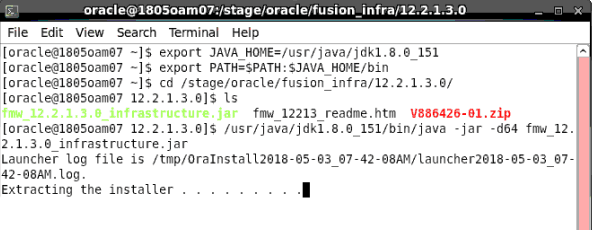
The installer starts, and after a few seconds the “Fusion Middleware 12c Infrastructure Installation – Step 1 of 8” window appears
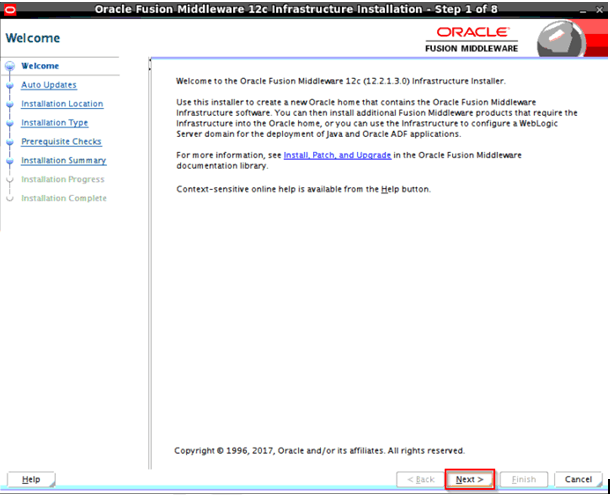
2. On the Welcome screen, click Next
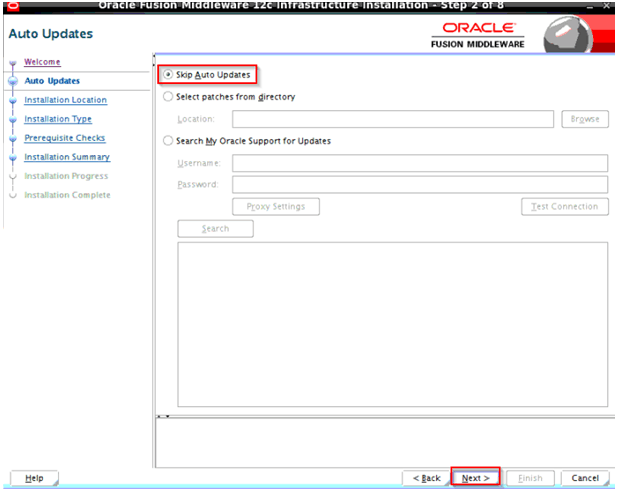
3. On Auto Updates screen, select Skip Auto Updates and click on Next (It’s preferred to download & apply updates separately)
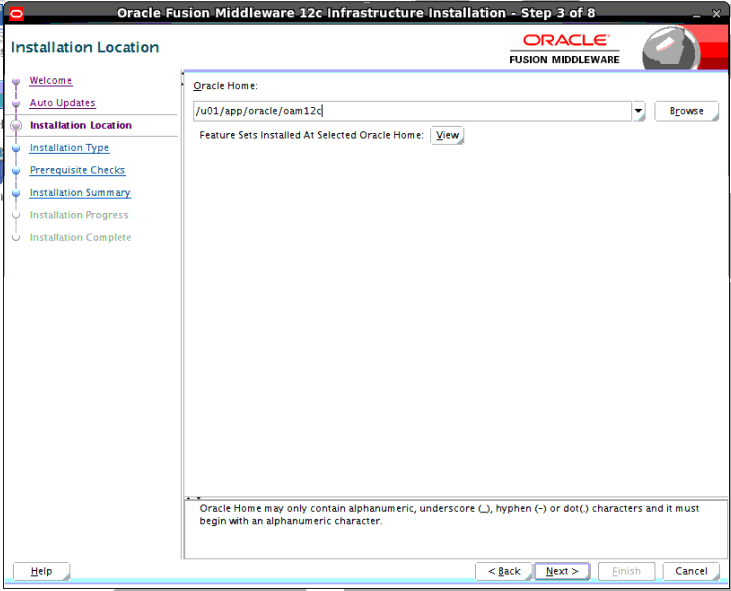
4. Enter Oracle Home =/u01/app/oracle/oam12c (Note: ORACLE_HOME in 12c used to be Fusion Middleware Home in 11g ) and Click Next
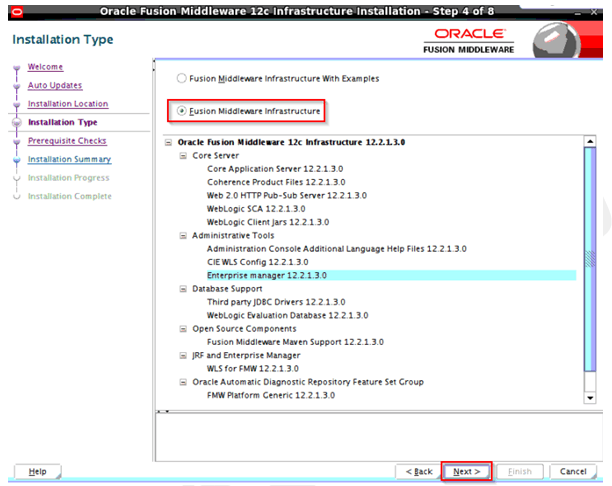
5. On Installation Type screen, Select Fusion Middleware Infrastructure & Click on Next
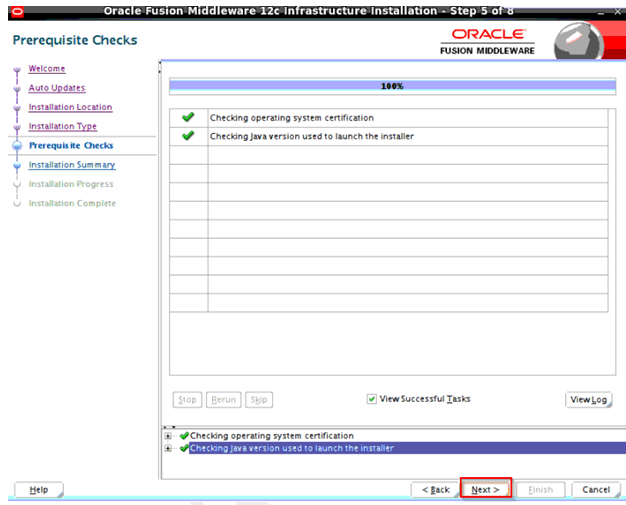
6. On Prerequisites Checks screen, once 100% complete then click on Next
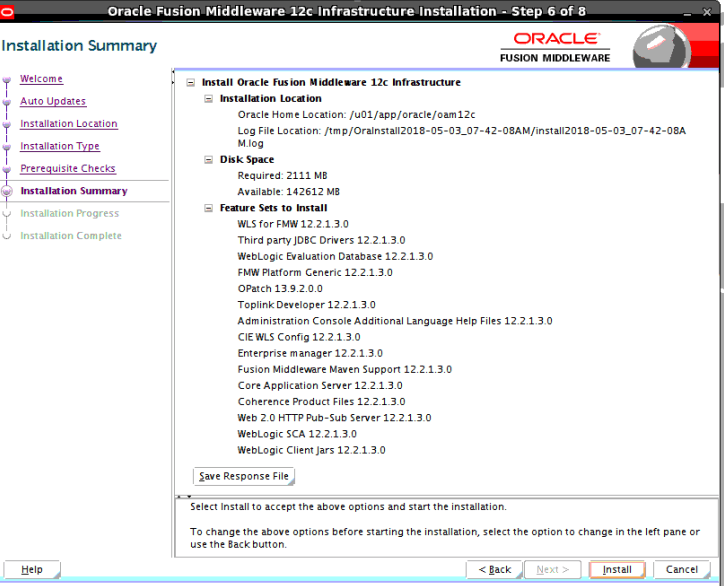
7. On Installation Summary screen, click Install (Make sure you check the Oracle Home Directory Location)
Note: You can also save Response File by clicking a button at the bottom, this response file can then be used as a template for silent install.
8. On Installation progress screen, let it complete to 100%
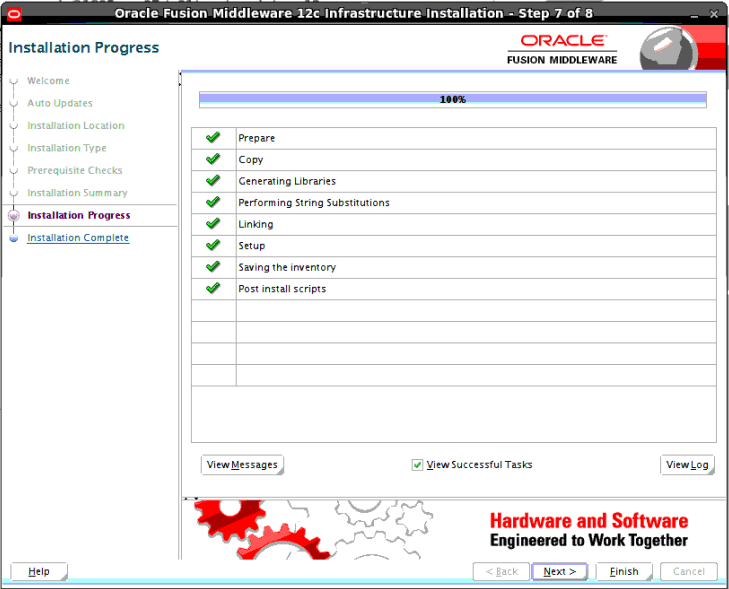
9. After a while, the installation process ends and the last window of the installation Complete appears, informing you that the installation was successful
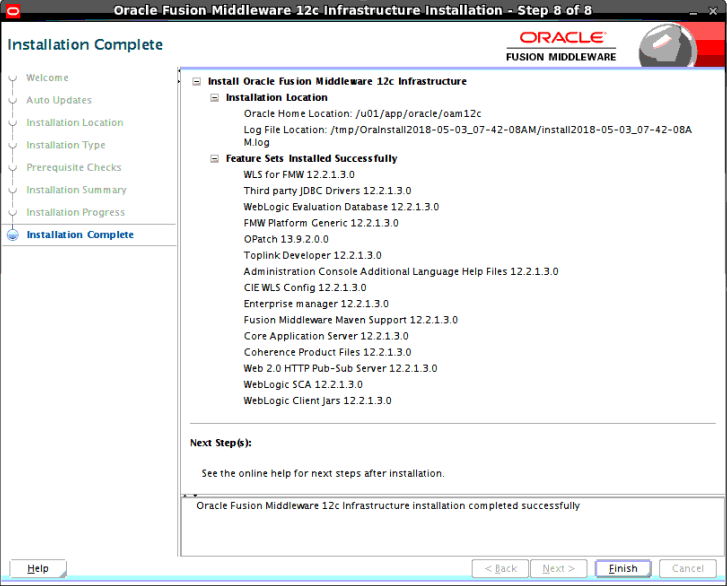
Step 3: Install Oracle Access Management 12c
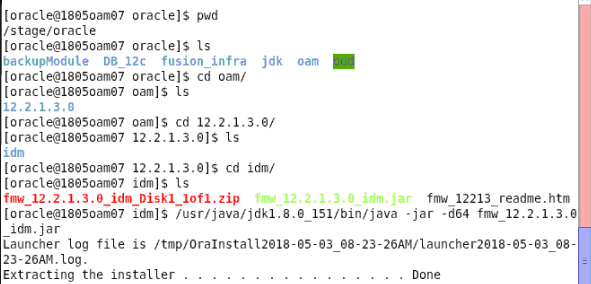
1. Launch a terminal window as Oracle and run the Oracle access manager 12.2.1.3.0 installer as the oracle user. In my case, installer is located in the /stage/oracle/oam/12.2.1.3.0/idm directory.
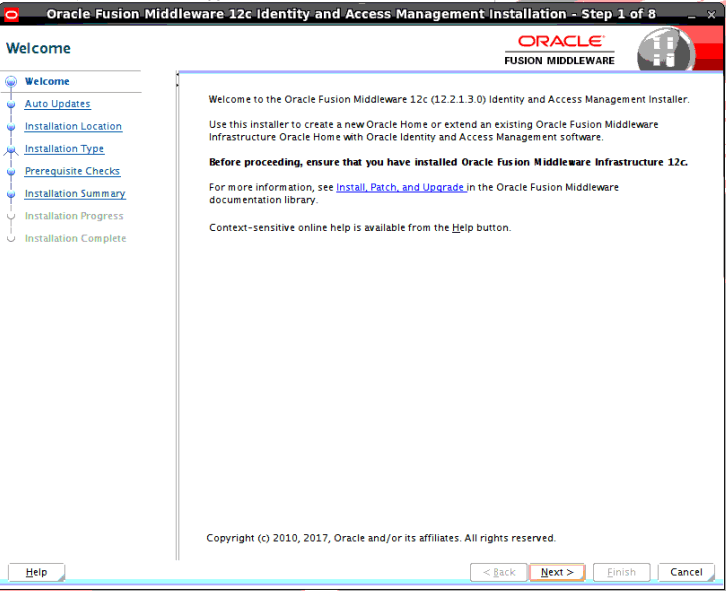
2. On the Welcome screen, click Next
3. On Auto Updates screen, select Skip Software updates and click Next (It’s preferred to download & apply updates separately)
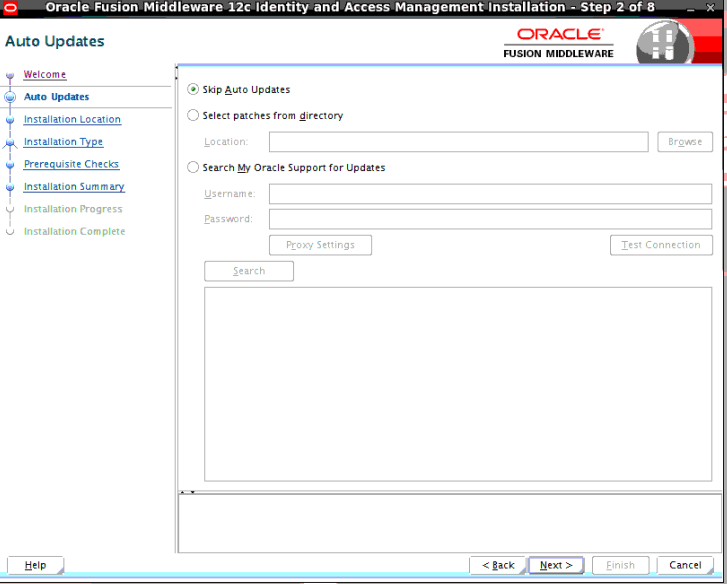
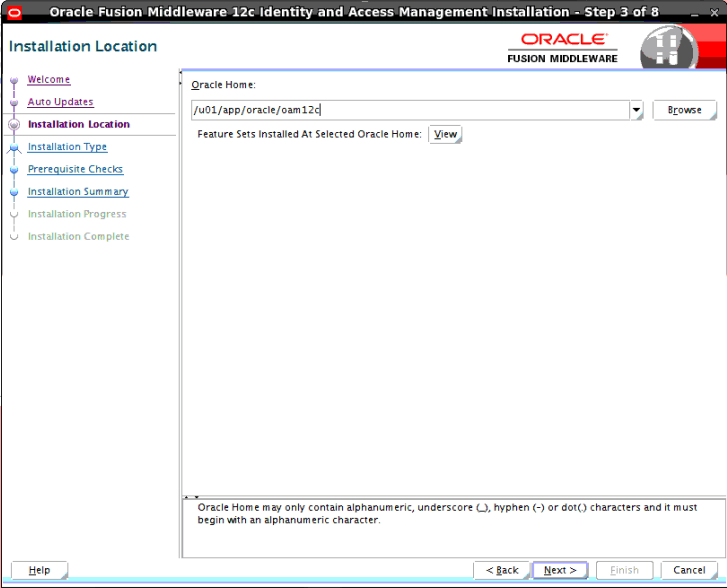
4. Enter Oracle_Home =/u01/app/oracle/oam12c and Click Next
Note: Make sure that you install OAM in same Oracle Home as e Oracle Fusion Middleware Infrastructure in previous step
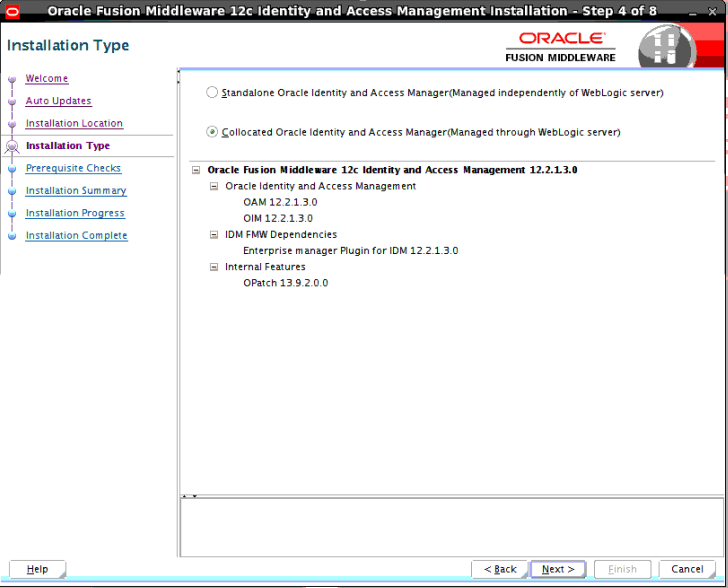
5. On Installation Type screen select Collocated Oracle identity and Access manager (Managed through WebLogic server) and click Next
Note: More on Standalone VS Collocated IDM in future posts
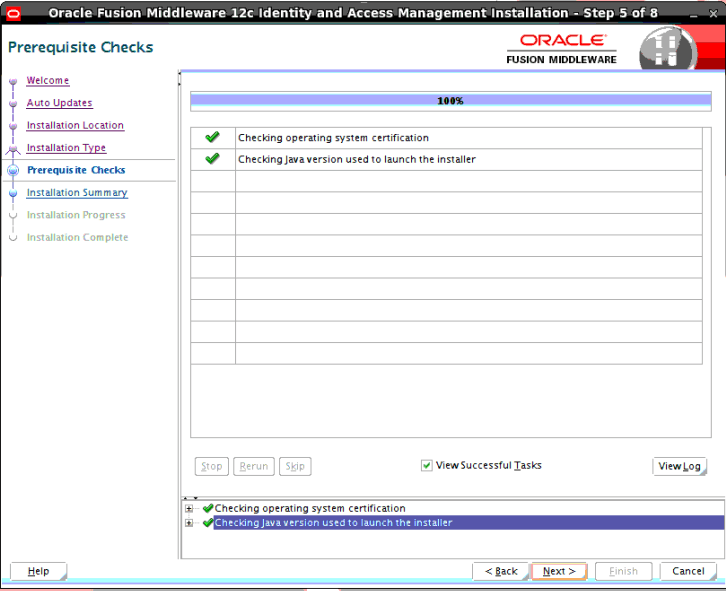
6.On Prerequisite Checks screen ensure that all checks complete successfully and click Next
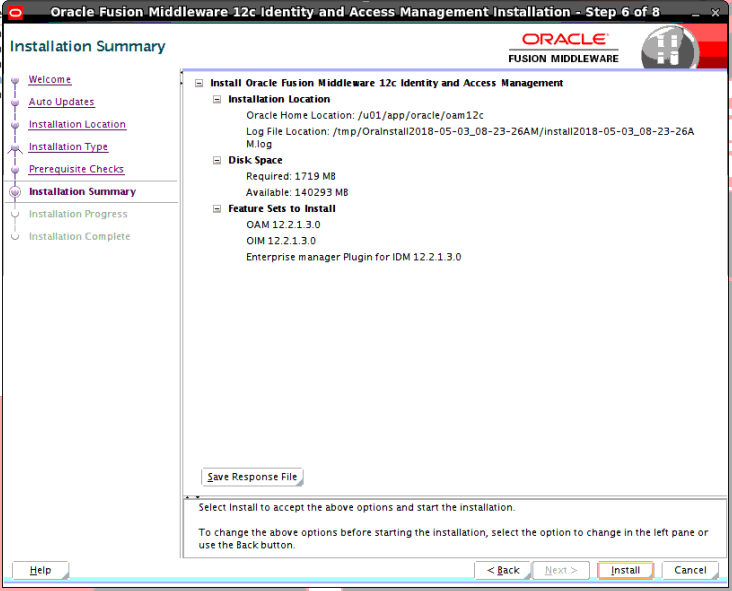
7. On Installation Summary screen, click Install
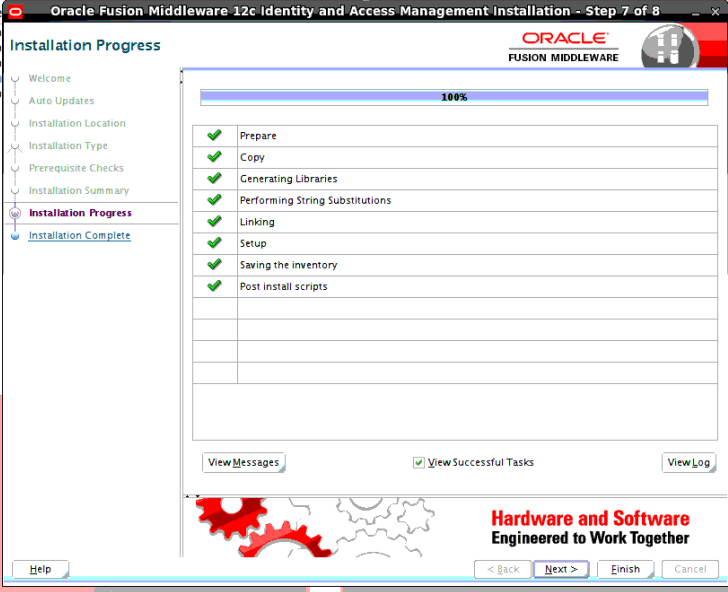
8. Installation Progress will start. When it reaches 100% then Click Next
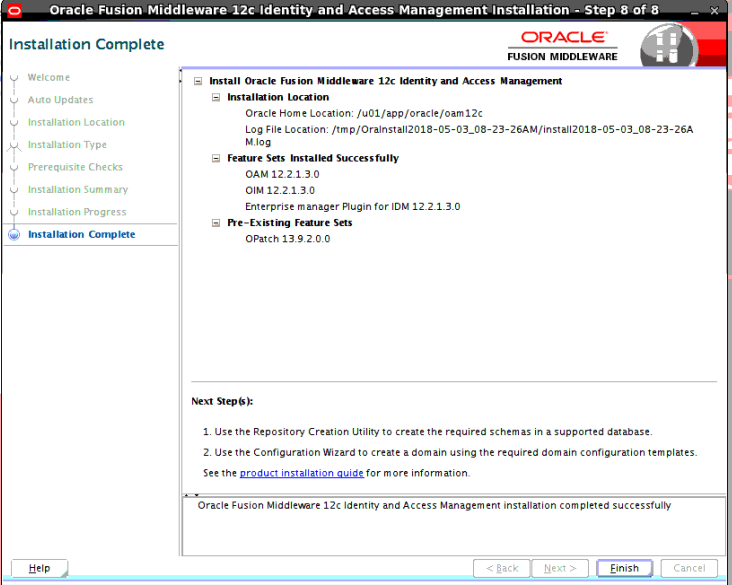
9. On Installation Complete screen, Click Finish.
Create Schema & Configure Domain
- Next is to create Schema for OAM & Configure WebLogic Domain in Part II of this series
Related Posts
- Overview of Oracle Identity & Access Management Products (OAM, OIM, OID, OUD, OES, OIF….) Click Here
- Documentation & Download of Oracle IDM 12cPS3 here
- Console in OAM: OAM Console, WebLogic & EM
- OID Consoles Overview: ODSM, Weblogic & EM
- FREE Mini-Course over eMail on IDM (OID/OAM)
- Paid Program for IDM (OAM/OID): Architecture, Install, Configure, Integrate, HA, DR, Troubleshooting etc
- Step by Step Activity Guide You Must Perform to become Expert in IDM
Next Task For You
If you like this and would like to learn Oracle Identity & Access Management then get a FREE Mini-Course on IDM/OAM/OID from here
If you are looking for commonly asked interview questions for Oracle Access Manager then just click below and get that in your inbox.


![Microsoft Agentic AI Business Solutions Architect [AB-100] | K21 Academy](https://test.k21academy.com/wp-content/uploads/2025/11/Microsoft-Agentic-AI-Business-Solutions-Architect-AB-100-Exam-Overview1.png)