



In this blog post, I have discussed how to Generate SSH Key Pair for Oracle Cloud (Windows/Linux).
Note: Oracle Cloud Services are built on the top of OCI, You will need an SSH key pair to access the Linux/Database or Exadata instances. An SSH key pair comprises a Private key and a Public key. You keep the private key on your personal computer and provide the Public key every time you launch an Instance.
You can associate a single SSH public key with multiple Linux machines (Compute/Database instances).
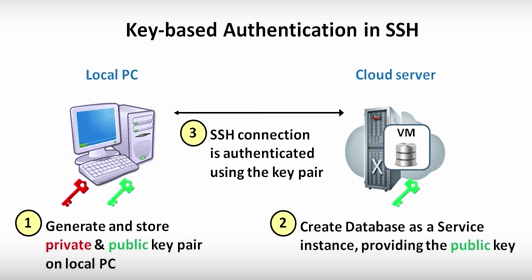
Steps To Generate SSH Key Pair
What Do You Need
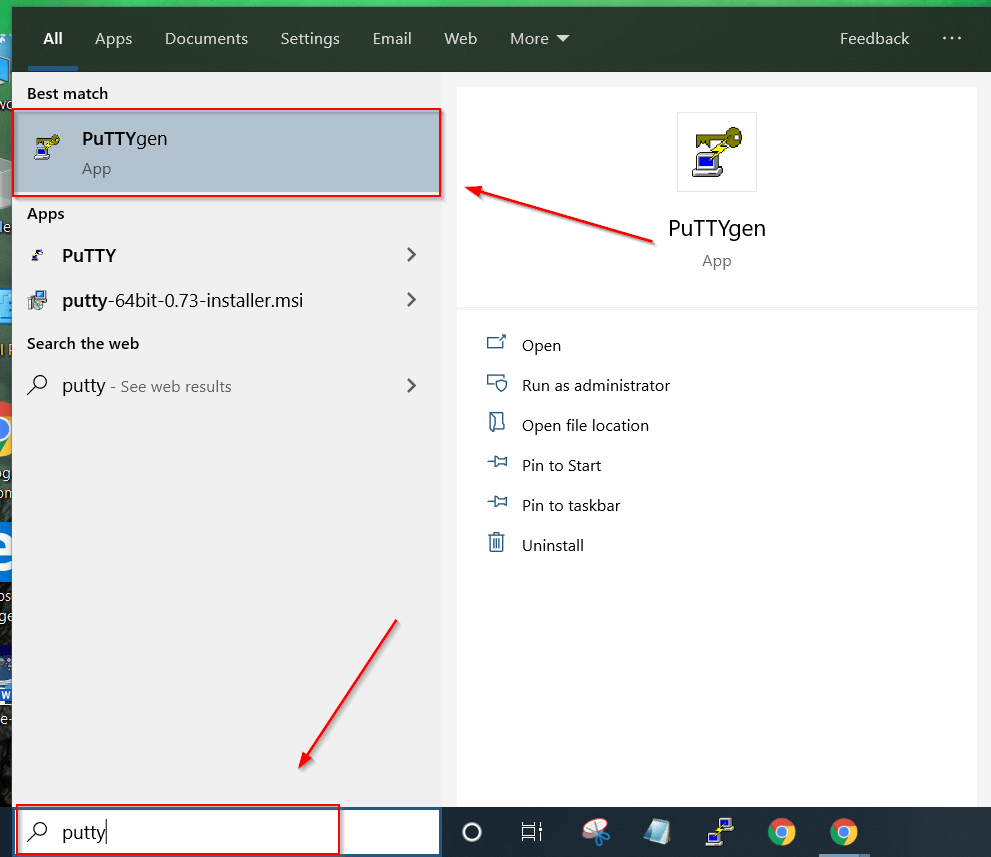
PuTTY: PuTTY is a free, open-source implementation of several network protocols including SSH. It is available for Windows and UNIX platforms. PuTTY includes several utilities including a terminal emulator, an SSH key generator, and a network transfer application.
For this blog post, we will use the PuTTY Key Generator (puttygen.exe) for Windows. Download PuTTY (64-bit) From HERE & Click HERE to Download for 32-bit.
Note: Once you Install the PuTTY on your machine, you can easily run PuTTYgen.
The process mentioned below is to be followed to generate Private and Public Keys by Using PuttyGEN.
1) Download PuTTYgen Software from the location given above.
Once done, go to Windows -> Start Menu -> All Programs -> PuTTY -> PuTTYgen.
2) Open PuttyGEN, it will look like the image below:
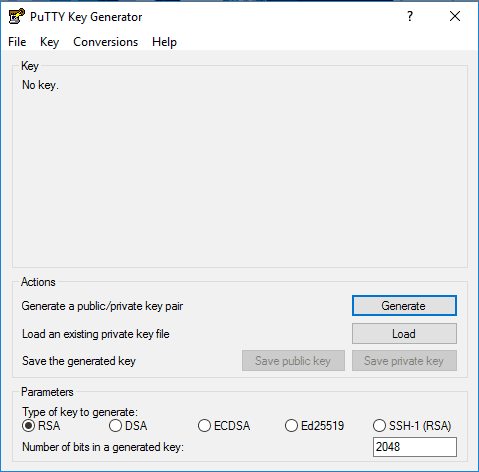
Note: Make sure the configuration shown below is selected.
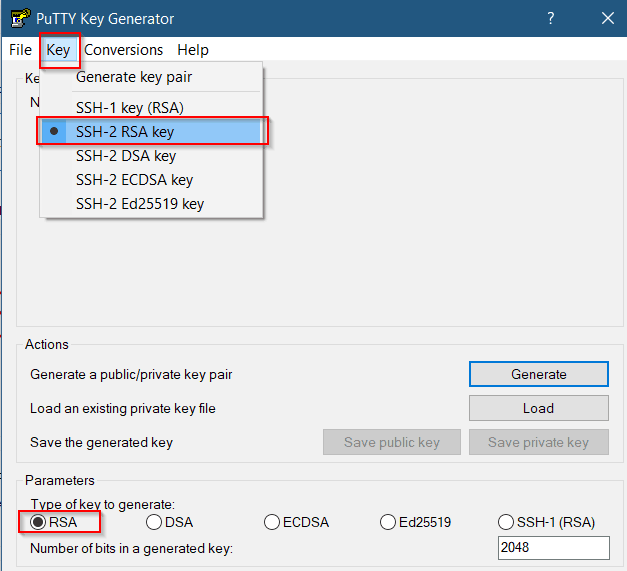
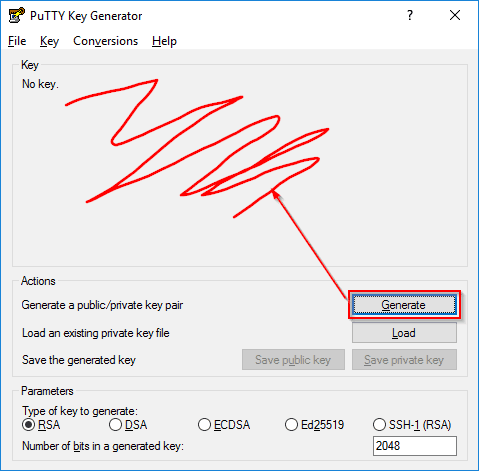
3) Click on the ‘Generate’ button and hover your mouse around the area blank area randomly to generate the keys.
4) There will be a key generated in the blank box as shown below. Click on the ‘Save private key’ button to save the private key on your system.
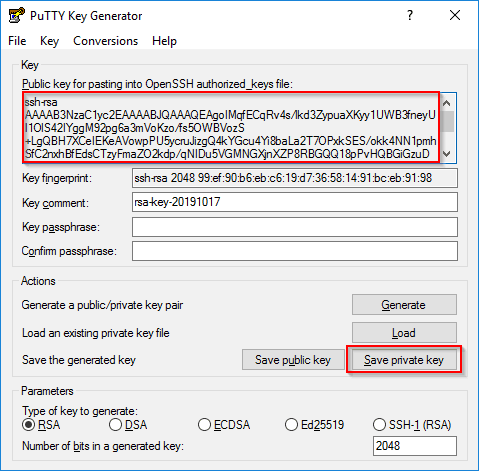
Note: We can also save the private keys without passphrase but for security reasons, you enter a passphrase. (In production, you must use a passphrase to protect your private key).
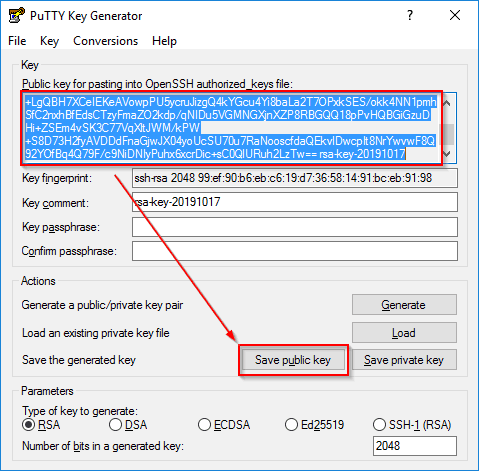
5) For saving the public key, first copy and paste the Key content in a notepad file from the window shown below as sometimes it shows an issue while accepting the public key file (During Instance creation). In that case, we can use the copied key content.
Note: Make sure you select the option to copy the key content during Instance creation as we faced issues in the past when we select the directly saved key.
6) After that, click on ‘Save public key’ to save the file and save it at the same location where you have saved the private key on your system.
Creating an SSH Key Pair on Linux
1) Open a shell or terminal for entering the commands.
2) At the prompt, enter ssh-keygen and provide a name and passphrase when prompted.
The keys will be created with the default values: RSA keys of 2048 bits.
Alternatively, you can type a complete ssh-keygen command. For example:
ssh-keygen -t rsa -N “” -b 2048 -C “<key_name>” -f <path/root_name> 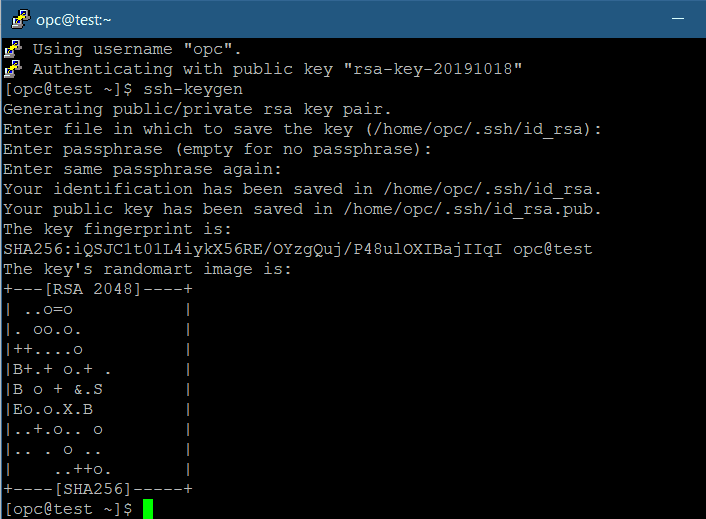
Connect to the Compute/Database Instance
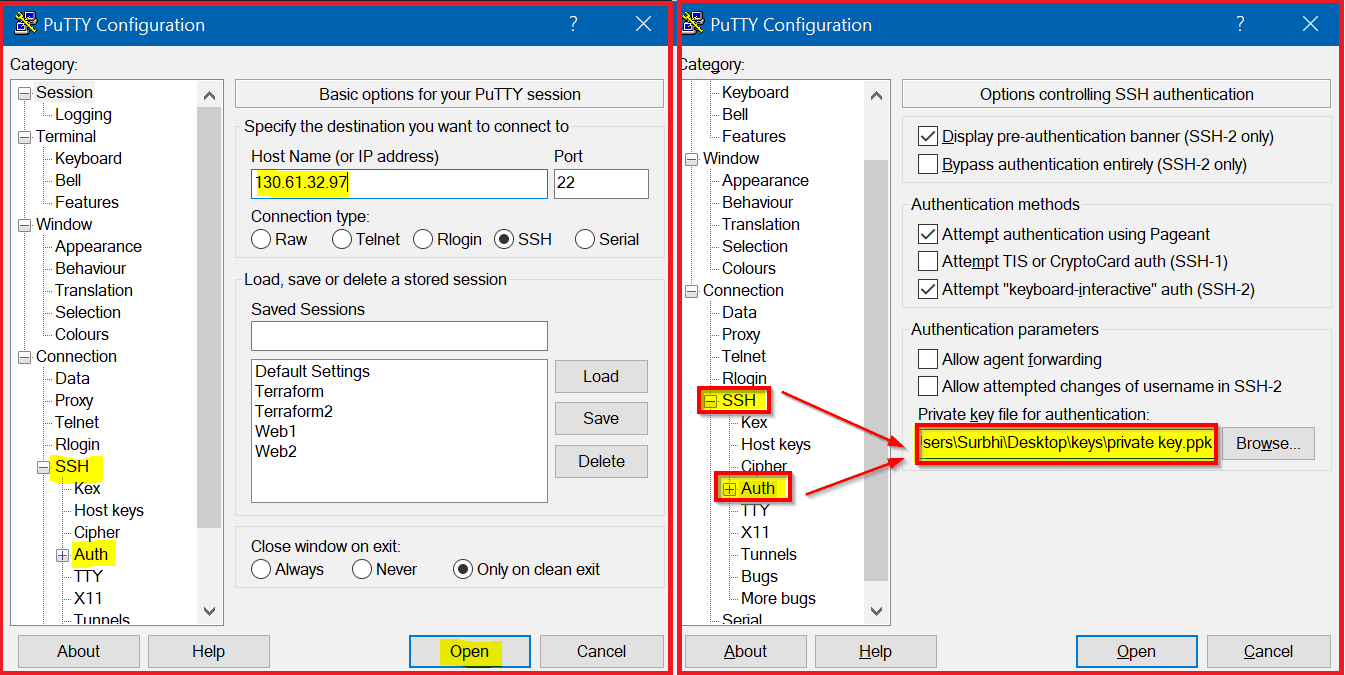
You can connect to a running instance by using a Secure Shell (SSH) for Linux or Remote Desktop connection for Windows. To connect to a Linux instance from your Laptop, you can download a free SSH client called PuTTY from HERE.
Enter the Public IP Address in the Hostname, then add the SSH Private key (Which we have created in the above-mentioned steps) under ‘SSH’ & then Auth. Click on ‘Open‘.
At last but not least, as I always say that the best way to learn something is by performing it.
Tasks for You
- If you don’t have an Oracle Trial Account, then go and register using my Absolutely FREE Step-by-Step Activity Guide.
- Create a Linux or Windows Machine (Make sure you have the SSH keys ready if you are creating a machine on Linux).
- Connect to the machine you have created. For Linux, use PUTTY and for Windows, use Remote Desktop or RDP.
Post your doubts and queries in the comments section below. If you like this post, share it with your colleagues!
Related/Further Readings
- Create Compute (Linux/Windows Machine) On Oracle Cloud (OCI)
- [Video] Oracle Cloud Infrastructure (OCI) | Compute CPU & Memory
- [Video] How To Create Database on Oracle’s Gen2 Cloud (OCI)
- [Troubleshooting] Compute (Linux/Windows) & Database Instance Connectivity Issue in Oracle Cloud (OCI)
- SOAP Vs REST APIs In Oracle Integration Cloud (OIC)
Begin Your Cloud Journey
Begin your journey towards becoming an Oracle Cloud Expert and earn a lot more in 2024 by joining our FREE CLASS. You will also know more about the Roles and Responsibilities, Job opportunities for OCI Architects, Admins in the market, and what to study Including Hands-On labs you must perform to get the Higher Paying jobs.
Click on the below image to Register for Our FREE Class on MASTERING ORACLE CLOUD FOR DBAs, APPs DBAs, ARCHITECTS & SYS ADMINS


![Microsoft Agentic AI Business Solutions Architect [AB-100] | K21 Academy](https://test.k21academy.com/wp-content/uploads/2025/11/Microsoft-Agentic-AI-Business-Solutions-Architect-AB-100-Exam-Overview1.png)


