




This post covers upgrading classic capture mode to integrated capture in Oracle GoldenGate.
- If you are new to Oracle GoldenGate then I highly recommend you to look at Oracle GoldenGate 12c Overview & Components and Oracle GoldenGate 12c Download & Installation
- If you are already working/using Oracle GoldenGate then look at Troubleshooting Oracle GoldenGate using Logdump Utility
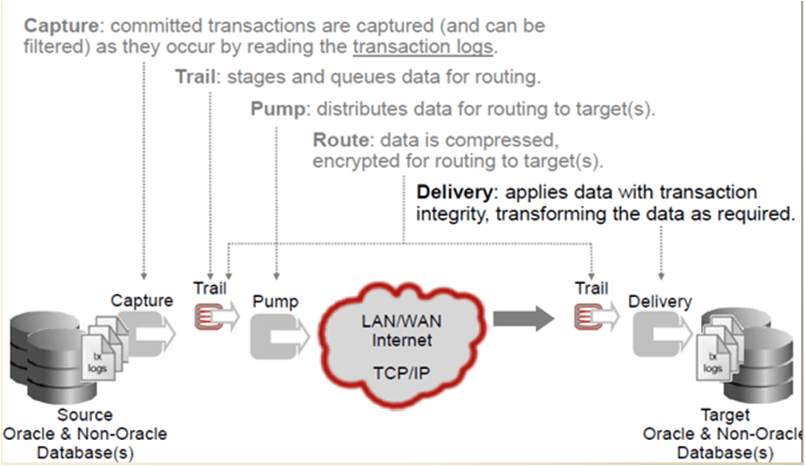
From 11gR2 onwards, Oracle Goldengate introduced a new feature called as Integrated Extract. The main difference between the classic capture and integrated capture modes is that in the classic capture the extract reads the Oracle database online redo log files/archive log files to capture changes while in the integrated capture mode the database log mining server reads the redo log files and captures changes in the form of LCR’s (Logical Change Records) which are then accessed by the Golden Gate extract process.
Classic Capture:
Integrated Capture
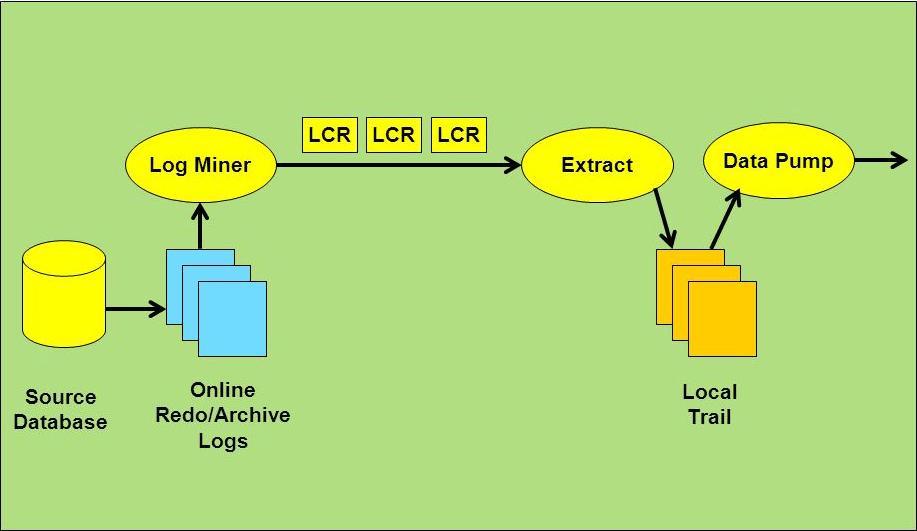
Note: Integrated mode is only applicable for Oracle Databases and from 11gR2 onwards.
Since organizations are deploying this new feature, there is an option of upgrading the classic capture to an integrated one. Let us see how to perform this upgrade.
In this case, we have a (classic capture) extract group called ext1. Let us create the extract process in Classic mode first.
GGSCI (k21) 1> ADD EXTRACT ext1, TRANLOG BEGIN NOW
EXTRACT added.
GGSCI (k21) 2> ADD RMTTRAIL ./dirdat/lt EXTRACT ext1
RMTTRAIL added.
GGSCI (k21) 3> EDIT PARAMS ext1
EXTRACT ext1
USERID ggate, PASSWORD ggate
RMTHOST 192.168.1.188, MGRPORT 7809
RMTTRAIL ./dirdat/lt
TABLE ggtraining1.dept1;
GGSCI (k21) 4> START EXTRACT ext1
Sending START request to MANAGER …
EXTRACT EXT1 starting
How to know If the Extract Process is Classic or Integrated
Once the extract process has started, it is reading the online redo log files of the database – so it is classic extract.
GGSCI (k21) 5> INFO EXTRACT ext1
EXTRACT EXT1 started 2017-12-18 12:15 Status RUNNING
Checkpoint Lag 00:00:00 (updated 00:00:10 ago)
Log Read Checkpoint Oracle Redo Logs
2017-12-18 13:28:09 Seqno 182, RBA 2508668
SCN 0.0 (0)
To upgrade Classic to Integrated Capture
- Stop the Extract Process ext1 and register it with the database.
- Check if Extract can be upgraded.
- For an upgrade classic extract, use the UPGRADE INTEGRATED TRANLOG command.
Step1:
GGSCI (K21) 8> STOP EXTRACT ext1
Sending STOP request to EXTRACT EXT1 …
Request processed.
GGSCI (K21) 9> REGISTER EXTRACT ext1 DATABASE
2017-12-18 14:22:12 INFO OGG-02003 Extract EXT1 successfully registered with the database at SCN 1213445.
You can also open the alert log file of the database and see whats happening in the background. You will see the logminer build happening in the background. Also in case of any issues, the alert log of DB will come handy.
Step2: Register and Check if the extract can be upgraded.
You may notice an error message as shown below stating that the extract cannot be upgraded at this stage.
GGSCI (K21) 11> STOP EXTRACT ext1
Sending STOP request to EXTRACT EXT1 …
Request processed.
GGSCI (K21) 12> REGISTER EXTRACT ext1 DATABASE
2017-12-18 14:27:34 INFO OGG-02003 Extract EXT1 successfully registered with the database at SCN 1213492.
GGSCI (K21) 13> INFO ext1 UPGRADE
Extract EXT1 is ready to be upgraded to integrated capture.
Step 3: For an upgrade the classic capture extract, use the UPGRADE INTEGRATED TRANLOG command as shown below.
GGSCI (K21) 14> ALTER EXTRACT ext1 , UPGRADE INTEGRATED TRANLOG
Extract EXT1 successfully upgraded to integrated capture.
GGSCI (K21) 15> START EXTRACT ext1
Sending START request to MANAGER …
EXTRACT EXT1 starting
GGSCI (K21) 16> INFO EXTRACT ext1
EXTRACT EXT1 Initialized 2017-12-18 15:24 Status RUNNING
Checkpoint Lag 00:00:00 (updated 00:01:57 ago)
Log Read Checkpoint Oracle Integrated Redo Logs
2017-12-18 15:24:42
SCN 0.1213550 (1213550)
We can see that the extract is no longer reading the redo log files, it’s reading from Oracle Integrated redo logs.
You can query DBA_CAPTURE view for getting the information as well at DB level.
SQL> select CAPTURE_NAME, QUEUE_NAME, STATUS from DBA_CAPTURE;
CAPTURE_NAME QUEUE_NAME STATUS
—————————— —————————— ——–
OGG$CAP_EXT1 OGG$Q_EXT1 ENABLED
This post is from our Oracle GoldenGate 12c Administration Training, in which we cover Architecture, Installation, Configuring & Preparing the Environment, DML Replication, Online Change Synchronization, Initial Load, Oracle GoldenGate Security, Performance of Oracle GoldenGate and Troubleshooting and much more.
If you wish to learn GoldenGate systematically then look at Activity Guides (tasks) you must perform from our Step by Step Guide to Learn Oracle GoldenGate
Next Task For You
Want to move ahead in your career and want to get a higher Earning Job?
Get 7+ Courses for DBAs & Apps DBA in a bundle program and learn from the Industry’s best Experts.


![Microsoft Agentic AI Business Solutions Architect [AB-100] | K21 Academy](https://test.k21academy.com/wp-content/uploads/2025/11/Microsoft-Agentic-AI-Business-Solutions-Architect-AB-100-Exam-Overview1.png)