



This post covers How To Create Compute (i.e. Linux, Windows Machine or with any other O.S. ) on Oracle Cloud (OCI)
Create a Compute (Linux/Windows) Instance in Oracle Cloud
1) Log in to the Oracle Cloud account.
Note: If you haven’t registered for the Oracle Cloud Free Trial account yet, then, please Download Step by Step Activity Guide to Register for Oracle Cloud Trial Account
2) Go to the Navigation Menu click Compute then Instance
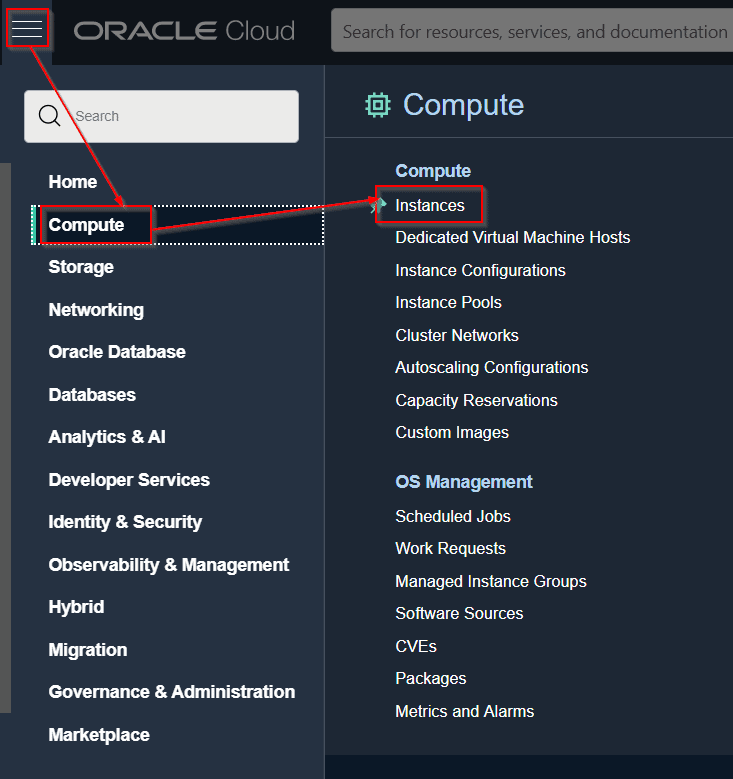 3) Select the Compartment, in which you want to create the Compute machine
A compartment is a logical container within your account used to store Oracle Cloud Infrastructure (OCI) Resources created within that compartment (such as compute, storage, and network) and you impose some policies to that compartment, which restricts who can use the resources created within than compartment other than administrators of your account.
By default, your instance launches in the current compartment, and the resources you choose also come from the current compartment.
To know more about the Compartment, check here
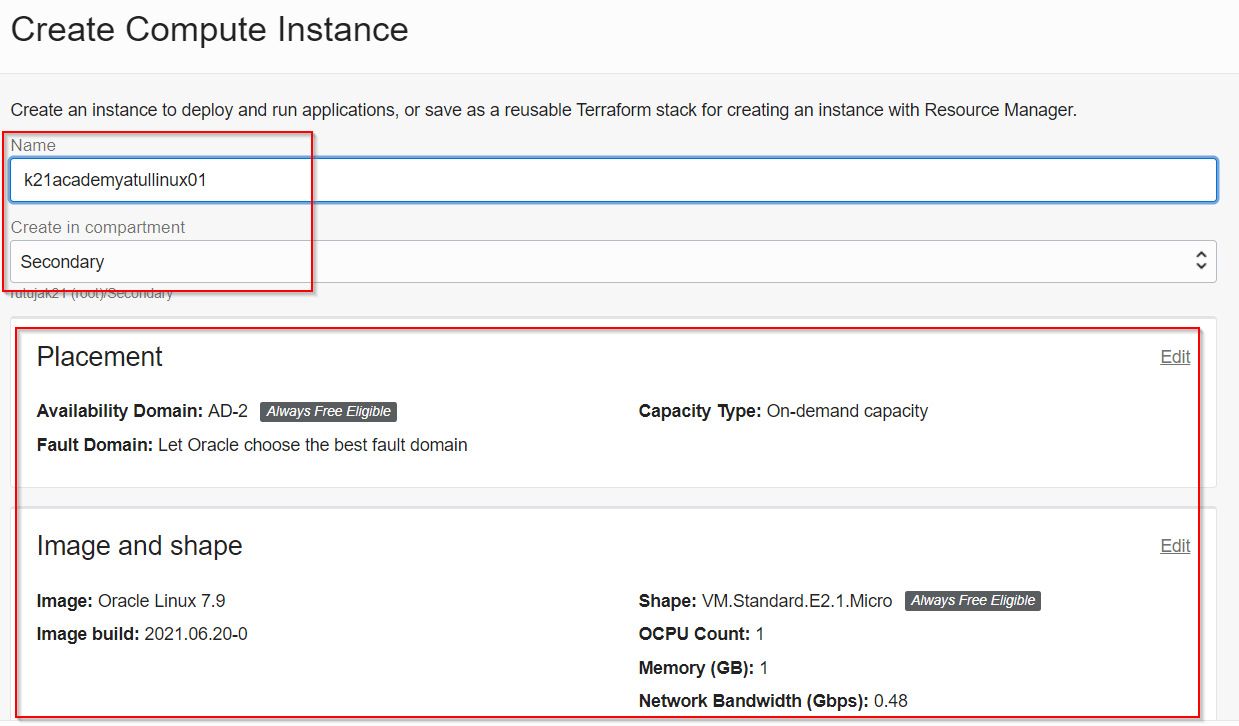
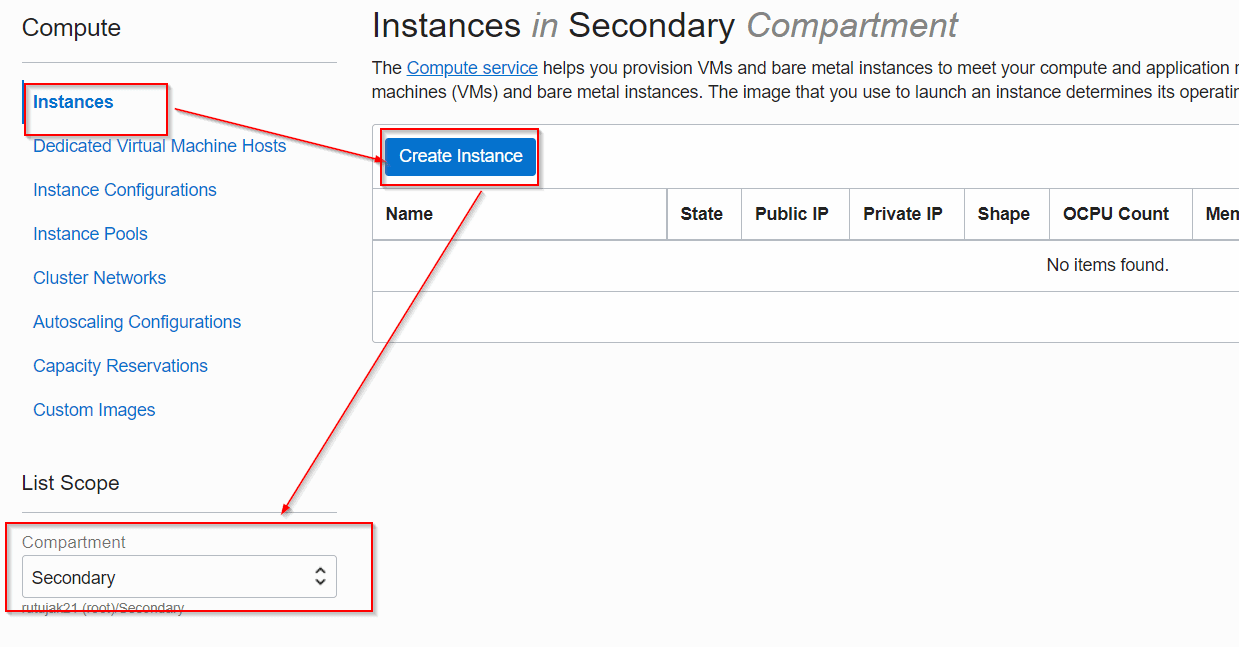 4) To create a Linux or Windows Machine, click on Create Instance. Fill up the required details
- When you click Change Image Source, the Browse All Images dialog box opens with the operating system or image source options (To create windows machine, select windows Image)
- Choose instance type: Select Virtual Machine or Bare Metal Machine.
- When you click Change Shape, the Browse All Shapes dialog box opens with a list of the virtual machine (VM) or bare metal shapes that are available for the instance type that you selected.
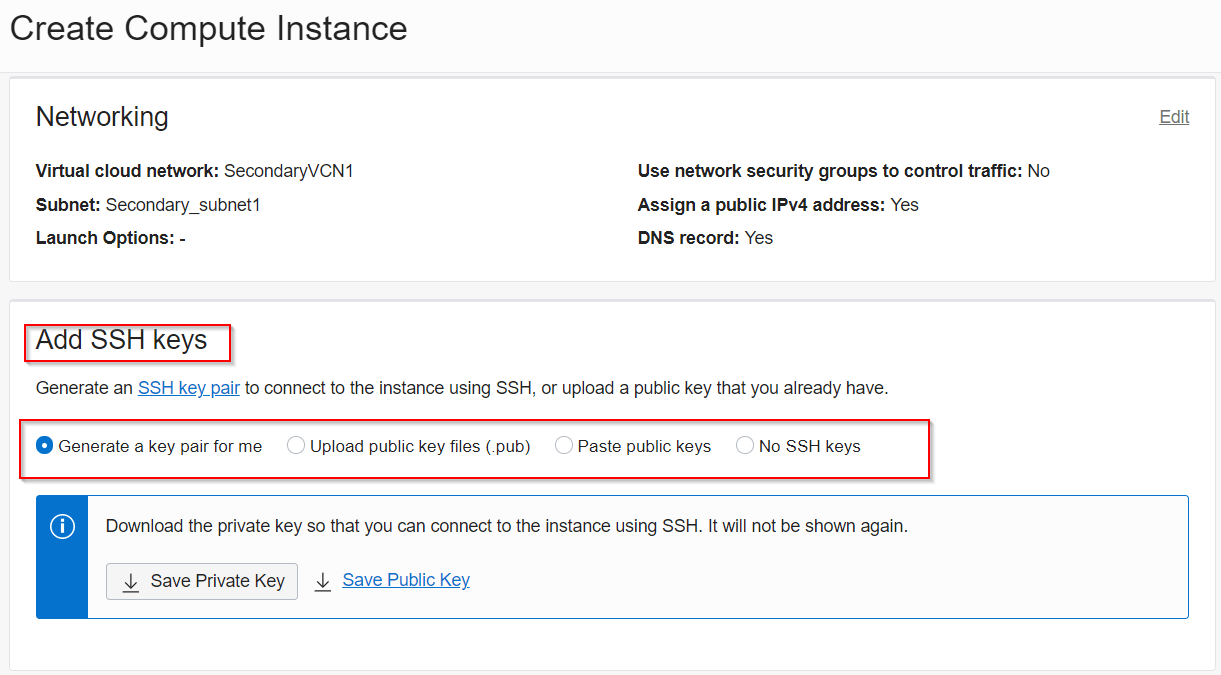
 Add SSH key: The public key portion of the key pair that you want to use for SSH access to the instance. You can drag and drop single key files into the box.
Note: SSH Keys are required only for Linux Machine and not for Windows Machine.
To know how to generate the SSH keys, please download the free Guide from here
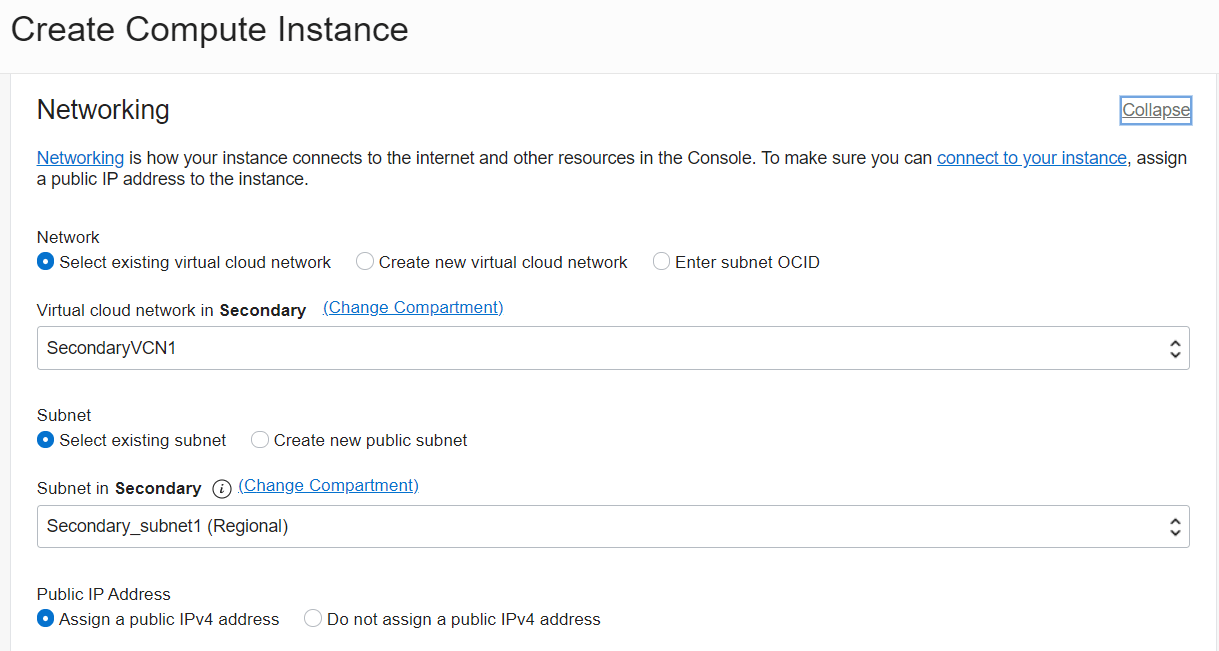
 Note: If you are new to Networking, & want to learn more about the Networking Basic Concepts like VCN, Subnet, Security List, IGW, DRG. Then please check here
 Once you click Create, you will see your Compute Linux Instance will start provisioning, & its status will change to Available in few minutes
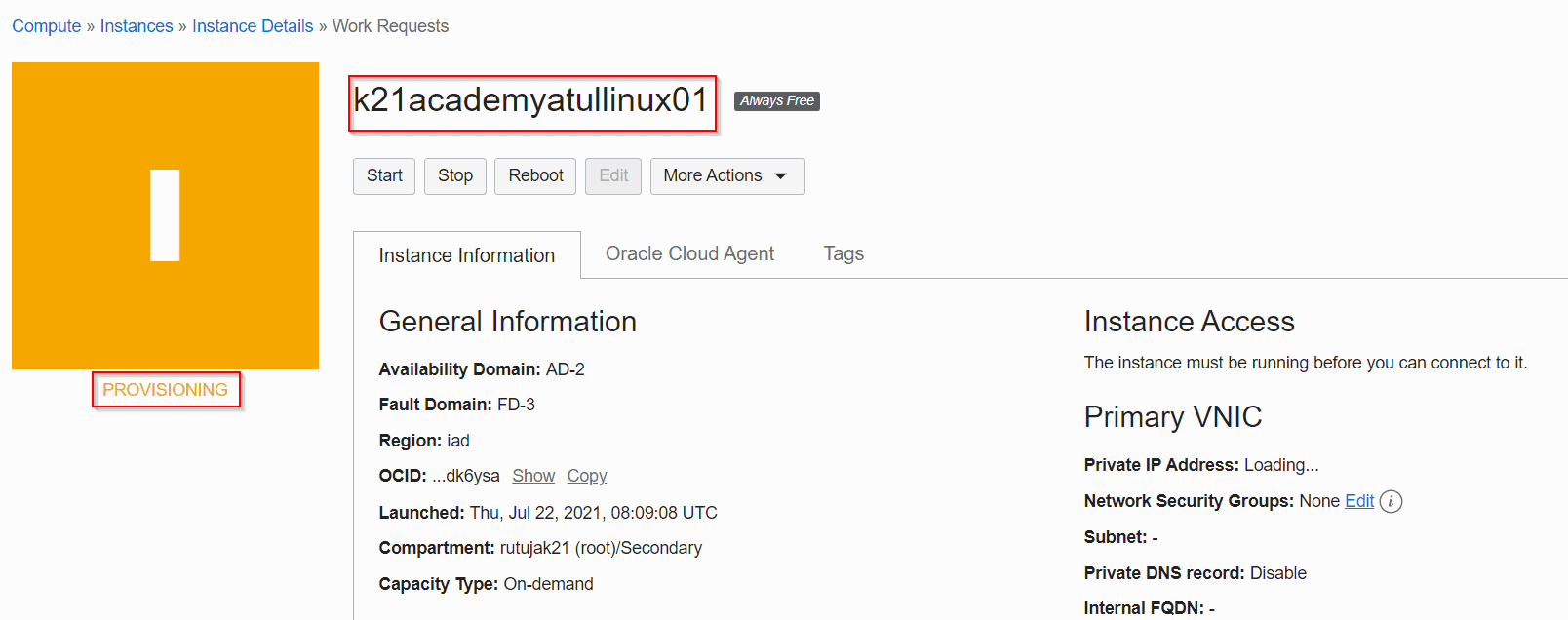
After the instance is provisioned, details about it appear in the instance list. To view additional details, including IP addresses, click the instance name.
5) Now, you can connect to the Linux Machine with its Public IP
Note: If you created your Database with the Public Subnet then only you will get the Public IP
Connect To the Linux Machine
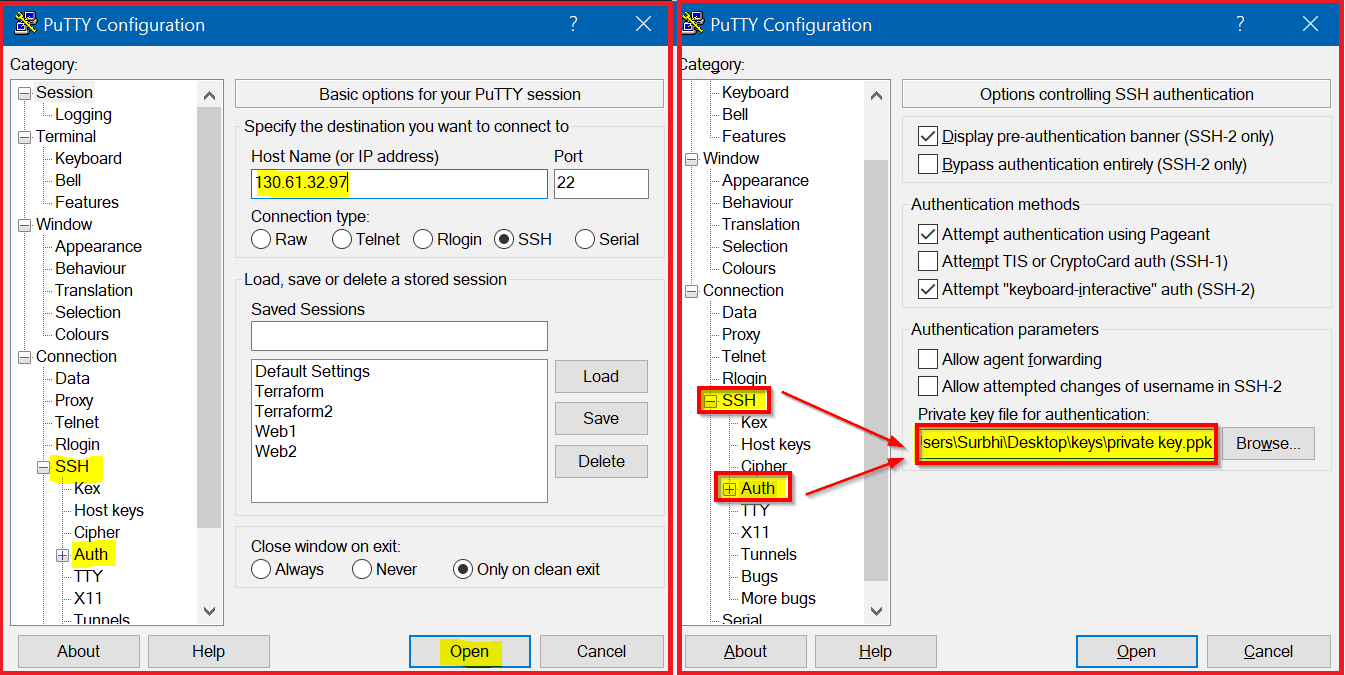
You can connect to a running instance by using a Secure Shell (SSH) for Linux or Remote Desktop connection for Windows. To connect to a Linux instance from your Laptop, you can download a free SSH client called PuTTY from here
Enter the Public IP Address in the Hostname, then add the SSH Private key under SSH & then Auth. Click Open
Well that was on How to create & Connect Windows/Linux O.S. on Oracle Cloud (OCI)
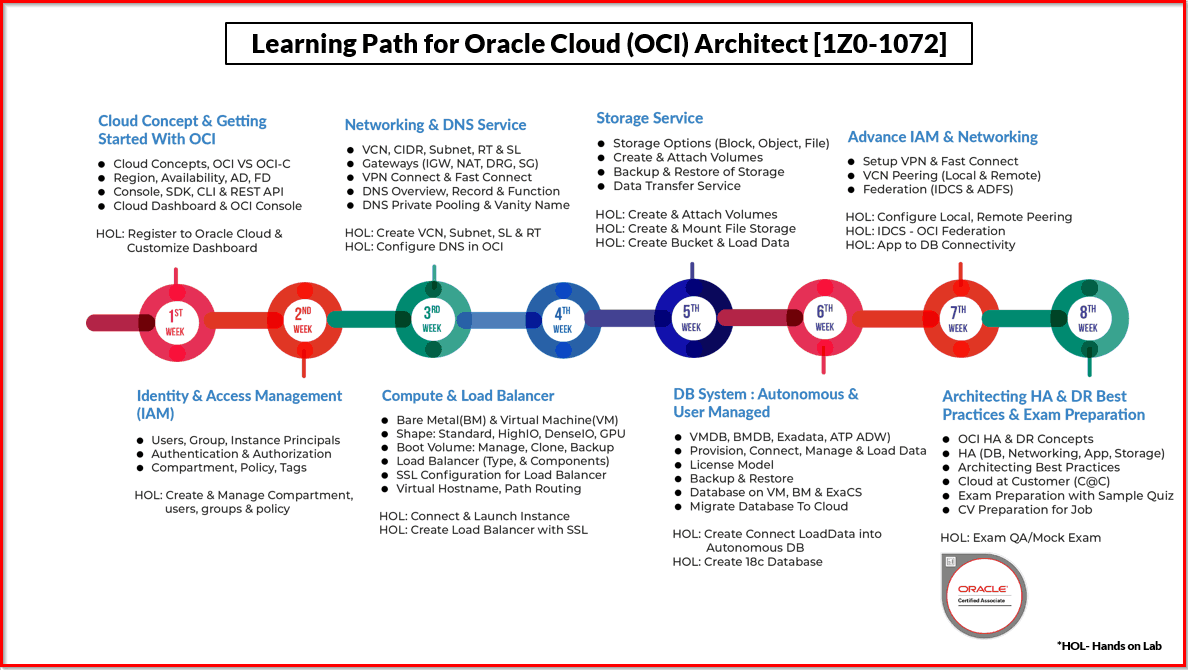
We cover Compute in the detailed version in our 8 weeks Program for Oracle Cloud Infrastructure Architect Associate Training, which cover beginner to advanced topics.
Now as I always say, you learn when you perform
Task for You
- If you don’t have an Oracle Trial Account then go and register using my step by step activity guide absolutely FREE
- Create a Linux or Windows Machine (Make sure you have SSH keys ready if you are creating a machine on Linux)
- Connect to Machine you have created so for Linux use Putty or for windows use Remote Desktop or RDP
Post your Doubts in the comments below. If you like this post, share it with your colleagues.
Related/Further Readings
- [Video] Oracle Cloud Infrastructure (OCI) | Compute CPU & Memory
- [Video 3 of 5] Oracle Cloud: Create VCN, Subnet, Firewall (Security List), IGW, DRG: Step By Step
- [Video] Create Oracle Autonomous Data Warehouse 18c on OCI
- [Video] How To Create Database on Oracle’s Gen2 Cloud (OCI)
Begin Your Cloud Journey
Begin your journey towards becoming an Oracle Cloud Expert and earn a lot more in 2024 by joining our FREE CLASS. You will also know more about the Roles and Responsibilities, Job opportunities for OCI Architects, Admins in the market, and what to study Including Hands-On labs you must perform to get the Higher Paying jobs.
Click on the below image to Register for Our FREE Class on MASTERING ORACLE CLOUD FOR DBAs, APPs DBAs, ARCHITECTS & SYS ADMINS


![Microsoft Agentic AI Business Solutions Architect [AB-100] | K21 Academy](https://test.k21academy.com/wp-content/uploads/2025/11/Microsoft-Agentic-AI-Business-Solutions-Architect-AB-100-Exam-Overview1.png)


