



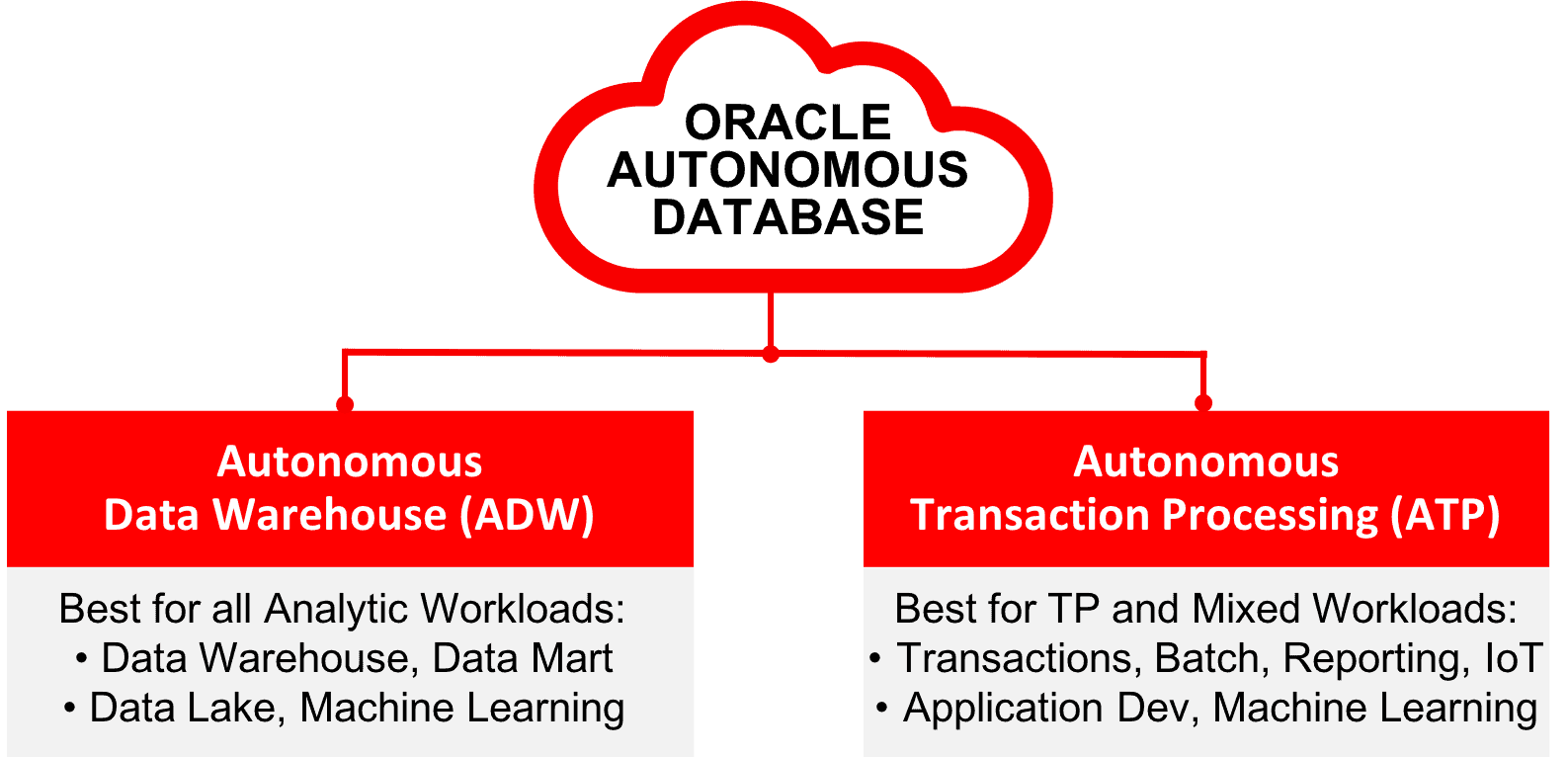
Oracle Autonomous Transaction Processing provides a self-driving, self-securing, and self-repairing database service that can expand quickly to meet the demands of mission critical transaction processing and mixed workload applications.
This blog helps you to know about ATP Adapter , Its capabilities & restrictions. and about client credentials wallet and creating connection of an Oracle ATP adapter to database.
What is ATP Adapter?
The Oracle Autonomous Transaction Processing Adapter allows you to connect the Oracle Autonomous Transaction Processing database to Oracle Integration through a wallet. Oracle Autonomous Transaction Processing Adapter is used to execute SQL queries or stored procedures in the Oracle Autonomous Transaction Processing database.
Oracle Integration includes a number of preset adapters, including the Oracle Autonomous Transaction Processing Adapter. The Oracle Autonomous Transaction Processing Adapter can be configured as a connection in an Oracle Integration integration.
ATP Adapter Capabilities
1. Support for connecting to the Oracle Autonomous Transaction Processing – Shared (ATP-S) database using a wallet instead of the on-premises connection agent.
2. Support for Access to an Oracle Autonomous Transaction Processing – Dedicated (ATP-D) database through a wallet-based connection using the connectivity agent.
3. Support for non-JDBC datatypes (PL/SQL record and PL/SQL table) in stored procedure outbound invocations.
4. Support for execution of DML statements and SQL queries:
- Select,
- Insert
- Update
- Delete.
The following scenarios are supported for bulk data import operation:
- When connecting through direct connection (that is, without use of the connectivity agent)
- When working with the Oracle Autonomous Transaction Processing – Shared (ATP-S) database,
- When Only the comma-separated value (CSV) data format is used.
ATP adapter Restrictions
1. In a stored procedure, the PL/SQL Boolean type is not supported as an IN/OUT argument. However, you may write a wrapper stored procedure that transforms a PL/SQL Boolean to an integer and utilize it in Oracle Integration.
2. Cross-schema stored procedures are not permitted when Oracle Integration is required to produce the wrappers.
3. As IN/OUT parameters in a stored procedure, nested PL/SQL types (for example, RECORD types inside a TABLE type) are not supported. You can, however, declare OBJECT types within the TABLE type.
ATP Adapter Pre-requisites
- Client credentials wallet
- The target database should be accessible
- Ensure that you have write permissions to run stored procedures and SQL statements
- The database service name
- For connecting to the database, use the database service username and password.
How to download client credentials wallet
ADW only supports secure connections to the database, you must first download a wallet file containing your credentials. The wallet may be obtained from either the instance’s information page or the ADW service panel.
To Download the client credentials wallet, Follow the steps
1. In your database’s instance details page, click DB Connection.
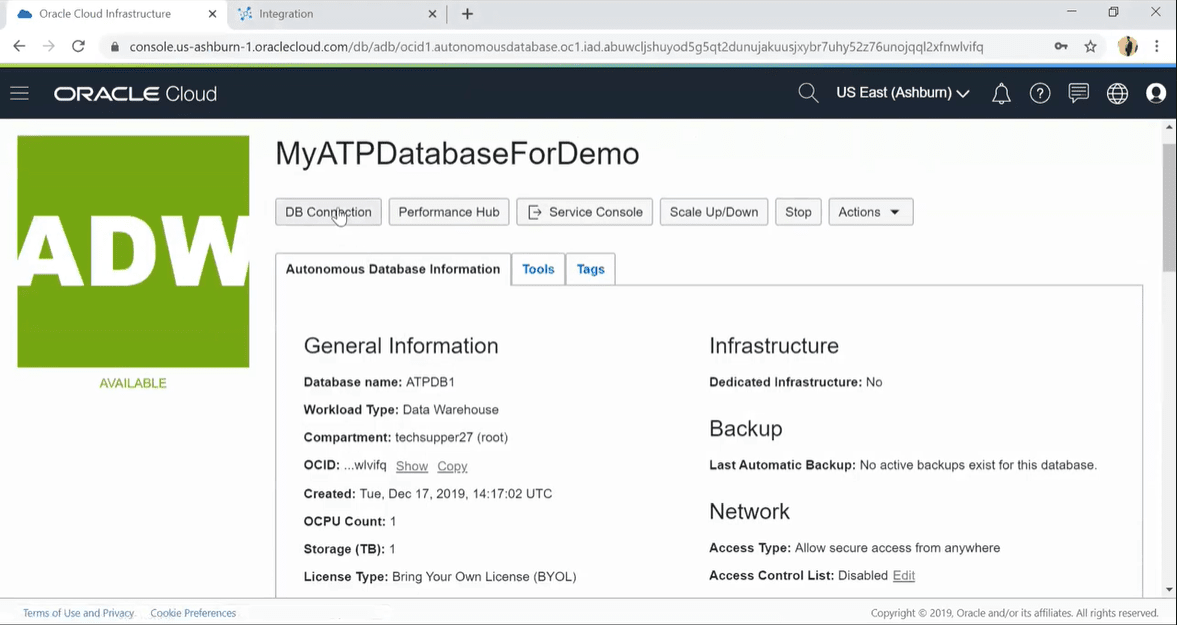
2. Under Download a Connection Wallet, click Download.
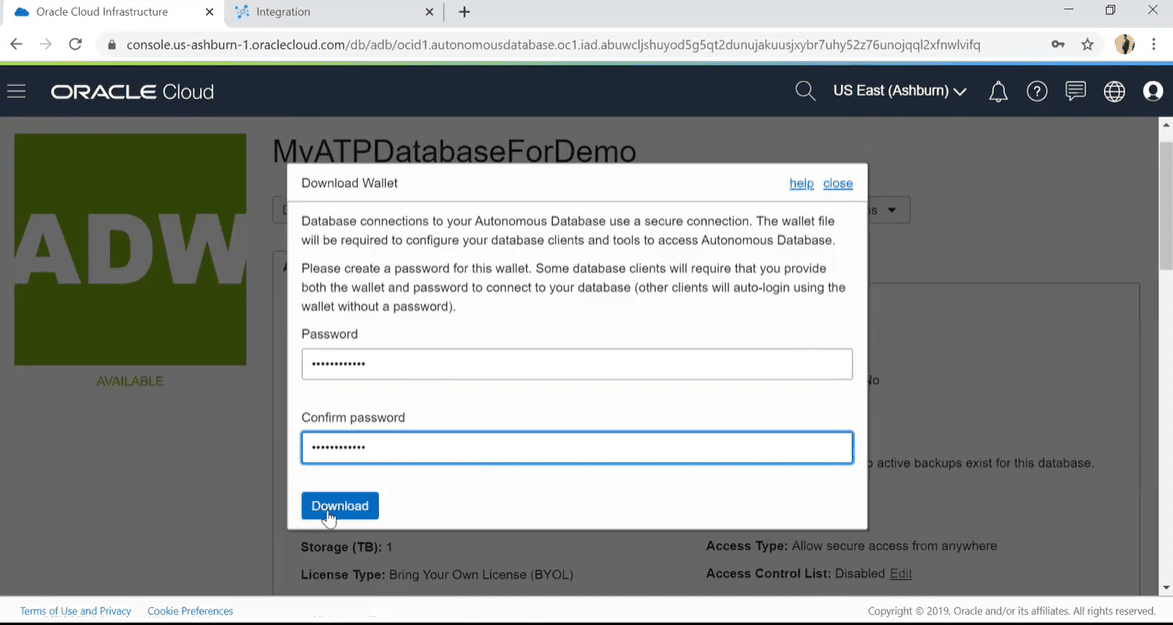
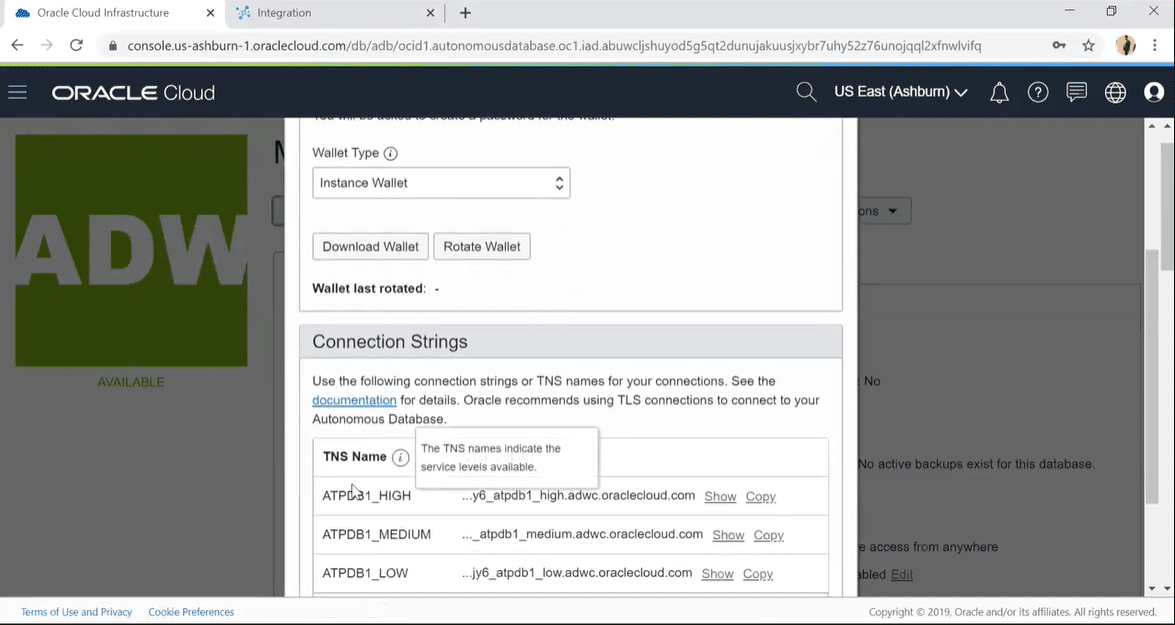 3. Enter a password for the wallet of your choosing. This password will be required later when connecting to the database through SQL Developer, and it is also used as the JKS keystore password for JDBC applications that use JKS for security. Click the Download button to save the wallet file to your client workstation.
Note:
It is possible that your browser’s pop-blocker is preventing you from downloading your Connection Wallet. Please turn it off or set an exception for Oracle Cloud domains.
How to Create an Oracle ATP Adapter connection
Note: If you have already generated an ATP/ADW database on OCI, simply follow the steps below.
1. Open the Oracle Integration HomePage and then click on Integration.
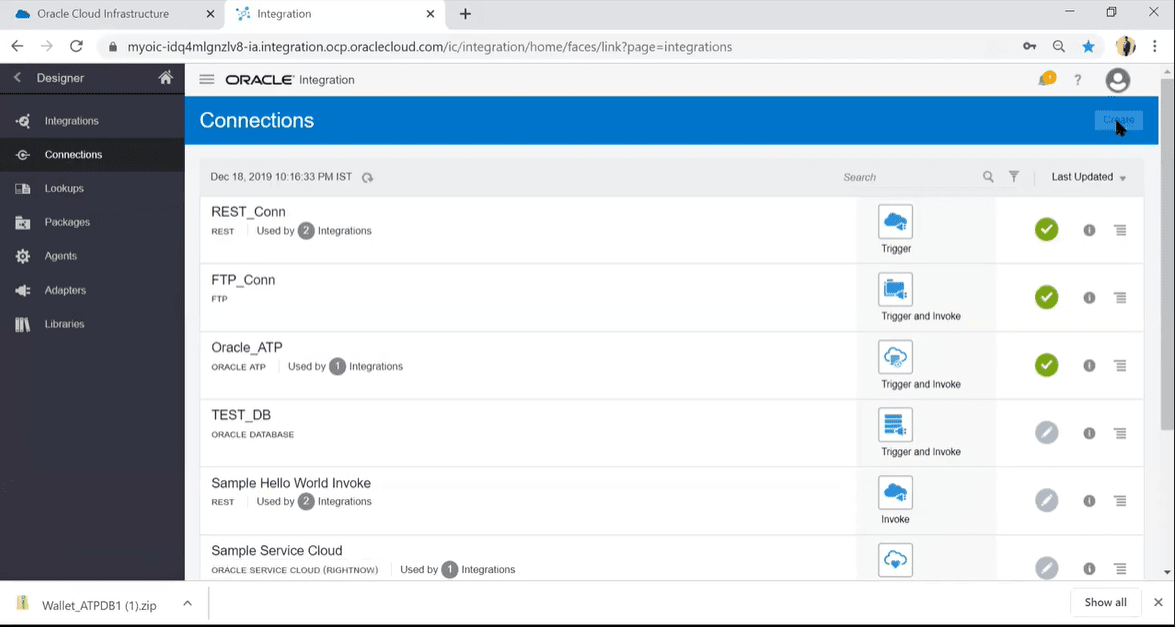 2. To establish a link with the file system. Click on “Connections,” then click Create.
3. Search for Oracle ATP Adapter and and click on select.
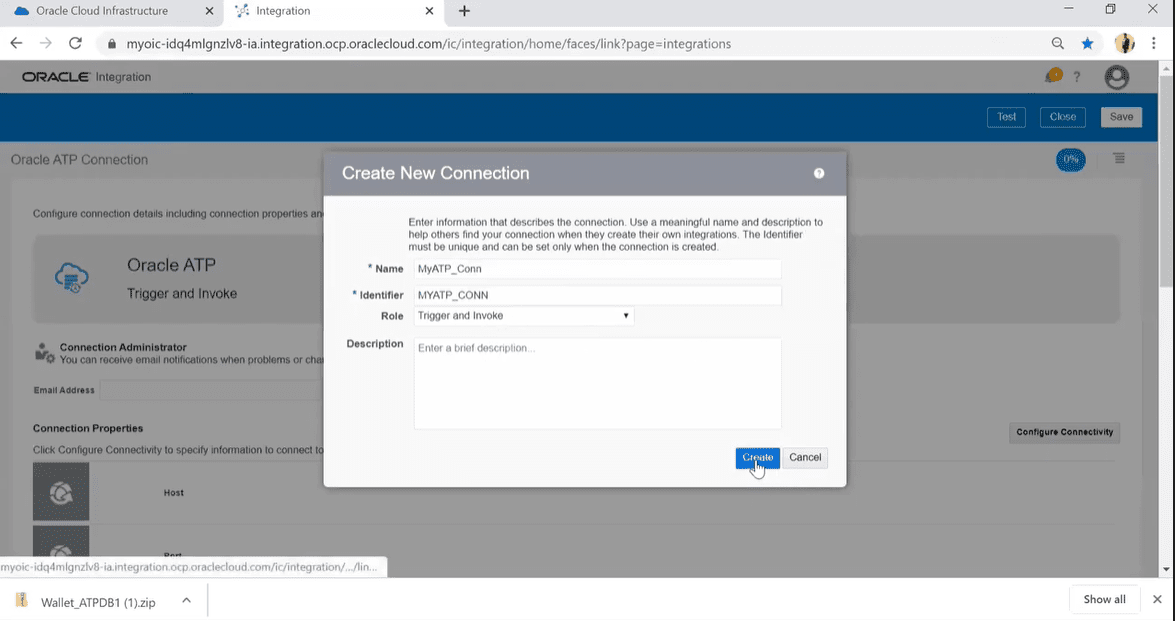
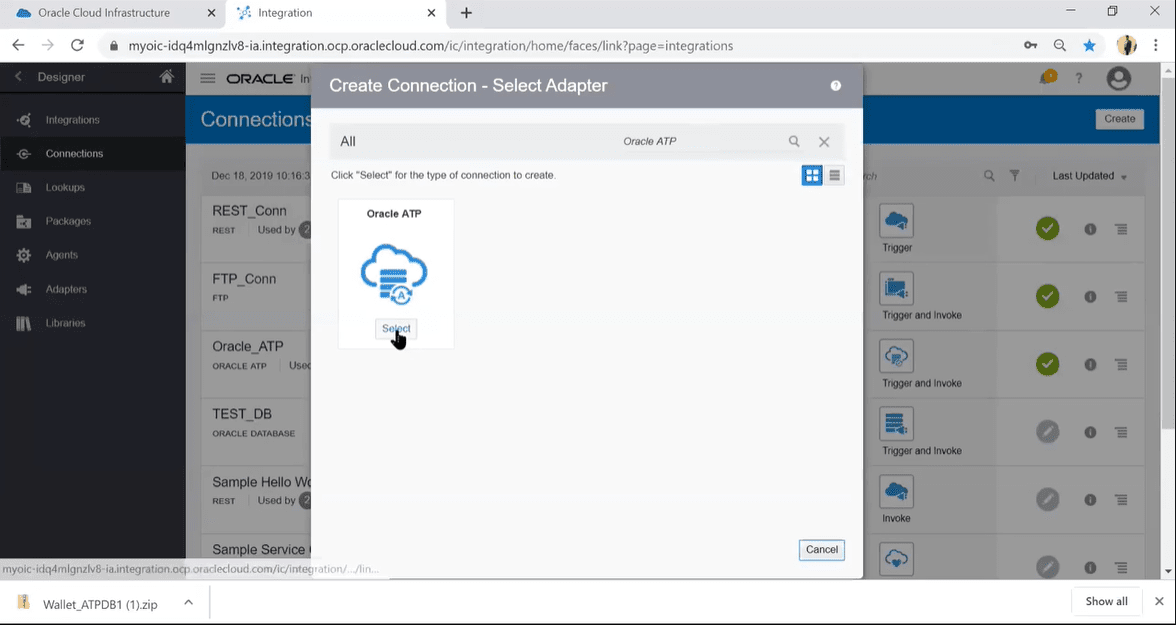 4. Enter all details as shown below and click on “Create”.
- Name: Enter name
- Identifier: Identifier will be picked up automatically based on name, but we can edit.
- Role: Select Trigger or Invoke. If you use both Trigger and Invoke you can use this DB connection as a source or target both.
- Description: Enter a description of your choice
5. Now to complete the connection you will need the wallet file of ATP/ADW. (by default your Oracle Cloud Infrastructure Admin will provide the file and credentials).
6. Provide the following details.
- Host: Enter the database hostname (In our case we are leaving it blank)
- Port: Enter port number (In our case we are leaving it blank)
- SID: Database SID is the database name that you have created (In our case w are leaving it blank)
- Service Name : Provide appropriate Service name from the tnsnames.ora file. (included in Wallet ZIP).
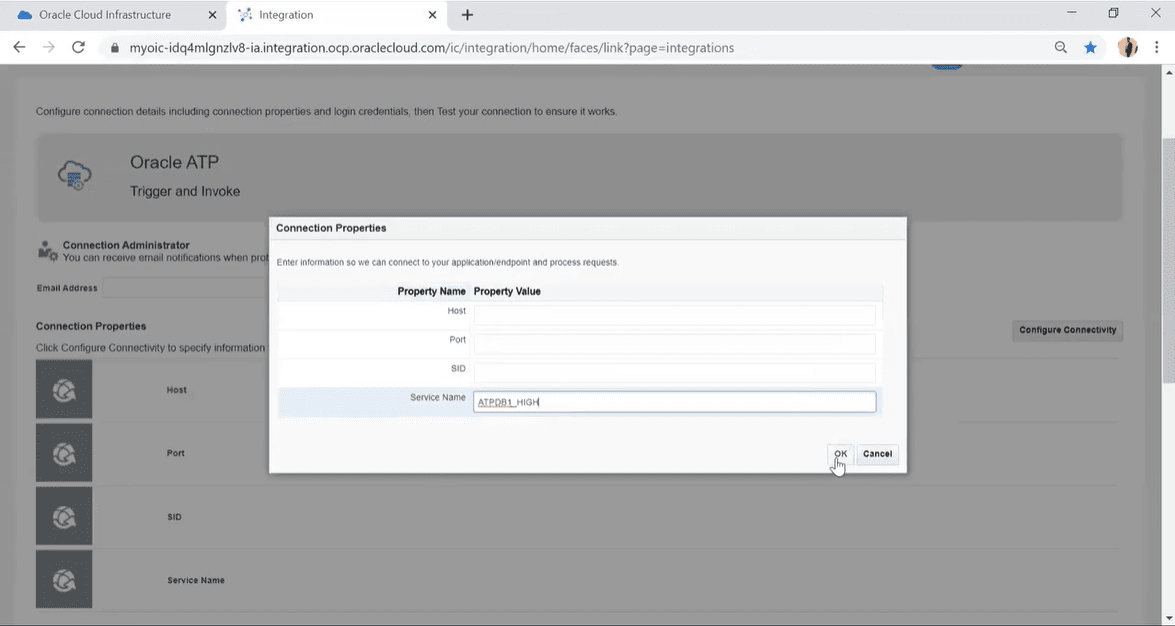
Note: As you will be testing the connection ad will be performing small operation so having low or medium
Service name will be fine.
7. Click on Configure Security, you should provide the wallet file.
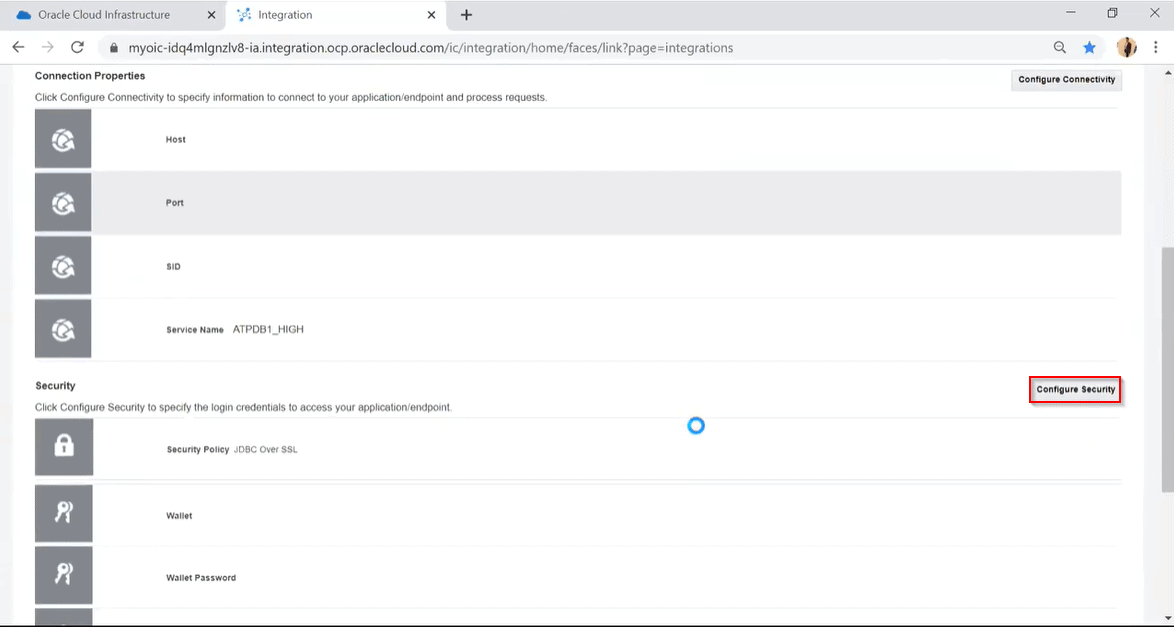 8. (Select Policy JDBC Over SSL,) Upload the wallet file and provide the appropriate details in
the respective fields. Click on OK.
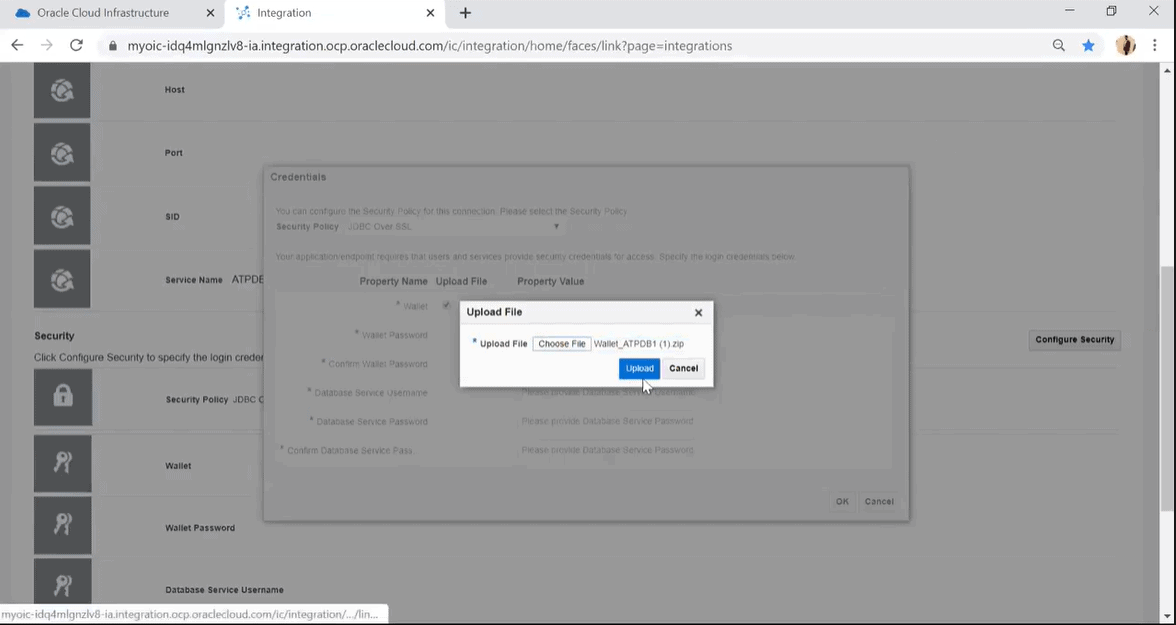
Note: For testing you must check your connectivity agent is listing or not.
9. Now, click on “Test” on the upper right hand corner. Enter all the details
correctly, then the connection should test successfully. If you get an error, then check what
the error is.
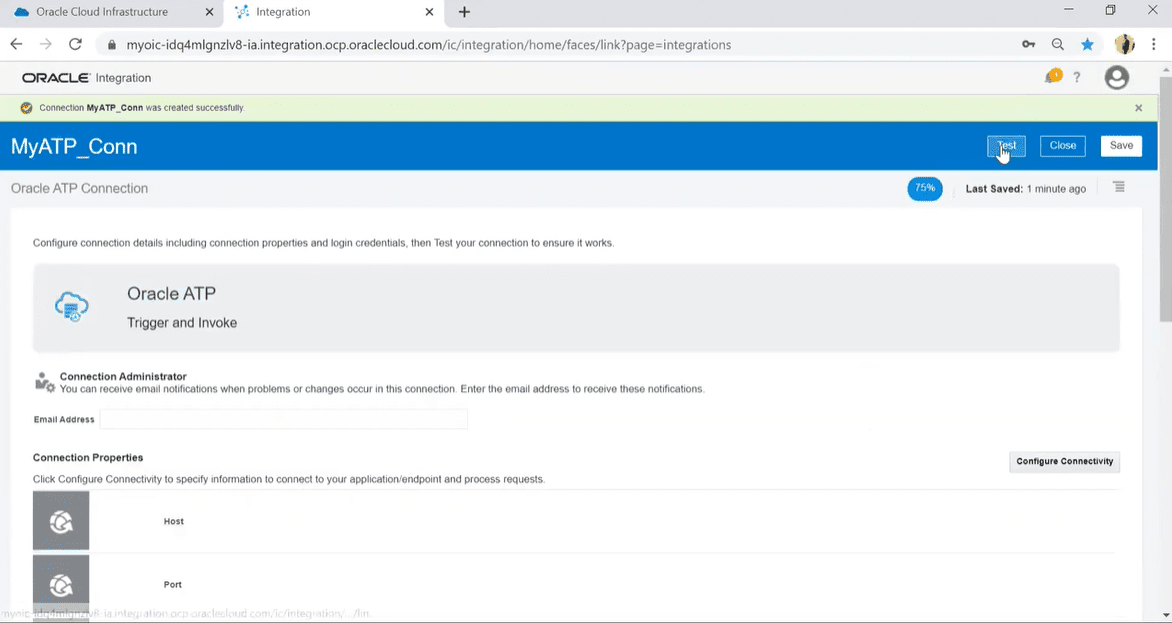 10.After getting the message “Connection was tested successfully”, click on “Save” and
“Close”. Your file and database adapters are now complete.
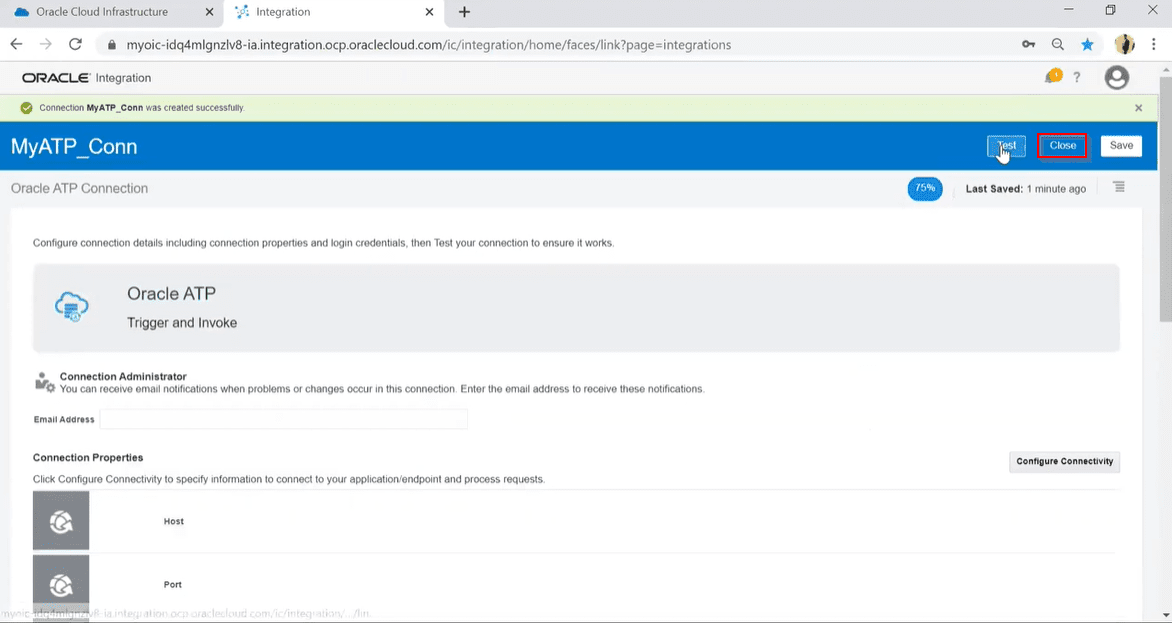
Therefore, these are the steps should followed to download credentials wallet and create a ATP adapter connection.
Related Links/References:
- Oracle Integration Cloud (OIC) For Beginners Overview
- [Free Masterclass] Oracle Integration Cloud Services
- [Oracle Integration Cloud] ICS, PCS, VBCS Console Walkthrough
- Oracle Integration Cloud Tutorial | Hands-On Lab Exercise
- 40+ Oracle Integration Cloud OIC Interview Questions 2022
Next Task For You
Do you want to learn more about Oracle and confuse where to start or which certification is right for you? Then, click on the register now button below to register for a Free Masterclass on Oracle [1Z0-1042] Certified Cloud Integration Expert, which will help you better understand and choose the right path and clear the certification exam.


![Microsoft Agentic AI Business Solutions Architect [AB-100] | K21 Academy](https://test.k21academy.com/wp-content/uploads/2025/11/Microsoft-Agentic-AI-Business-Solutions-Architect-AB-100-Exam-Overview1.png)