



This blog gives a step by step overview of how we can integrate Azure Key Vault in DevOps on Azure Cloud.
The technologies that are covered in this blog are a part of the Azure DevOps environment. If it’s something in which you have an interest or you want to learn, then you can visit our previous blog to know more about the [AZ-400] Microsoft Azure DevOps certification.
What Is Azure Key Vault?
Azure Key Vault helps solve the following problems:
- Secrets Management — Azure Key Vault can be used to Securely store and tightly control access to tokens, passwords, certificates, API keys, and other secrets
- Key Management — Azure Key Vault can also be used as a Key Management solution. Azure Key Vault makes it easy to create and control the encryption keys used to encrypt your data.
- Certificate Management — Azure Key Vault is also a service that lets you easily provision, manage, and deploy public and private Transport Layer Security/Secure Sockets Layer (TLS/SSL) certificates for use with Azure and your internal connected resources.
- Store secrets backed by Hardware Security Modules — The secrets and keys can be protected either by software or FIPS 140–2 Level 2 validated HSMs
Why Use The Azure Key Vault?
- Centralize application secrets
- Securely store secrets and keys
- Monitor access and use
- Simplified administration of application secrets
- Integrate with other Azure services
Advantages Of Key Vault
- Safeguard cryptographic keys and other secrets used by cloud apps and services
- Increase security and control over keys and passwords
- Create and import encryption keys in minutes
- Applications have no direct access to keys
- Use FIPS 140–2 Level 2 validated HSMs
- Reduce latency with cloud-scale and global redundancy
- Simplify and automate tasks for SSL/TLS certificates
Azure DevOps Key Vault Project Demo
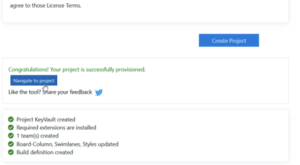
We are using the Azure DevOps Demo Generator for the Key vault demo project and we are trying to include the Azure Key Vault with Azure DevOps.
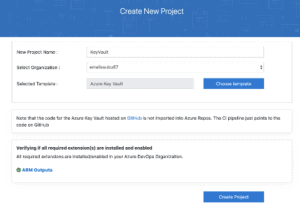
We can then choose the different project templates and in this case, we can use the Key vault and then choose to create a project.
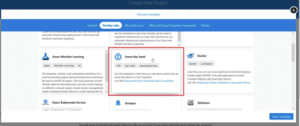

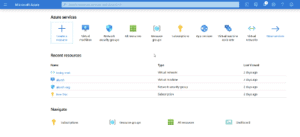
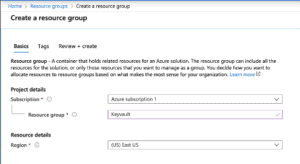
Login to Azure portal with our registered email id and password and then we can create a Resource Group and then a Key vault for this demo purpose.


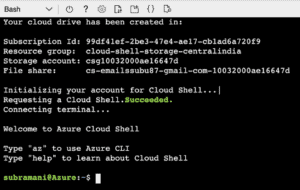
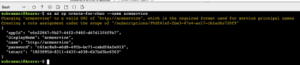
We can create a Service Principal based on the RBAC role for the new application for which we need to give access to the key secrets.
Create A Vault
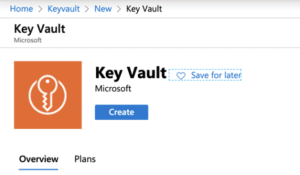
From the Azure portal menu, or from the Home page, select Create a resource.
Step 1: In the Search box, enter Key Vault.
Step 2: From the results list, choose Key Vault.
Step 3: On the Key Vault section, choose to Create.
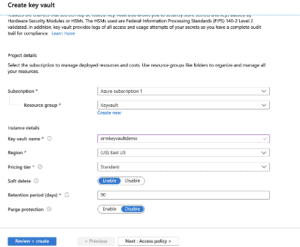
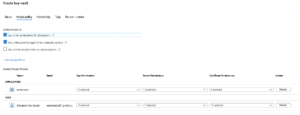
Step 4: On the Create key vault section provide the following information:
Step 5: Name: A unique name is required.
Step 6: Subscription: Choose a subscription.
Step 7: Under Resource Group, choose to Create new and enter a resource group name.
Step 8: In the Location pull-down menu, choose a location.
Step 9: Leave the other options to their defaults.
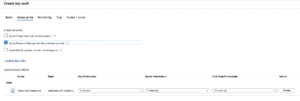
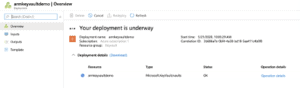
After providing the information above, select Create
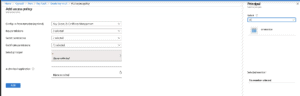
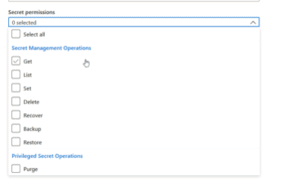
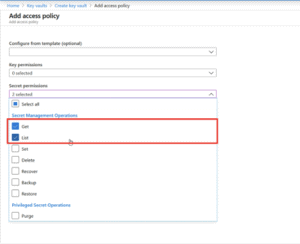
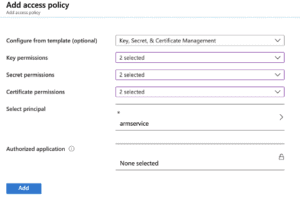
Also Read: Our previous blog post on Veracode. Click here
Add A Secret To Key Vault
To add a secret to the vault, you just need to take a couple of additional steps. In this case, we add a password that could be used by an application.
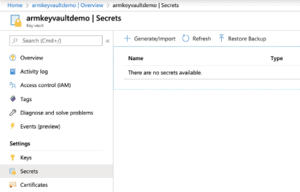
Step 1: On the Key Vault properties pages, select Secrets.
Step 2: Click on Generate/Import.
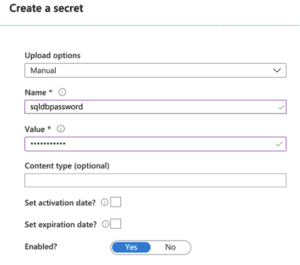
Step 3: On the Create a secret screen chooses the following values:
- Upload options: Manual.
- Name: sqldbpassword
- Value: admin@123!
Step 4: Leave the other values to their defaults. Click Create.
Step 5: Once that you receive the message that the secret has been successfully created, you may click on it on the list.
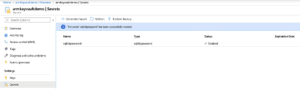
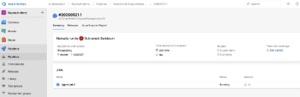
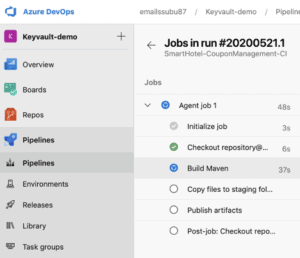
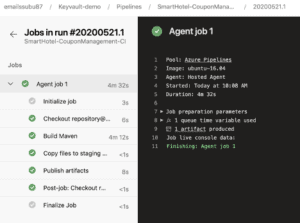
Then our work on the key vault is now completed, so we are returning back to the Azure DevOps and this time we need to run the Build pipeline to check the build is working fine as expected.
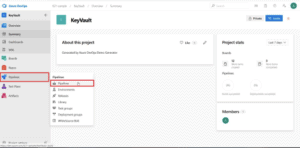
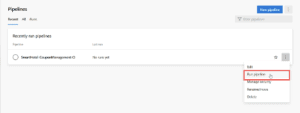
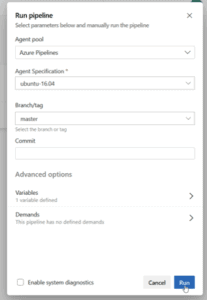
Also Check Rugged DevOps vs DevSecOps, to know the major differences between them.
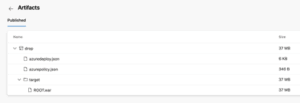
Once after the build is completed, we can see the Artifacts in the Azure DevOps itself as shown above from here if we need we can download and install it to any web server or app server of our choice.
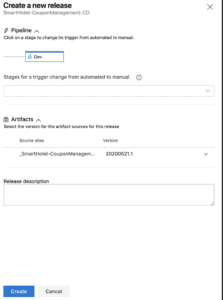
But now we are going to create a CD Release Pipeline and then we can include the CI Artifact as part of this input to the Release.
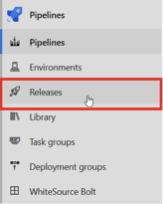
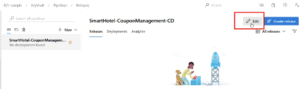
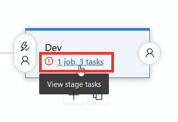
Check Out: How to Setup DevOps Environment. Click here
Azure Key Vault Task
Use this task to download secrets such as authentication keys, storage account keys, data encryption keys, .PFX files, and passwords from an Azure Key Vault instance. The task can be used to fetch the latest values of all or a subset of secrets from the vault and set them as variables that can be used in subsequent tasks of a pipeline. The task is Node-based and works with agents on Linux, macOS, and Windows.
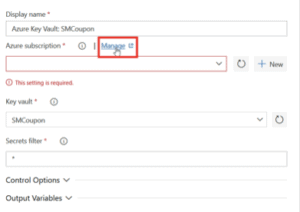
This is the way to create a service connection between the Azure DevOps and Azure Cloud Resources and with the help of this connection, we will be able to connect to the Key vault where we have kept our secrets.
Please follow the below link to know more about the service connections from Azure DevOps to Azure Cloud.
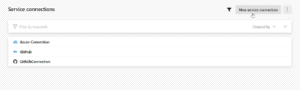
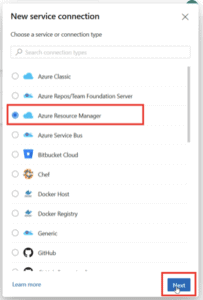
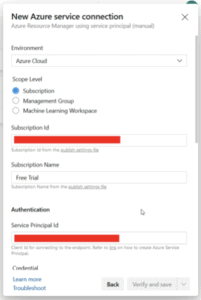
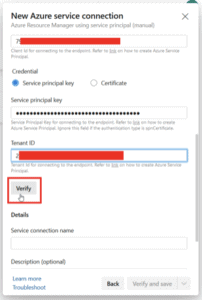
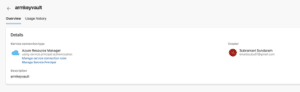
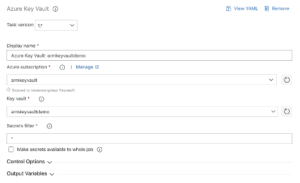

Once Service Connection is established then we can check the values from the below pipeline. If you see above we have given the variable called $(sqldbpassword) . This value will be taken from the Key vault that we store in Azure Cloud. So with the help of the Service Connection, this will be given inside the Release Pipeline.
Once all done, we need to start the release pipeline and then we can see the output below.
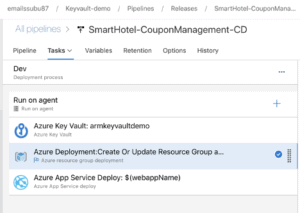

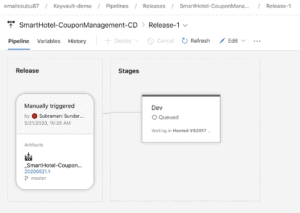
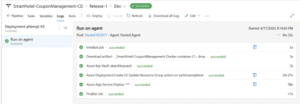
By this way, we have learned that we can store our values secretly on the Azure Key vault and no one is able to access it as its encrypted and also the recycling of secrets is also easy as we can do it in 1 place (key-vault) only and it can be referenced easily in all places.
In this way, we can also store the SSH keys and SSL Certificates and many more on this key vault and we can use it for multiple resources inside the Azure itself.
Related/References
- [AZ-400] Microsoft Azure DevOps Certification Exam: Everything You Need To Know
- [AZ-400] Azure DevOps Certification Path
- [AZ-400] Azure DevOps Services for Beginners
- [AZ-400] Designing and Implementing Microsoft DevOps Solutions [Official Page]
- SonarCloud Azure DevOps | Integrating SonarCloud In Azure
- Veracode – SourceClear SCA Analysis
- [AZ-400] Monitor Azure With Grafana
- ServiceNow Integration With Azure DevOps
- Veracode Source Code Analysis
- Rugged DevOps & DevSecOps
Next Task For You
Begin your journey toward Mastering Azure Cloud and landing high-paying jobs. Just click on the register now button on the below image to register for a Free Class on Mastering Azure Cloud: How to Build In-Demand Skills and Land High-Paying Jobs. This class will help you understand better, so you can choose the right career path and get a higher paying job.


![Microsoft Agentic AI Business Solutions Architect [AB-100] | K21 Academy](https://test.k21academy.com/wp-content/uploads/2025/11/Microsoft-Agentic-AI-Business-Solutions-Architect-AB-100-Exam-Overview1.png)


