



This blog is going to cover how SonarCloud can be used in Azure Cloud by creating a demo project and showing the step by step integration process. This Azure DevOps extension also provides build tasks that you can add in your build definition. You’ll benefit from the automated detection of bugs and vulnerabilities across all branches and Pull Requests.
What Is SonarCloud?
Azure SonarCloud is the leading online service for Code Quality & Code Security. It is totally free for open-source projects and supports all major programming languages including C#, VB .Net, JavaScript, TypeScript, C/C++, and many more. If your code is closed source, Azure SonarCloud also offers a paid plan to run private analyses. It also explains all coding issues in detail, giving you a chance to fix your code before even merging and deploying, all the while learning best practices along the way. At the project level, you’ll also get a dedicated widget that tracks the overall health of your application.
This blog talks about technologies that are part of the Azure DevOps environment. If it’s something in which you have an interest or you want to learn it then you can visit our previous blog to know more about the [AZ-400] Microsoft Azure DevOps certification.
How to Integrate SonarCloud In Azure
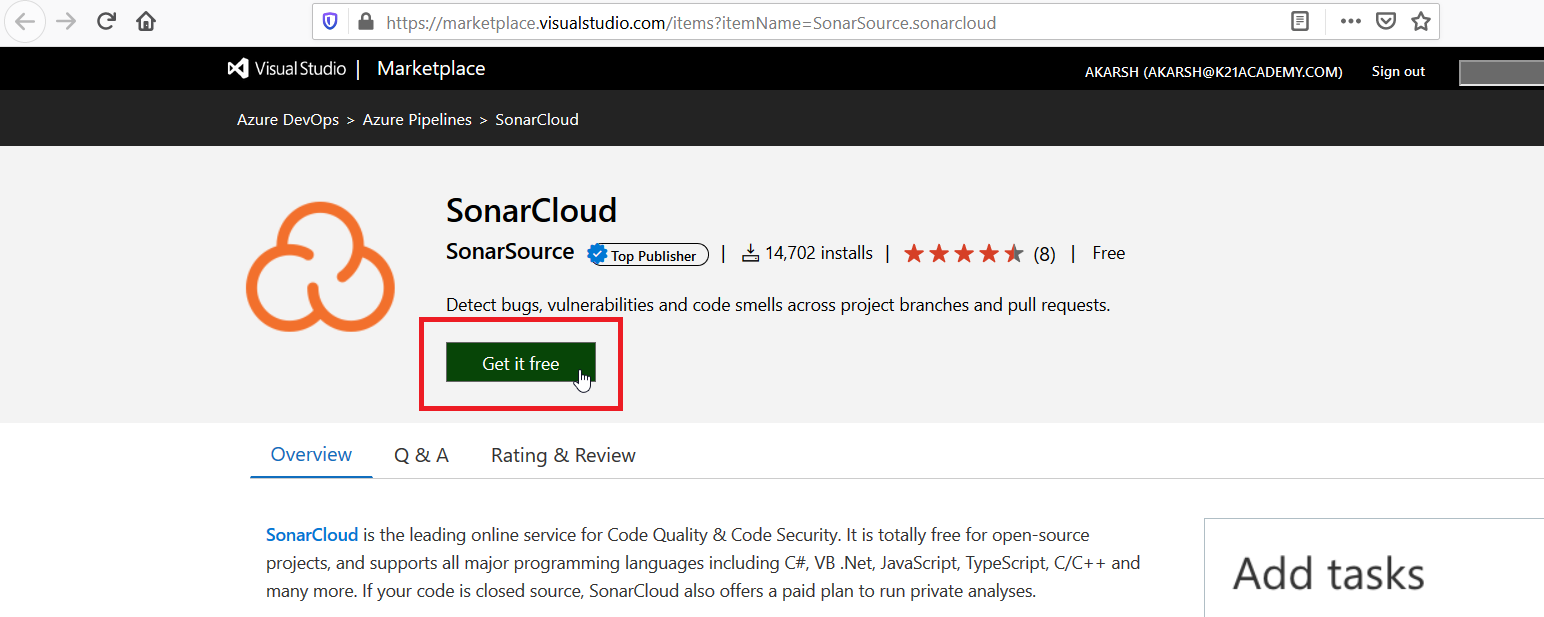
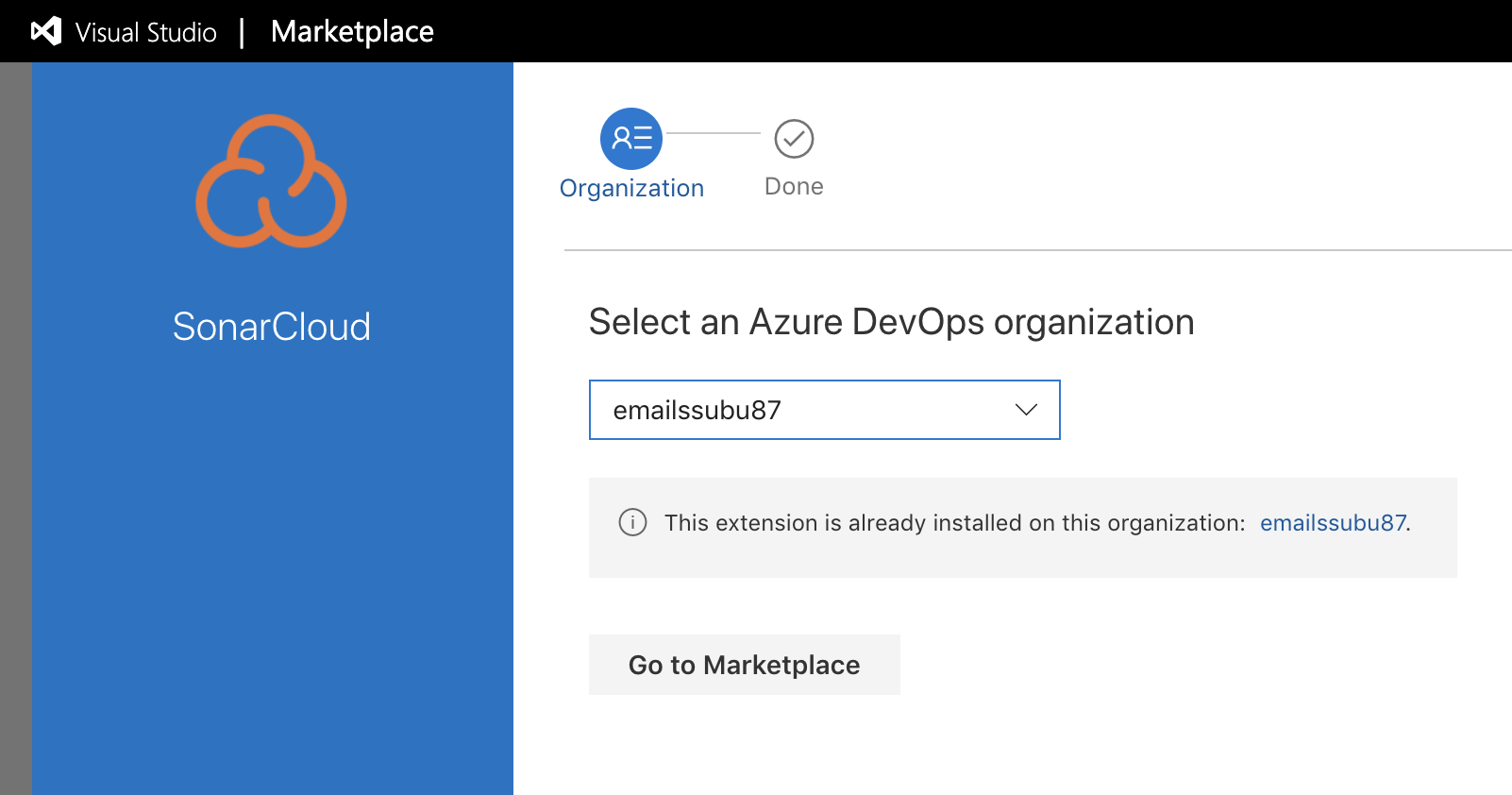
Step 1: If we install Azure DevOps SonarCloud from the Market place we will get the below screen and then we can install it in our organization.
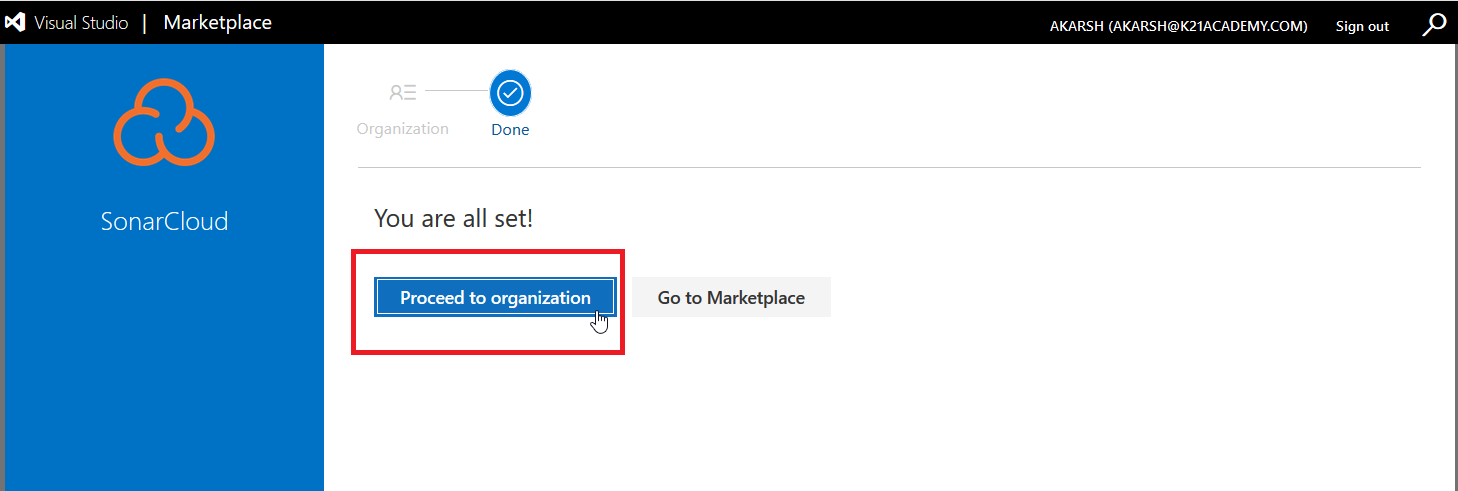
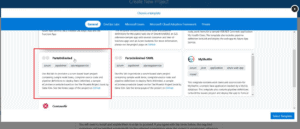
Step 2: From the Azure demo generator and then choose any project which has the option to run the sonar analysis.
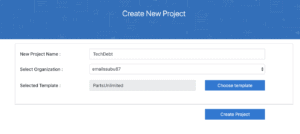
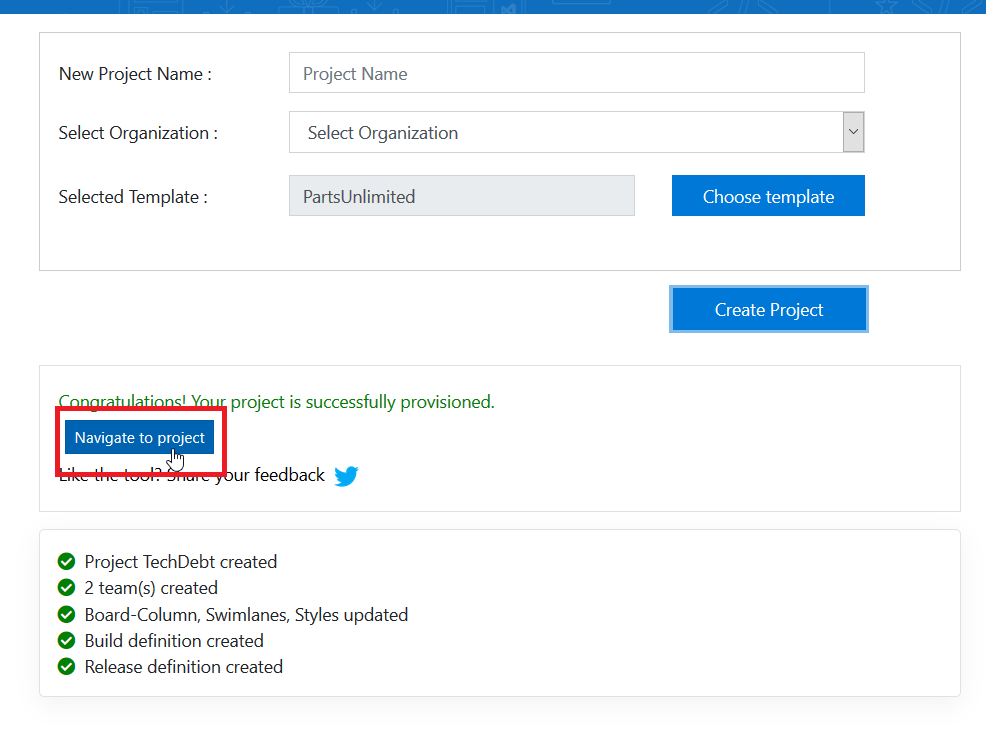
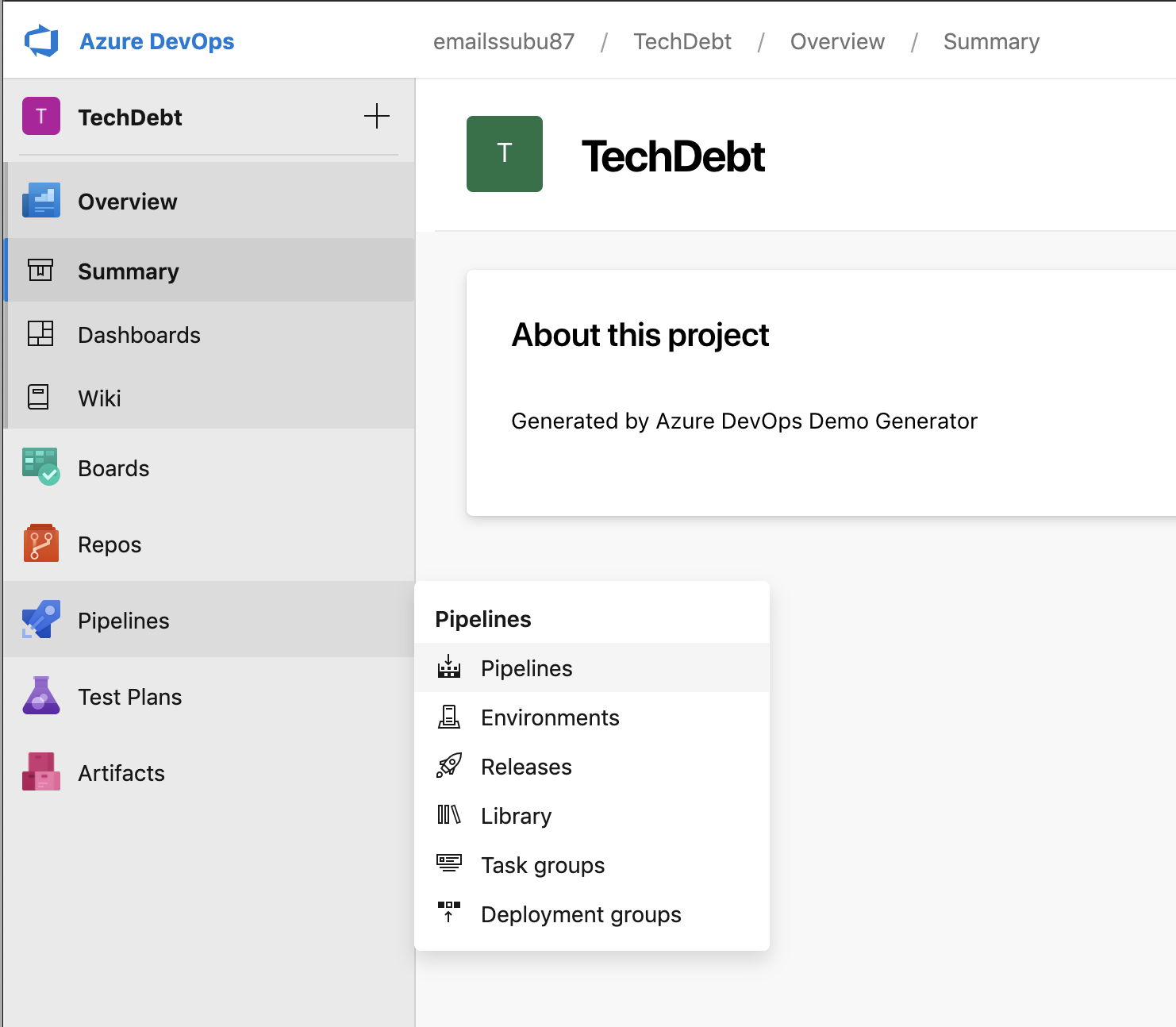
Step 3: Once after the project is closed, we need to start the Build pipeline for this project to see the sonar analysis.
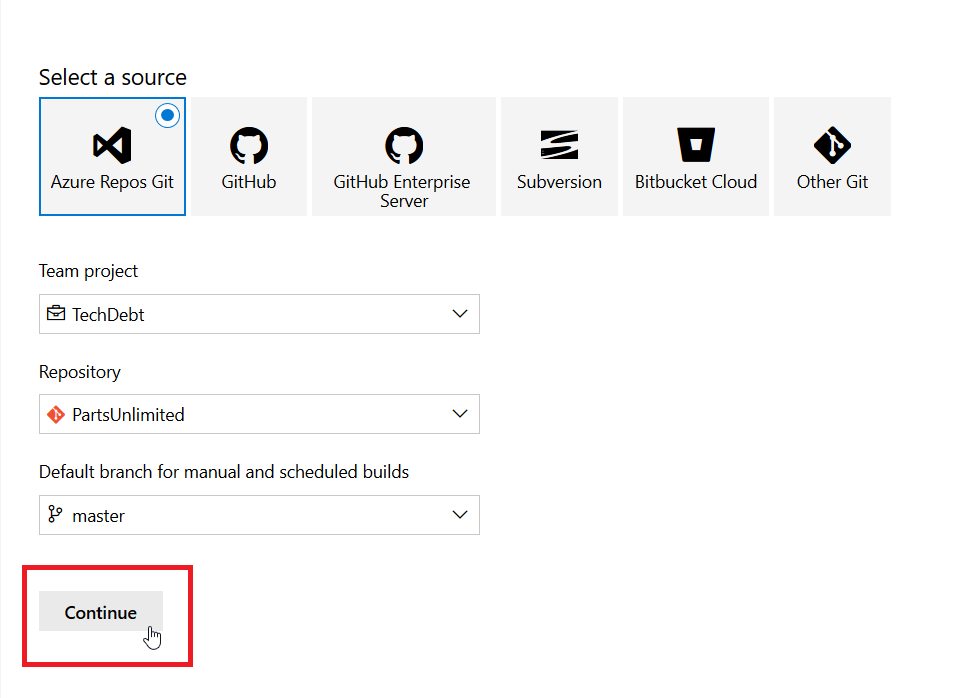
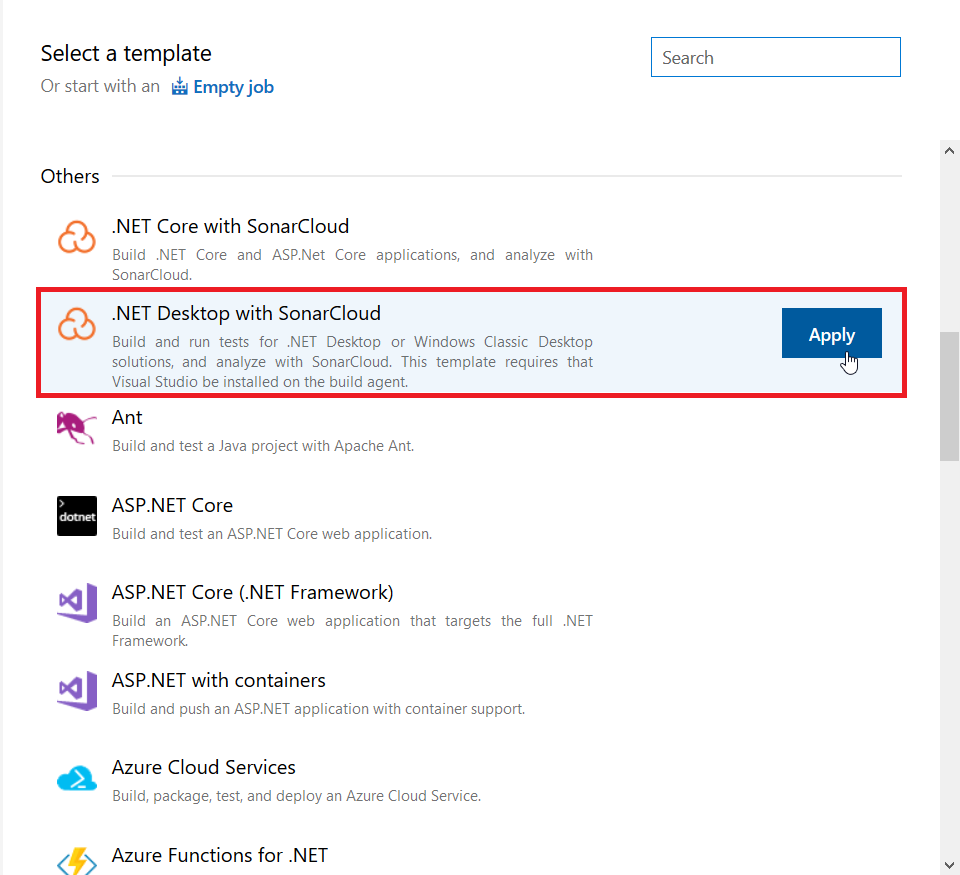
Step 4: We need to choose the below template for the sonar with a .NET project and then fill up the Sonar connections.

Also Read: Our previous blog post on Azure DevOps Pipeline Environment. Click here
Step 5: Now we need to set up the service connection endpoint for the Sonar Cloud by copying the API key and project key.
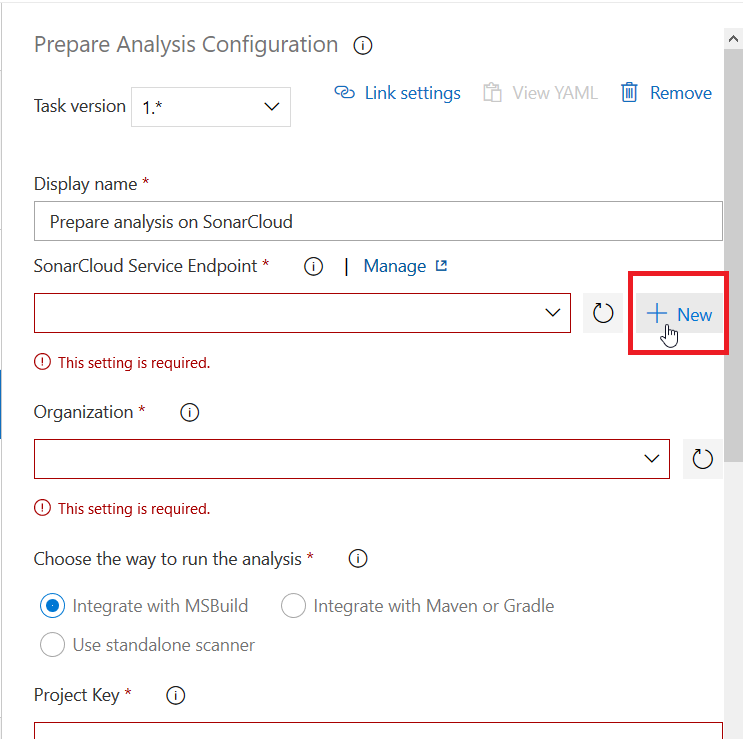
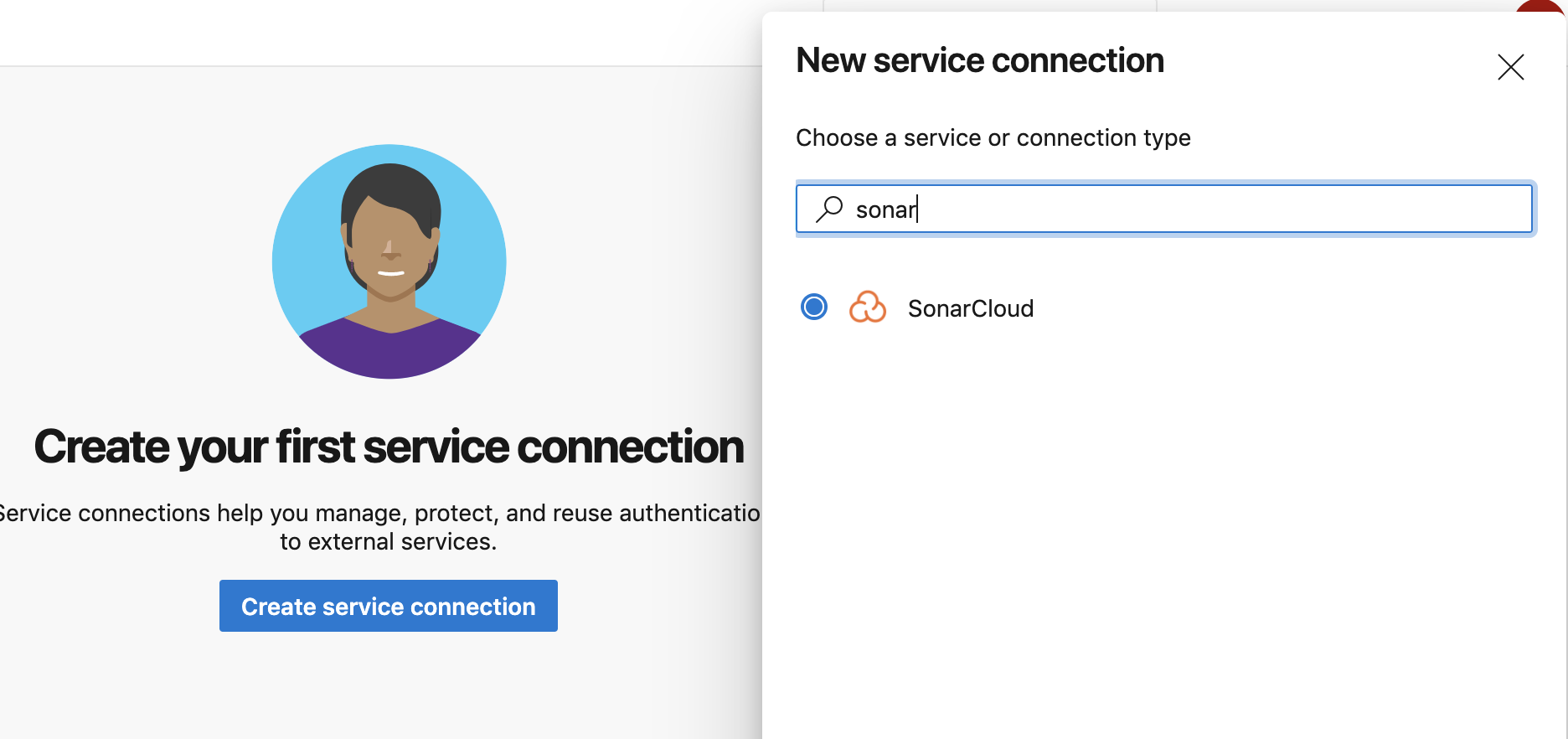
Step 6: Log in to (http://sonarcloud.io) and then authorize the Azure DevOps and then start logging inside the sonar cloud.
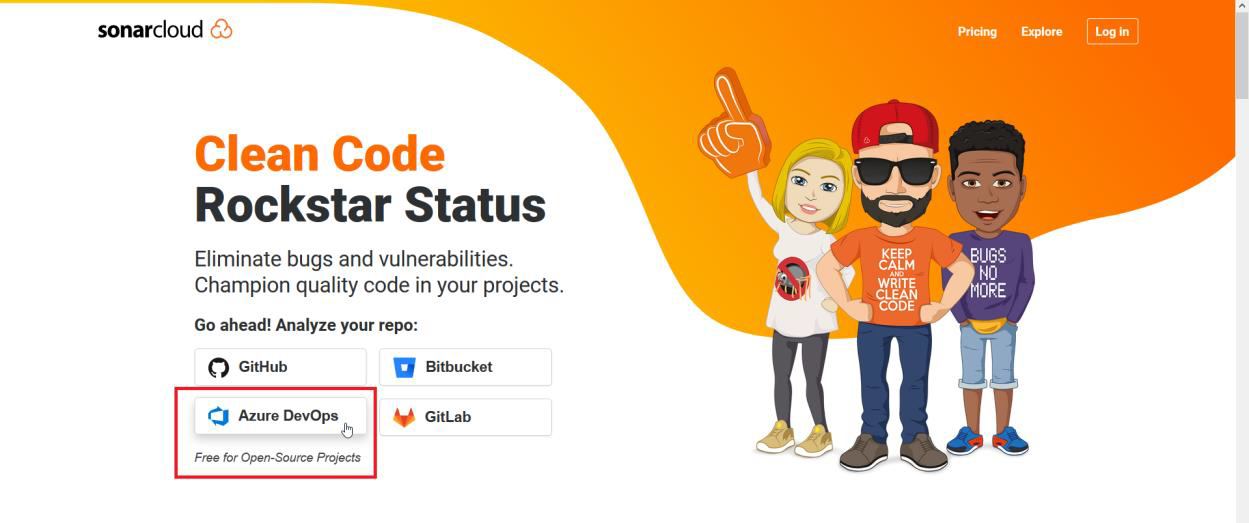
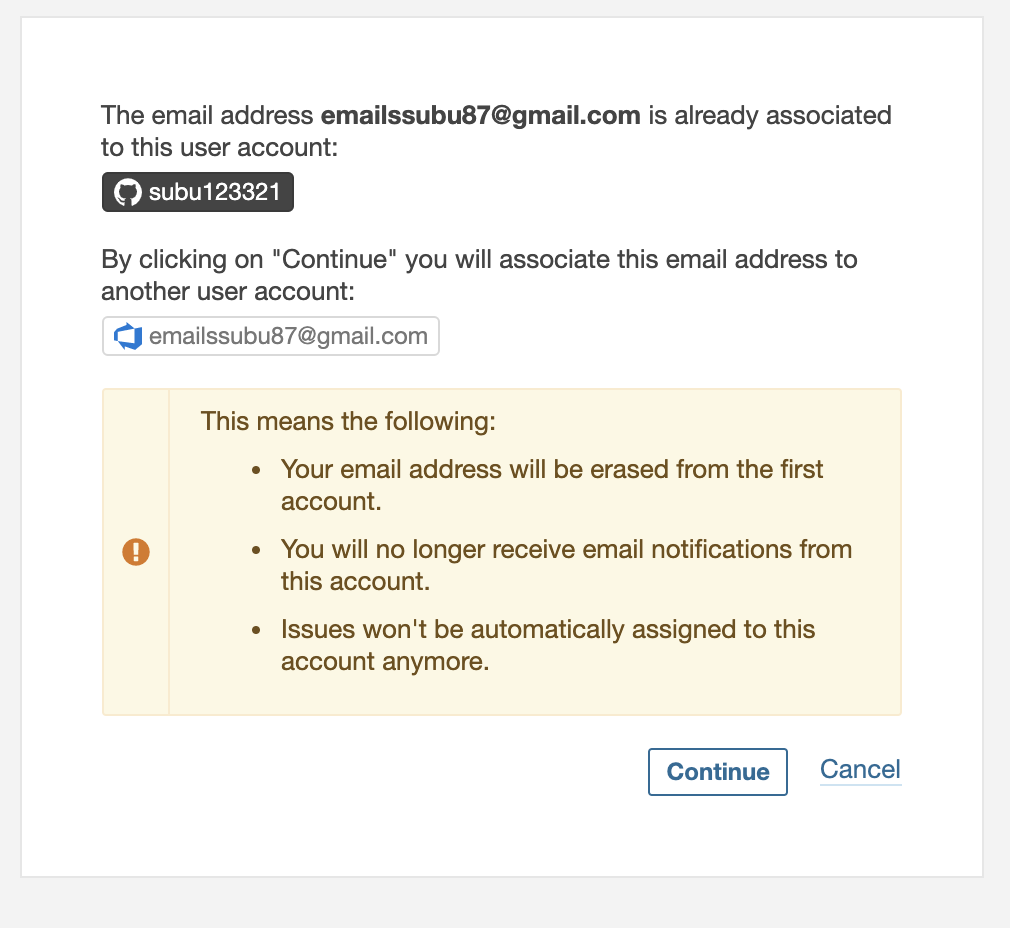
Step 7: Click on the user image and then choose the “My Account” and then from that click on the Security tab and then give a name for the API and click on “GENERATE”.

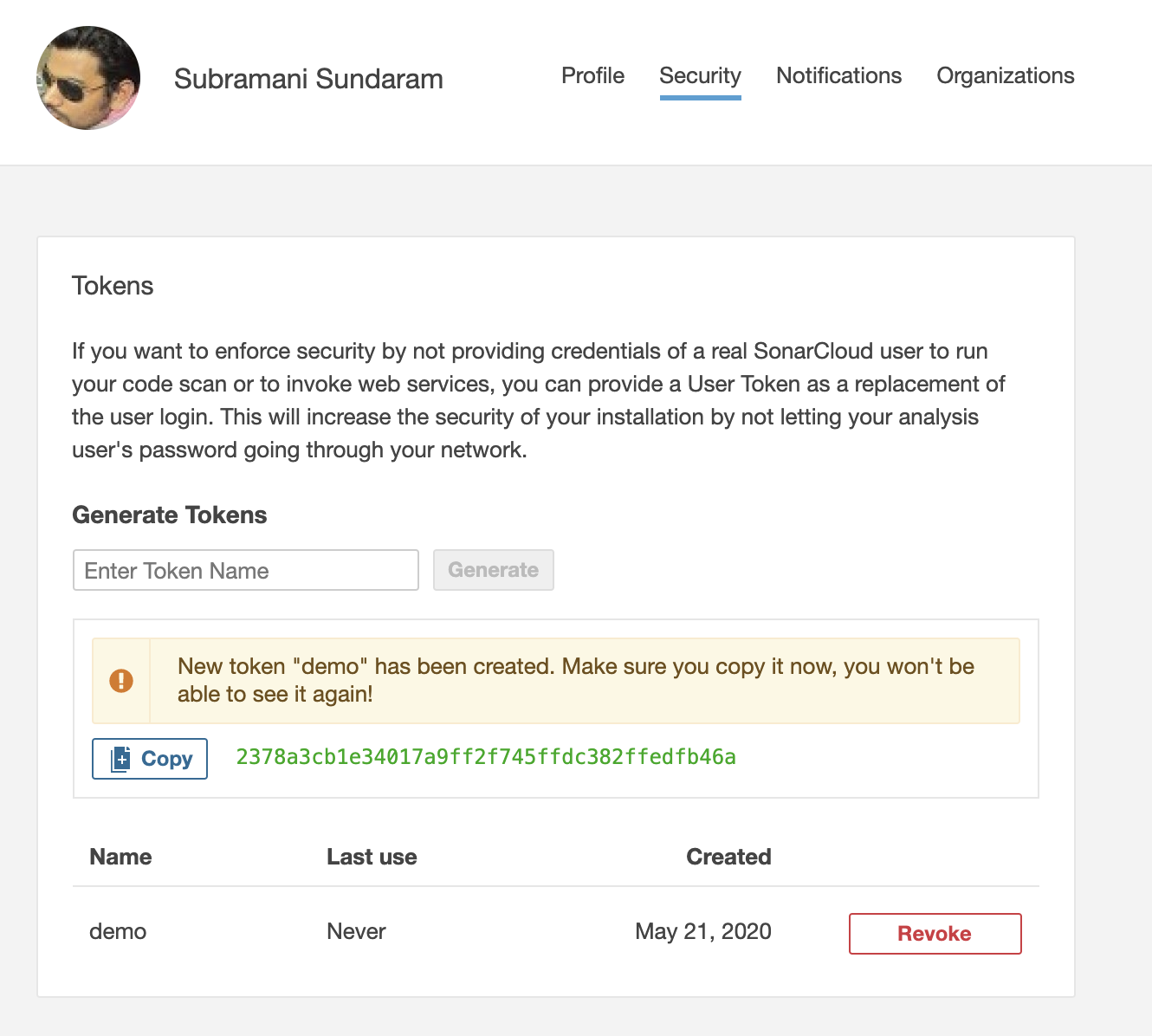
Step 8: Once after that, we need to copy the API key and paste it in the Azure DevOps Service connection like below :
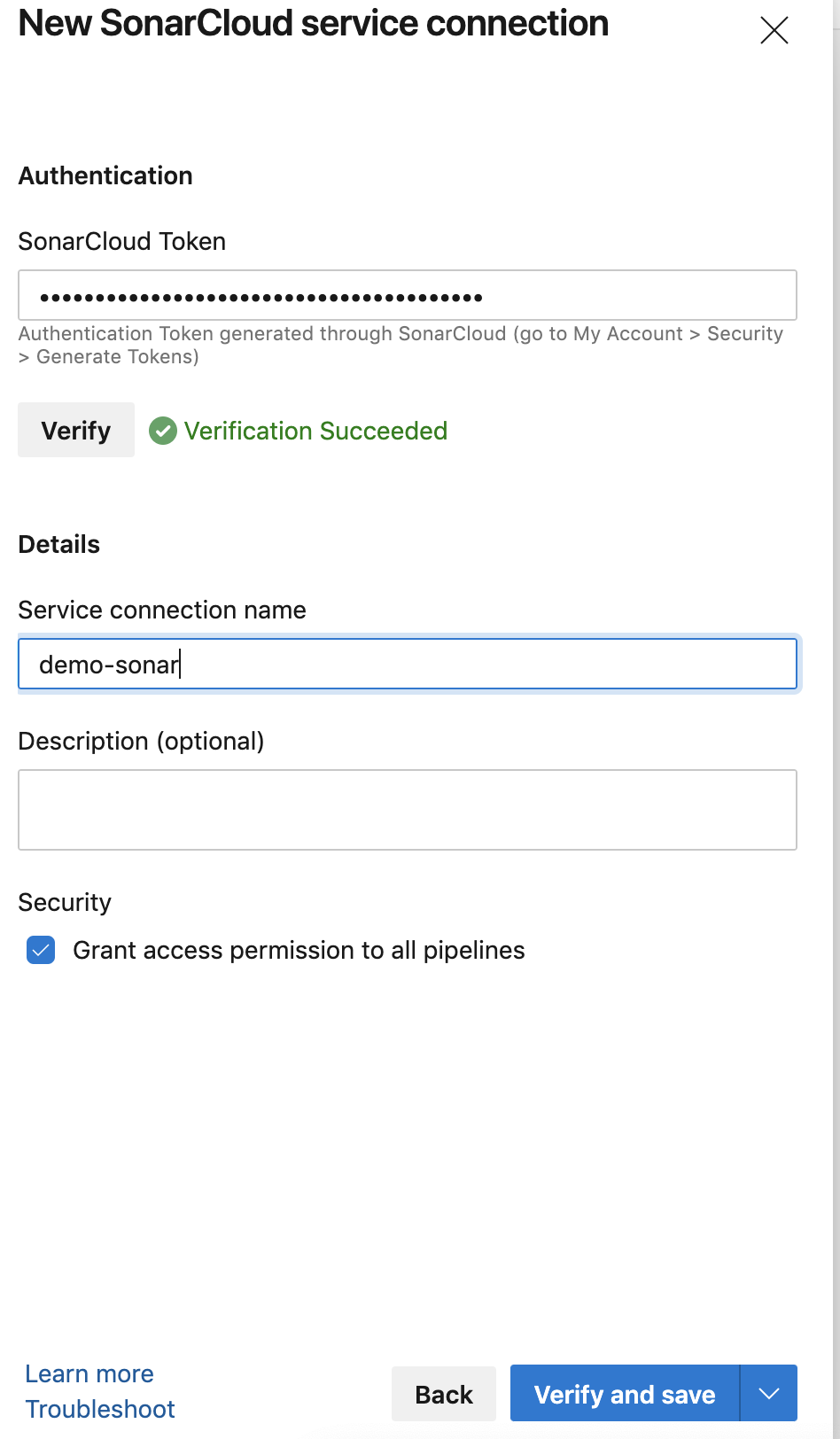
Step 9: Once done we will see the successful Service Connection like below :

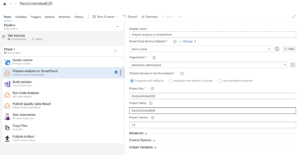
Step 10: Once after all setup is completed, please start the pipelines like below and check the build status.
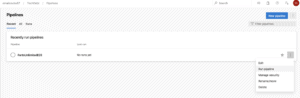
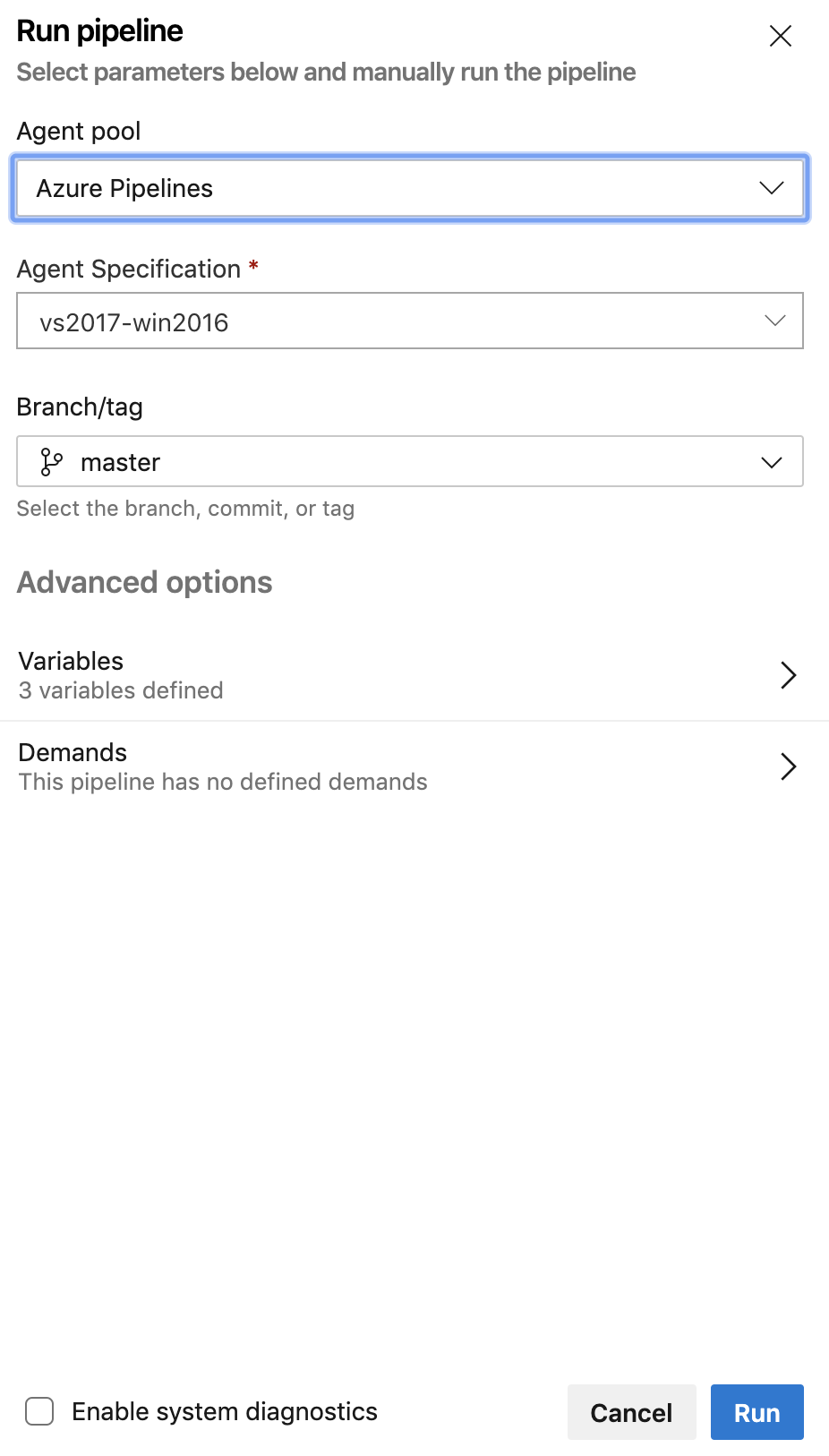
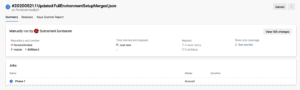
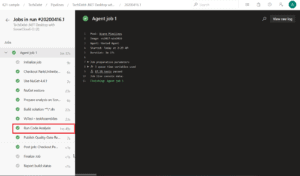
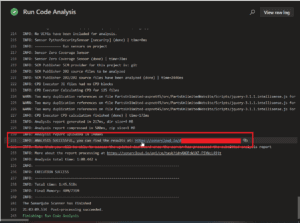
Step 11: Once after the build is successful then we can log in to the Sonar Cloud from the link above and then we can see the analysis is been done for the .NET project given below.
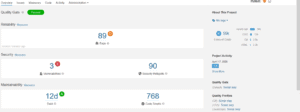
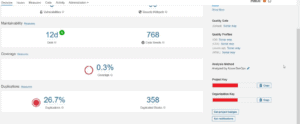
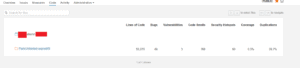
Inside the sonar analysis, we can go into multiple tabs and see how our code actually works.
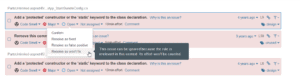
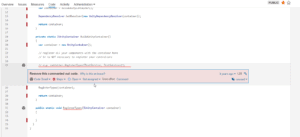
Here below, we are seeing how many issues we have and how to remediate it.
To know more about Docker Compose. Click here
What Is Code Smell?
A code smell is a surface indication that usually corresponds to a deeper problem in the system.
Code vulnerability is a term related to the security of your software. It is a flaw in your code that creates a potential risk of compromising security. This flaw will allow hackers to take advantage of your code by attaching an endpoint to extract data, tamper your software, or worse, erase everything.
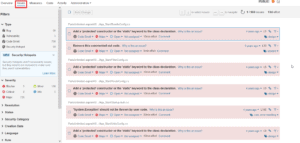
A Security Hotspot highlights a security-sensitive piece of code that the developer needs to review. Upon review, you’ll either find there is no threat or you need to apply a fix to secure the code.
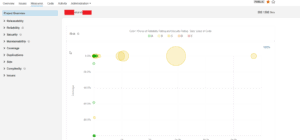
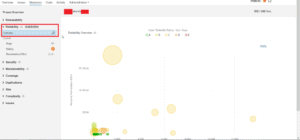
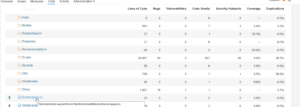
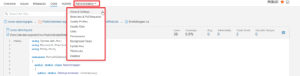
We can also the admin setup for the Quality gate and Quality profiles for the code and we can customize also as per our needs.
We can also have a setup that if the QUALITY GATE is failed then we can stop the pipeline.
Related/References
- [AZ-400] Azure DevOps Certification Path
- [AZ-400] Roles And Responsibilities As An Azure DevOps Engineer
- [AZ-400] Microsoft Azure DevOps Certification Exam: Everything You Need To Know
- [AZ-400] Microsoft Azure DevOps Training: Step By Step Activity Guides/Hands-On Lab Exercise
- [AZ-400] Azure DevOps Services for Beginners
- [AZ-400] Designing and Implementing Microsoft DevOps Solutions [Official Page]
Next Task For You
Begin your journey toward Mastering Azure Cloud and landing high-paying jobs. Just click on the register now button on the below image to register for a Free Class on Mastering Azure Cloud: How to Build In-Demand Skills and Land High-Paying Jobs. This class will help you understand better, so you can choose the right career path and get a higher paying job.


![Microsoft Agentic AI Business Solutions Architect [AB-100] | K21 Academy](https://test.k21academy.com/wp-content/uploads/2025/11/Microsoft-Agentic-AI-Business-Solutions-Architect-AB-100-Exam-Overview1.png)


