


Azure PowerShell is a command-line tool that allows you to manage Azure resources and automate various tasks. However, it’s not uncommon to encounter errors while using Azure PowerShell, one of which is the Connect-AzAccount Error.
In this blog, I am going to explore the following step by step to help you find the reasons behind this error and provide solutions to resolve it.
- What is the Connect-AzAccount Error?
- What Causes the Connect-AzAccount Error?
- How to Fix the Connect-AzAccount Error?
- Conclusion
What is the Connect-AzAccount Error?
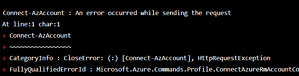
The Azure Connect-AzAccount Error is a common error that occurs when you are trying to connect to Azure using Azure PowerShell. It may display an error message similar to the following:
What Causes the Connect-AzAccount Error?

There are several reasons why you might encounter the Azure Connect-AzAccount Error, including:
1. Outdated Azure PowerShell modules:
If you are using an outdated Azure PowerShell module, it may not be able to connect to Azure. Ensure that you have the latest version of Azure PowerShell installed.
2. Firewall restrictions:
Your firewall settings may be blocking the connection to Azure. Check your firewall settings and ensure that you have allowed connections to the required ports.
3. Incorrect login credentials:
Ensure that the credentials you are using to sign in to Azure are correct. Double-check your username and password to ensure that they are accurate.
4. MFA authentication:
If you have multi-factor authentication (MFA) enabled on your Azure account, you will need to provide additional authentication information during the sign-in process.
How to Fix the Connect-AzAccount Error?
If you encounter the Azure Connect Error, here are some steps you can take to resolve it:
1. Update Azure PowerShell:
Ensure that you have the latest version of Azure PowerShell installed by running the following command:
Update-Module -Name Az
This command will update the Azure PowerShell module to the latest version.
Another possibility is that the Azure PowerShell module is not installed on your machine.
2. Install Azure PowerShell Module:
To check if the module is installed, you can run the following command in PowerShell:
Get-Module -ListAvailable Az
If the module is not listed, you can install it by running the following command:
Install-Module -Name Az -AllowClobber -Scope CurrentUser
This command installs the Azure PowerShell module for the current user. The -AllowClobber parameter is used to overwrite any conflicting modules that may be installed. If you want to install the module for all users, you can remove the -Scope parameter.
3. Import Azure PowerShell module:
Once the Azure PowerShell module is installed, you can import it into your PowerShell session by running the following command:
Import-Module Az
Now you should be able to run the Connect-AzAccount cmdlet without any issues. If you’re still seeing the same error message, there may be an issue with your PowerShell profile or environment.
4. Troubleshooting PowerShell Profile:
To troubleshoot this, you can try opening a new PowerShell window or even restarting your computer. If that doesn’t work, you can check your PowerShell profile to see if there are any conflicts or missing modules. You can do this by running the following command:
notepad $PROFILE
This command opens your PowerShell profile in Notepad. You can then search for any references to the Azure PowerShell module or the Connect-AzAccount cmdlet. If you find any issues, you can try removing or updating the relevant code.
5. Check Firewall settings:
Ensure that your firewall settings are not blocking the connection to Azure. Open the required ports by adding a rule to your firewall settings.
6. Verify login credentials:
Double-check your login credentials to ensure that they are accurate. If you’re not sure about your credentials, reset your password and try again.
7. Use MFA authentication:
If you have MFA enabled on your Azure account, follow the prompts to provide the additional authentication information required.
8. Check connectivity:
If you still encounter issues, ensure that you have a stable internet connection. You can test your internet connectivity by opening a browser and visiting a website.
Conclusion:
The Azure Connect Error can be a frustrating experience while using Azure PowerShell. However, by following the solutions provided above, you can resolve the error and connect to Azure successfully. Remember to keep your Azure PowerShell module updated, verify your login credentials, check your firewall settings, and provide the necessary MFA authentication information. By doing so, you’ll have a smooth and seamless experience using Azure PowerShell to manage your Azure resources.
In summary, there are several reasons why you may encounter errors when connecting to Azure using the Azure PowerShell module.
By understanding the root cause of the error and following the appropriate steps, you can quickly resolve the issue and begin using the Azure PowerShell module to manage your Azure resources.
References/Related
- Top Azure CLI Commands For Managing Azure Resources
- Azure PowerShell (Module & installation Guide)
- AZ-305: Azure Solutions Architect Certification Overview
- Azure Landing Zone Overview | Architecture | Accelerator
- Virtual Networks In Microsoft Azure: VNet Peering, ExpressRoute, VPN Gateway
- What Is The Microsoft Cloud Adoption Framework For Azure?
- AZ-305 VS AZ-104 | Microsoft Azure Solution Architect V/S Azure Administrator
- Azure Solution Architect Expert | AZ-305 Certification
Next Task For You
Begin your journey toward Mastering Azure Cloud and landing high-paying jobs. Just click on the register now button on the below image to register for a Free Class on Mastering Azure Cloud: How to Build In-Demand Skills and Land High-Paying Jobs. This class will help you understand better, so you can choose the right career path and get a higher paying job.


![Microsoft Agentic AI Business Solutions Architect [AB-100] | K21 Academy](https://test.k21academy.com/wp-content/uploads/2025/11/Microsoft-Agentic-AI-Business-Solutions-Architect-AB-100-Exam-Overview1.png)