



This blog gives a step-by-step overview of how we can use the Azure Pipelines app for Slack to easily monitor the events for our pipelines.
The technologies that are covered in this blog are a part of the Azure DevOps environment. If it’s something in which you have an interest or you want to learn, then you can visit our previous blog to know more about the [AZ-400] Microsoft Azure DevOps Certification.
In this blog, we are going to cover:
- Azure Pipelines with Slack
- Add the Azure Pipelines app to your Slack workspace
- Approve deployments from your channel
- Azure Boards with Slack
- Azure Repos with Slack
Slack is deprecating the Visual Studio Teams Services (VSTS) app from its app store.
This app was built by the Slack team a few years ago and provides basic integration between VSTS and Slack.
The app allowed users to get notified of the events in Azure DevOps such as the creation of pull requests, updates to work items, completed builds, and more.
In addition to receiving notifications on events from Azure DevOps, these new apps support rich features such as:
- Creating work items using a command or messaging action
- Approving/rejecting releases from the Slack channel
- Notifying teammates with @mention support for action
- Unfurling URLs for work items pull requests and pipelines
- Supporting notifications for new YAML based pipelines
Azure Pipelines With Slack
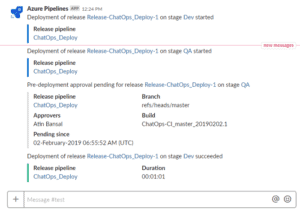
If we use Slack, we can use the Azure Pipelines app for Slack to easily monitor the events for your pipelines.
We can set up and manage subscriptions for builds, releases, YAML pipelines, pending approvals, and more from the app and get notifications for these events in your Slack channels.
This feature is only available on Azure DevOps Services. Typically, new features are introduced in the cloud service first, and then made available on-premises in the next major version or update of Azure DevOps Server.
Check Out: What is Azure DevOps? Click here
Add The Azure Pipelines App To Your Slack Workspace
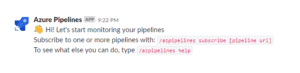
Navigate to Azure Pipelines Slack app to install the Azure Pipelines app to your Slack workspace. Once added, you will see a welcome message from the app below.
Use the /azpipelines handle to start interacting with the app.
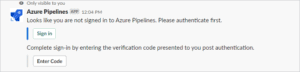
Once the app has been installed in your Slack workspace, you can connect the app to the pipelines you want to monitor. The app will ask you to authenticate to Azure Pipelines before running any commands.
To start monitoring all pipelines in a project, use the following slash command inside a channel:
/azpipelines subscribe [project url]
For example:
/azpipelines subscribe https://dev.azure.com/myorg/myproject/
To manage the subscriptions for a channel, use the following command:
/azpipelines subscriptions
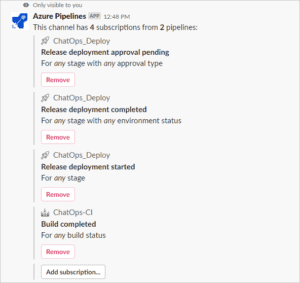
This command will list all the current subscriptions for the channel and allow you to add new subscriptions.
Approve Deployments From Your Channel
You can approve deployments from within your channel without navigating to the Azure Pipelines portal by subscribing to the Release deployment approval pending notification for classic Releases or the Run stage waiting for approval notification for YAML pipelines. Both of these subscriptions are created by default when you subscribe to the pipeline.
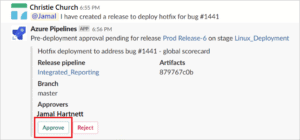
Whenever the running of a stage is pending for approval, a notification card with options to approve or reject the request is posted on the channel. Approvers can review the details of the request in the notification and take appropriate action. In the following example, the deployment was approved and the approval status is displayed on the card.
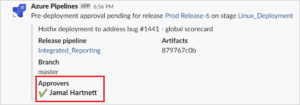
The app supports all the checks and approval scenarios present in the Azure Pipelines portal, like single approver, multiple approvers (any one user, any order, in sequence), and teams as approvers. You can approve requests as an individual or on behalf of a team.
Also Check: What is Ansible? Click here
Azure Boards With Slack
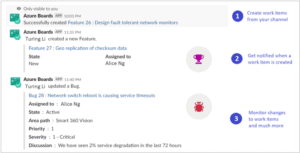
If we use Slack, you can use the Azure Boards app for Slack to create work items and monitor work item activity in your Azure Boards project from your Slack channel.
The Azure Boards app for Slack allows users to set up and manage subscriptions for creating, update, and other work item events, and get notifications for these events in their Slack channel.
Conversations in the Slack channel can be used to create work items. Previews for work item URLs help users to initiate discussions around work.
- To create a work item, we must be a contributor to the Azure Boards project.
- To create subscriptions in a Slack channel for work item events, we must be a member of the Azure Boards Project Administrators group or Team Administrators group.
- To receive notifications, the Third-party application access via OAuth setting must be enabled for the organization.
- Once after the above is done, we can see the welcome app message from the Slack channel.
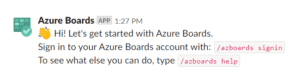
Once the app has been installed in your Slack workspace, connect and authenticate yourself to Azure Boards.
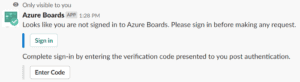
After signing in, use the following slash command inside a Slack channel to link to the Azure Boards project which you specify with the URL :
/azboards link [project url]
for example :
/azboards link https://dev.azure.com/myorg/myproject
Create a work item with a command
With Azure Boards app you can create work items from your channel. The app supports custom work items as well.
To create a work item, use /azboards create.
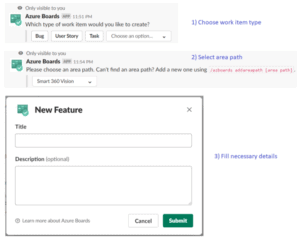
You can create work items directly from command by passing work item type and title as parameters. Work items will be created only if they do not have any fields to be mandatorily filled.
/azboards create [work item type] [work item title]
/azboards create ‘user story’ Push cloud monitoring alerts to mobile devices
we can create a work item based on the message shown below
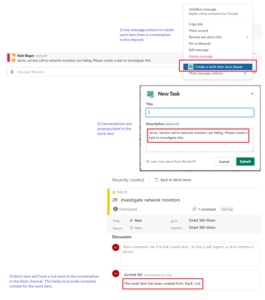
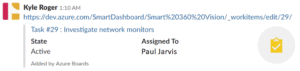
This will be the preview of the work item created from the slack channel.
To know more about Veracode, Click here
Azure Repos With Slack
If you use Slack, you can use the Azure Repos app for Slack to easily monitor your Azure repositories.
We can set up and manage subscriptions to receive notifications in your channel whenever code is pushed/checked in and whenever a pull request (PR) is created, updated or a merge is attempted.
This app supports both Git and Team Foundation Version Control (TFVC) events.
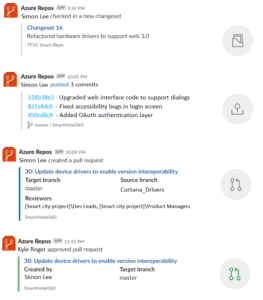
- To create subscriptions in a Slack channel for repository-related events, we must be a member of the Azure Project Administrators group or Team Administrators group.
- To receive notifications, the Third-party application access via OAuth setting must be enabled for the organization.
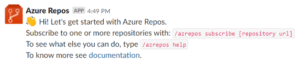
Once the app has been installed in your Slack workspace, connect and authenticate yourself to Azure Repos using /azrepos signin command.
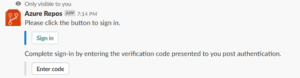
To start monitoring all Git repositories in a project, use the following slash command inside a channel,
/azrepos subscribe [project url]
/azrepos subscribe https://dev.azure.com/myorg/myproject/
For GIT:
/azrepos subscribe https://dev.azure.com/myorg/myproject/_git/myrepository
For TFVC :
/azrepos subscribe https://dev.azure.com/myorg/myproject/_versionControl
The subscribe command gets you started with a default subscription. For Git repositories, the channel is subscribed to the Pull request created event (with target branch = master), and for TFVC repositories, the channel is subscribed to the Code checked in the event.

To view, add and remove subscriptions for a channel, use the subscriptions command:
/azrepos subscriptions
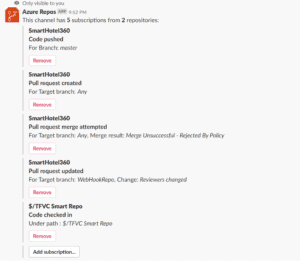
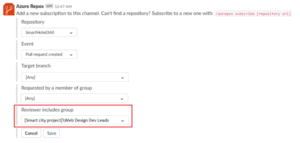
Example: Get notifications only when my team is in the reviewer list for a PR
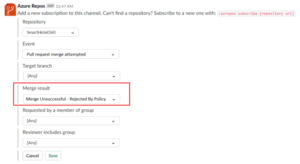
Example: Tell me when merge attempts fail due to a policy violation
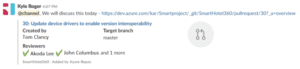
When a user pastes the URL of a PR, a preview is shown as the one in the following image. This helps to keep PR-related conversations contextual and accurate.
These are the 3 main SLACK APP which is mainly used for Azure DevOps. We can have this integrated and do the day 2-day work being in the slack itself.
Related/References
- [AZ-400] Microsoft Azure DevOps Certification Exam: Everything You Need To Know
- [AZ-400] Azure DevOps Certification Path
- [AZ-400] Azure DevOps Services for Beginners
- [AZ-400] Designing and Implementing Microsoft DevOps Solutions [Official Page]
- SonarCloud Azure DevOps | Integrating SonarCloud In Azure
- Veracode – SourceClear SCA Analysis
- [AZ-400] Monitor Azure With Grafana
- ServiceNow Integration With Azure DevOps
- Veracode Source Code Analysis
- Rugged DevOps & DevSecOps
Next Task For You
Begin your journey toward Mastering Azure Cloud and landing high-paying jobs. Just click on the register now button on the below image to register for a Free Class on Mastering Azure Cloud: How to Build In-Demand Skills and Land High-Paying Jobs. This class will help you understand better, so you can choose the right career path and get a higher paying job.


![Microsoft Agentic AI Business Solutions Architect [AB-100] | K21 Academy](https://test.k21academy.com/wp-content/uploads/2025/11/Microsoft-Agentic-AI-Business-Solutions-Architect-AB-100-Exam-Overview1.png)


