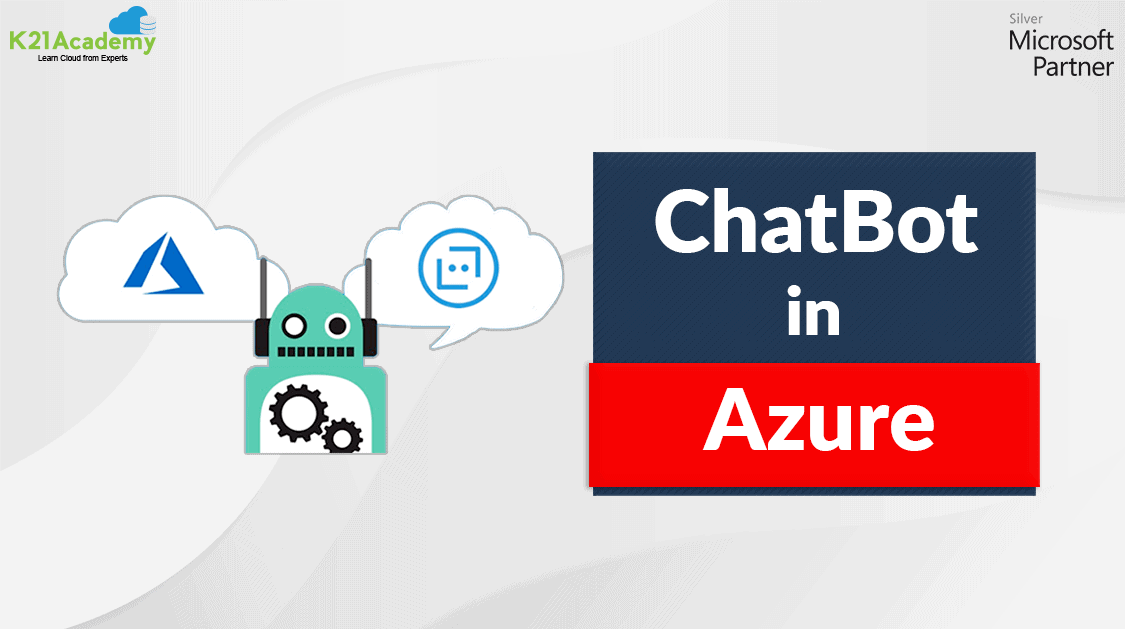



The Machines that can act, behave, and make decisions like humans are termed Artificially Intelligent Machines. A Bot is a common example where the integration of various Artificial intelligence technologies & Machine Learning algorithms are used.
In this blog post, we will cover everything about Chatbot technology in the Artificial Intelligence (AI) field and the steps to create a Chatbot in Microsoft Azure Cloud.
Topics Covered in this blog:
Overview Of ChatBot
Azure Cognitive service is a set of pre-built AI tools. Azure Cognitive Service is grouped into 5 categories vision, knowledge, language, speech & search. We can integrate these Azure cognitive services with Azure Bot Service to create a Chatbot interface for our requirements.
Read More: About Azure AI Fundamentals Certification.
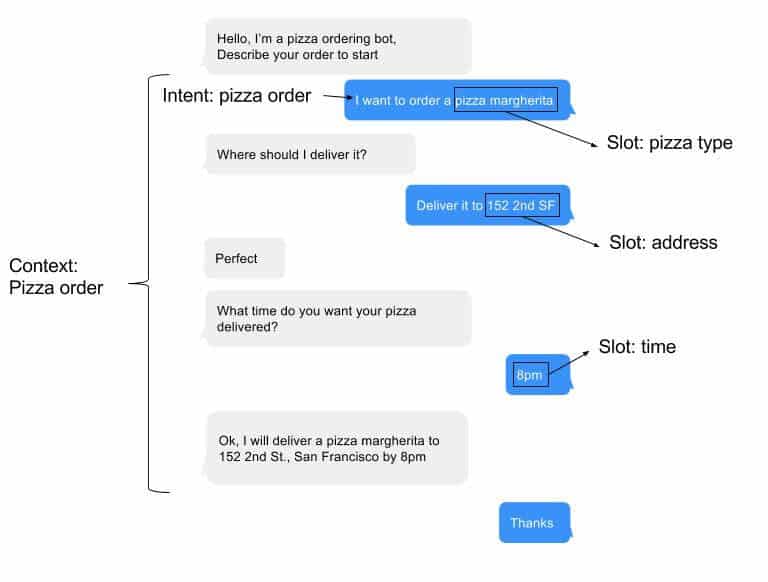
Conversational Artificial Intelligence is a solution that helps us to build a conversation between AI machines and humans. These machines are called Bots. Bots are used in various scenarios like customer support, reservation systems, digital assistants, online ordering, healthcare, etc.
We can interact with a bot in various ways:
- Webchat interfaces
- Emails
- Social Media Platforms
- Voice
Responsible AI Guidelines For Bots
- Being Transparent about the capabilities of the bot service created.
- If necessary the Bot service is capable of transmitting the conversation to a human. (in case of refund, or complaints)
- Ensure the Bot is reliable.
- Confidential and secret data should be secured.
- Handling data securely.
- Bot service must fulfill the accessibility standards.
Check out: Overview of Azure Machine Learning Studio
Pre-requisites
- Before Creating a QNA in the Language studio you need to Create a Language resource Service in the Azure Portal that supports Custom Question Answering.

Steps To Create A Qna Chatbot Using Language Studio
- Visit the Azure Language Studio using the below URL and sign in with your Azure subscription. https://language.cognitive.azure.com/

- After Signing into Azure Subscription it will ask to Provide some Details like Azure Subscription . Resource type , and Language Resource name. provide the details Accordingly and You will be Signed in to Language studio along with Language resource you created.

- You can either Directly click on Understand Questions and Conversional Language or in the Create new Section selecting the Qna.

- Click on Custom Question Answering .

- Now that we have Selected Custom Question Answering , we need to Create a Project click on Create new Project.

- Choose the Language settings , Select the Requirements Accordingly.

- Now Under the Basic Information Enter the Name for the Project , and Provide description and an Default answer which will be Used by the Bot if the Question that you ask not exist in the Data you Provided or Question that is not related to data provided.

- Click on Add Source.

- Under the Add source section you can Import the Data either using Url or Files , here i am providing URLs as the source for the Data. Add Data and Click on Add all.

- After Importing the data if you go to edit Knowledge base section if you click on the URLs or Files provided as data it will display the Questions and Answers, in how many frames questions will be formed based on data provided.
- if you Want to add a extra question Pair click on + Symbol and You can add the Question and Answer that you are expecting to be returned. Ans click on Save to the Question pair.

- Click on Test to test the Data Provided.

- Ask a Question to test it Will Return the Answers if the Solution Exist in the Provided data else it will return a default msg as we provided while creating the Project.

- Now to Create a Bot you need to Deploy knowledge base, go to Deploy Knowledge Base and Click on Deploy.

- Knowledge Base has been successfully create now to test it you Either use sdk by Getting Prediction Url or Click on Create directly to Test in the Azure Portal. Click on Create Bot.

- It will Redirect you to Azure Portal to Provide deployment Details, Select the Azure Subscription, Resource group Name, and In which location Resource group is Created.

- Provide the Bot handle name and Select the Pricing Tier(Select Pricing tier according to usage and Requirements) and select Microsoft APP-ID. Click on Next.

- In the Web App Section Provide a name to the Bot and select a Language and Creation type click on Create new app service plan.

- Now you need to Provide Language Resource Key value here, go to Language resource that you created initially for using in Language studio and Copy the Key value and Provide here.
- Click on Review and Create and Click on Create. it takes few minutes to deploy the Bot.

- It takes few minutes to Deploy the Bot, Go to Bot when it is created, and To test it Click on Test in webchat.

- You can test the Bot, You can a Question it will return the Answer.

- If the Question you ask that is not related or exist in the Data you provide, it will return a error msg that you provided While Creating project in the Language studio.

Note: QnA maker is an Azure Cognitive service. Check what Azure Cognitive Services are.
Conclusion
Microsoft Azure provides a powerful platform for creating intelligent chatbots using Cognitive Services and the Azure Bot Service. In addition, these tools enable developers to build chatbots with advanced AI capabilities like natural language understanding, speech recognition, and sentiment analysis.
Furthermore, the Azure Bot Service streamlines chatbot development and deployment across multiple channels, including websites and messaging platforms. With this in mind, its robust scalability, security, and integration features allow Azure chatbots to enhance customer interactions, automate workflows, and provide personalized support. Therefore, Azure is an ideal choice for businesses looking to implement cost-effective and impactful conversational AI solutions.
Frequently Asked Questions
Can I add multilingual support to my chatbot?
Yes, by using Azure Translator Text API and Language Understanding (LUIS), you can build chatbots that support multiple languages.
What are the costs associated with developing chatbots on Azure?
Costs depend on services used, such as Azure Cognitive Services APIs, Bot Service consumption, and hosting resources. Azure provides Pay-as-you-go pricing and Free Tiers for several services.
Can I train my chatbot to handle specific tasks or industries?
Yes, you can train your chatbot using LUIS models, Azure Machine Learning, or custom datasets to handle domain-specific tasks like customer support, healthcare, or e-commerce.
What is a knowledge base in Language Studio?
A knowledge base (KB) is a repository of question-and-answer pairs used by the QnA model to respond to user queries. You can build it using manual inputs, pre-existing documents, or web pages.
Can I update my bot after deployment?
Yes, you can update your bot by redeploying the updated code to the bot’s App Service in Azure.
Related/References:
Next Task: Enhance Your Azure AI/ML Skills


![Microsoft Agentic AI Business Solutions Architect [AB-100] | K21 Academy](https://test.k21academy.com/wp-content/uploads/2025/11/Microsoft-Agentic-AI-Business-Solutions-Architect-AB-100-Exam-Overview1.png)