


In this post we will learn everything you need to know about How to Configure and Install AWS CLI
- Why Command-line interface (CLI)
- Benefits of CLI
- Working of CLI
- How to install and configure CLI
- Case Study on AWS CLI
Cloud computing is getting popular among industries around the globe. Now, most enterprises are moving towards cloud computing and expanding their infrastructure footprints in the Cloud. Amazon Web Services (AWS) is the market leader and top innovator in this field. One of the AWS tools is known as AWS CLI (Command-line interface). It is used to manage AWS services through commands. This post will discuss what the AWS Command-line interface is and how to install & configure it.
AWS supports two ways of infrastructure configurations for its Services.
- Using AWS Web Console
- AWS Command-line interface (CLI)
What is AWS Command Line Interface
AWS CLI is a unified configuration to administer AWS public cloud services with only one tool, we can download, configure and monitor multiple AWS services using commands and automate them via scripts.
Firstly we will set up CLI on any operating system like Windows, Linux, macOS, or Docker containers then it can access all the functionality provided on the AWS portal. Moreover, you can automate the managing and controlling process by writing the script in the programming language you are familiar with.
That script allows deploying multiple resources without going through the entire configuration wizard each time. In simple, with the help of AWS CLI, you can manage and control all services from a terminal session in AWS Console.
Why AWS Command Line interface?
AWS Command line interface provides the best usability and control over AWS services. If there is another way available (AWS Web Console), why do we need a Command-line interface (CLI)?
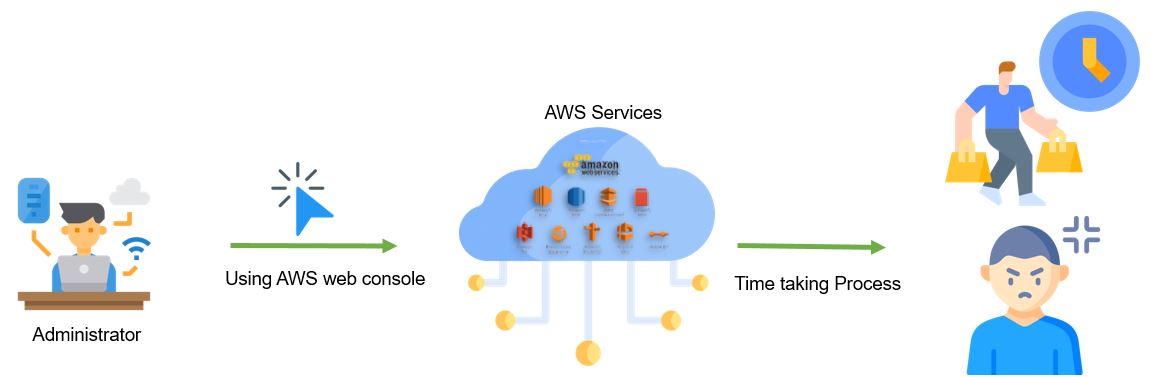
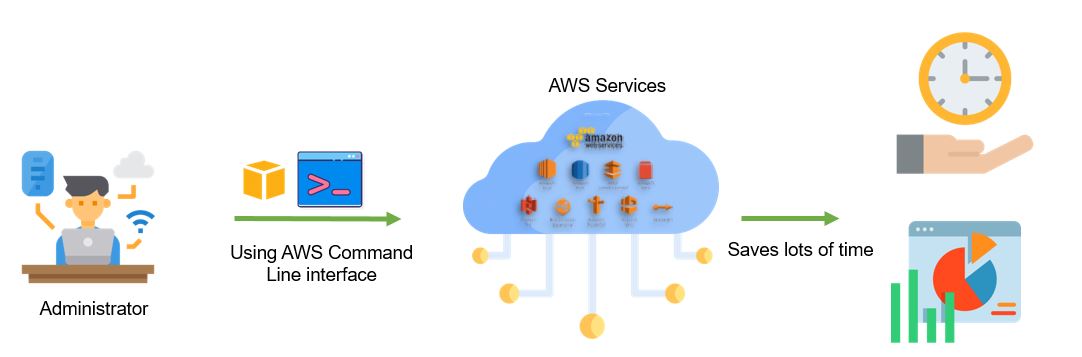
Well, Infrastructure configuration through AWS Web console is quite a difficult and time-consuming process where AWS CLI comes into the picture and makes the configuration quick, easy, and efficient. It saves a lot of time and increases productivity among the working team.
Also Check: AWS Cloud Certification.
Benefits of AWS Command Line Interface
One of the most obvious benefits of AWS CLI is the potential to save a significant amount of time. The savings come from easy installations, support of all services from one tool, going beyond GUIs, and using shell scripting to automate processes and commands. The major benefit of AWS CLI is mentioned below :
- Easy to Install: Before CLI was introduced, we had something called the AWS EC2 Application programming tool kit, and installing this tool kit involves several difficult steps. The user has to set up multiple environment Variables which would be difficult to set up. Instead of this AWS, CLI is just a one-step process.
- Supports all AWS services: AWS CLI is compatible with all the services like EC2, RDS, Beanstalk, SQS, SNS, etc.
- Time-Saving: AWS command-line interfaces save a lot of time installing and managing AWS services. Because all the services are getting managed by commands and also we don’t have to follow traditional methods (through web console) to manage services.
- Scripting Automation: It’s easy to automate the process of managing and controlling services by writing the script in any programming language.
Read More: AWS MFA Service.
Working of AWS Command Line Interface
AWS CLI allows you to access files inside the portal through specific commands. It saves a lot of time and offers the ability to automate the entire process of controlling and managing AWS services through scripts. These scripts obtain a fully automated cloud infrastructure.
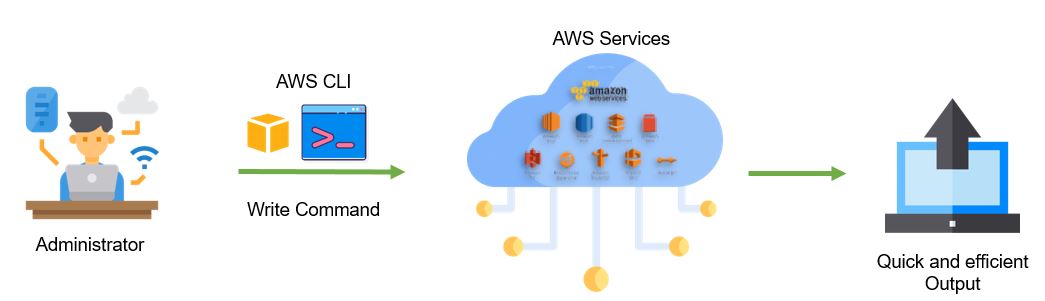
Using the terminal program, you can begin using all of the AWS Management Console features. It’s as follows:
Linux shells: Use a command shells program such as bash, ZHS, or THS to run commands. in operating systems like Linux, macOS, or Unix
Windows Command Line: You can run commands in either the power shell or Windows command processor.
Remotely: Remotely run commands on AWS EC2 instances through a remote terminal such as Putty, SSH, or AWS Systems Manager.
Also Check: AWS Elastic Load Balancer.
How to download and install AWS CLI For Windows:
AWS Command Line Interface (AWS CLI) helps us interact with various AWS services in the cloud. These include your security credentials, default output format, and the default AWS Region.
Prerequisites :
- Python 2 version 2.6.5+ or Python 3 version 3.3+
- Windows, Linux, macOS, or Unix Operating System
Now let’s install and configure AWS CLI as shown in the following steps mentioned below:
Step 1. Download and install AWS CLI: Before going to the AWS dashboard, firstly, we have to download the CLI installer on the local machine ( Windows, macOS, Linux ).
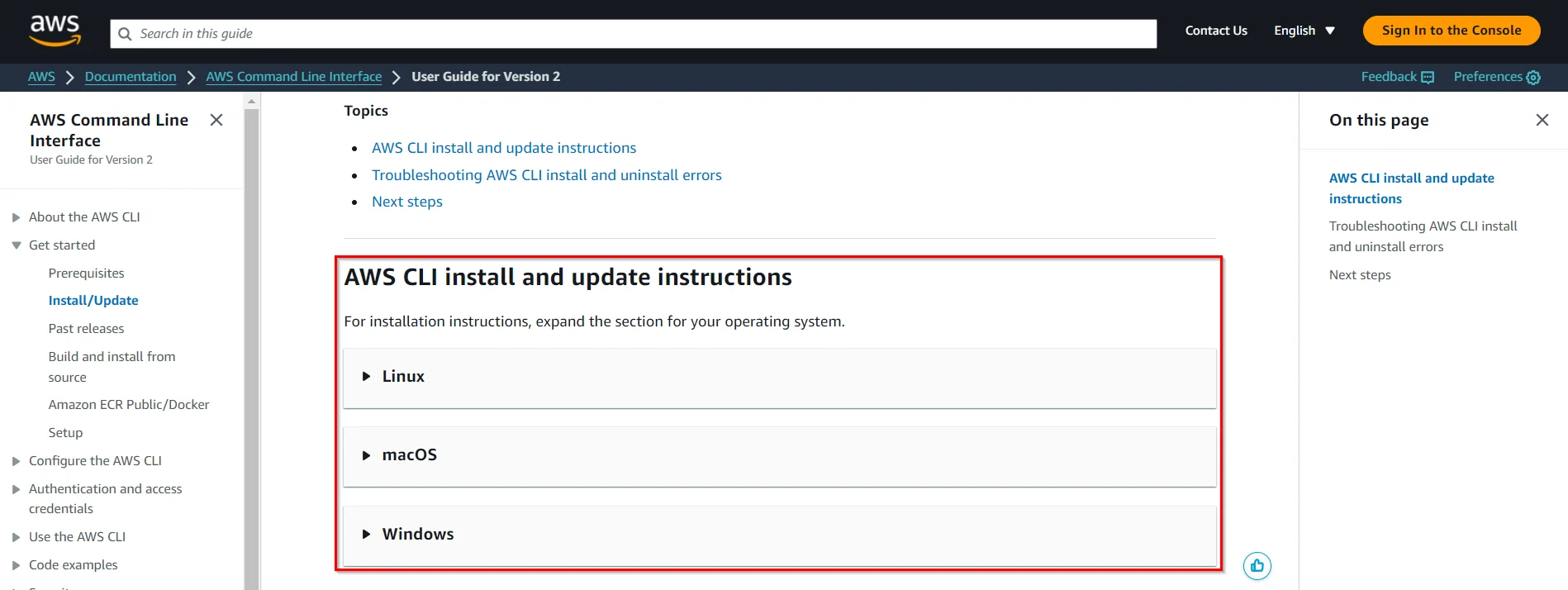
After that, RUN the downloaded MSI installer.
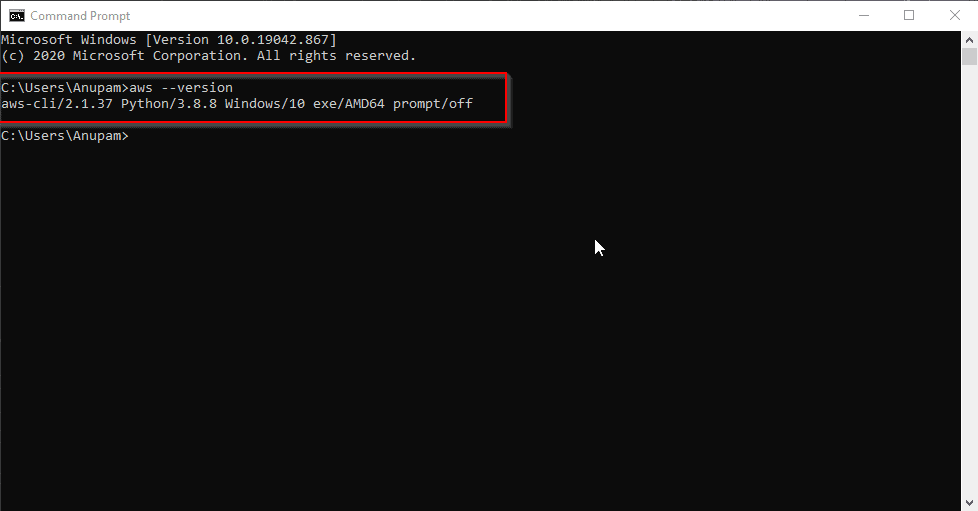
Step 2. Confirm the installation: To confirm the installation process, we must write the command aws --version prompt’s command. If the version is displayed, it indicates that CLI is installed, fortunately.
Check Out: AWS VPC
Step 3. Configure AWS CLI: After CLI installation, we have to download the AWS Console access key.
For that, go to My Security Credentials in AWS Console by clicking on UserName on the To right Corner. Now Scroll down and you will find Access keys Click on Create New Access Key, then download the CSV file to the local machine.
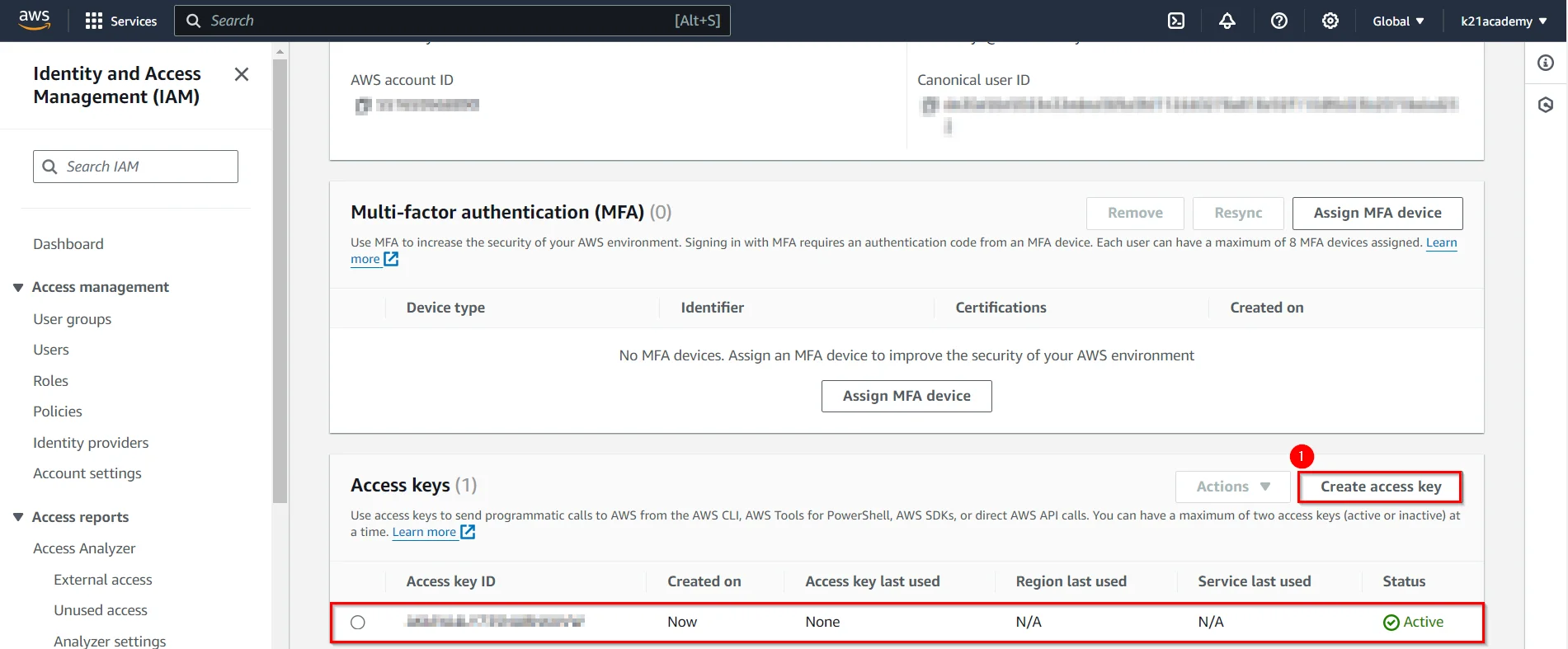
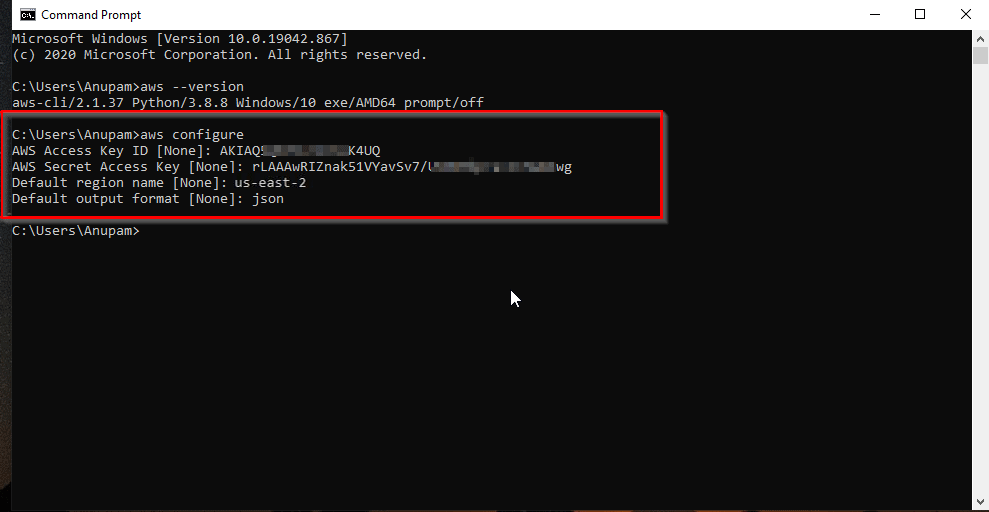
Now we can configure AWS CLI using the command: aws configure and fill in details like AWS keys, region, and output format.
- AWS Access Key ID [None]: ************
- AWS Secret access key [None]: ************
- Default Region name [None]: us-east-2
(However, you can choose any region closest to your location)
- Default output format [None]: JSON
(When we run the command, it’s going to split out some output, and there are several different options available, like how you want those outputs printed out. You can get it in JSON, YAML, or text format.)
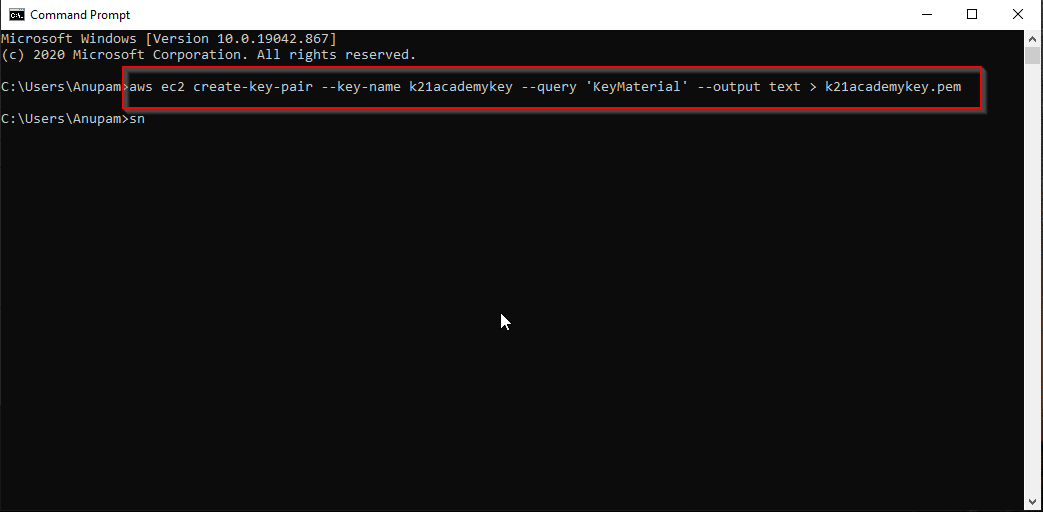
Step 4. Create Key Pair through CLI: Now, let’s create a key pair with the help of the command :aws ec2 create-key-pair --key-name k21academykey (key pair name ) --query 'KeyMaterial' --output text > k21academykey.pem
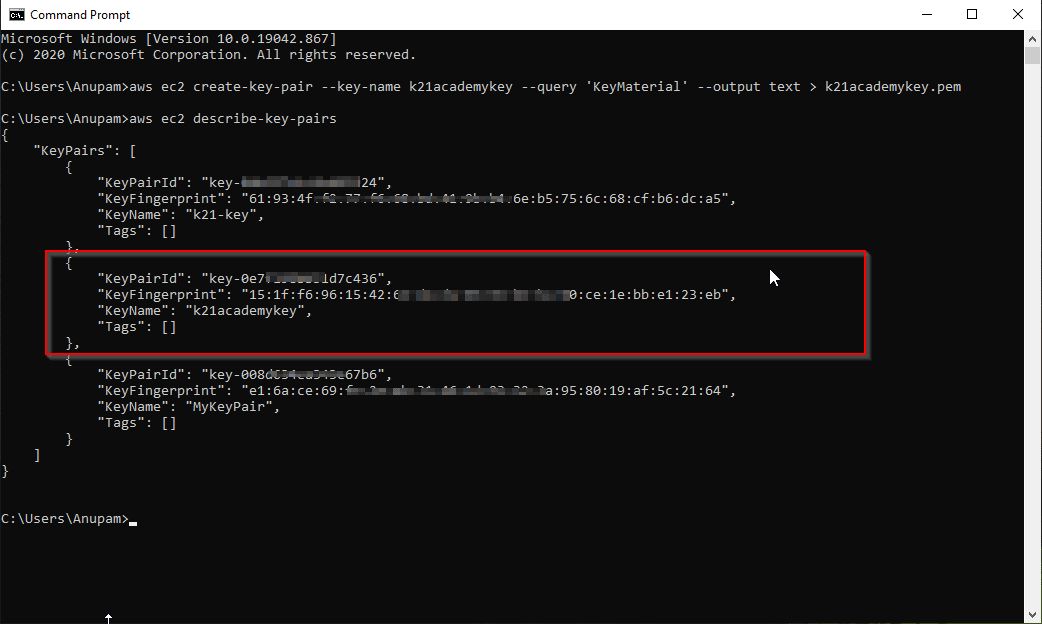
This command will create Key pair in a second, similarly to get it to verify, you can write: aws ec2 describe-key-pairs
If you want to delete the key pair at some instance, you can use the command: aws ec2 delete-key-pair --key-name k21academykey (key pair name )
Also Read: AWS Cloud Security.
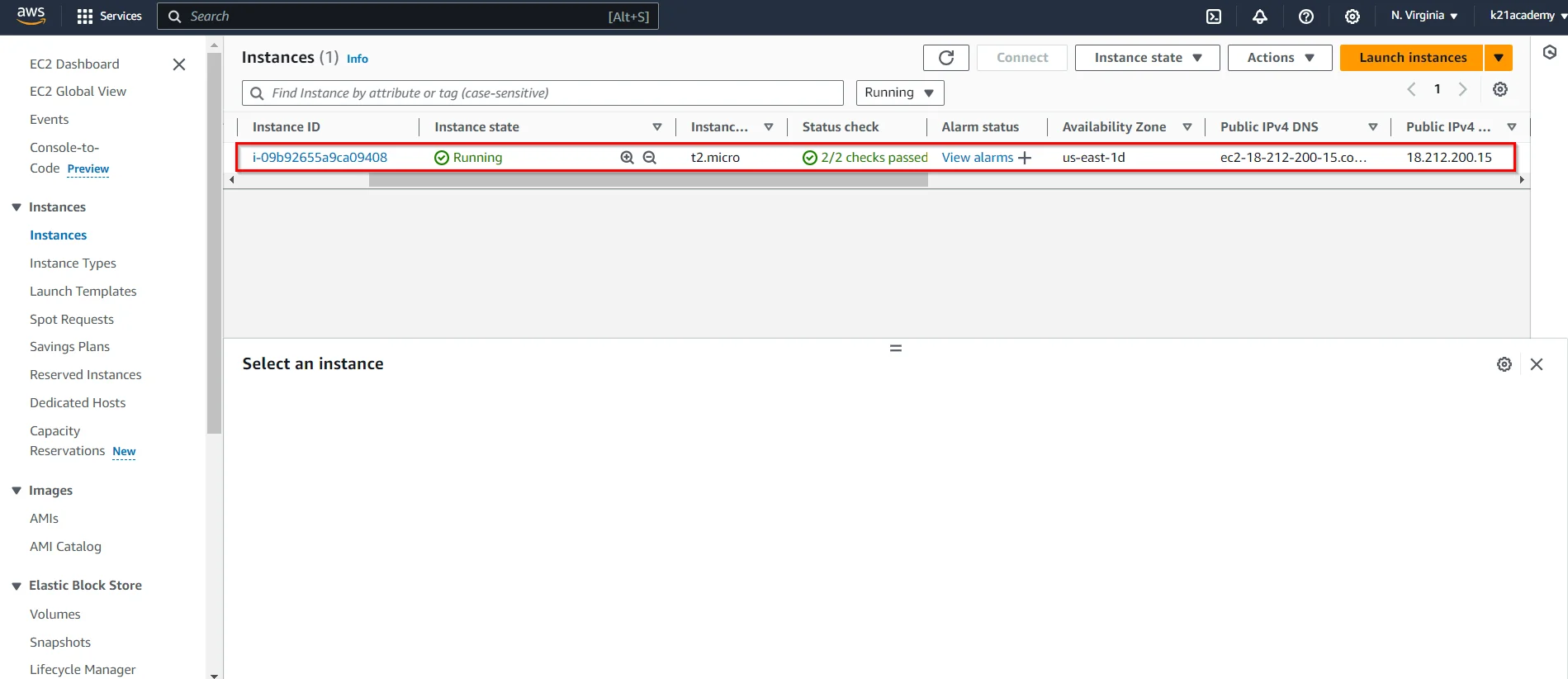
Step 5. Deploy ec2 instance through CLI: Now, in the next step, we are creating and deploying the ec2 instance through CLI; before, we have to collect ami- id by going to EC2 instances > launch instance.
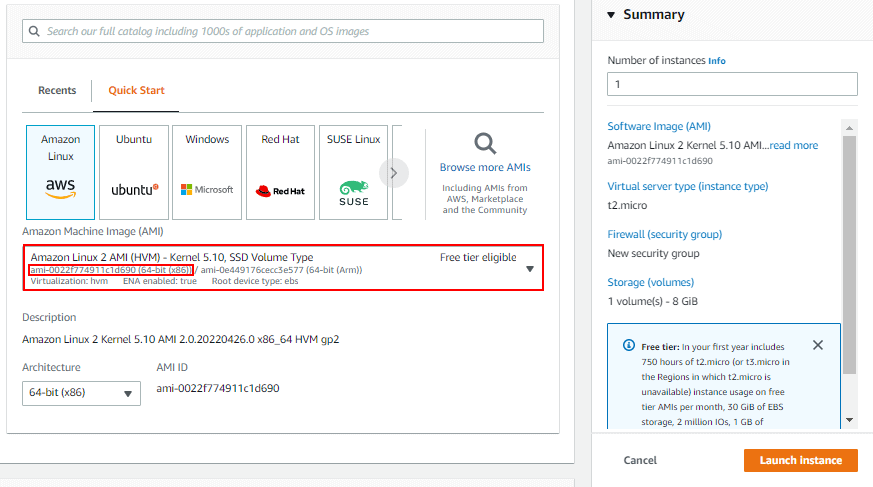 After collecting ami-id, you can follow the command:
 aws ec2 run-instances --image-id ami-******* ( write id here ) --instance-type t2.micro --key-name k21academykey (key pair name ) to launch and deploy the ec2 instance.
We can also verify the deployed instance by going to EC2 Instances in AWS Portal.
Or with the help of CLI by writing the command: aws ec2 describe-instances
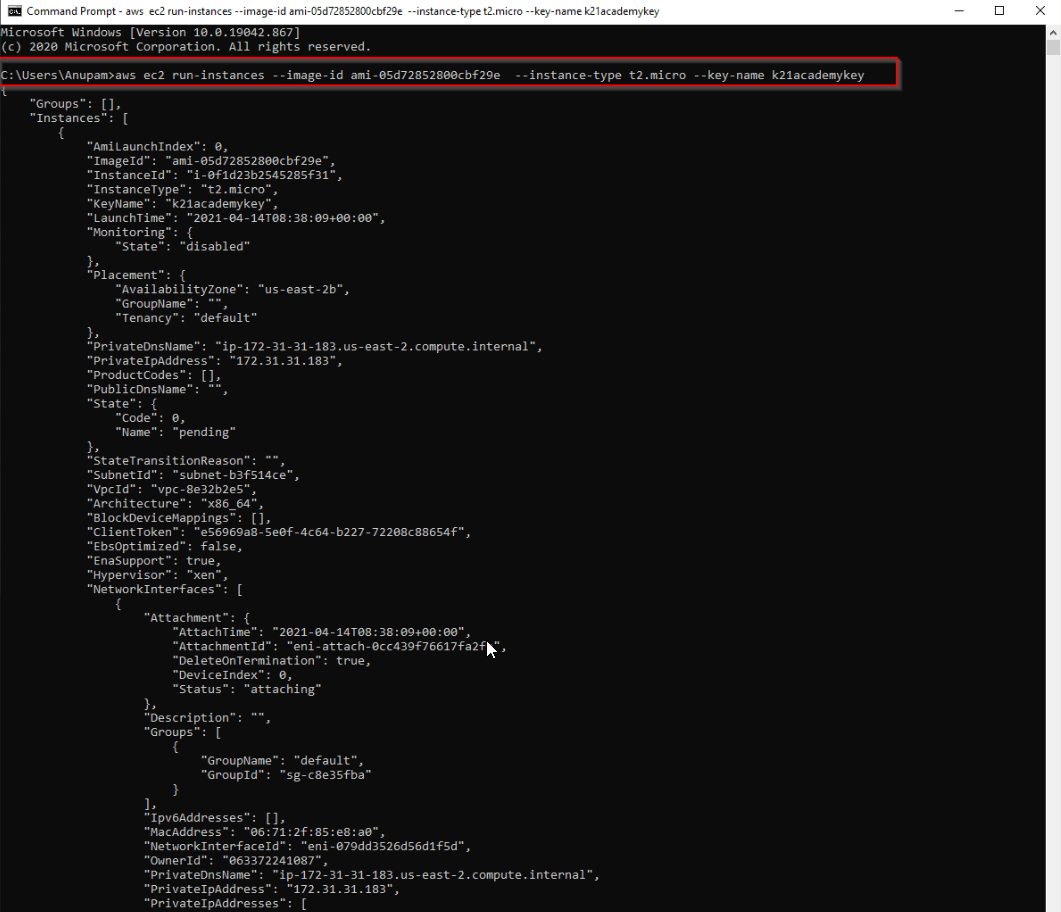
This showed we have successfully created and deployed the EC2 instance.
Also Check: AWS Storage.
How to download and install AWS CLI For Linux/macOS/Unix:
The bundled installer provided by AWS is recommended for installing the AWS CLI. All installation dependencies are included in the packaged installer.
1. To begin the installation run the following command:
curl "https://s3.amazonaws.com/aws-cli/awscli-bundle.zip" -o "awscli-bundle.zip"
2. Next, you must unzip the downloaded package from Step 1
unzip awscli-bundle.zip
3. Once the package is unzipped, you can run the installation:
sudo ./awscli-bundle/install -i /usr/local/aws -b /usr/local/bin/aws
With the 2nd step, all users can access the AWS CLI from any directory, eliminating the requirement to specify the install directory in the user’s $PATH variable.
Case Study on AWS CLI
Currently, most enterprises are moving towards cloud computing and expanding their infrastructure. There are Lots of companies that reportedly use AWS CLI in their tech stacks. Companies trusting AWS are mentioned below :

- Ordoo: Ordoo is an app that helps people to save time collecting their coffee & lunch. It enables customers to order and pay in advance at their favorite cafes and coffee shops, beating the queue and earning loyalty rewards. Ordoo has shown trust in Amazon and uses AWS CLI in its tech stacks.

- Tophatter: It brings over 10 million shoppers worldwide to an online marketplace brimming with lightning-fast live auctions. People can search a few categories on the Discovery shopping app, then participate in 90-second auctions for jewelry, electronics, cosmetics, and fashion. Tophatter is also using AWS CLI in its tech stacks.
Other companies reportedly use AWS CLI, including Infrastructure, Lancaster Solutions, Reef, etc.
Read: 13 Reasons to Why Learn AWS
Conclusion
AWS Web Console performs the same action as AWS CLI does, but the difference comes when it’s about quick output in a short period of time. AWS CLI helps to control Amazon’s public cloud services by typing commands in the command line. It is configurable in Windows, macOS, and Linux.
Related Links/References
- Overview of Amazon Web Services & Concepts
- How to Create a free tier Account in AWS
- AWS Management Console Walkthrough
- AWS Solution Architect Certification [SAA-C03]
- Cloud Computing Service Model: SaaS | PaaS | IaaS
- Azure DevOps Vs AWS DevOps – Difference & Pricing Overview
- How To Create AWS Free Tier Account
- AWS For Testers And AWS Quality Assurance (QA)
Next Task For You
Begin your journey towards an AWS Cloud by joining our FREE Informative Class on Amazon Cloud Free Class by clicking on the below image.


![Microsoft Agentic AI Business Solutions Architect [AB-100] | K21 Academy](https://test.k21academy.com/wp-content/uploads/2025/11/Microsoft-Agentic-AI-Business-Solutions-Architect-AB-100-Exam-Overview1.png)