




Artificial intelligence (AI) is revolutionizing industries, but building and managing AI models can be a daunting task. SageMaker AI, a fully managed service by AWS, simplifies the end-to-end AI lifecycle—from data preparation to model deployment. Launched in 2017, SageMaker AI empowers developers and data scientists to seamlessly create, train, and deploy AI models at scale, reducing complexity, costs, and time to market.
Index
What is Amazon SageMaker AI ?
- SageMaker is a fully managed machine learning service that provides the tools to build, train, and deploy machine learning models at scale.
- It helps data scientists and developers by automating many of the processes involved in the ML lifecycle, making it accessible even to those new to machine learning.
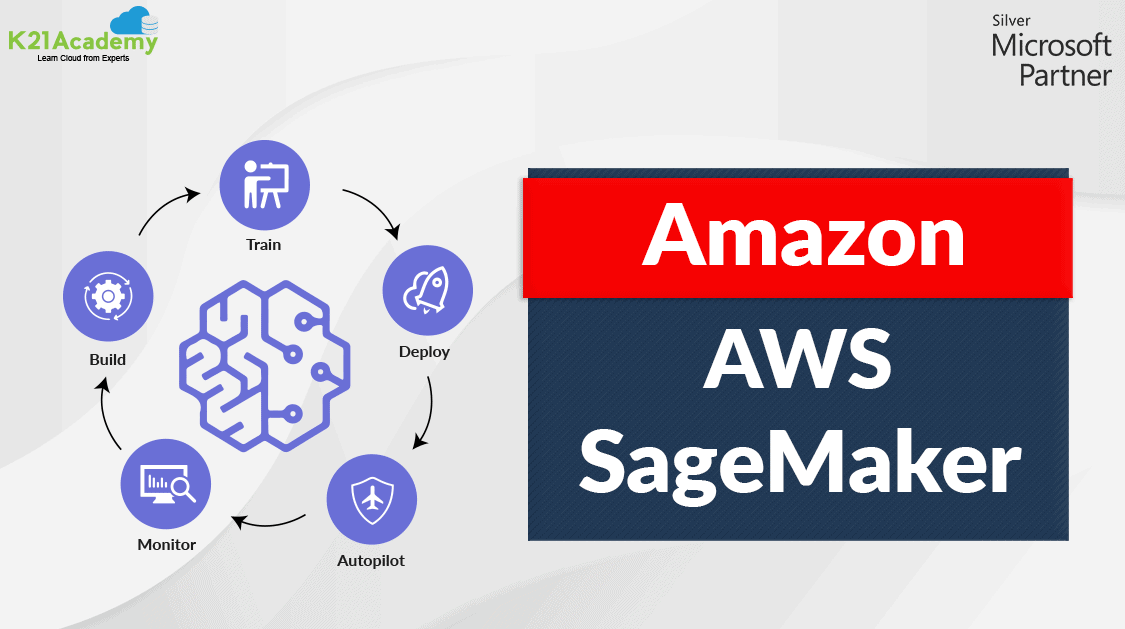
- The image above illustrates the core stages of Amazon SageMaker: Build, Train, and Deploy, showcasing its streamlined process for developing and deploying ML models.
 Key Capabilities of AWS SageMaker AI
1. Build
Amazon SageMaker simplifies model development by providing tools like:
- SageMaker Studio: An integrated development environment (IDE) that allows you to build, train, and deploy models within a unified interface. It includes Jupyter notebooks, project tracking, and tools for managing experiments and debugging—all in one place.Also Check: what is a hyperparameter?
- SageMaker Autopilot: Automatically trains and tunes models using your dataset. It’s ideal for beginners as it handles the complexity of selecting algorithms and tuning them, while still offering control over the training process.
- SageMaker Data Wrangler: A visual interface that simplifies data preparation, cleaning, and feature engineering, crucial for building effective models without needing extensive coding skills.
- SageMaker JumpStart: Provides pre-built models and solutions, enabling beginners to leverage state-of-the-art models without the need to develop them from scratch.
Getting Started with SageMaker
To build and train a machine learning model, you’ll begin by creating a Jupyter Notebook instance within SageMaker:
- Create a Notebook Instance: Sign in to the AWS SageMaker Console, navigate to Notebook Instances, and create a new instance. Configure your instance by naming it and selecting the appropriate IAM role, which allows access to S3 buckets for data storage.
- Understanding Libraries Used: Use the
sagemakerlibrary to access built-in ML algorithms and theboto3library to interact with S3 buckets. These libraries streamline the process of model training and data management. - Creating S3 Buckets: Create an S3 bucket to store your data. Ensure your bucket name is globally unique and follows AWS naming conventions. Use
boto3to manage bucket creation and data storage.
2. Train

Training is a critical phase where models learn from data, and SageMaker makes this process efficient and scalable:
- SageMaker Experiments: Track and organize training experiments with ease, allowing users to iterate and improve their models.
- Debugger: Gain complete visibility into the training process, with tools to detect anomalies like overfitting.
- Automatic Model Tuning: Adjust parameters automatically for the best performance, making it easier to achieve accurate predictions.
- Managed Training: SageMaker offers managed training jobs, allowing you to specify the algorithm, compute resources, and dataset, and scales resources as needed.
Building and Training Your Model
Follow these steps to train your model:
- Load Data into S3: Prepare your dataset by dividing it into training and testing sets. Upload these datasets to your S3 bucket, ensuring the dependent feature is the first column for compatibility with SageMaker algorithms.
- Model Training: Utilize SageMaker’s Estimator to specify the algorithm and resources for training. The Estimator manages the end-to-end training process, using data stored in your S3 bucket for input.
- Deployment and Prediction: After training, deploy your model with a specified instance count for predictions. SageMaker allows easy scaling of resources to accommodate prediction workloads.
Final Steps
Once your model is trained and deployed, remember to clean up resources to avoid unnecessary costs. Delete endpoints, models, and your notebook instance from the SageMaker Console, ensuring you only pay for what you use.
Steps to Deploy a Trained Model on AWS SageMaker
Deploying a trained model on AWS SageMaker involves several important steps. These steps ensure your model is up and running smoothly, ready to predict, and efficiently managed to optimize costs. Here’s a breakdown of the process:
1. Deployment
To kick off the deployment, utilize the deployment function with the necessary parameters. You’ll specify aninitial_instance_count, which determines how many server instances are used. More instances can lead to faster processing of predictions. An example command might look like this:
xgb_predictor = xgb.deploy(initial_instance_count=1, instance_type='ml.m4.xlarge')
This command launches the model onto an instance type suitable for your workload needs.
2. Prediction
Once deployed, the model is ready to handle prediction requests. You can send data inputs to the deployed model endpoint, and it will return predictions based on the trained logic.
3. Clean Up
Post-deployment, cleaning up resources is crucial to avoid unnecessary charges. Ensuring diligent termination of these services is a best practice:
- Terminating the Endpoint and Model: Once you no longer need predictions, terminate the endpoint to stop incurring charges.
xgb_predictor.delete_endpoint() xgb_predictor.delete_model() - Removing S3 Buckets: If you stored data or model artifacts in an S3 bucket, delete these to avoid storage fees.
bucket_to_delete = boto3.resource('s3').Bucket(bucket_name) bucket_to_delete.objects.all().delete() - SageMaker Notebook Management: Don’t forget to handle your SageMaker notebook:
- Access the SageMaker Console.
- Navigate to Notebook Instances.
- Select your instance and choose Actions, then Stop. Wait until the status shows as Stopped.
- Finally, choose Delete under Actions to remove the notebook instance.
By following these steps, you can effectively manage the lifecycle of your model deployment, ensuring optimal usage of resources and cost-efficiency.

Performing Predictions in AWS SageMaker
Predicting outcomes with a deployed machine learning model in AWS SageMaker involves several key steps. By following these steps, you’ll be able to utilize your model effectively for generating predictions.
Step 1: Deploy Your Model
Before making predictions, ensure your model is deployed. This involves:
- Training the Model: Use SageMaker to train your model with the appropriate dataset.
- Creating an Endpoint: Once the model is trained, deploy it as an endpoint in SageMaker. This endpoint acts as an API, allowing external applications to interact with your model to make predictions.
Step 2: Prepare Your Input Data
To make a prediction:
- Ensure Data Compatibility: Format the input data in a manner compatible with the model’s requirements. This usually involves structuring data as JSON, CSV, or other formats expected by the model.
Step 3: Invoke the Endpoint
With your endpoint set up and input data prepared, you can request predictions:
- Use AWS SDKs or APIs: This can be done using AWS SDKs in languages like Python (boto3), Java, or directly via HTTP requests.
import boto3

# Create a SageMaker runtime client
sagemaker_runtime = boto3.client('sagemaker-runtime')

# Define the payload (your data)
payload = "your_input_data"

# Invoke the endpoint
response = sagemaker_runtime.invoke_endpoint(
    EndpointName='your-endpoint-name',
    ContentType='text/csv',  # Change as needed
    Body=payload
)

# Parse the response
result = response['Body'].read().decode('utf-8')
Step 4: Handle the Prediction Output
The response from the model will contain the predicted results:
- Interpret Results: Depending on your model’s output format, you may need to process or decode the results to understand the prediction.
By following these steps systematically, you will be able to utilize your deployed SageMaker model to perform predictions effectively. This process integrates seamlessly into various applications, enabling real-time predictions powered by AWS’s robust infrastructure.
SageMaker Notebooks
SageMaker Notebooks provide a managed, Jupyter-based environment for building, training, and deploying ML models. Key features include:
- Pre-built templates for quick experimentation.
- Scalable compute resources to handle workloads dynamically.
- Collaboration tools for sharing notebooks with team members.
SageMaker Notebooks integrate seamlessly with AWS services like S3 and Glue, making them ideal for end-to-end machine-learning projects.
Conclusion
Amazon SageMaker provides a comprehensive platform to streamline machine learning workflows, making it accessible to beginners while powerful enough for experts. With features like SageMaker Studio, Autopilot, and Model Monitor, users can efficiently build, train, and deploy ML models at scale.
If you’re new to SageMaker, start with SageMaker Studio Lab, a free environment for exploring ML concepts without incurring AWS costs. Dive into SageMaker’s capabilities today and unlock the full potential of machine learning with AWS!
FAQs
How can data be loaded into S3 for use with SageMaker?
Data can be loaded into Amazon S3 for SageMaker by using the AWS Management Console, AWS CLI, or SDKs like Boto3. Organize data in S3 buckets and specify paths for training.
What are the naming conventions for S3 buckets?
S3 bucket names must be globally unique, contain 3-63 characters, and use lowercase letters, numbers, hyphens, or periods. Avoid uppercase letters, underscores, and trailing hyphens for compliance.
What is the process of creating a notebook instance in AWS SageMaker?
To create a notebook instance in AWS SageMaker, navigate to the SageMaker dashboard, select Notebook Instances, click Create, configure instance settings (name, type, IAM role), and launch.
What steps should be taken to clean up resources after using AWS SageMaker?
To clean up AWS SageMaker resources, delete endpoint configurations, endpoints, training jobs, and notebook instances to avoid unnecessary charges. Ensure associated S3 buckets, datasets, and logs are also removed.
What libraries are required for using AWS SageMaker?
To use AWS SageMaker, you need libraries like Boto3 for AWS service integration, SageMaker Python SDK for managing workflows, and Pandas, NumPy, or scikit-learn for data preprocessing and analysis.
How can S3 buckets be created using AWS SageMaker?
S3 buckets for AWS SageMaker can be created via the AWS Management Console, CLI, or SDK. Define a bucket name, region, and permissions, then link it to SageMaker for data storage.
Related/References:
For more insights into AWS services, certifications, and machine learning capabilities, explore the following resources:
- Amazon Sagemaker Studio
- Launch Amazon Sagemaker Studio
- AWS Certified Cloud Practitioner (CLF-C02) Exam
- AWS Certified Machine Learning – Specialty: Step-by-Step Hands-On
- Amazon Rekognition Features- Computer Vision On AWS
- AWS Certified Machine Learning Engineer – Associate (MLA-C01) Exam
- Generative AI (GenAI) vs Traditional AI vs Machine Learning (ML) vs Deep Learning (DL)
- Mastering Generative Adversarial Networks (GANs)
- Introduction to Generative AI and Its Mechanisms
- Blue-Green Deployment in AWS – The Zero Downtime Deployments
- AWS Data Pipeline: Overview, Components, Pros & Cons.
Next Task For You
Don’t miss our EXCLUSIVE Free Training on Generative AI on AWS Cloud! This session is perfect for those pursuing the AWS Certified AI Practitioner certification. Explore AI, ML, DL, & Generative AI in this interactive session.
Click the image below to secure your spot!


![Microsoft Agentic AI Business Solutions Architect [AB-100] | K21 Academy](https://test.k21academy.com/wp-content/uploads/2025/11/Microsoft-Agentic-AI-Business-Solutions-Architect-AB-100-Exam-Overview1.png)