



This post covers the Free Google Cloud Platform Account Overview. Google Cloud Platform (GCP) is providing 90 days of Free Trial account with $300 credits to new subscribers to get hands-on experience with all the Google Cloud services.
In this Free Trial account, Google offers several different services which come with some limitations to getting hands-on practice and more knowledge on Google Cloud services
The Google Cloud Free Trial is mainly designed to give hands-on experience with Google Cloud Services for customers free of cost for 90 days or till you’ve spent the $300 in credits.
Limitations Of Google CloudFree-Trial Account
- The Free Trial ends when all of your credits are consumed, or after 90 days, whichever happens first.
- Once the free trial period ends all resources created during the trial are stopped and any data stored in Compute Engine is lost
- Any usage above the Free Trial usage limits is automatically billed at standard rates.
Read more about the free-trial usage limits on the official site.
Pre-Requisites
- You must have a Gmail ID (xxxxxx@gmail.com). If you do not have a Gmail Account then first create a Gmail account and after successful creation of a Gmail account, you will have an ID like xxxxx@gmail.com.
- You should have a credit card and a phone number.
Steps To Register For Google Cloud Free Trial Account
Step 1: Navigate to the GCP Free-Trial Account Creation Homepage.
Step 2: Click on the Start Free option which appears on the top right corner.
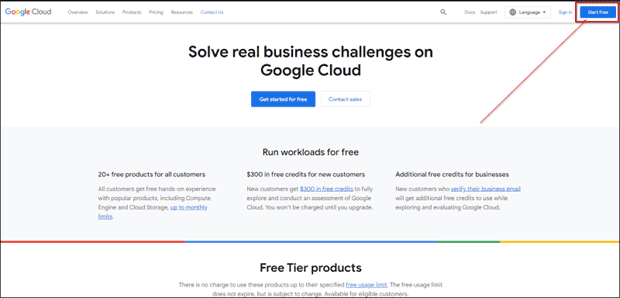 Step 3: It will redirect to the Sign-In page, Sign In with your Gmail ID.
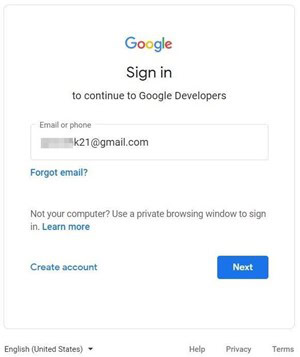
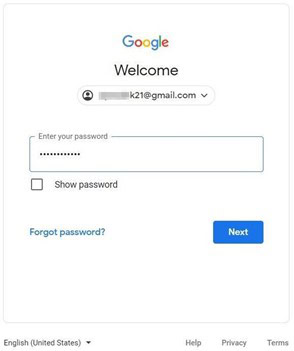
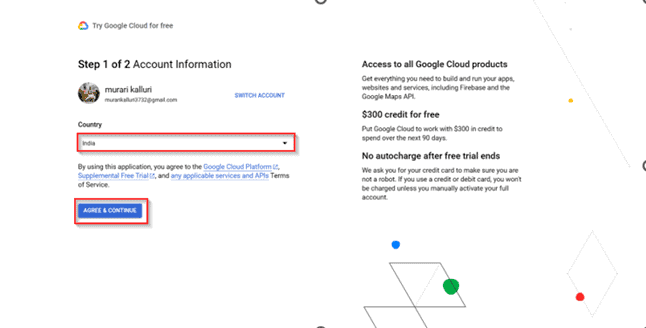
Step 4: After sign-in, it will redirect to the GCP Free-trial page. Select your country from the drop-down, and click on Agree and Continue.
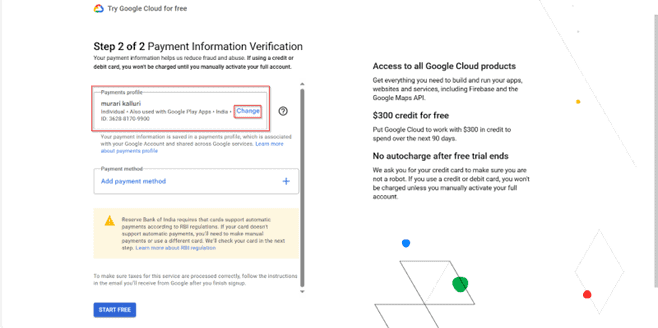
Step 5: Now enter the details as asked in Step 2 of 2[payment verification]. The payment profile will be selected automatically from your signed mail address, You can also change the payment profile, and click on change to enter the required details.
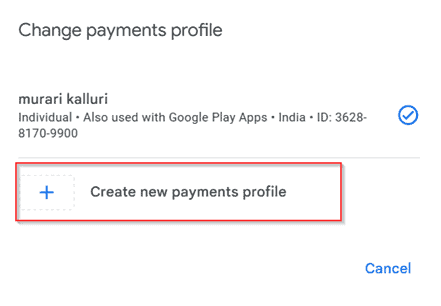
Step 6: Click on Create New Payment Profile. You can create only one individual profile for payment with one email, if you want to create more than one, you need to create on Organization name.
- Provide the required details according to the requirements asked while creating a profile. If you are using a new mail that is not logged in before, you will directly get an option to create a profile and you will have a chance to create it according to your wish it can be individual or organization.
Note: Details will be varied according to your selected option. (Individual or Organization)
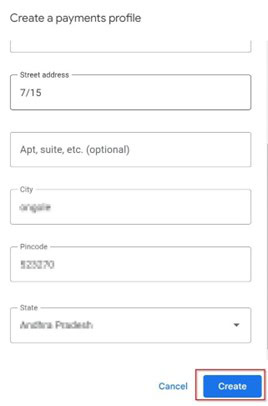
Step 7: Provide the details, provide legal name, street address and city.
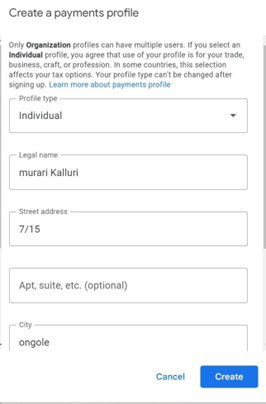
Step 8: Similarly, add the pin code and state and click on create your profile will be created and now you can add payments.
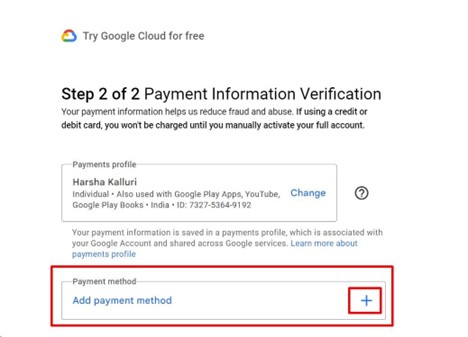
Step 9: Now we need to add payment, click on add a payment method.
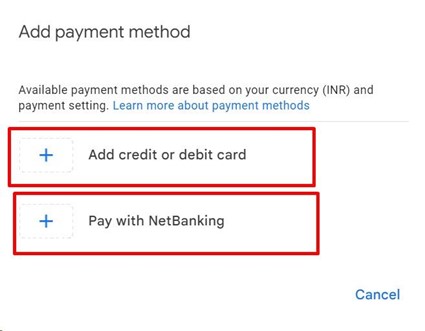
Step 10: Provide the details according to your wish, you can either use a credit card or debit card or you can also use Internet banking.
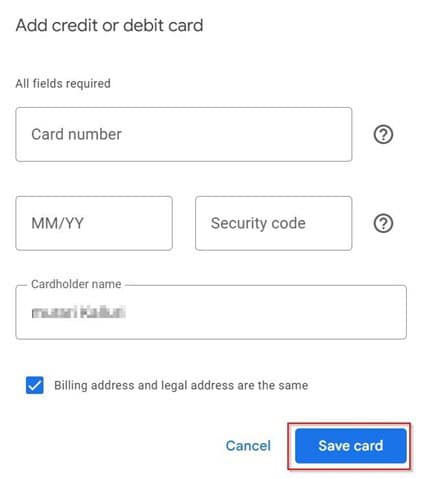
Step 11: Here we are using a credit card, once you provide the details that are necessary click on the save card option.
Step 12: Provide the details of your credit/debit card make sure to check automatic payments are enabled while using your card otherwise, you will face an issue, and your payment will not be accepted and might be declined. Provide the details and click on save card.
Step 13:Next, it will ask to verify your credit/debit card and after saving the card click on Start Free. It will take you to the payment page.
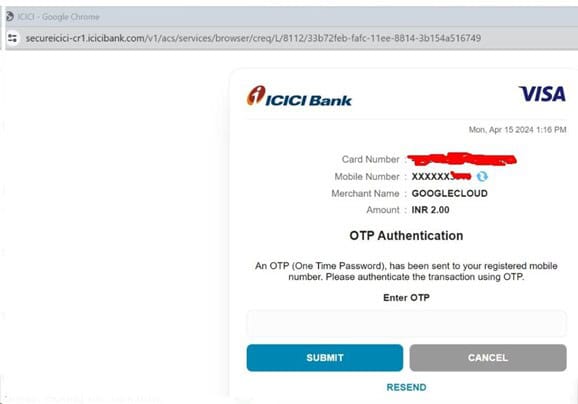
Enter card details, confirm, and input CVV and OTP. A minimal charge will be deducted, refundable in 2-3 days. Verify the card and save it for auto-pay. Proceed to payment. Enter OTP on the pop-up window. Ensure auto-pay is enabled. Google charges a minimal fee (e.g., 2 INR) for card verification. The amount deducted was refunded in 2-3 days. Redirected to the payment gateway for validation.
User Interests:
Step 14: After the authentication is completed, you will be asked a few questions about your intended use. Select the most appropriate answer.
- What brought you to Google Cloud?
- What are you interested in doing with Google Cloud?
- What best describes your role?
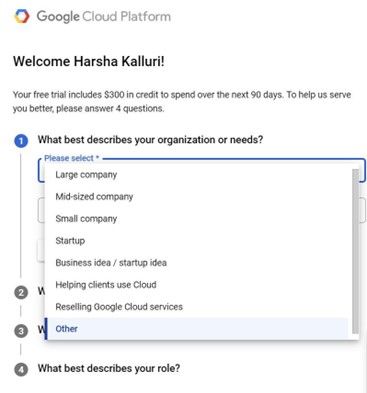
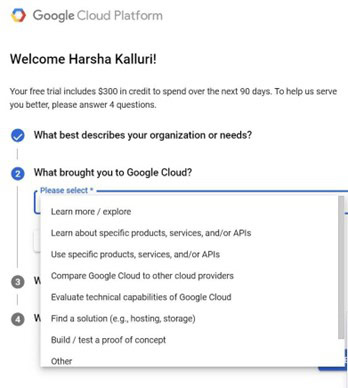
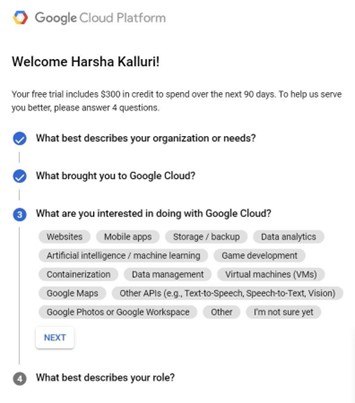
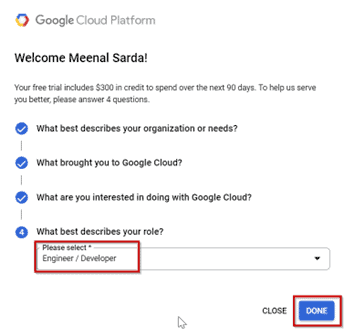
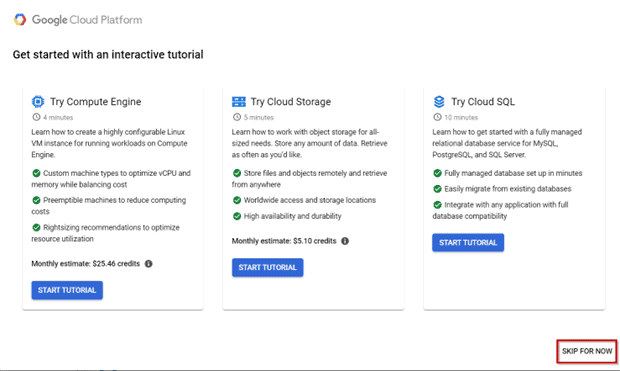
Step 15: After you have entered your interest and your roles, you can take these free tutorials on some of the most commonly used cloud services like Compute Engine, Cloud SQL, etc, or simply click on the Skip for Now option.
Step 16: Once you’re done with that, you will be redirected to the Google Cloud Platform page where you can start creating projects and practice hands-on labs.
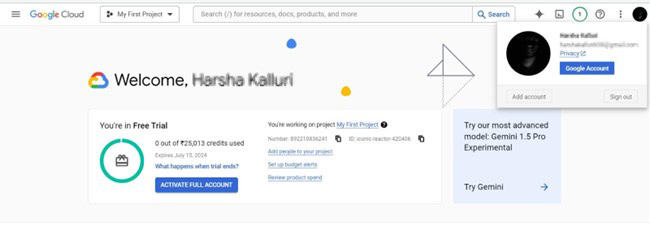
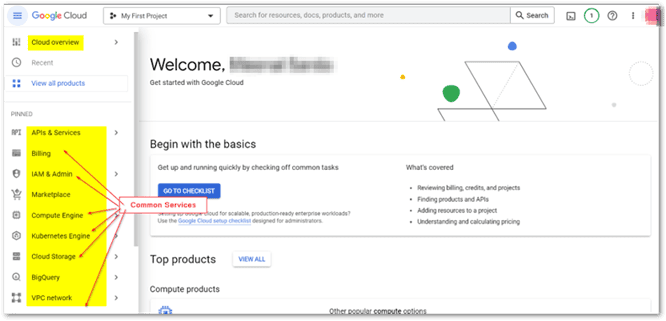
Step 17: Cloud overview.
Login To Google Cloud Console
Step 18: Open your web browser navigate to https://console.cloud.google.com/ and sign in with your registered ID (which you used in the above steps to create your free trial account).
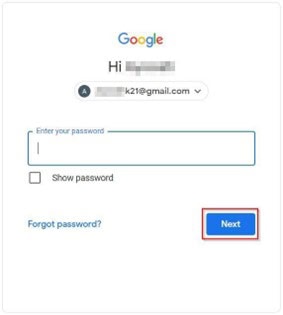
Step 19: After successful log-in, you will be redirected to the Google Cloud Console homepage.
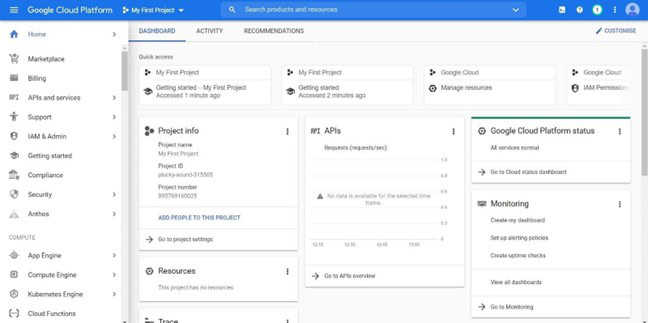
In this Blog, we have successfully created the Google Cloud Free Trial Account.
FAQs
Is Google Cloud Free?
Yes, Google Cloud is free to use up to certain limits. There are two main ways to get free Google Cloud:
- Free Trial. New customers can get a 90-day, $300 Free Trial of Google Cloud. This includes $300 in free credits to use on any Google Cloud product, as well as free access to over 20 popular Google Cloud products.
- Free Tier. All Google Cloud users are eligible for the Free Tier, which provides limited access to many common Google Cloud products and services free of charge. The Free Tier limits are different for each product, but they are generally generous enough to allow you to try out Google Cloud without having to pay anything.
Download FREE Guide

Related References
- GCP Associate Cloud Engineer: All You Need To Know About
- GCP Professional Cloud Architect: Everything You Need To Know
- Introduction To Google Cloud Platform
- Google Cloud Services & Tools
- Google Cloud VPC (Virtual Private Cloud) for Beginners
- Google Compute Engine – Introduction
Next Task For You
If you are also interested and want to know more about the Google Professional Cloud Architect certification, register for our Free Class.


![Microsoft Agentic AI Business Solutions Architect [AB-100] | K21 Academy](https://test.k21academy.com/wp-content/uploads/2025/11/Microsoft-Agentic-AI-Business-Solutions-Architect-AB-100-Exam-Overview1.png)


