


In Azure, we have two concepts namely Azure Datastore and Datasets. Datastores are used for storing connection information to Azure storage services while Datasets are references to the data source locations. In this post, we will learn more about the topic of Working with Datastores and Datasets in Azure.
What Are Azure Datastore?
Datastores are attached to the workspace and can be referred by name. They are used to store connection information to Azure storage services.
There are various Cloud Data Sources which can be registered as datastores, some of them are:
- Azure Storage- It is 500TB of object storage.
- Azure Data Lake- It is basically the Hadoop File System (HDFS). There is no upper limit in the data lake (can store any amount of data).
- Azure SQL Database- It is a Platform-as-a-service database where we can get structured data.
- Azure Databricks File System- It is a local file system of the data bricks cluster, which is a spark cluster in the Azure cloud.
There are two built-in datastores in every workspace namely an Azure Storage Blob Container and Azure Storage File Container which are used as system storage by Azure Machine Learning.
Datastores can be accessed directly in code by using the Azure Machine Learning SDK and further use it to download or upload data or mount a datastore in an experiment to read or write data.
Check out: Overview of Azure Machine Learning Service
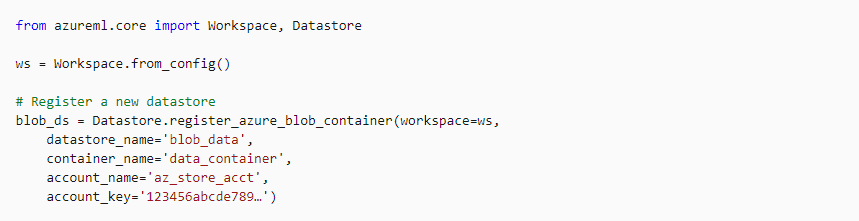
Registering A Datastore Azure To A Workspace
A Datastore Azure can be registered in the workspace by using the Graphical Interface in Azure Machine Learning Studio or by using the Azure Machine Learning SDK.
Check out: Machine learning is a subset of Artificial Intelligence. It is the process of training a machine with specific data to make inferences. In this post, we are going to cover everything about Automated Machine Learning in Azure.
Managing A Azure Datastore
Datastores can be viewed and managed in Azure Machine Learning Studio or we can use the Azure Machine Learning SDK.
- We can list the names of available datastores in the workspace.

- We can get a reference to a datastore in the workspace

- We can retrieve a default datastore of a workspace.

Also Read: Our previous blog post on Microsoft Azure Object Detection. Click here
Working With Datastore Azure
We can directly work with datastore by using the methods of the datastore class.

We have seen how we can register a datastore and now we will look at how to register a dataset and work with datastores and datasets in Azure.
Also Check: DP 100 Exam questions and Answers.
What Are Azure Datasets?
A dataset is basically a schema or a versioned data object for experiments. Datasets can be dragged and dropped in the experiment or added with the URL
There are two types of datasets available in Azure:
- File Dataset: It is generally used when there are multiple files like images in the datastore or public URLs. File Datasets are usually recommended for machine learning workflows as the source files can be any format that gives a wide range of machine learning scenarios along with deep learning.
- Tabular Dataset: In a tabular dataset the data is represented in table format. This dataset format helps in materializing the dataset into Pandas or Spark DataFrame which allows the developer to work with familiar data preparation and training libraries without having to leave the notebook.
Also Read: Our previous blog post on mlops. Click here
Creating Azure Datasets
Note: Datasets must be created from paths in Azure datastores or public web URLs, for the data to be accessible by Azure Machine Learning,
Before creating a dataset, there are some pre-requisites that are to be completed. The pre-requisites are:
- If you are using an Azure Machine Learning Notebook VM, you are all set, and if not then go through the configuration notebook to establish a connection to the Azure Machine Learning Workspace.
- Initialize the Workspace
- Create an Experiment.
- Attach an existing Compute Resource (if you do not have any existing resources then create new)
Now Datasets can be directly used for training.
Check Out: Our blog post on DP 100 questions. Click here
Creating and Registering Tabular Dataset
The tabular dataset can be created using the SDK by making use of the from_delimited_files method of the Dataset. Tabular class.
 Once the dataset is created, the code registers it in the workspace with the csv_table name.
Also Check: Our blog post on Azure Speech Translation. Click here
Creating and Registering File Dataset
The file dataset can be created using the SDK by making use of the from_files method of the Dataset. File class.
 Once the dataset is created, the code registers it in the workspace with the img_files name.
Read More: About hyperparameter tuning. Click here
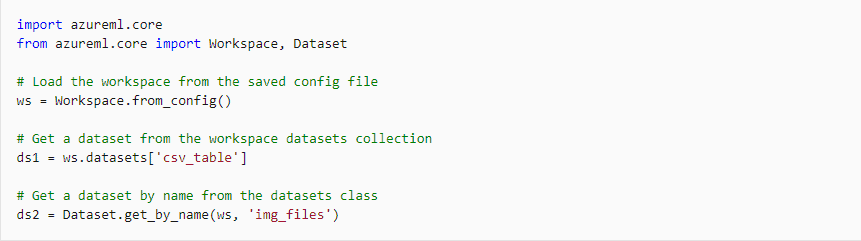
Retrieving A Registered Dataset
The registered datasets can be retrieved by any of the two below mentioned methods:
- The datasets dictionary attribute of a workspace object.
- The get_by_name or get_by_id method of the Dataset class.
Dataset Versioning
Check Out: What is AWS Sagemaker?
Dataset versioning helps in keeping track of previously built datasets that were used in the experiments.
A new version of the dataset can be created by registering it with the same name as a previously registered dataset and specify the create_new_version property
 Also, a specific version of the dataset can be retrieved by specifying the version parameter in the get_by_name method.

Also Read: Azure machine learning model
Working With Datasets Azure
We can directly access the contents of a dataset if there is a reference to that dataset.
Tabular Dataset: Data processing begins by reading the dataset as a Pandas dataframe.
 File Dataset: We can the to_path() method to return a list of file paths.

Also Check: DP 100: A complete step-by-step guide.
Passing A Dataset To Experiment Script
Dataset can be passed as an input to a ScriptRunConfig or an Estimator when it is required to access the experiment script.
Tabular Dataset:-
 Note: As the script requires to work with dataset object, so it is required to include the full azureml-sdk package or the azureml-dataprep package with the pandas extra library in the script’s compute environment.
File Dataset:-

So this is how we can work with datastores and datasets in Azure through Azure Machine Learning SDK. We can work with Datatsores and Datasets directly in Azure Machine Learning Studio also.
Azure ML Data Asset Vs Datastore
Azure ML Access Datastore From Notebook
In Azure Machine Learning, accessing a datastore from a notebook simplifies data management for experiments. A datastore acts as a central storage, linking your Azure storage accounts (like Blob Storage or Data Lake) to your workspace. To use it, register the datastore in your workspace, then mount or access it programmatically in your notebook. Use the workspace.datastores to reference the datastore and datastore.path() to define data paths. This ensures seamless integration of data into your ML workflow, promoting efficient experimentation and collaboration.
FAQs
What are the prerequisites for creating a machine learning datastore?
To create a machine learning datastore, ensure you have access to cloud storage (e.g., Azure Blob, AWS S3), proper authentication credentials, structured data, and compliance with security policies.
What is the process for creating a OneLake datastore using a YAML configuration file?
To create a OneLake datastore using a YAML configuration file, define the datastore name, type, credentials, and storage settings in YAML format. Deploy it via Azure CLI or SDK.
How can you create a OneLake datastore using Python SDK and CLI with identity-based access or a service principal?
To create a OneLake datastore using Python SDK or CLI with identity-based access or a service principal, configure authentication with Azure credentials, specify OneLake parameters, and execute appropriate commands.
What options are available for creating a OneLake datastore, and what information is required?
To create a OneLake datastore, options include using Azure Synapse, Fabric, or Microsoft Purview. You'll need resource permissions, OneLake URL, and data access credentials for seamless integration.
What is the procedure for creating a Data Lake Storage Gen1 datastore using a YAML configuration file?
To create a Data Lake Storage Gen1 datastore using a YAML configuration file, define the datastore's name, account key, and resource details in the YAML file, then register it via Azure CLI.
How do you set up a Data Lake Storage Gen1 datastore with identity-based access or a service principal?
To set up a Data Lake Storage Gen1 datastore, configure identity-based access using Azure Active Directory or a service principal by granting the necessary permissions and connecting securely via Azure SDKs.
What steps are taken to configure a Files datastore using a YAML file?
To configure a Files datastore using a YAML file, define the name, type, and path fields in the YAML. Then, deploy it via the Azure CLI or SDK for seamless setup.
Related/References:
- Join Our Generative AI Whatsapp Community
- Azure AI/ML Certifications: Everything You Need to Know
- Azure GenAI/ML : Step-by-Step Activity Guide (Hands-on Lab) & Project Work
- [DP-100] Microsoft Certified Azure Data Scientist Associate: Everything you must know
- Microsoft Certified Azure Data Scientist Associate | DP 100 | Step By Step Activity Guides (Hands-On Labs)
- [AI-900] Microsoft Certified Azure AI Fundamentals Course: Everything you must know
- Object Detection & Tracking in Azure Machine Learning
- Automated Machine Learning | Azure | Pros & Cons
- [AI-900] Azure Machine Learning Studio
- Data Science Vs Data Analytics Vs Data Engineer
Next Task: Enhance Your Azure AI/ML Skills


![Microsoft Agentic AI Business Solutions Architect [AB-100] | K21 Academy](https://test.k21academy.com/wp-content/uploads/2025/11/Microsoft-Agentic-AI-Business-Solutions-Architect-AB-100-Exam-Overview1.png)