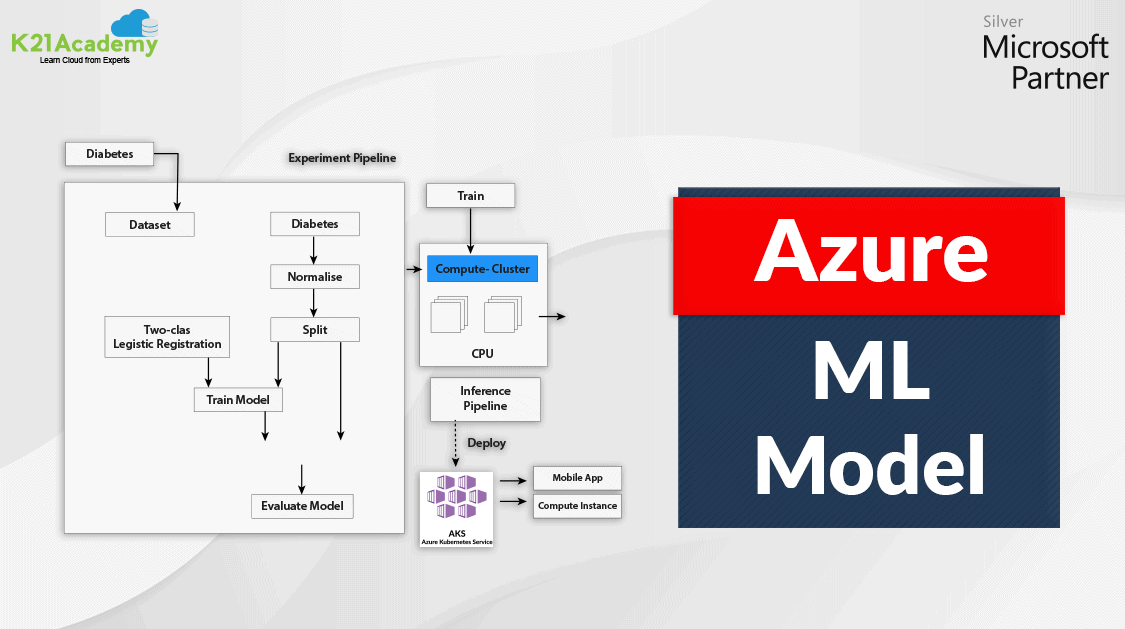





In this blog post, we will cover How to deploy the Azure Machine Learning model in Production.
Overview Of Azure Machine Learning
Machine Learning is a subset of Artificial Intelligence. We can deploy the Machine Learning model on Azure by various means like using Azure ML Studio, Azure ML SDK (Python, R), Automated ML, and Visual Studio.
Also Read : Convolution Neural Network.
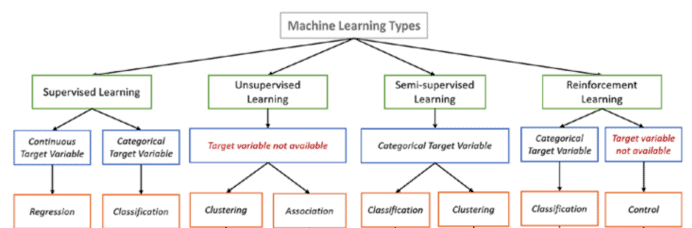
There are four types of Machine Learning Models:
1) Supervised Machine Learning: In this, we provide the machine with the labeled data for training based on which the machine will create a function to make predictions on some test data.
- Regression Model: These models predict continuous data based on training.
- Classification Model: These models classify the input test data (Like yes/no, true/false, bike/car/bus, etc).
Checkout: What is the difference between Data Science vs Data Analytics.
2) Unsupervised Machine Learning: In this model, we provide unlabeled data for training, and based on the training the model will predict some patterns in the data.
- Clustering: These models segregate data into different groups to form a cluster. (like age >18 & age<18)
- Association: These models used to combine some data based on the learning of the model. (eg. fruit basket analysis)
3) Semi-Supervised Machine Learning: These models are the combination of both Supervised & Unsupervised machine learning as the dataset contains both labeled and unlabeled data.
Also Read : Hyperparameter tuning.
4) Reinforcement Learning: In the Reinforcement learning algorithm (called the agent), the algorithm continuously learns from the environment in an iterative fashion.
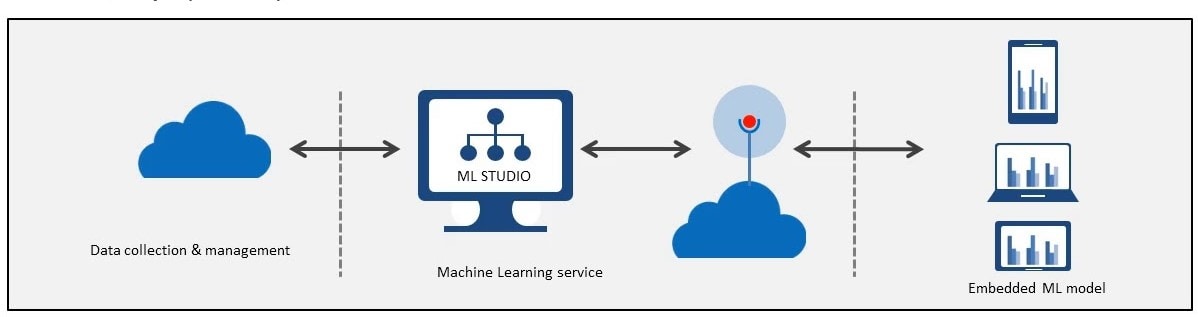
Check out: Overview of Azure Machine Learning Service
Benefits Of Using Azure Machine Learning
- No Data Limit to import data from various Azure Data Storage services.
- User Friendly and embedded with less restrictive tools.
- In Azure ML, we can publish the ML model as a web service.
- Drag and Drop console (pipeline) for no-code model generation and deployment.
- Data Security & Monitoring over Azure ML Services.
Steps To Create A Training Pipeline Using Azure ML Designer
Note: Before creating a pipeline you must have created a Workspace & Compute Cluster on which the model is deployed.
Check how to create an Azure Machine Learning Workspace.
Check what are Compute targets in Azure ML
Note: Before creating a pipeline you must import a dataset into your workspace on which the model is trained. We are using Diabetes Dataset in this example
Also Checkout: DP-100 FAQ
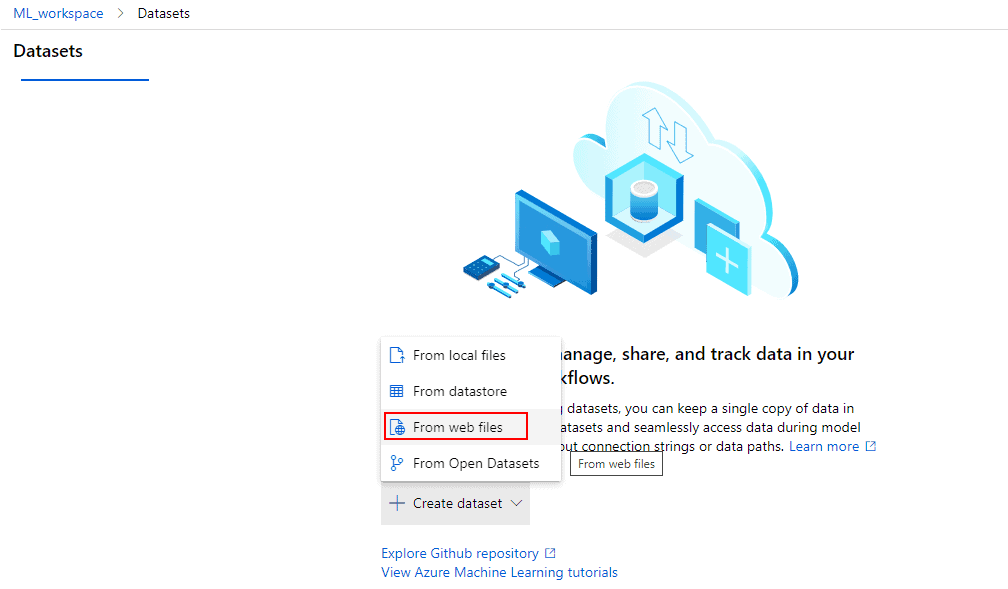
Note: The link from where you can import data into the workspace. Click here
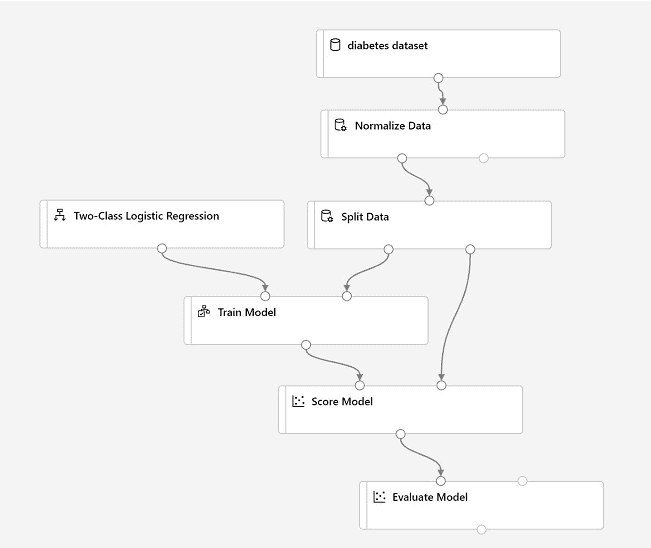
1) On the left side of the designer, select the Datasets (⌕) tab, expand the Datasets section, and drag the diabetes dataset on the canvas.
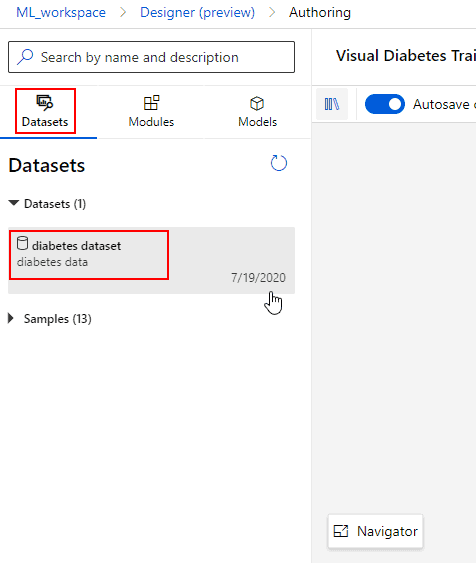
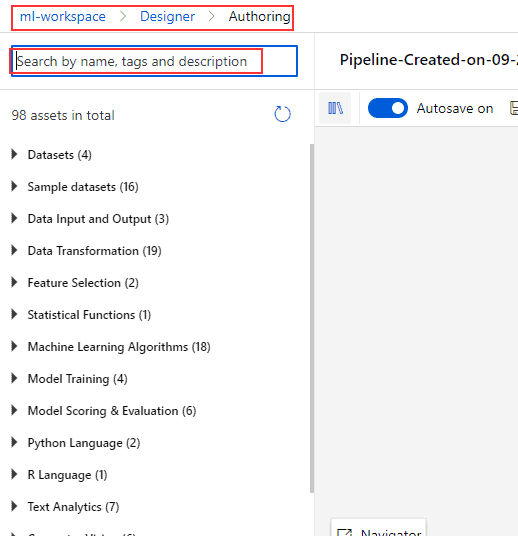
Note: You can search for the modules that you want to bring on the canvas.
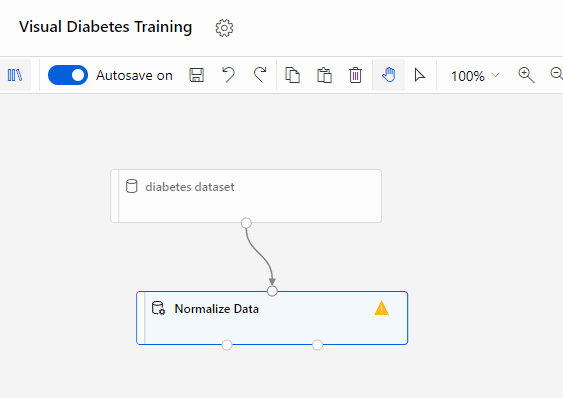
2) Connect the output from the diabetes dataset module to the input of the Normalize Data module.
Normalization is the process of scaling the data of each column between a smaller range so that all values of all the columns are between the same range.
Note: You need to specify which columns (features) you need to normalize by clicking on the normalize data module.
Note: Do Check Our Blog Post On MLOps For An Overview.
3) Import Split Dataset Module, then connect the (left) output of the Normalize Data module to the input of the Split Data module.
Note: In this module, you need to specify the percentage of data taken for training purpose & testing purposes (for evaluation).
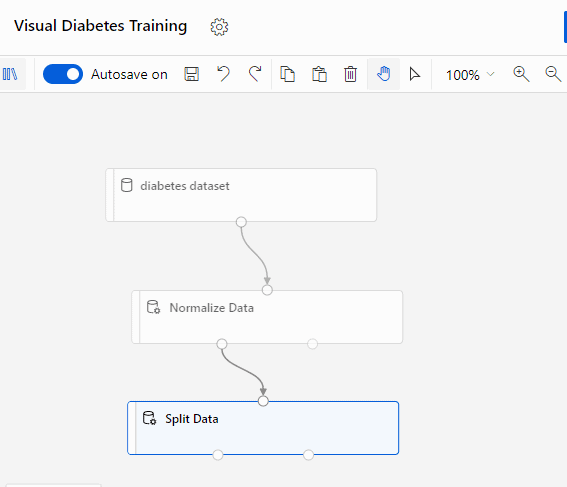
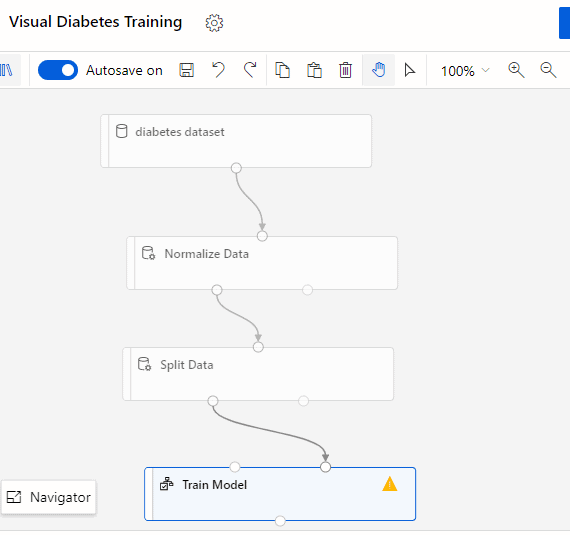
4) Search for the Train Model Module and drag a Train Model module to the canvas, under the Split Data module. Connect the left output of the Split Data module to the right input of the Train Model module.
Note: In this module, you need to specify the label (column) name whose value you want to predict.
Also Check: Our blog post on Microsoft Azure Object Detection. Click here
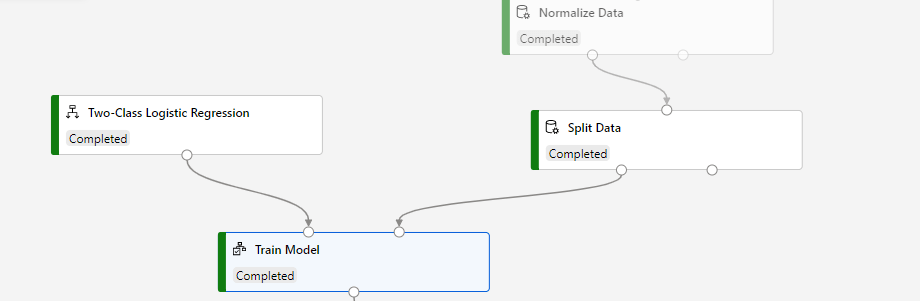
5) Search for the Two-Class Logistic Regression module and drag it to the canvas, to the left of the Split Data module, and above the Train Model module. Then connect its output to the left input of the Train Model module.
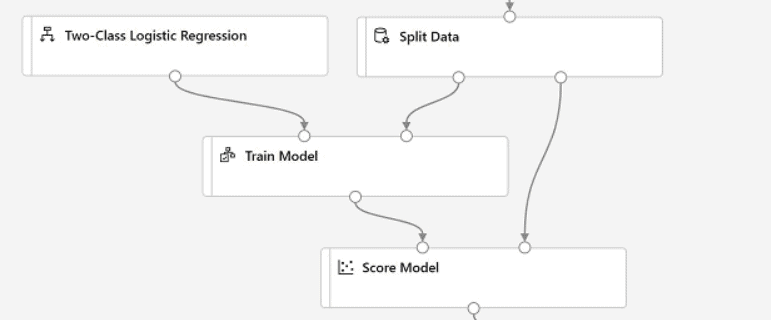
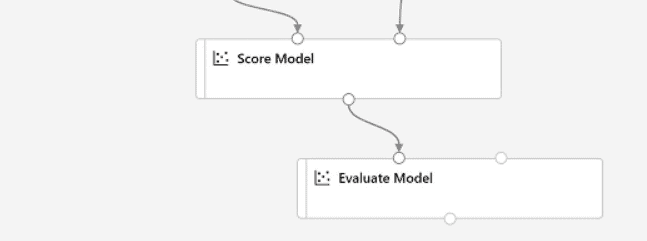
6) Search and drag a Score Model module to the canvas, below the Train Model and connect the output of the Train Model module to the left input of the Score Model module & right output of the Split Data module to the right input of the score model module.
7) Search & drag an Evaluate Model module to the canvas, under the Score Model and connect the output of the Score Model module to the left input of the Evaluate Model.
Also Read: Our blog post on DP 100 Exam questions and Answers. Click here
8) Verify that your pipeline looks similar to the following:
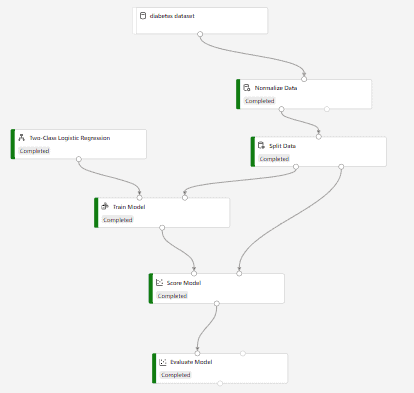
9) At the top right, click Submit. It will take some time to submit the model. After the processing completed it will look like the following image.
To know more about Sagemaker AWS. Click here
Steps To Deploy A ML Model Using Azure ML Designer -Azure ML Deployment
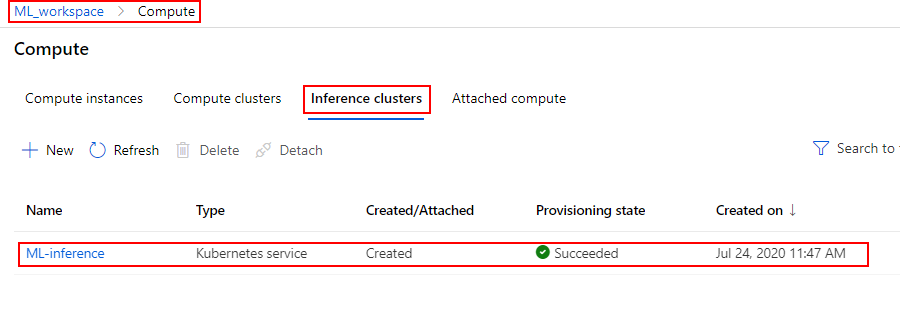
In Azure Machine Learning we can deploy the trained model on Inference Cluster which will generate an endpoint that can be used by clients to use these models and make inferences on some new data.
Note: Before deploying the Inference Pipeline make sure you have created an Inference Cluster on which we will deploy the inference pipeline.
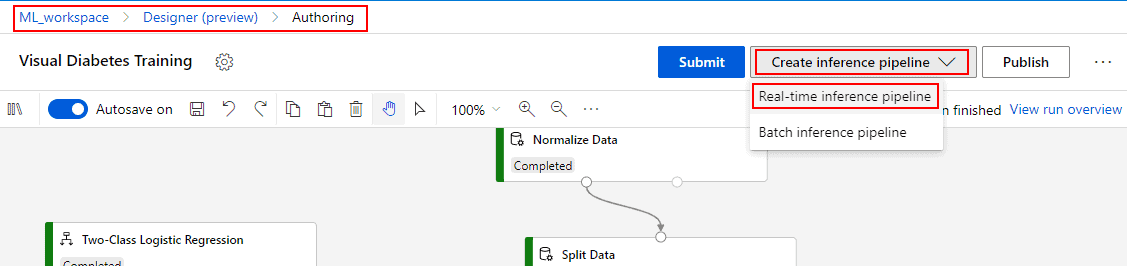
1) In the Create inference pipeline drop-down list, click a Real-time inference pipeline.
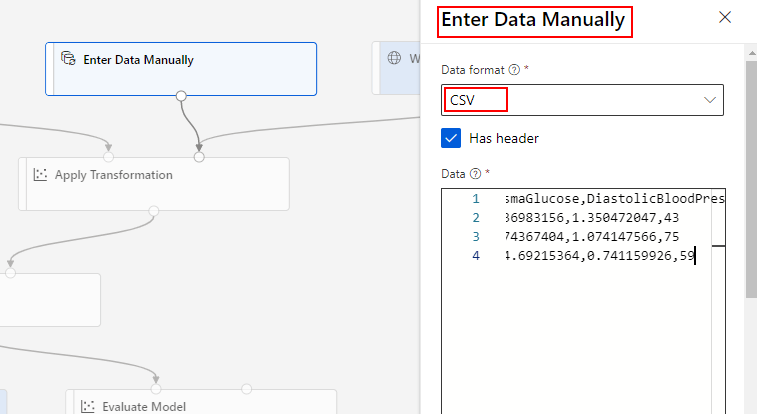
2) Rename the new pipeline to Predict Diabetes, Delete the diabetes dataset from the inference pipeline, and replace it with an Enter Data Manually module.
PatientID, Pregnancies, PlasmaGlucose, Diastolic BloodPressure, TricepsThickness, SerumInsulin, BMI, DiabetesPedigree, Age
1882185,9,104,51,7,24,27.36983156,1.350472047,43
1662484,6,73,61,35,24,18.74367404,1.074147566,75
1228510,4,115,50,29,243,34.69215364,0.741159926,59
Check Out: Datastore Azure
3) The inference pipeline includes the Evaluate Model module, which is not useful when predicting from new data, so delete this module.
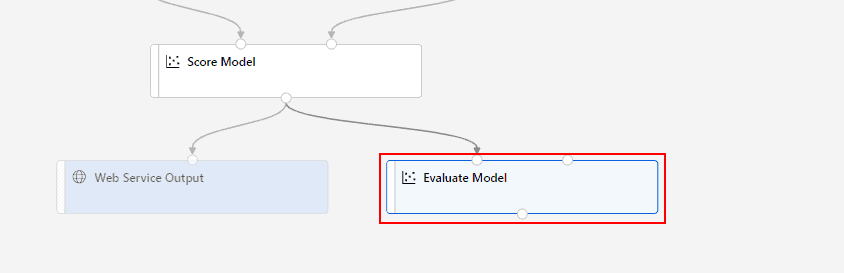
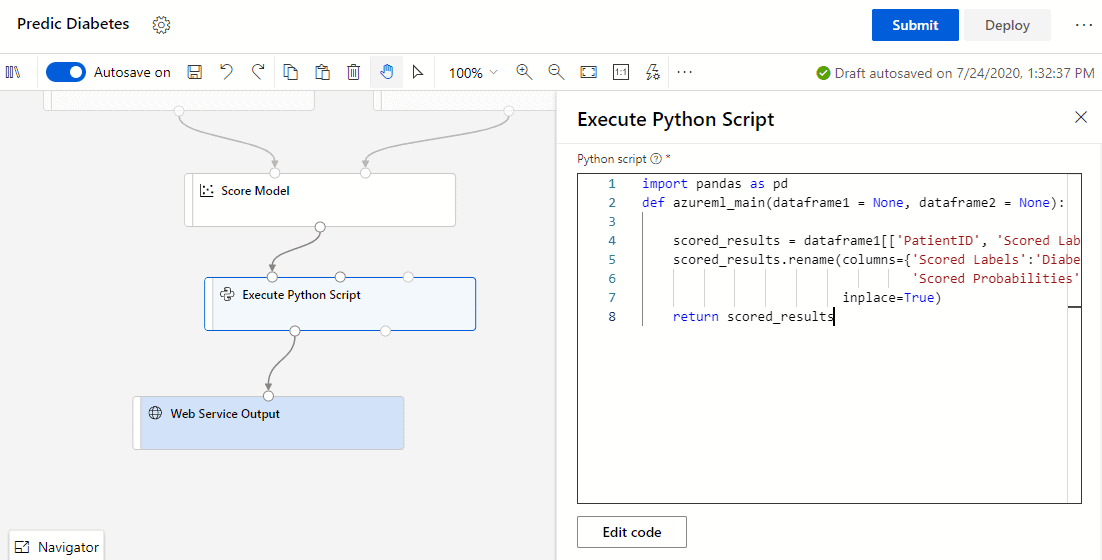
4) To limit the output to only the prediction and probability, delete the connction between the Score Model module and the Web Service Output, add an Execute Python Script module.
Note: Modify the settings of the Execute Python Script module to use the following code (replacing all existing code):
import pandas as pd
def azureml_main(dataframe1 = None, dataframe2 = None):
scored_results = dataframe1[[‘PatientID’, ‘Scored Labels’, ‘Scored Probabilities’]]
scored_results.rename(columns={‘Scored Labels’:’DiabetesPrediction’,
‘Scored Probabilities’:’Probability’},
inplace=True)
return scored_results
Also Read: azure dp 100
5) Verify that your pipeline looks similar to the following:
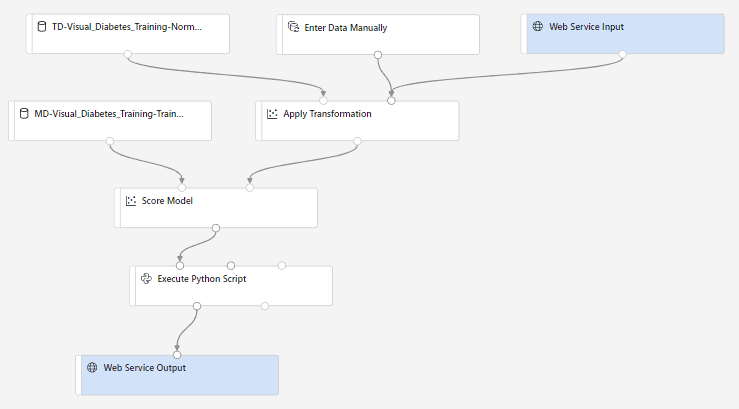
6) After some time we can see the inference pipeline is submited successfully.
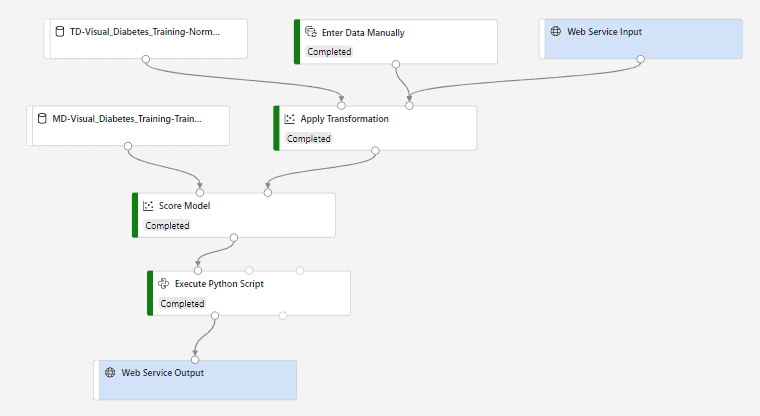
Also Check: Automated Machine Learning
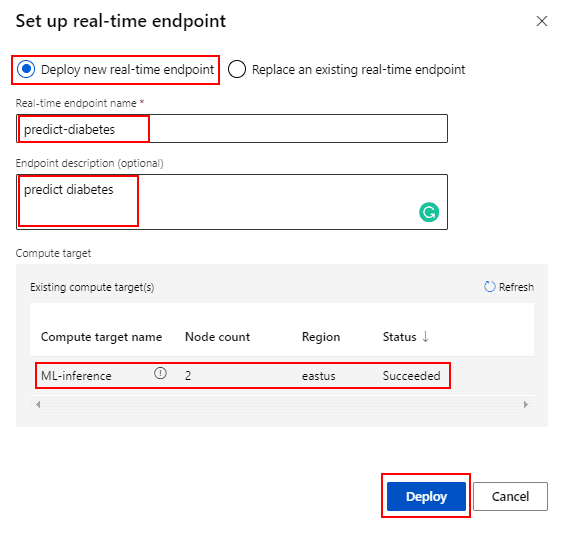
7) At the top right, click Deploy, and set up a new real-time endpoint named predict-diabetes on the inference cluster (ML-inference) you created.
8) When the predict-diabetes endpoint opens, on the Consume tab, note the REST endpoint and Primary key.
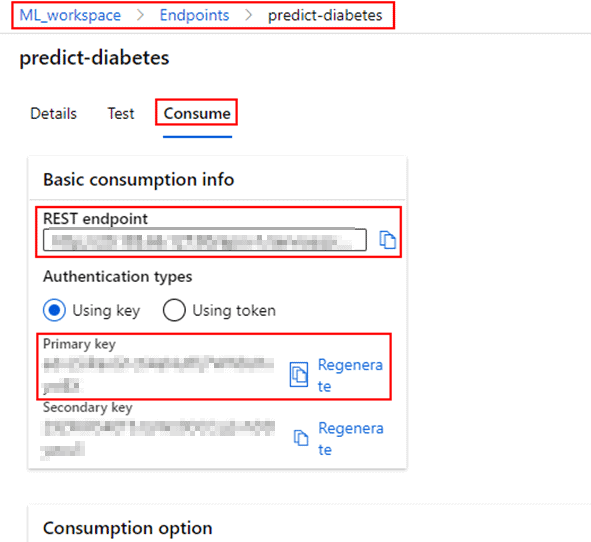
Note: This endpoint we can share with clients which can be used to make inferences on some test data using the trained model.
Azure Deploy Model
Deploying a model in Azure involves using Azure Machine Learning to operationalize your machine learning models seamlessly. After training, the model is registered in the Azure ML workspace. You can then deploy it as a web service using Azure Kubernetes Service (AKS) for scalable production or Azure Container Instances (ACI) for testing. Azure provides secure REST endpoints for real-time inference and integrates monitoring tools like Application Insights for tracking performance and errors. This streamlined process ensures easy deployment, scalability, and efficient management of machine learning models in production environments.
Azure Machine learning Studio
Azure Machine Learning Studio is a cloud-based platform designed to simplify and accelerate machine learning projects. It offers an intuitive, drag-and-drop interface that enables users to build, train, and deploy machine learning models without extensive coding expertise. Integrated with Azure’s robust cloud ecosystem, it supports popular frameworks like TensorFlow, PyTorch, and scikit-learn. Key features include AutoML for automated model selection, data preprocessing, and hyperparameter tuning, as well as pipelines for end-to-end workflows. Azure ML Studio provides scalability, real-time model monitoring, and seamless collaboration, making it ideal for businesses and individuals aiming to operationalize AI effectively and efficiently.
Azure Machine learning Services
Azure Machine Learning Services is a comprehensive platform designed to streamline the entire machine learning lifecycle. It enables developers and data scientists to build, train, deploy, and manage machine learning models efficiently. With features like automated ML, powerful compute options, and integration with popular tools like Jupyter Notebooks and PyTorch, it caters to both beginners and experts. Azure ML supports end-to-end workflows, including data preparation, model training, and deployment to cloud or edge environments. Its MLOps capabilities ensure seamless collaboration and model governance, making it a go-to solution for scalable and secure machine learning projects.
Azure Machine learning Designer
Azure Machine Learning Designer is a powerful, drag-and-drop interface within Azure Machine Learning Studio that simplifies the process of building, training, and deploying machine learning models. It enables users to design end-to-end workflows without coding, making it ideal for beginners and those who prefer a visual approach. With its prebuilt modules, users can preprocess data, train models, evaluate performance, and deploy solutions effortlessly. Its integration with Azure services ensures scalability and easy management of resources. Whether you’re a data scientist or an analyst, Azure ML Designer provides a user-friendly platform to explore and implement machine learning solutions efficiently.
FAQs
Why is automating deployment and testing important for large-scale ML models?
Automating deployment and testing ensures reliability, scalability, and faster iteration cycles for large-scale ML models. It minimizes human errors, enables seamless updates, and ensures consistent performance across diverse environments.
What is the importance of deploying ML models into a production environment?
Deploying ML models into production is vital because it enables real-time predictions and insights, turning data into actionable value and allowing businesses to make informed, data-driven decisions in their operations.
How can ML teams streamline the deployment process to maximize the value of ML models?
ML teams can streamline deployment by automating pipelines with CI/CD, using containerization tools like Docker, and leveraging cloud platforms for scalable infrastructure, ensuring faster, reliable, and efficient model deployment.
How does continuous monitoring impact the success of ML model deployment?
Continuous monitoring ensures the success of ML model deployment by tracking performance, detecting data drift, and identifying anomalies, enabling timely updates to maintain model accuracy and reliability in production.
What are the differences between batch inference and online inference in ML deployment?
Batch inference processes large datasets at once, suitable for offline predictions, while online inference provides real-time predictions for individual requests, ideal for applications requiring immediate responses like chatbots or fraud detection.
How can continuous monitoring and maintenance benefit ML model deployment?
Continuous monitoring and maintenance ensure ML models remain accurate and reliable by identifying performance drifts, retraining with updated data, and addressing system issues, ultimately enhancing deployment efficiency and decision-making.
What considerations are necessary for designing an initial data flow for ML monitoring?
When designing an initial data flow for ML monitoring, consider real-time data collection, integration with existing pipelines, storage scalability, anomaly detection, and ensuring clear visualization for actionable insights.
Related/References:
- Join Our Generative AI Whatsapp Community
- Azure AI/ML Certifications: Everything You Need to Know
- Azure GenAI/ML : Step-by-Step Activity Guide (Hands-on Lab) & Project Work
- [DP-100] Microsoft Certified Azure Data Scientist Associate: Everything you must know
- Microsoft Certified Azure Data Scientist Associate | DP 100 | Step By Step Activity Guides (Hands-On Labs)
- [AI-900] Microsoft Certified Azure AI Fundamentals Course: Everything you must know
- Microsoft Azure AI Fundamentals [AI-900]: Step By Step Activity Guides (Hands-On Labs)
- Automated Machine Learning | Azure | Pros & Cons
- [AI-900] Azure Machine Learning Studio
- Data Science Vs Data Analytics Vs Data Engineer
- Convolutional Neural Network (CNN)| Azure Machine Learning
Next Task: Enhance Your Azure AI/ML Skills


![Microsoft Agentic AI Business Solutions Architect [AB-100] | K21 Academy](https://test.k21academy.com/wp-content/uploads/2025/11/Microsoft-Agentic-AI-Business-Solutions-Architect-AB-100-Exam-Overview1.png)