



This blog gives a brief overview of Git-Secrets, a tool that prevents you from committing passwords and other sensitive information to a git repository.
The technologies that are covered in this blog are a part of the Azure DevOps environment. If it’s something in which you have an interest or you want to learn, then you can visit our previous blog to know more about the [AZ-400] Microsoft Azure DevOps certification.
In this blog, we are going to cover:
git-secrets scans commits, commit messages, and --no-ff merges to prevent adding secrets into your git repositories. If a commit, commit message, or any commit in a --no-ff merge history matches one of your configured prohibited regular expression patterns, then the commit is rejected.
git-secrets must be placed somewhere in your PATH so that it is picked up by git when running git secrets.
Note : Check Our Blog On Azure DevOps.
Installing Git Secrets
Linux/Unix OS
You can use the install target of the provided Makefile to install git secrets and the man page. You can customize the install path using the PREFIX and MANPREFIX variables.
make install
Windows OS
Run the provided install.ps1 PowerShell script. This will copy the needed files to an installation directory (%USERPROFILE%/.git-secrets by default) and add the directory to the current user PATH.
PS > ./install.ps1
macOS
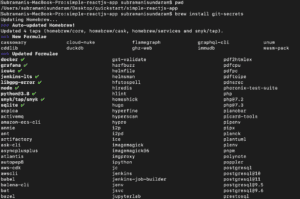
Run the below command to install the git secrets on the mac machine.
brew install git-secrets
Note : Do Check Our Blog on Veracode.
Options Available For Git Secrets Scanning
--install :Installs git hooks for a repository. Once the hooks are installed for a git repository, commits and non-fast-forward merges for that repository will be prevented from committing secrets.
--scan : Scans one or more files for secrets. When a file contains a secret, the matched text from the file being scanned will be written to stdout and the script will exit with a non-zero status. If no files are provided, all files returned by git ls-files are scanned.
--scan-history: Scans repository including all revisions. When a file contains a secret, the matched text from the file being scanned will be written to stdout and the script will exit with a non-zero status.
--list: Lists the git-secrets configuration for the current repo or in the global git config.
--add :Adds a prohibited or allowed pattern.
--add-provider: Registers a secret provider. Secret providers are executables that when invoked output prohibited patterns that git-secrets should treat as prohibited.
--register-aws:Adds common AWS patterns to the git config and ensures that keys present in ~/.aws/credentials are not found in any commit.
--register-azure:Adds common AZURE patterns to the git config and ensures that keys present in ~/.azure/credentials are not found in any commit.
-f, --force: Overwrites existing hooks if present while installation of git secrets.
-r, --recursive :Scans the given files recursively. If a directory is encountered, the directory will be scanned. If -r is not provided, directories will be ignored.
--cached:Searches blobs registered in the index file.
--no-index :Searches files in the current directory that is not managed by git.
--untracked :In addition to searching in the tracked files in the working tree.
Note : You Can Read Our Blog on Azure Pipelines vs Jekins
Demo Of Git Secrets Scanning
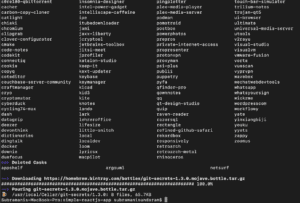
Step 1: We need to install the git-secrets depending upon the OS that we needed to check, mine is MacOS. So please find the command below
Also Read: Our previous blog post on Azure DevOps Certification Path. Click here
Step 2: Once after the installation is completed, then we need to start the scanning of our repository before we check in the code.
Depending upon the secrets it will throw us the error, if we did not get any error then we can commit it accordingly.
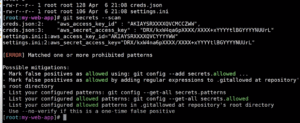
Step 3: In this way, we can even add it as part of our CICD pipeline so that even during our code build it scans and then shows us the error.
Note : Do Check Our Blog on Azure Policy Compliance .
We also have a lot of code scanning tools like this to detect the secrets in our code such as:
- Gittyleaks
- Secrets Scanning
- Git Secrets
- Repo Supervisor
- Truffle Hog
- Git Hound
- Gitrob
- Watchtower
- Repo Security Scanner
- GitGuardian
Also read: A basic overview of how Git can be used to implement a Branching Strategy in an Azure Environment.
Related/References
- [AZ-400] Microsoft Azure DevOps Certification Exam: Everything You Need To Know
- [AZ-400] Azure DevOps Certification Path
- [AZ-400] Roles And Responsibilities As An Azure DevOps Engineer
- [AZ-400] Microsoft Azure DevOps Training: Step By Step Activity Guides/Hands-On Lab Exercise
- [AZ-400] Azure DevOps Services for Beginners
- [AZ-400] Designing and Implementing Microsoft DevOps Solutions [Official Page]
- Azure DevOps Service Hooks | Subscription Of Service Hooks | Release Approvals
- SonarCloud Azure DevOps | Integrating SonarCloud In Azure
- Azure DevOps Environments | How To Setup DevOps Environment | Approval Checks | Azure DevOps Pipeline
- Branching Strategy DevOps | Git Branching Model | Git Branch Policy | Restoring A Deleted Branch
Next Task For You
Begin your journey toward Mastering Azure Cloud and landing high-paying jobs. Just click on the register now button on the below image to register for a Free Class on Mastering Azure Cloud: How to Build In-Demand Skills and Land High-Paying Jobs. This class will help you understand better, so you can choose the right career path and get a higher paying job.


![Microsoft Agentic AI Business Solutions Architect [AB-100] | K21 Academy](https://test.k21academy.com/wp-content/uploads/2025/11/Microsoft-Agentic-AI-Business-Solutions-Architect-AB-100-Exam-Overview1.png)


