



In this blog, we are going to show you how to migrate from an ICS (Integration Cloud Service) instance on OCI Classic to OIC (Oracle Integration Cloud) instance on OCI.
OCI and OCI classic is an IaaS offering from oracle, both offers Integration services. In OCI Classic its called ICS (Integration Cloud Service) which is a gen-1 PaaS offering and in OCI its called Oracle Integration Cloud which is a gen-2 PaaS offering.
To know more about the difference between Oracle Cloud Infrastructure Classic (OCI-C) Vs Oracle Cloud Infrastructure (OCI) check our previous blog on OCI vs OCI – Classic: IaaS from Oracle
Oracle provides the feature to export and import integration but it’s limited to one integration at and time which is not feasible when you have many records.
OCI Classic is only available to the old customers who created their cloud account before the release of OCI. New users are not given access to Oracle Cloud Infrastructure Classic (OCI-C) instead, they get the new Oracle Cloud Infrastructure (OCI). Oracle is slowly upgrading its old cloud customer and moving them to OCI. This is where this post will come in handy when you need to migrate complete ICS to OIC.
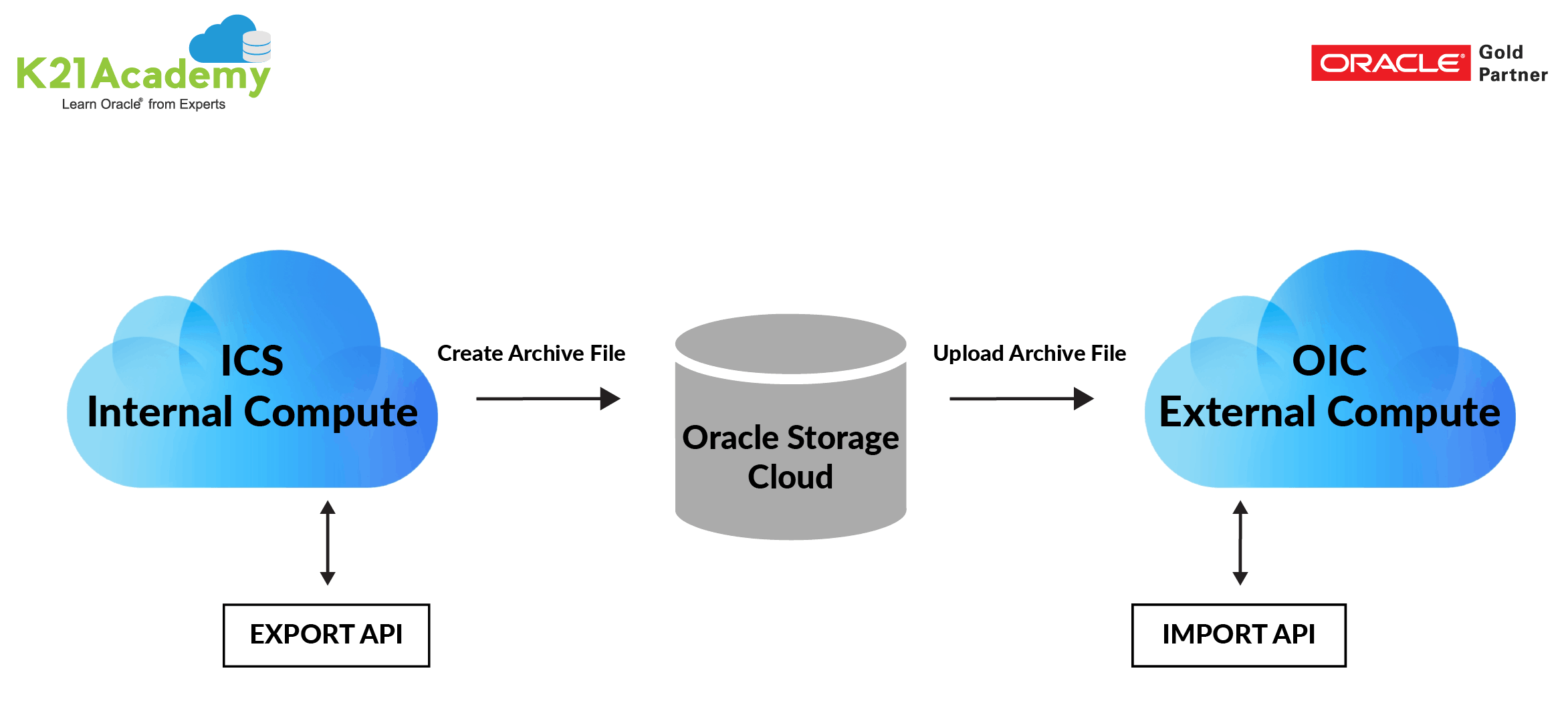
To migrate multiple integrations at one we have a Clone Utility (set of REST APIs). It can export all the integrations, connections, packages, libraries and other artifacts from ICS to OIC. ICS provides REST APIs to bulk export ICS artifacts and OIC provides REST APIs to import these exported artifacts.
To know how to enable clone utility check oracle doc Enabling Clone Utility On OIC-C (Doc ID 2481520.1), click here.
Prerequisites
- Admin access in Existing ICS service to the service.
- Provisioned OIC service with admin access
- The Clone Utility feature is Generally not Available. To turn on the feature flag, an SR with Oracle support should be raised.
- Authorized to create containers on Oracle Storage Cloud
How Useful Is The Clone Utility
- It allows you to migrate Integrations, Connections, Lookups, Libraries, Packages, Agent Groups, Custom Adapters, etc.
- Endpoint configuration (configured in connections).
- Settings for Database, Notification is also migrated.
- Migration of endpoint configuration and credentials.
- Migration of certificates and credentials.
- Capability to export all integrations at once by creating a migration package.
- Automatic replacement of host/port from source ICS instance to target OIC instance for “Integration calling Integration” use cases.
- Automatic Test for connection and activation of integrations.
Also read: Oracle OIC Services 1Z0-1042 Training: Step By Step Activity Guides/Hands-On Lab Exercise
Migration From ICS To OIC
Step 1: Getting The Storage URL
Oracle offers 2 storage options, Oracle Storage Cloud Classic and Oracle Object Cloud.
Oracle Storage Cloud Classic is available on Oracle Cloud Infrastructure Classic (OCI-Classic) and Oracle Object Cloud is available on new Oracle Cloud Infrastructure (OCI)
As we are migrating from OCI classic to OIC we have to use Oracle Storage Cloud Classic.
1. Open your OCI classic cloud account home page (Dashboard).
2. In the dashboard click on Storage Classic.
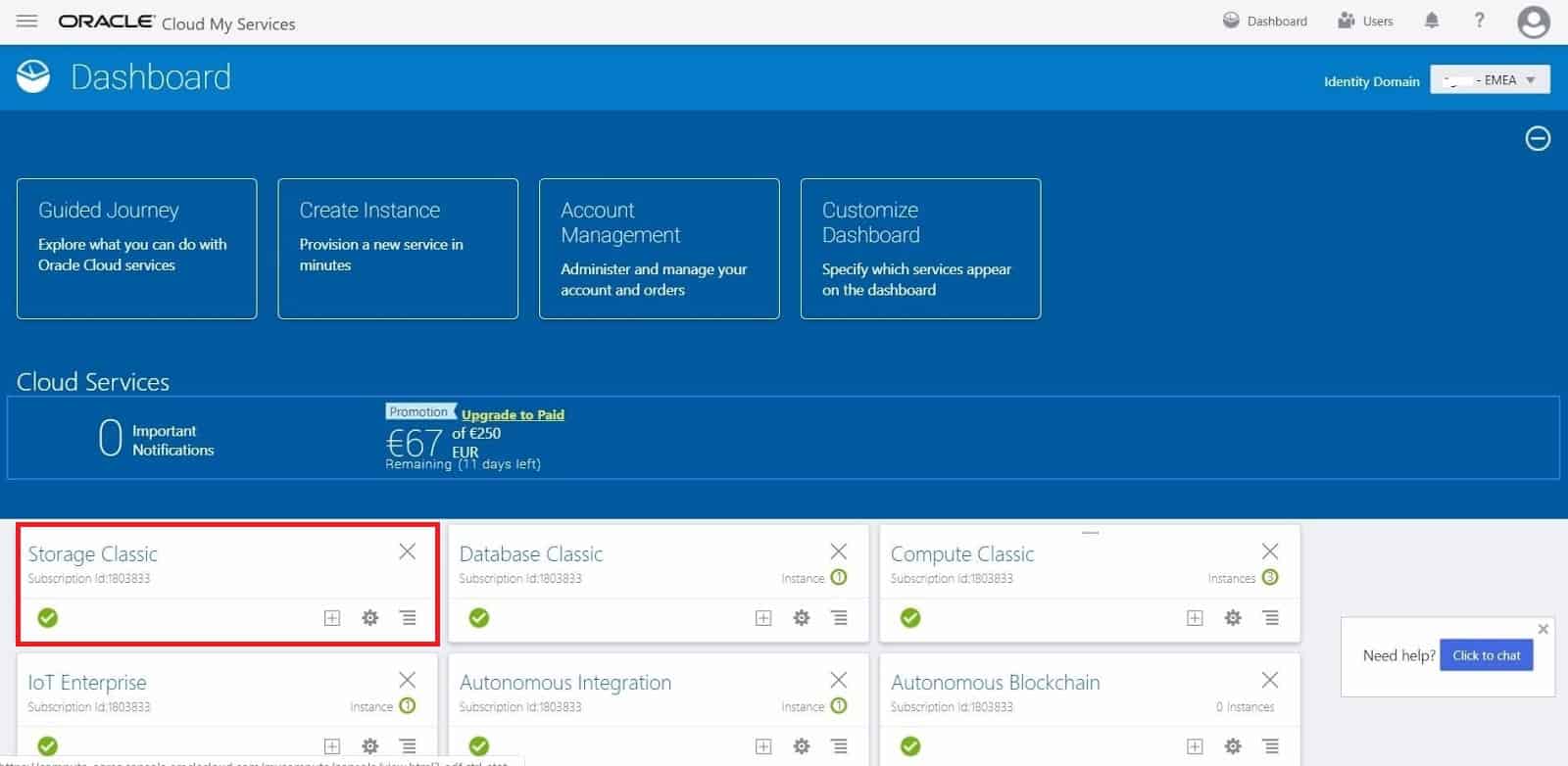
Note: If the Storage Classic is not shown click on Customize Dashboard and make the Storage Classic visible on the dashboard.
Also Check: Our Previous Blog On Invoking One Integration From Another
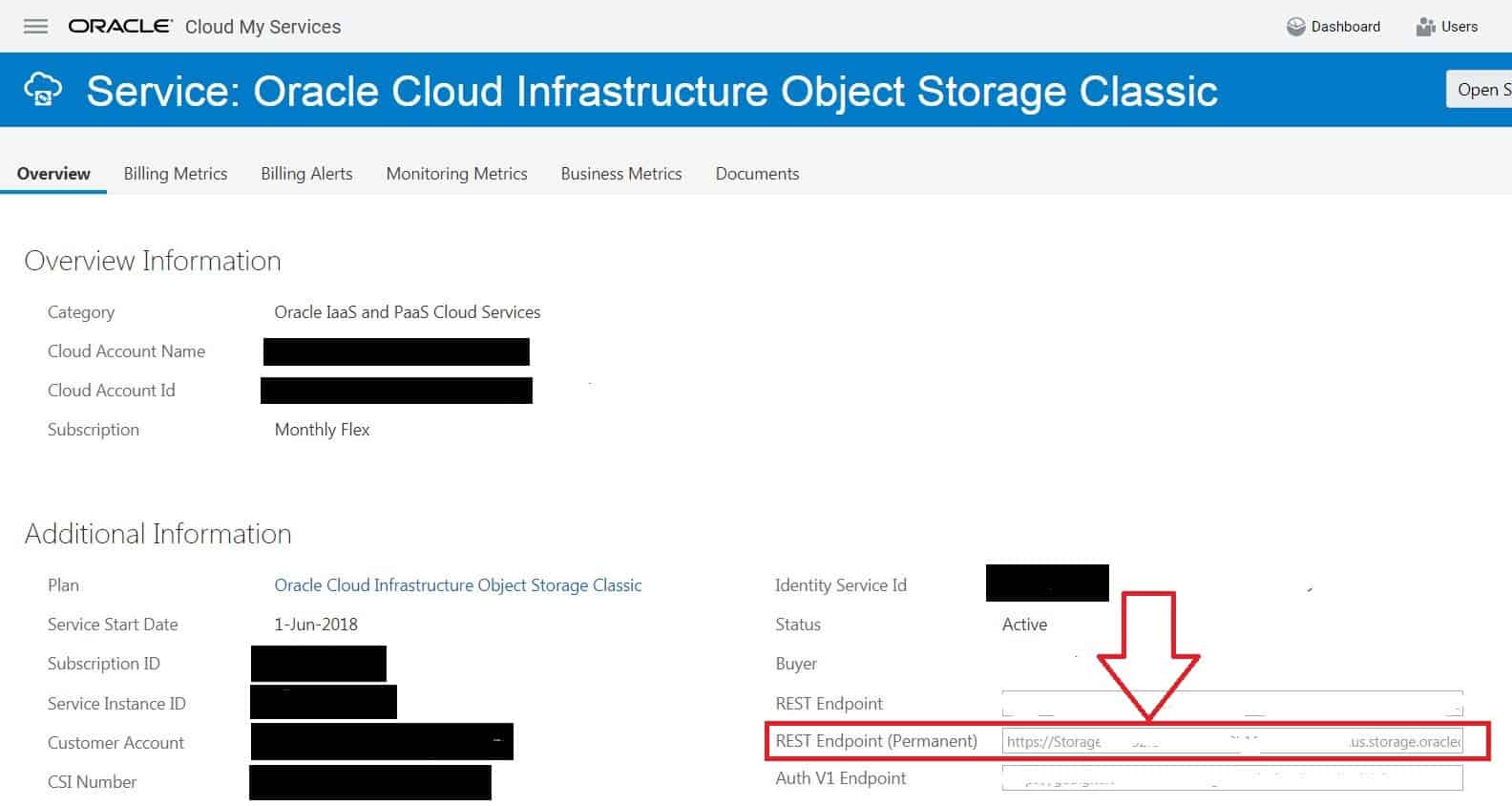
3. Make a note of Storage URL will be the one highlighted in the picture below
Also Check New Homepage Of Oracle Integration Cloud.
Step 2: Creating A Storage Container
1. Go to My services and click on Storage Classic.
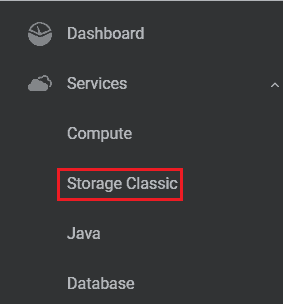
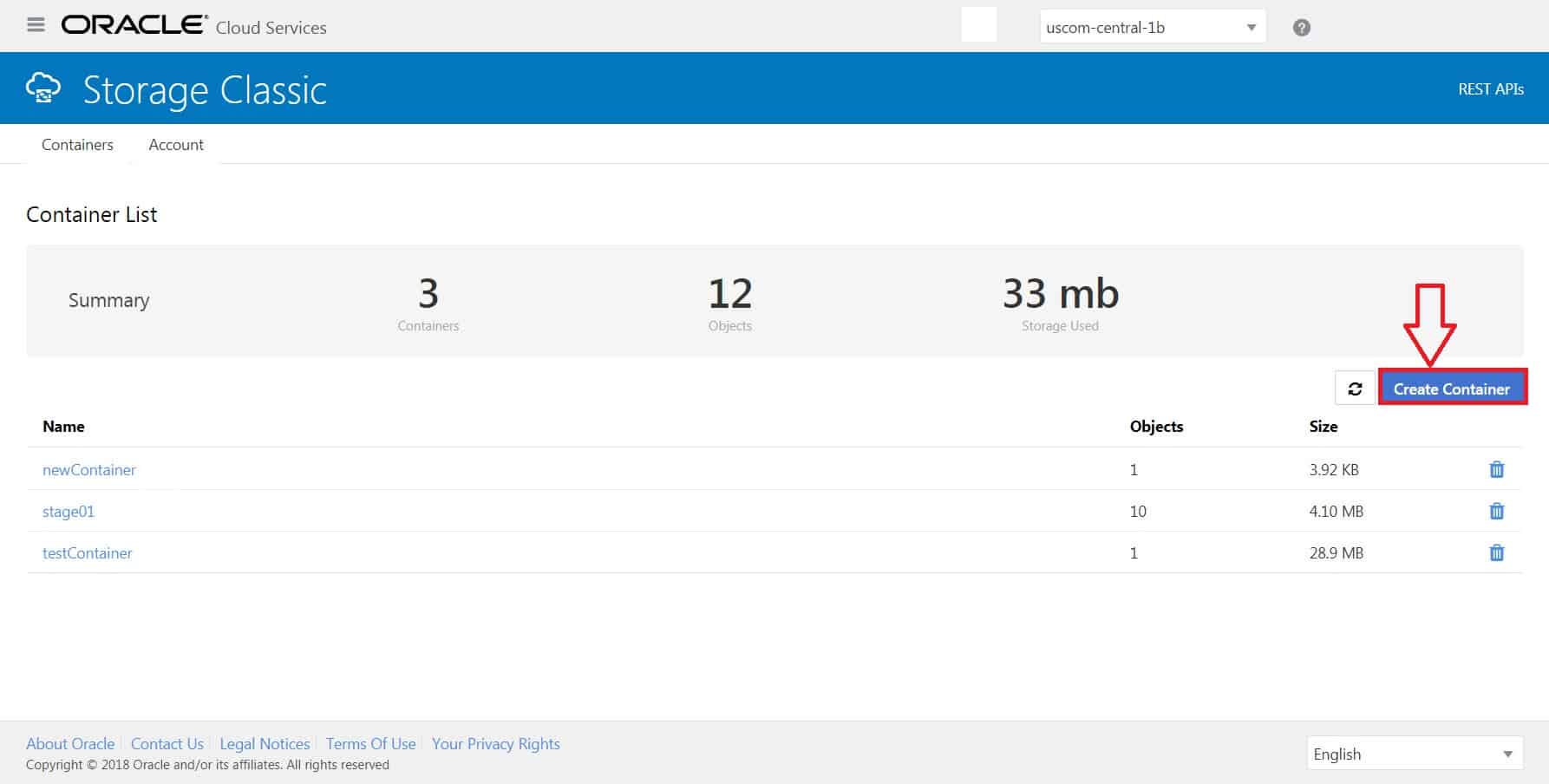
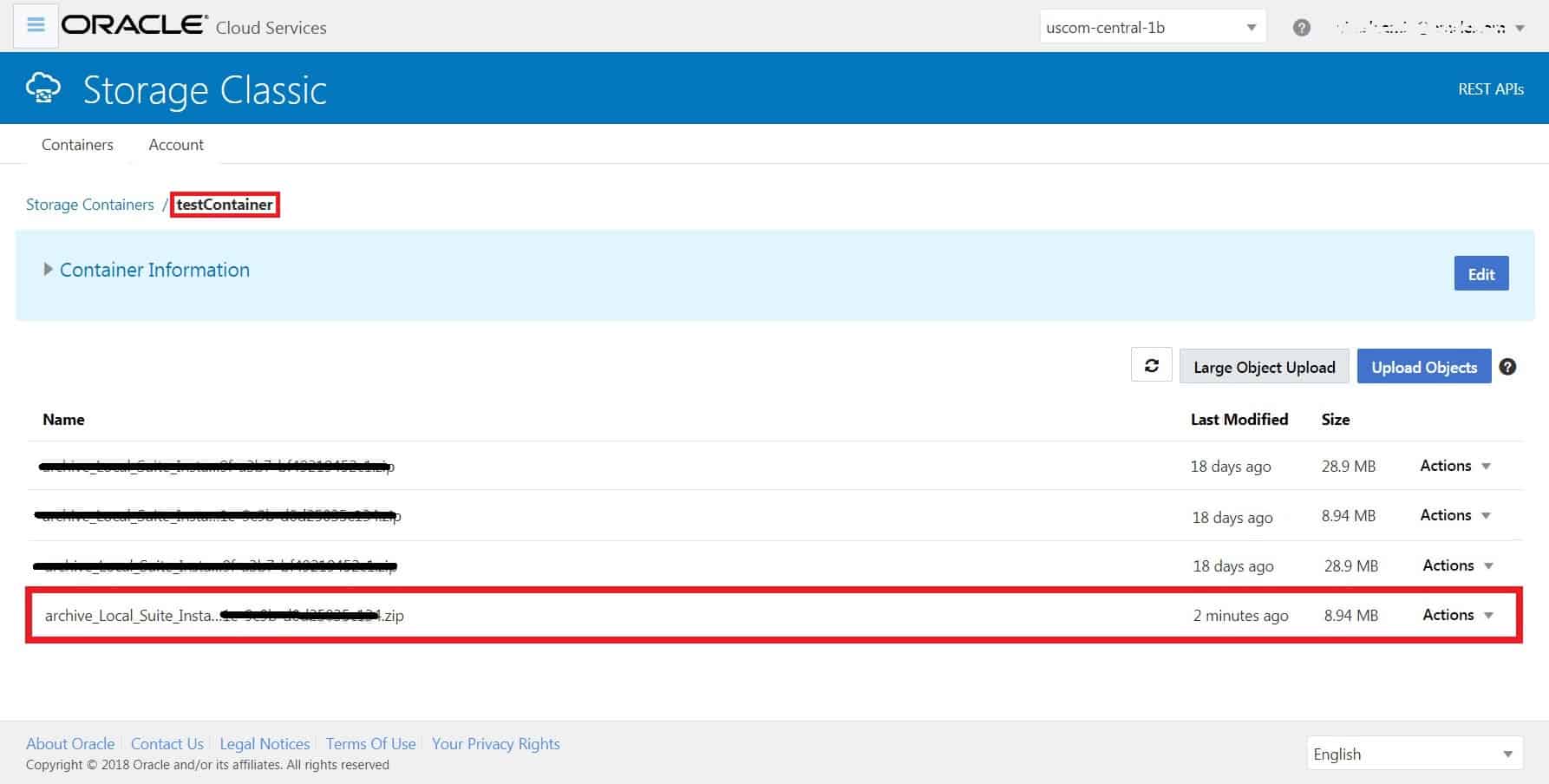
2. This will lead you to the Storage Container management screen. Create a new container or use an existing container.
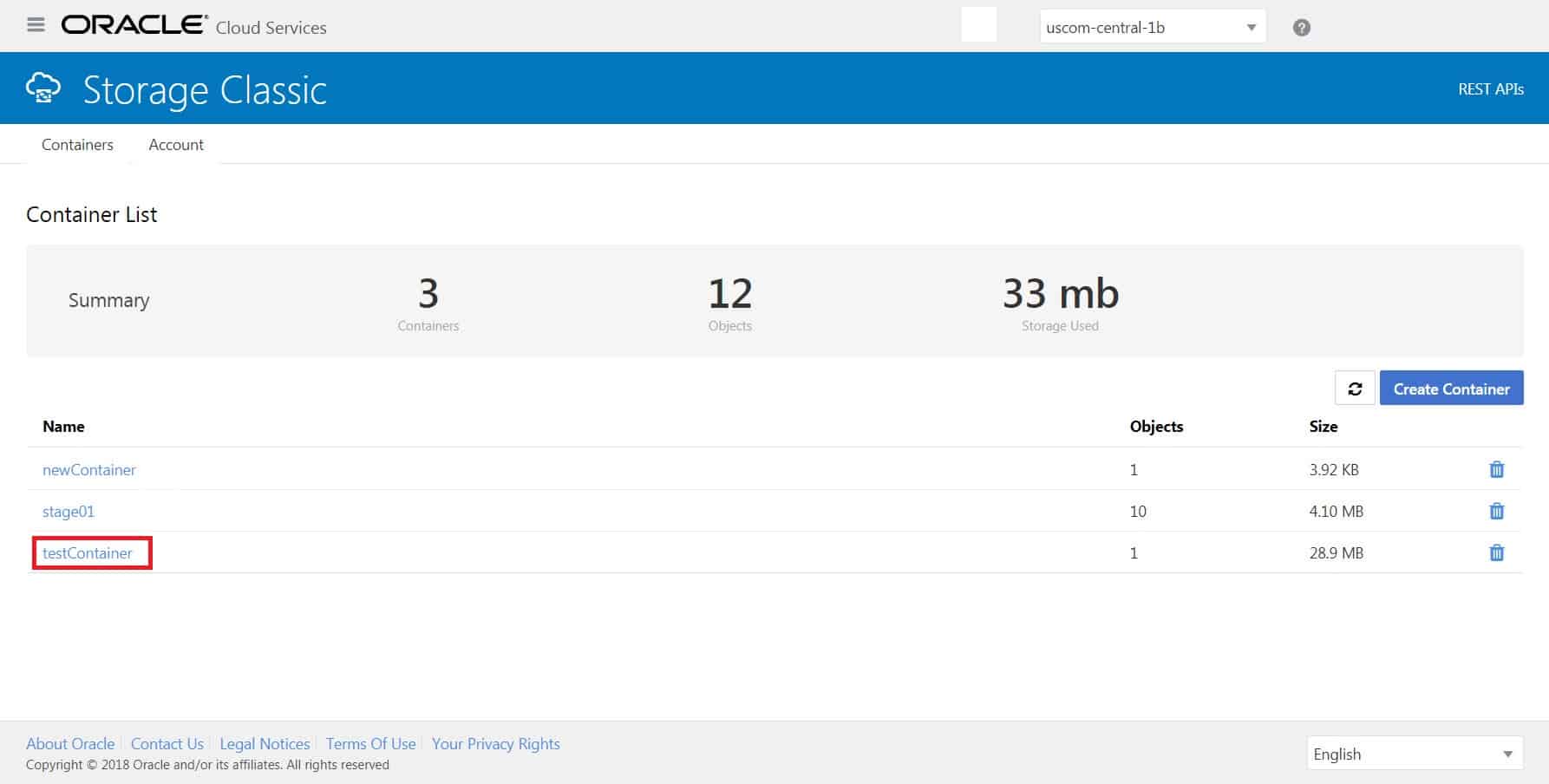
3. For now, we are using an existing container testContainer.
Step 3: Exporting The Data From ICS
In this, we will export all artifacts from ICS using the ExportArtifacts REST API.
This can export all artifacts such as connections, integrations, packages, and libraries.
Note: The Agent is not exported and has to be configured manually.
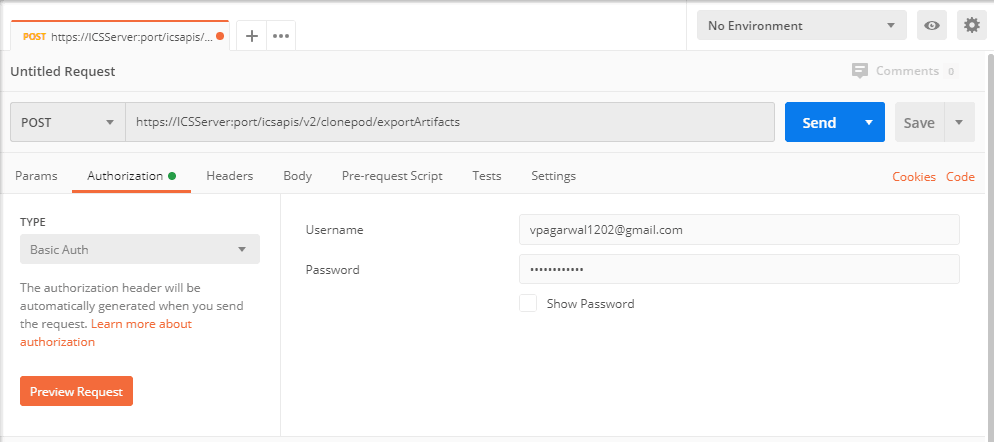
Example: "https://Storage-https://Storage-<unique_identifier>.us.storage.oraclecloud.com/v1/Storage-<unique_identifier>/testContainer"
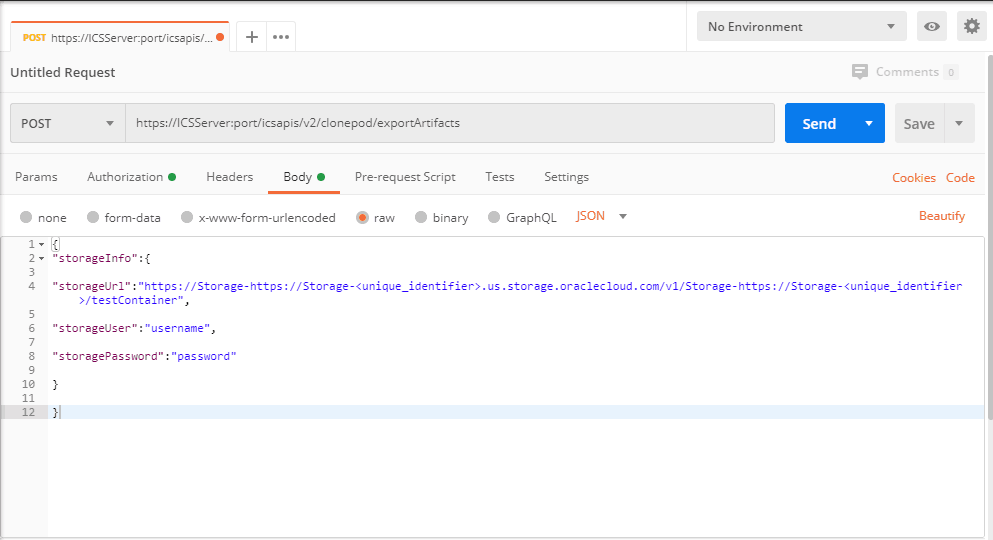
6. In the body put below
{
“storageInfo”: {
“storageUrl”:” https://Storage-URL”,
“storageUser”:”Storage_UserName”,
“storagePassword”:” Storage_Password”
}
}
{
“archiveFilename”: “archive_Local_Suite_Instance-a3279de9-af56-49e6-9c9b-d0d25035c134.zip”,
“jobID”: “7c4b9cb1-3557-421e-978b-7194af719e8a”,
“location”: “https://Storage-https://Storage-<unique_identifier>.us.storage.oraclecloud.com/v1/Storage-<unique_identifier>/testContainer”,
“status”: “Starting”
}Note the archiveFilename response parameter,this is the file that will be saved into the storage container and will be used for importing the artifacts into OIC.
Step 4: Checking the export status
1. Use the below command with the verb GET to check the export status.
https://ICSServer/icsapis/v2/clonepod/exportStatus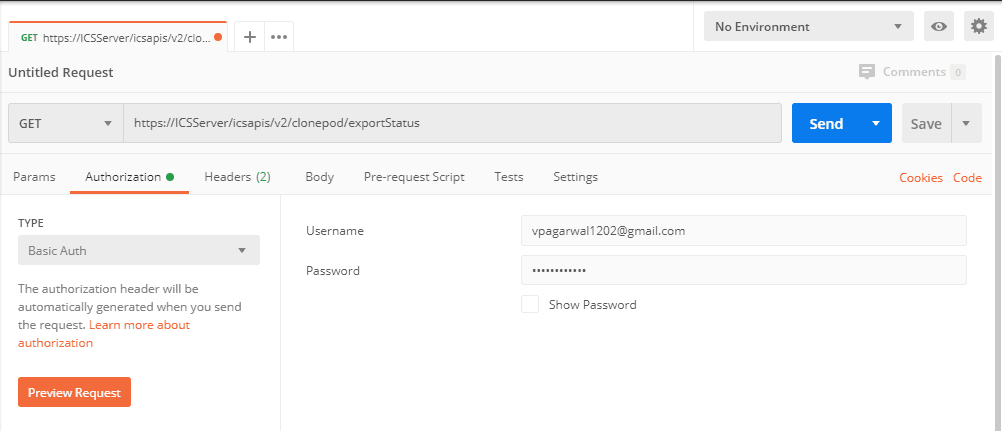

Step 5: Importing Into OIC
Once you have successfully generated the archive file, this archive file can be imported into OIC via the REST API
https://OICSserver/ic/api/common/v1/importServiceInstanceArchive
This API has 3 modes see below table for more clarification.

ImportActivateMode
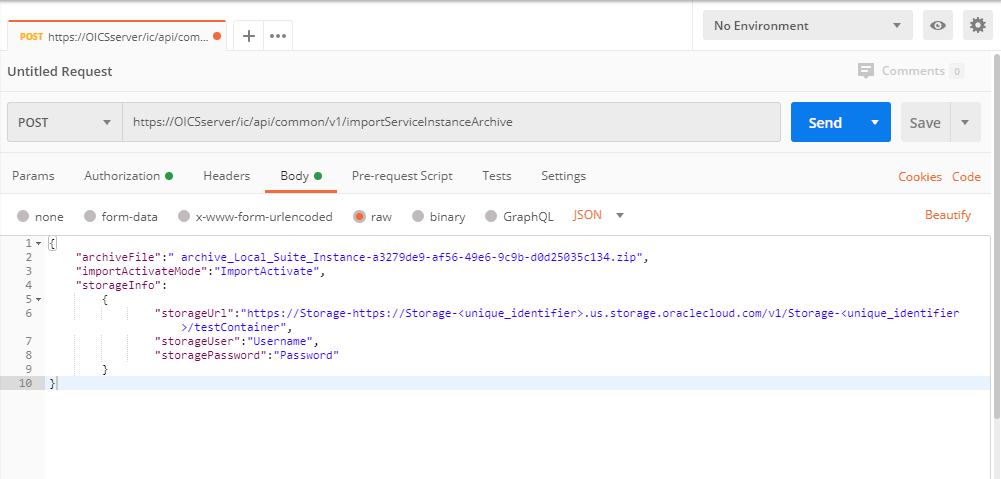
In this mode, all integrations/flows are imported and after successfully importing the integrations/flows are activated.
1. Use the below command with the verb POST to check the export status.
https://OICSserver/ic/api/common/v1/importServiceInstanceArchive
{
“archiveFile”:” archive_Local_Suite_Instance-a3279de9-af56-49e6-9c9b-d0d25035c134.zip”,
“importActivateMode”:”ImportActivate”,
“storageInfo”:
{
“storageUrl”:”https://Storage-https://Storage-<unique_identifier>.us.storage.oraclecloud.com/v1/Storage-<unique_identifier>/testContainer”,
“storageUser”:”Username”,
“storagePassword”:”Password”
}
}
ImportOnly
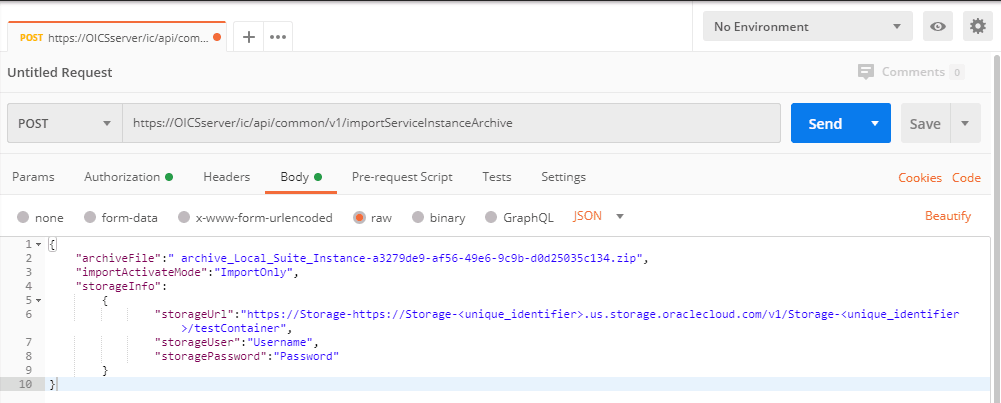
In this mode, all integrations/flows are only imported but not activated.
1. Use the below command with the verb POST to check the export status.
https://OICSserver/ic/api/common/v1/importServiceInstanceArchive
{
“archiveFile”:” archive_Local_Suite_Instance-a3279de9-af56-49e6-9c9b-d0d25035c134.zip”,
“importActivateMode”:”ImportOnly”,
“storageInfo”:
{
“storageUrl”:”https://Storage-https://Storage-<unique_identifier>.us.storage.oraclecloud.com/v1/Storage-<unique_identifier>/testContainer”,
“storageUser”:”Username”,
“storagePassword”:”Password”
}
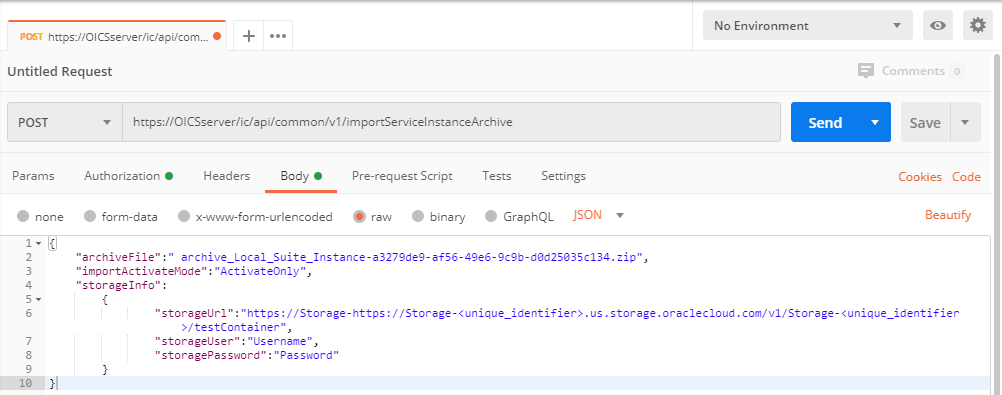
}  ActivateOnly
This mode can be used if the ImportOnly mode was used and all integrations/flows need to be activated.
1. Use the below command with the verb POST to check the export status.
https://OICSserver/ic/api/common/v1/importServiceInstanceArchive
{
“archiveFile”:” archive_Local_Suite_Instance-a3279de9-af56-49e6-9c9b-d0d25035c134.zip”,
“importActivateMode”:”ActivateOnly”,
“storageInfo”:
{
“storageUrl”:”https://Storage-https://Storage-<unique_identifier>.us.storage.oraclecloud.com/v1/Storage-<unique_identifier>/testContainer”,
“storageUser”:”Username”,
“storagePassword”:”Password”
}
} 
Response:
{
“jobId”: “1533”,
“status”: “NOT_STARTED”
}The response message contains 2 values JobID and Status.
Make a Note of JobID you will need it to check the status of the import job.
Step 6: Check Import Status
1. Use the below command with the verb GET to check the export status.
https://OICServer/ic/api/common/v1/importServiceInstanceArchive/<JOBID>
{
“jobId”: “1533”,
“status”: “RUNNING”
}
2.2 If Task is completed
{
“jobId”: “1533”,
“status”: “COMPLETED”
}
Once the job is completed, you can see the artifacts in the OIC instance.
Conclusion
ICS and OIC have Clone Utility that provides REST APIs that has the capability to migrate all artifacts from ICS to OIC.
You can also use the clone utility to clone an existing OIC environment typically in the T2P or P2T scenario.
If you find this post useful and have further related questions then comment below.
Related Links/References:
- 6 Docs Every Oracle Cloud Integrator Must Read
- Oracle Cloud Documentation Links: OIC | SOA-CS | OCI
- Process large file (above 10MB) in Oracle Integration Cloud(OIC)
- How to exporting Business Data and Visual Builder Cloud Service (VBCS)
- How Import Business Data in Visual Builder Cloud Service (VBCS)
- Oracle Integration: ICS to OIC Migration
Next Task For You
Do you want to learn more about Oracle and confuse where to start or which certification is right for you? Then, click on the register now button below to register for a Free Masterclass on Oracle [1Z0-1042] Certified Cloud Integration Expert, which will help you better understand and choose the right path and clear the certification exam.


![Microsoft Agentic AI Business Solutions Architect [AB-100] | K21 Academy](https://test.k21academy.com/wp-content/uploads/2025/11/Microsoft-Agentic-AI-Business-Solutions-Architect-AB-100-Exam-Overview1.png)


