





Vertex AI Workbench is a powerful integrated environment on Google Cloud that provides tools for data scientists and machine learning engineers to build, train, and deploy machine learning models at scale. One of the most popular features of Vertex AI is the ability to create and manage Jupyter notebooks, which are widely used for exploratory data analysis, model development, and testing in machine learning workflows. This blog walks you through the process of creating a Jupyter Notebook instance using Vertex AI Workbench.
Table of Contents
- What is Vertex AI?
- What is Workbench in Vertex AI
- Prerequisites
- Creating a Vertex AI Workbench Notebook
- Cleanup Resources
- Conclusion
- Frequently asked question
What is Vertex AI?
Vertex AI is Google Cloud’s unified machine learning platform that enables users to build, train, and deploy ML models at scale. It integrates a variety of tools and services, including:
- Data preprocessing and transformation
- Model training (custom and AutoML)
- Model evaluation
- Model deployment
This streamlined platform helps data scientists and ML engineers to work efficiently while maintaining MLOps best practices.
What is Workbench in Vertex AI
Vertex AI Workbench is a managed Jupyter Notebook environment designed to simplify data science workflows by providing:
- Pre-installed ML libraries (e.g., TensorFlow, PyTorch, sci-kit-learn).
- Seamless integration with GCP services like BigQuery, Cloud Storage, and Vertex AI Pipelines.
- Access to scalable infrastructure for training large models.
- Built-in MLOps tools to monitor and manage your ML lifecycle.
Prerequisites
Before you begin, make sure you have the following:
- Google Cloud Account
- Billing Account
Creating a Vertex AI Workbench Notebook
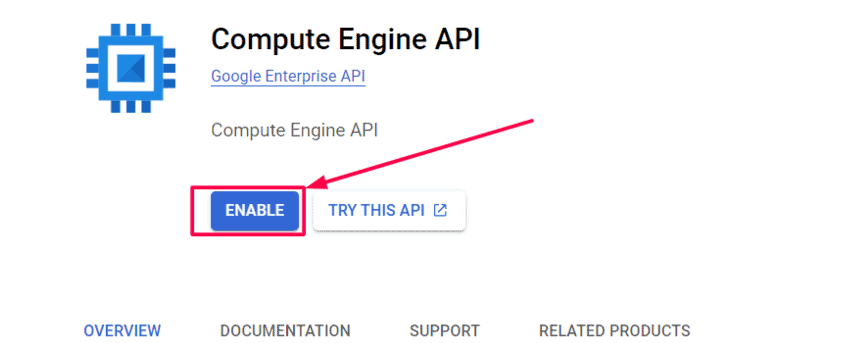
- Navigate to Compute Engine and select Enable if it isn’t already enabled. You’ll need this to create your notebook instance
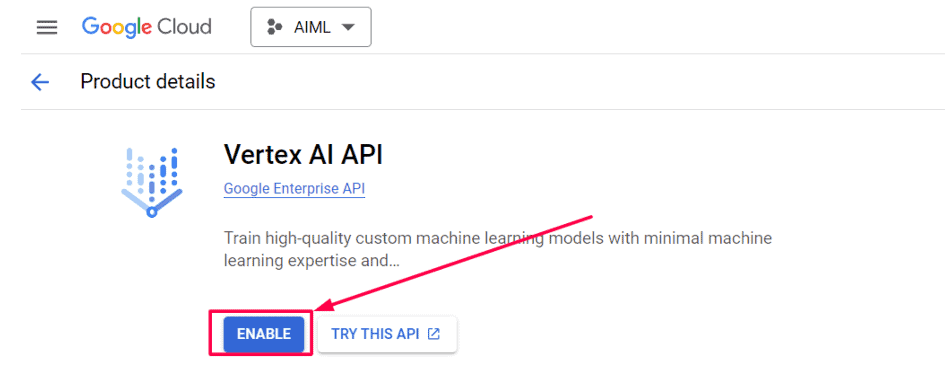
- Enable Vertex AI API:
In the Cloud Console, navigate to API & Services > Library.
Search for Vertex AI API and enable it.
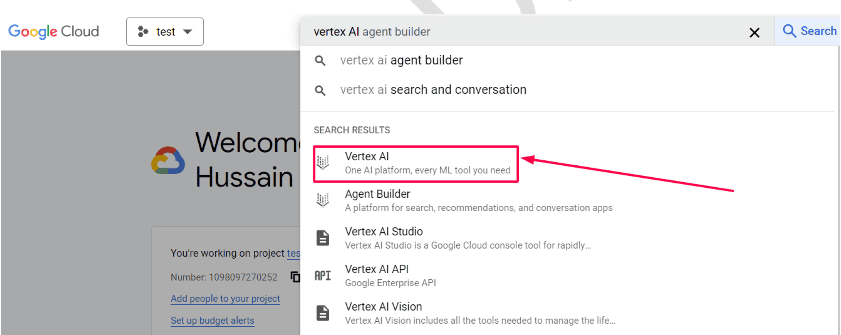
- In the GCP console, search for Vertex AI in the search box and click on Vertex AI
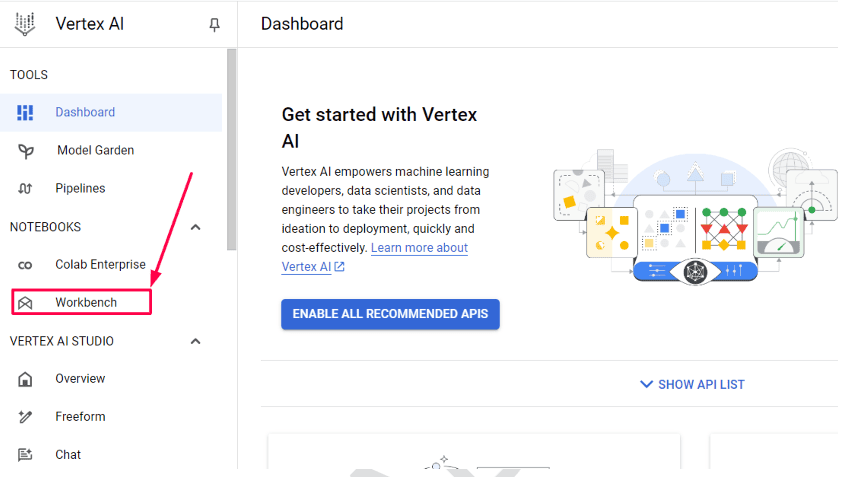
- From the Vertex AI section of your Cloud Console, click on Workbench:
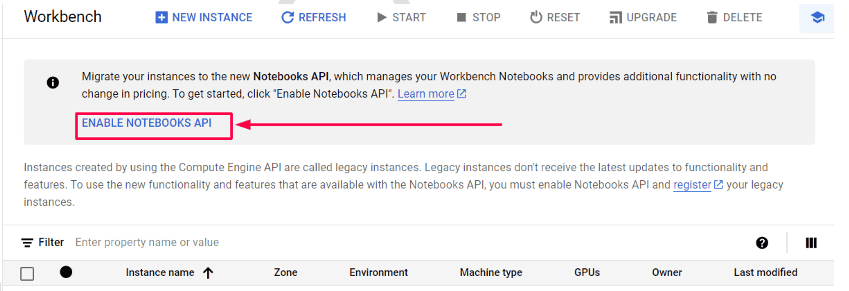
- Enable Notebook API
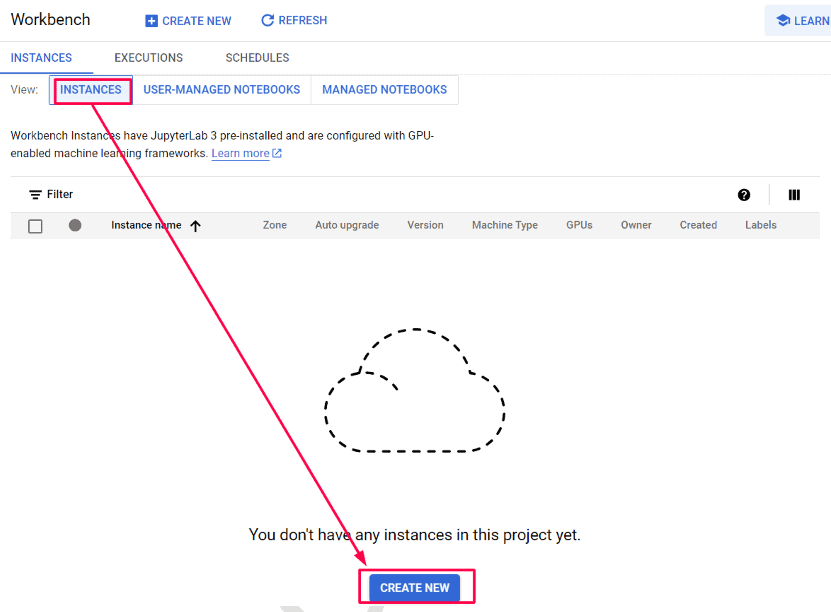
- From there, within Instances, click Create New:
- Change the name of the instance and the machine type:Name: gcp_aimlMachine type: e2-standard-2 (2 vCPU, 1 core, 8 GB memory)
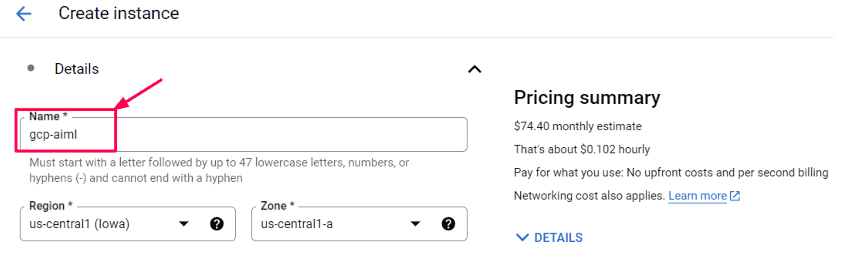
- Note: Under Machine type, we can even select the ideal time of shutdown of our instance notebook. We are selecting 3 hours. The instance will be automatically shutdown if not being used for 3 hours
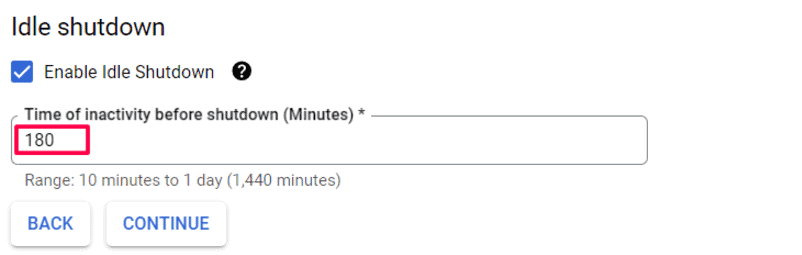
- Then leave everything else as default & click Create.
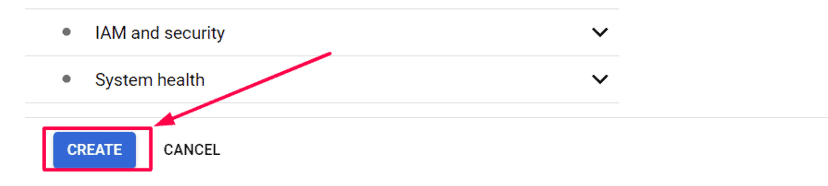
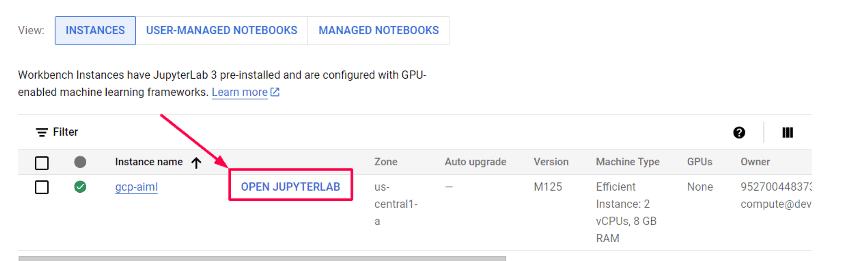
- Once the instance has been created, select Open JupyterLab:
- Once you open the notebook you will see the interface below:
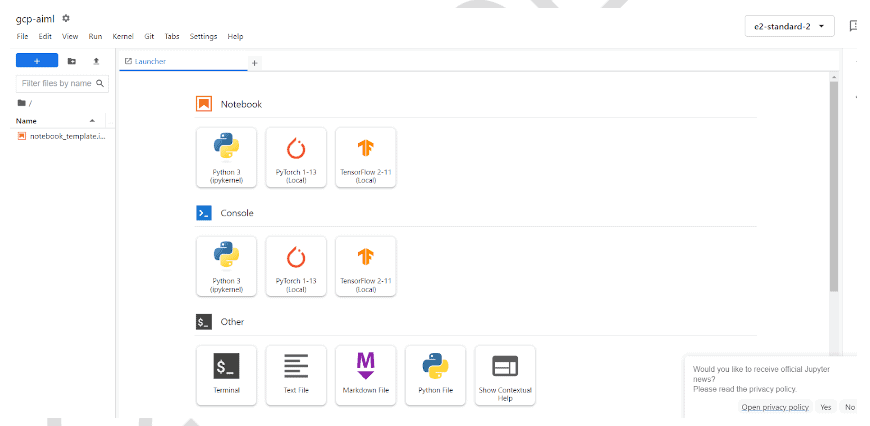
From the displayed options you can select any of them as per your needs and requirements.Congratulations! We have successfully created a Jupyter Notebook instance using Vertex AI Workbench.
Cleanup Resources
Stop/Delete the Jupyter Notebook
- We will need this Notebook for our next labs, If you want to keep the jupyter notebook instance, then please Stop it:
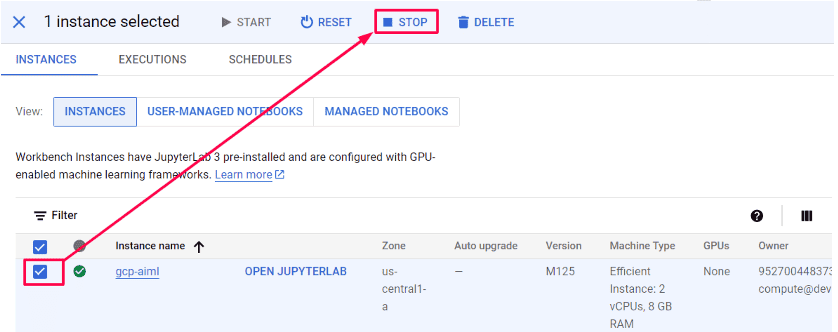
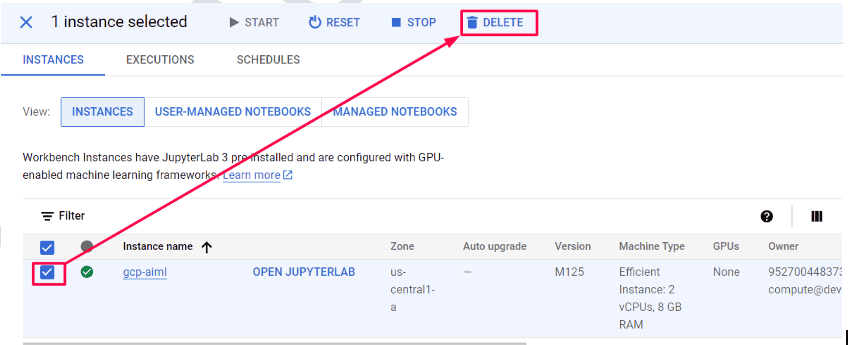
- If you don’t want to keep the jupyter notebook instance for the next labs & create a new one at the time you do the labs, then please Delete it:
Conclusion
Vertex AI Workbench simplifies the process of creating and managing Jupyter Notebooks in the cloud, allowing data scientists and machine learning engineers to focus more on model development and experimentation rather than managing infrastructure. By following the steps outlined in this blog, you should be able to set up a fully functional Jupyter notebook instance on Vertex AI and start leveraging the power of Google Cloud for your ML projects.
Frequently asked questions
What is the cost of using Vertex AI Workbench?
The cost depends on the machine type and the duration of usage. For example, an e2-standard-2 instance costs approximately $0.102 per hour. Refer to the Vertex AI Pricing Guide for detailed information.
Can I use custom libraries in Vertex AI Workbench?
Yes, you can install custom libraries in your Jupyter Notebook using pip install or conda install
How do I access data from BigQuery in my notebook?
You can use the google-cloud-bigquery library to access and query data from BigQuery directly within your Jupyter Notebook.
Related References
- Join Our Generative AI Whatsapp Community
- Google Cloud Professional Machine Learning Engineer Certification: Everything You Need to Know
- Google AI/ML: Step-by-Step Activity Guide (Hands-on Lab) & Project Work for getting a higher paying Job & Certifications
- Simplifying Machine Learning with Google Cloud Vertex AI: Key Tools & Real-World Applications
- Introduction to Generative AI and Its Mechanisms
- Mastering Generative Adversarial Networks (GANs)
- Generative AI (GenAI) vs Traditional AI vs Machine Learning (ML) vs Deep Learning (DL)
Next Task For You
Don’t miss our Exclusive Free Training on Mastering Google AI/ML and Generative AI. Gain expertise in advanced AI and Machine Learning technologies using Google’s powerful tools. Join a thriving community of learners and take the next step in advancing your career. Click the image below to reserve your spot!


![Microsoft Agentic AI Business Solutions Architect [AB-100] | K21 Academy](https://test.k21academy.com/wp-content/uploads/2025/11/Microsoft-Agentic-AI-Business-Solutions-Architect-AB-100-Exam-Overview1.png)


