
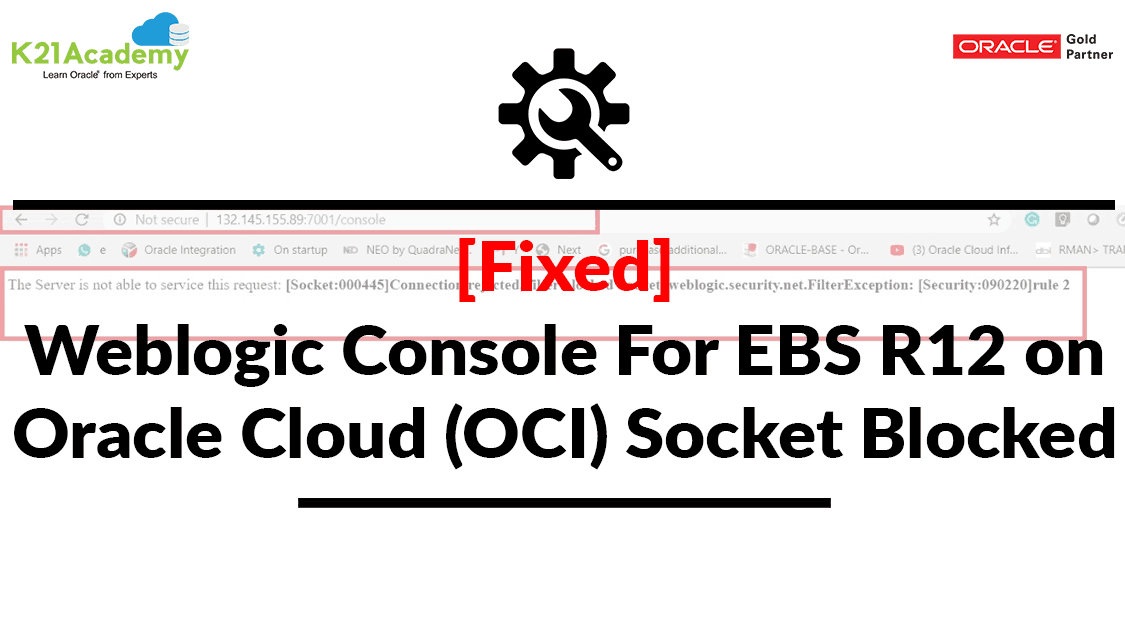



This blog post covers the issue & fix which I encountered while performing Hands-On Lab for our EBS R12 On OCI Training. While accessing the WebLogic Console from the Oracle EBS environment created from Oracle EBS Cloud Manager.
If you don’t know how to deploy Oracle EBS Environment using Oracle EBS Cloud Manager check here.
Issue Encountered
While accessing the WebLogic Admin console <http://<Apps_tier_public_IP>:7001/console> I encountered with the following error:
Error: “The Server is not able to service this request: [Socket:000445]Connection rejected, filter blocked Socket, weblogic.security.net.FilterException: [Security:090220]rule 2”
 Also Check Our Blog Post on OCI Migration.
Root Cause
The error I encountered is due to WebLogic offers a concept called “connection filter“. Connection filters provide network layer access control and allow the server(s) to block unwanted communication based on different criteria. To know more about the Weblogic Connection filter click here.
You can check the WebLogic connector filter configuration under the config.xml file. To know more about config.xml check here
Note: config.xml is a file that contains all the WebLogic configurations

In the above config.xml file, you can see that it is blocking the connection for 0.0.0.0/0 where 0.0.0.0/0 is nothing but public internet.
Note: Using Weblogic Connection filter you can also whitelist particular IP
Also Read: Oracle OCI vs OCI Classic, to know the major differences between them.
Fix
1)Open the config.xml file
(/u01/install/APPS/fs1/FMW_Home/user_projects/domains/EBS_domain/config)
2)Backup your config.xml file before making any changes
eg: $ cp -R config.xml config.xml_bkp
3)Search for connection -filter-rule
4)Change the string “deny” to “allow”

5)Save the config.xml file & bounce the Application services’
To know how to Start/Stop Application services check here.
Now you will be able to access the WebLogic console!!!
If you find the blog useful don’t forget to share with your friends & colleague.
Related/References
- [Video] Oracle EBS R12 on Cloud For Beginners: 7 Things You Must Know
- Oracle EBS Cloud Manager: New Release (19.3.1) Is Now Available
- April 2019 EBS Cloud Manager Updates(19.1.1)
- [Troubleshoot] instance ocid1.instance.oc1.iad.XX Not Found While Deploying EBS Cloud Manager: config.pl
- Oracle EBS (R12) on Cloud (OCI) Beginners: 15 Things Apps DBAs Must Know
- [Video] Role of Oracle Apps DBA (EBS) R12 On Cloud
Next Task For You
Join our FREE Masterclass on Build, manage & Migrate EBS R12 to Cloud For Beginners. Click on the image below to register for FREE


![Microsoft Agentic AI Business Solutions Architect [AB-100] | K21 Academy](https://test.k21academy.com/wp-content/uploads/2025/11/Microsoft-Agentic-AI-Business-Solutions-Architect-AB-100-Exam-Overview1.png)


