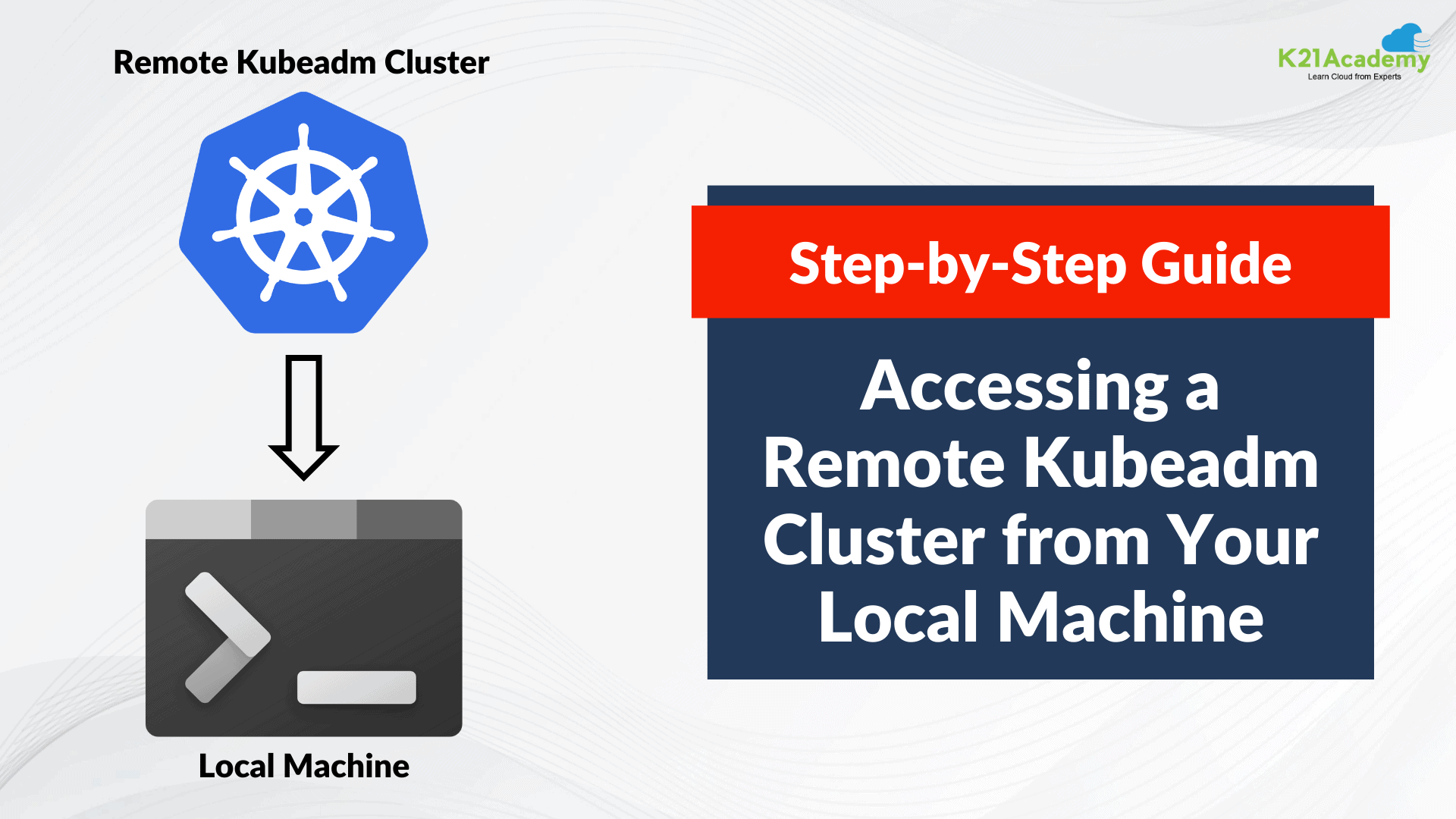



In the world of container orchestration, Kubernetes stands out as a powerful tool for automating the deployment, scaling, and management of containerized applications. Managing a Kubernetes cluster using kubeadm is a common choice for many users. In this blog, we’ll walk through the process of accessing a remote kubeadm cluster from your local machine, enabling you to manage and monitor your Kubernetes setup with ease.
In this blog, we will cover:
- Understanding Cluster Configuration
- Prerequisites
- Install OpenSSH Server
- Modify SSH Server Configuration file to allow root user
- Obtain Cluster Configuration
- Update kubectl Configuration
- Interact with the Remote Cluster
- Conclusion
Understanding Cluster Configuration
A Kubernetes cluster configuration file, commonly called kubeconfig, holds important details needed to communicate with the cluster. This covers the address of the API server, authentication information, and where the required certificates are located. The kubeconfig file plays a crucial role in creating a secure and authenticated link between your local machine and the remote cluster.

To know more about Kubernetes Cluster Click Here.
Prerequisites
Before embarking on this journey, ensure you have the following prerequisites in place:
- A running Kubernetes cluster: Confirm that your remote Kubernetes cluster is operational, deployed using kubeadm.
- kubectl installed locally: Install the Kubernetes command-line tool, kubectl, on your local machine.
Install OpenSSH Server
OpenSSH Server is a secure networking tool that uses the SSH protocol to encrypt data over a network. It allows secure remote access and command execution, offering a safe alternative to non-encrypted protocols.
// On local machine
$ sudo apt-get install -y openssh-server
Modify SSH Server Configuration file to allow root user
By default, allowing direct root login over SSH is often discouraged for security reasons. However, for certain use cases or configurations, you might need to enable it.
$ vi /etc/ssh/sshd_config
$ systemctl restart sshd


Obtain Cluster Configuration
This step involves fetching the cluster configuration from your remote machine. This configuration file contains crucial details about the cluster, such as API server endpoints, authentication tokens, and certificate information.
//On local machine
mkdir .kube

//On remote machine
$ scp /etc/kubernetes/admin.conf username@local_server:/root/.kube

Check whether the configuration file has been copied to the .kube folder on the local machine.

Also Read: Our blog post on Role Based Access Control (RBAC).
Update kubectl Configuration
Now armed with the remote cluster configuration, update your local kubectl configuration to incorporate this new cluster. The KUBECONFIG environment variable is a key player in this process, allowing kubectl to discover and use the desired configuration file:
// on local machine
$export KUBECONFIG=~/.kube/admin.conf

// Check the current Kubernetes configuration.
$kubectl config view

Interact with the Remote Cluster
With your local machine now configured to communicate with the remote cluster, initiate interactions using kubectl. For example, retrieve information about the nodes in the remote cluster:
$ kubectl get nodes

Congratulations! We have accessed a remote kubeadm cluster from the local machine.
Conclusion
Accessing a remote kubeadm cluster from your local machine is a skill that empowers Kubernetes administrators and developers to efficiently manage geographically distributed infrastructure. The configuration files, contexts, and kubectl commands form the backbone of this process, enabling secure and authenticated communication. While this guide provides a fundamental walkthrough, the Kubernetes ecosystem is expansive, and continuous exploration of its capabilities is encouraged.
Check Out: Managed Kubernetes services AKS & EKS. Click here
Frequently Asked Questions
What is kubeadm, and why would I need to access a remote cluster from my local machine?
kubeadm is a tool used for Kubernetes cluster initialization. Accessing a remote cluster from your local machine is essential for managing, monitoring, and deploying applications on the cluster without having to directly interact with the cluster's nodes.
How do I check if kubectl is installed on my local machine?
You can check by running kubectl version in your terminal. If it's not installed, you can follow the installation instructions provided by the Kubernetes documentation.
Can I use kubectl to access a remote kubeadm cluster?
Yes, you can. You need to have the kubeconfig file from the remote cluster and set the KUBECONFIG environment variable to point to that file.
How do I obtain the kubeconfig file for a remote cluster created with kubeadm?
The kubeconfig file is usually located at /etc/kubernetes/admin.conf on the master node. You can copy it to your local machine using SCP or any secure file transfer method.
How do I troubleshoot connectivity issues to my remote cluster from my local machine?
Check your network settings, firewall rules, and ensure that the necessary ports (e.g., 6443 for the Kubernetes API server) are open. Also, verify that your kubeconfig file contains the correct server endpoint.
Related Post
- Kubernetes for Beginners
- Install Docker on Windows, Ubuntu, and Mac: A Complete Step-by-Step Guide
- How To Setup A Multi-Node Kubernetes Cluster on SUSE Linux: Step By Step Guide
- Visit our YouTube channel on “Docker & Kubernetes”
- Certified Kubernetes Administrator (CKA) Certification Exam: Everything You Must Know
- Certified Kubernetes Administrator (CKA) Certification: Step By Step Activity Guides/Hands-On Lab Exercise
Next Task For You
Discover the Power of Kubernetes, Docker & DevOps – Join Our Free Masterclass. Unlock the secrets of Kubernetes, Docker, and DevOps in our exclusive, no-cost masterclass. Take the first step towards building highly sought-after skills and securing lucrative job opportunities. Click on the below image to Register Our FREE Masterclass Now!


![Microsoft Agentic AI Business Solutions Architect [AB-100] | K21 Academy](https://test.k21academy.com/wp-content/uploads/2025/11/Microsoft-Agentic-AI-Business-Solutions-Architect-AB-100-Exam-Overview1.png)