




In the world of software development, version control is paramount. Git and GitHub are two essential tools that streamline this process, making collaboration and code management more efficient. In this article, we’ll delve into the installation of Git and GitHub and explore some common commands that every developer should be familiar with.
Understanding Version Control and Git
Version control is a system that helps developers manage changes to their codebase over time. Git, developed by Linus Torvalds, is a distributed version control system that has become the industry standard due to its speed and efficiency.
Why a Version Control System like Git is needed?
In most cases, numerous developers work on a project at the same time. To guarantee that there are no code disputes amongst the developers, a version control system such as Git is required. Furthermore, the needs of such projects change frequently. As a result, a version control system enables engineers to revert to an earlier version of the code. Finally, multiple initiatives that are running concurrently may use the same codebase. In this scenario, the idea of branching in Git is critical.
Install Git
Before you can start using Git, you need to install it on your system. The installation process varies depending on your operating system.
Install Git Windows
To install Git on Windows, follow these steps:
- Download the Git installer from the official website.
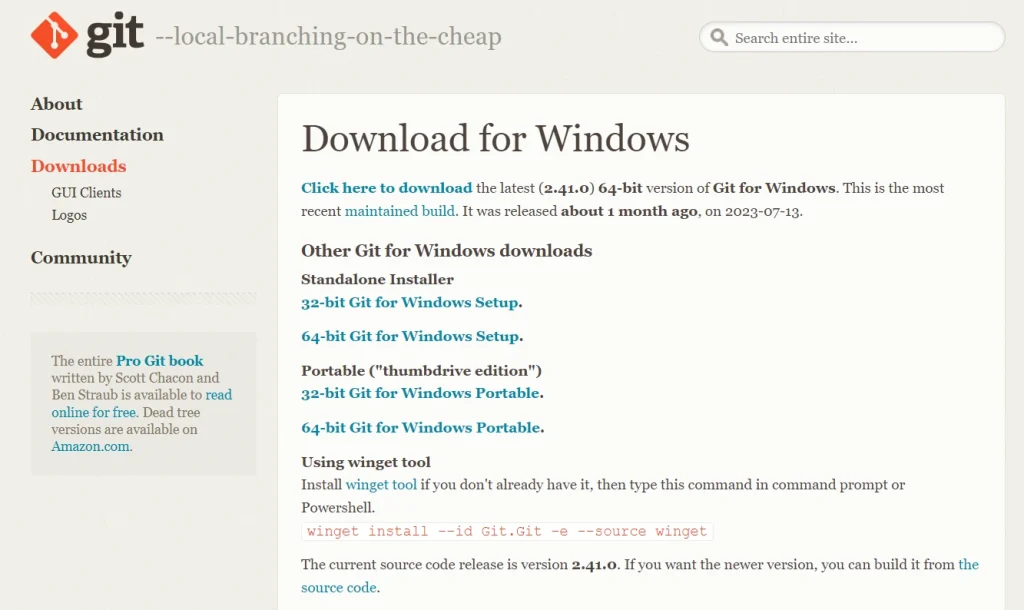 Run the installer executable
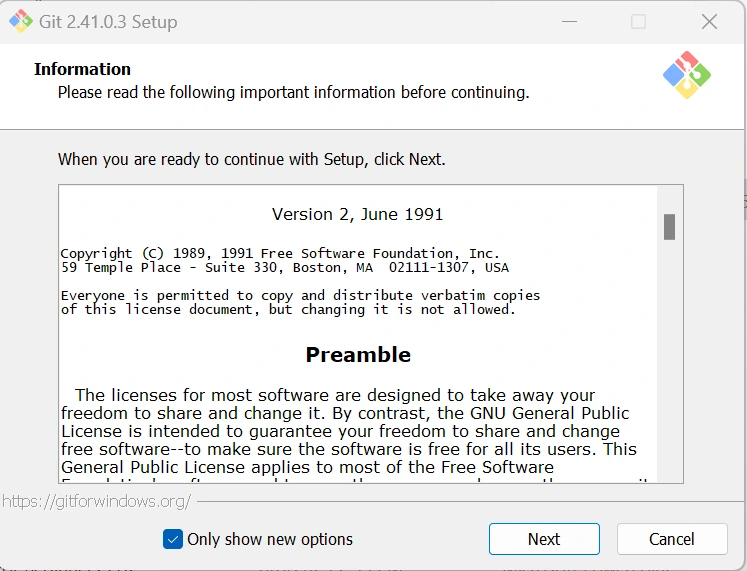
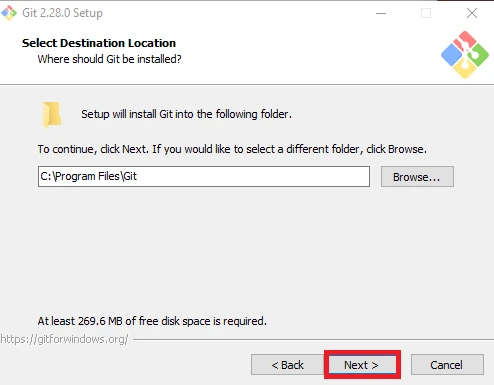
- Follow the on-screen instructions, choosing the recommended settings.
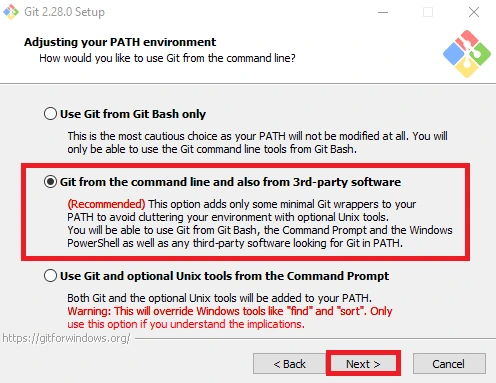
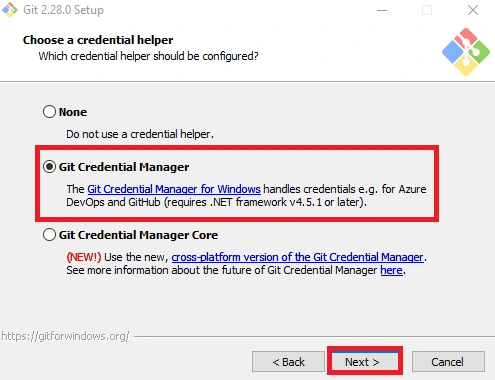
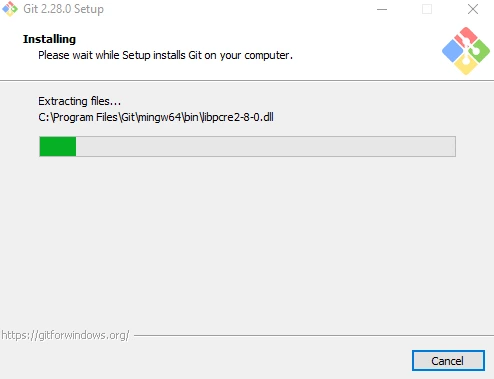
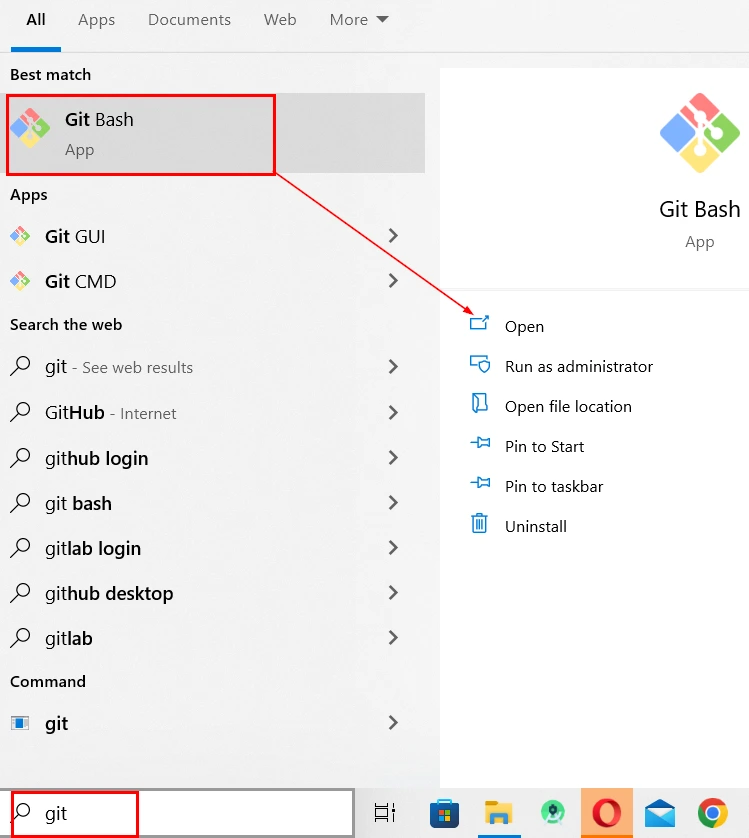
now you have successfully installed git bash on the windows.
Install Git on mac
Installing Git on macOS is straightforward:
- Open the Terminal.
- Install the Xcode Command Line Tools by entering
xcode-select --install. - Install Homebrew if you haven’t already by running
/bin/bash -c "$(curl -fsSL https://raw.githubusercontent.com/Homebrew/install/HEAD/install.sh)". - Install Git using Homebrew:
brew install git.
Install Git for Linux
On most Linux distributions, you can install Git through the package manager. For example, on Debian-based systems:
- Open the Terminal.
- Run
sudo apt-get update. - Install Git:
sudo apt-get install git.
What is GitHub?
GitHub is a web-based platform that provides hosting for Git repositories. It enhances collaboration and offers additional features like issue tracking and pull requests and allowing teams to collaborate on projects seamlessly.
Benefits of Using GitHub
- Easy collaboration and code sharing.
- Simplified issue and bug tracking.
- Streamlined code review process.
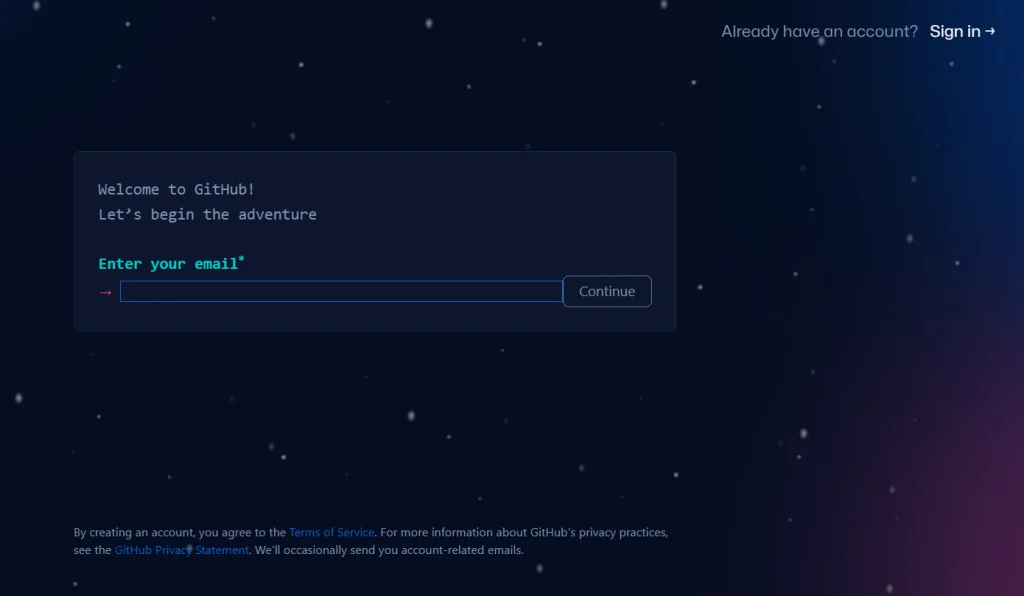
Create a GitHub Account
- To create an account on GitHub, go to https://github.com/
- Click on the Sign-Up button or the Sign-up for GitHub Button

- Provide the credentials and verify your account as instructed
- Then click on the Verification Link to verify your GitHub account. For the Verification Link please check your mailbox then You have successfully created a GitHub account.
Creating Secure Access with SSH Key Authentication
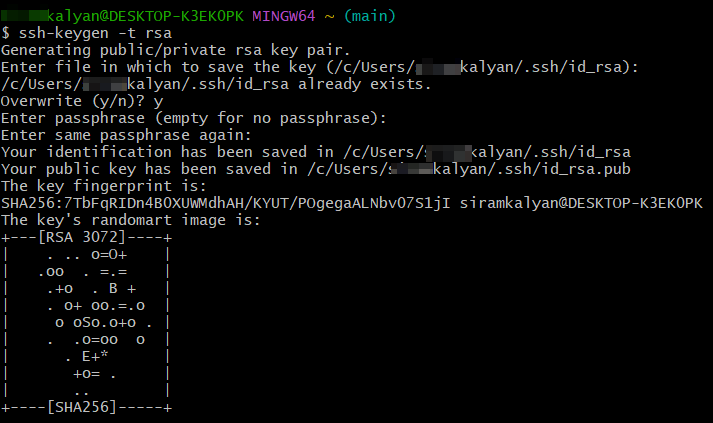
SSH key authentication allows you to access distant servers and services without having to enter your password each time. This authentication technique is often used to access GitHub repositories. Here’s a step-by-step tutorial for configuring SSH key authentication for GitHub with an RSA key:
-> Generate SSH Key pair
$ ssh-keygen -t rsa
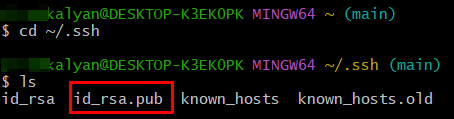
-> Change the directory to /.ssh and list the files
$ cd ~/.ssh
$ ls
-> Open id_rsa.pub file
$ vi id_rsa.pub
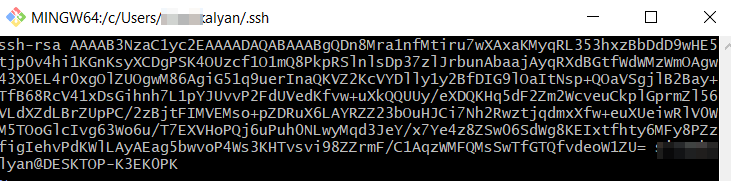
Copy the key that is present in the file
-> Login to your Github Account Navigate to Settings then Click on SSH and GPG Keys and select New SSH key
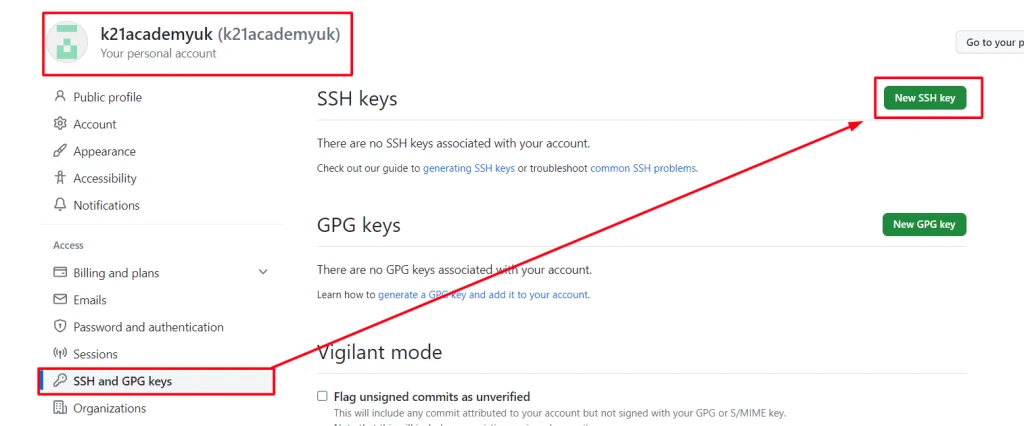
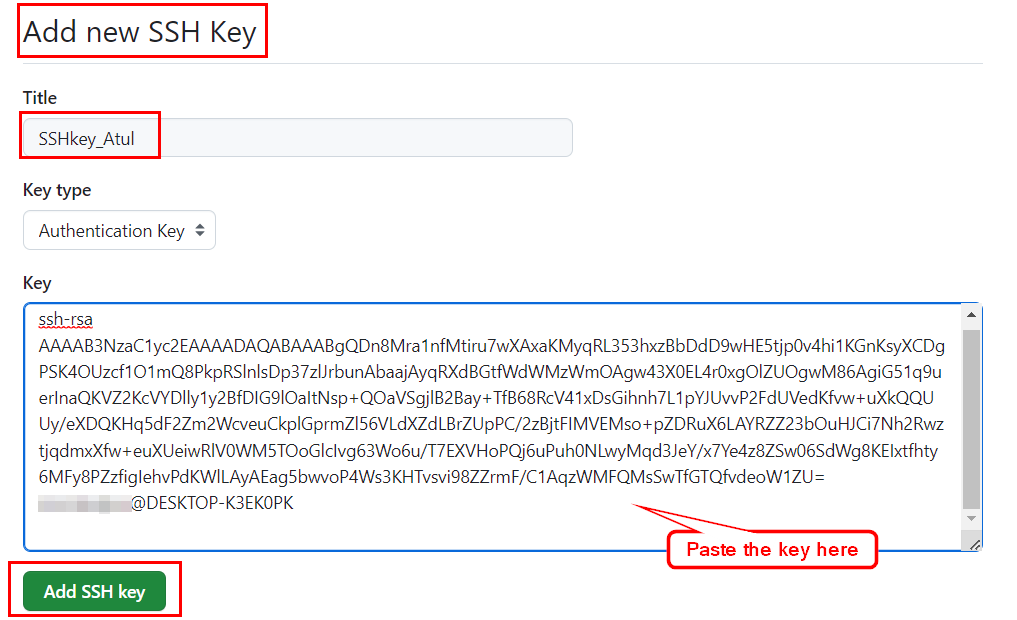
-> Provide a suitable title, paste the key in the ‘Key’ section, then click on ‘Add SSH Key.
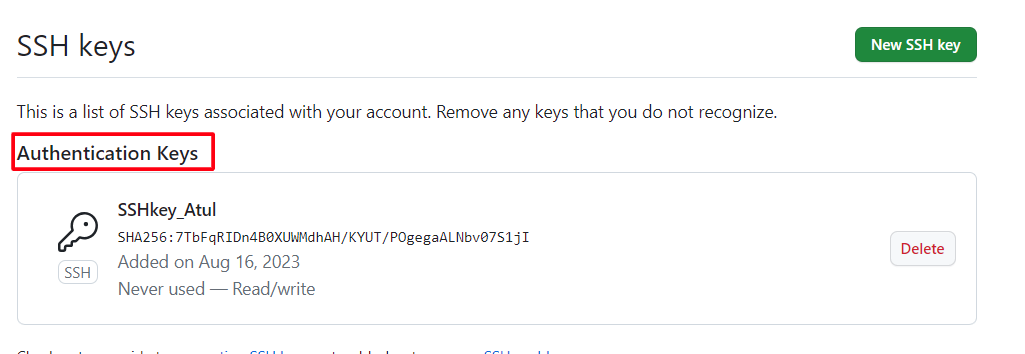
Click on ADD SSH key then you need to enter your GitHub Password.
-> Once the password is successfully authenticated, the SSH key will be added to your GitHub account.
Creating a Repository
A repository in GitHub is a storage space for a project’s code, files, and resources. It allows collaboration, version control, and issue tracking. Developers use it to manage and share their work with others.
- Log in to GitHub.
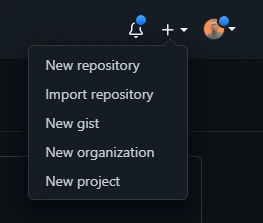
- Click the ‘+’ icon in the upper right and select ‘New Repository
- After this,
- Provide with the repository name. The name of the repository must be unique.
- Provide an optional description of the repository.
- Choose public or private repository.
- Do not forget to initialize the repository. In this you can add a README file or a gitignore file and then select from multiple options for ignoring multiple file types.
- Click on Create Repository
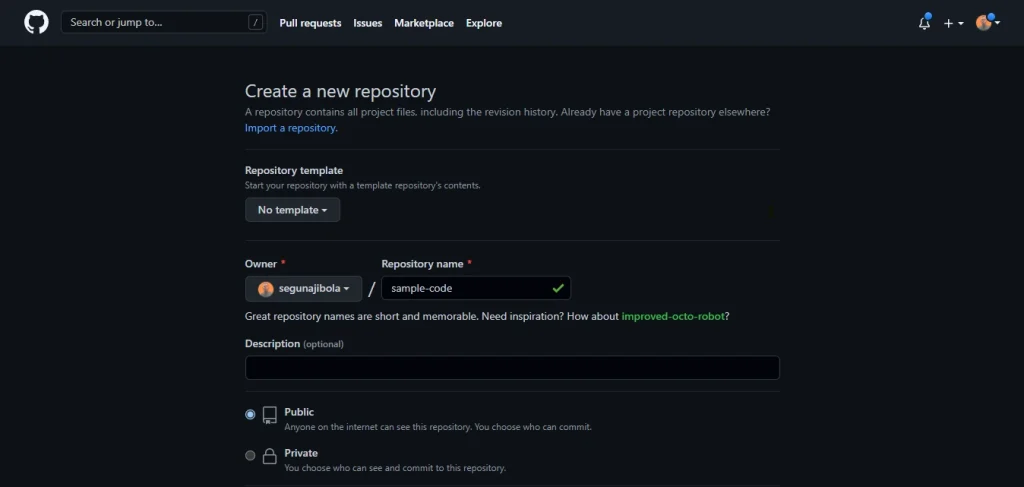 You have successfully created your first repository.
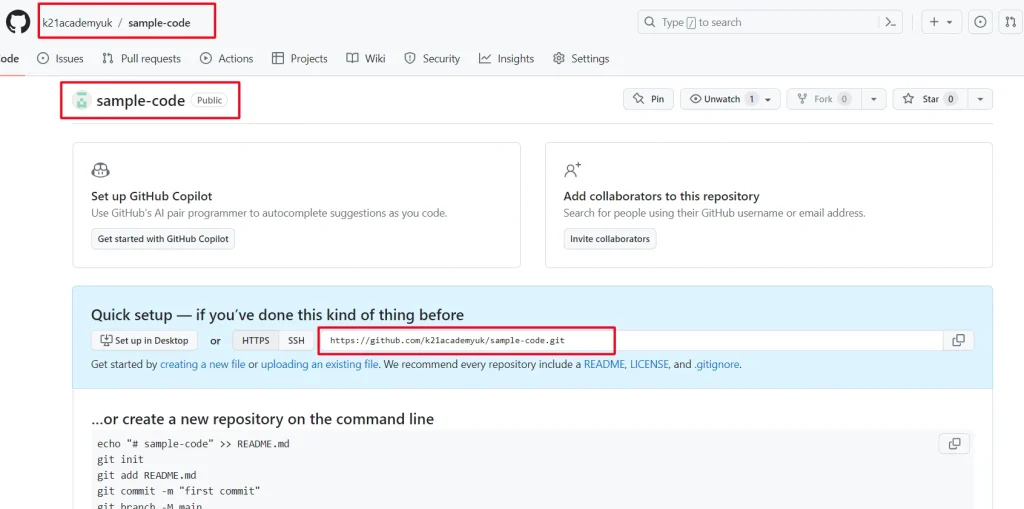
Now you have successfully created a repository in your GitHub.
Common Git Commands
git status: Check the status of your repository.git add: Stage changes for commit.git commit: Commit staged changes.git pull: Fetch changes from a remote repository.git push: Push local changes to a remote repository.git log: View the commit history.git clone: Clone a remote repository to your local machine.git fork: Create a personal copy of a repository.git pull-request: Initiate a pull request.git merge: Merge changes from one branch into another.
Resolving Conflicts
When Git can’t automatically merge changes, conflicts occur. Resolve conflicts by editing the affected files and then committing the resolved changes.
Collaborative Workflows
Forking repositories allows you to contribute to projects without directly modifying the original codebase. Collaborate by creating branches for specific tasks and conducting code reviews.
Git Best Practices
Commit frequently to track changes effectively. Write clear and concise commit messages to communicate intentions. Use branching strategically to manage features and bug fixes.
Troubleshooting
If you lose commits or make mistakes, Git offers ways to recover lost work. Use git reflog to find lost commits and git reset to undo changes.
Conclusion
In conclusion, Git and GitHub are indispensable tools for modern software development. With Git, you can effectively manage code changes, collaborate seamlessly, and maintain a clean project history. By mastering common Git and GitHub commands, you’ll enhance your productivity and contribute to successful coding endeavors.
FAQs
Is Git the same as GitHub?
No, Git is the version control system, while GitHub is a platform built around Git for hosting repositories and enabling collaboration.
Can I use Git without GitHub?
Yes, Git can be used independently on your local machine without requiring GitHub.
What is the purpose of branching in Git?
Branching allows developers to work on separate features or fixes without interfering with the main codebase.
How do I resolve merge conflicts?
Merge conflicts can be resolved by manually editing the conflicting files, committing the changes, and then continuing the merge process.
Is GitHub free to use?
GitHub offers both free and paid plans. Public repositories are free, while private repositories require a subscription._
Related/References
- What Is DevOps | DevOps Principles | Advantages Of DevOps | Why DevOps?
- CI/CD Pipeline | Continuous Integration | Continuous Deployment
- [DOFD] DevOps Foundation Certification Exam: Everything You Need To Know
- [AZ-400] Microsoft Azure DevOps Certification Exam: Everything You Need To Know
- Certified Kubernetes Administrator (CKA) Certification Exam: Everything You Must Know
Next Task For You
Begin your journey towards becoming a DevOps Expert and earn a lot more by landing a high-paying job.
Join FREE CLASS to learn more about the DevOps Roles and Responsibilities, Job opportunities related to DevOps in the market, and what to study Including Hands-On labs and projects you must perform to get your Dream job.
Click on the below image to Register for Our FREE Class on Mastering DevOps on Cloud: How to Build In-Demand Skills and Land High-Paying Jobs


![Microsoft Agentic AI Business Solutions Architect [AB-100] | K21 Academy](https://test.k21academy.com/wp-content/uploads/2025/11/Microsoft-Agentic-AI-Business-Solutions-Architect-AB-100-Exam-Overview1.png)