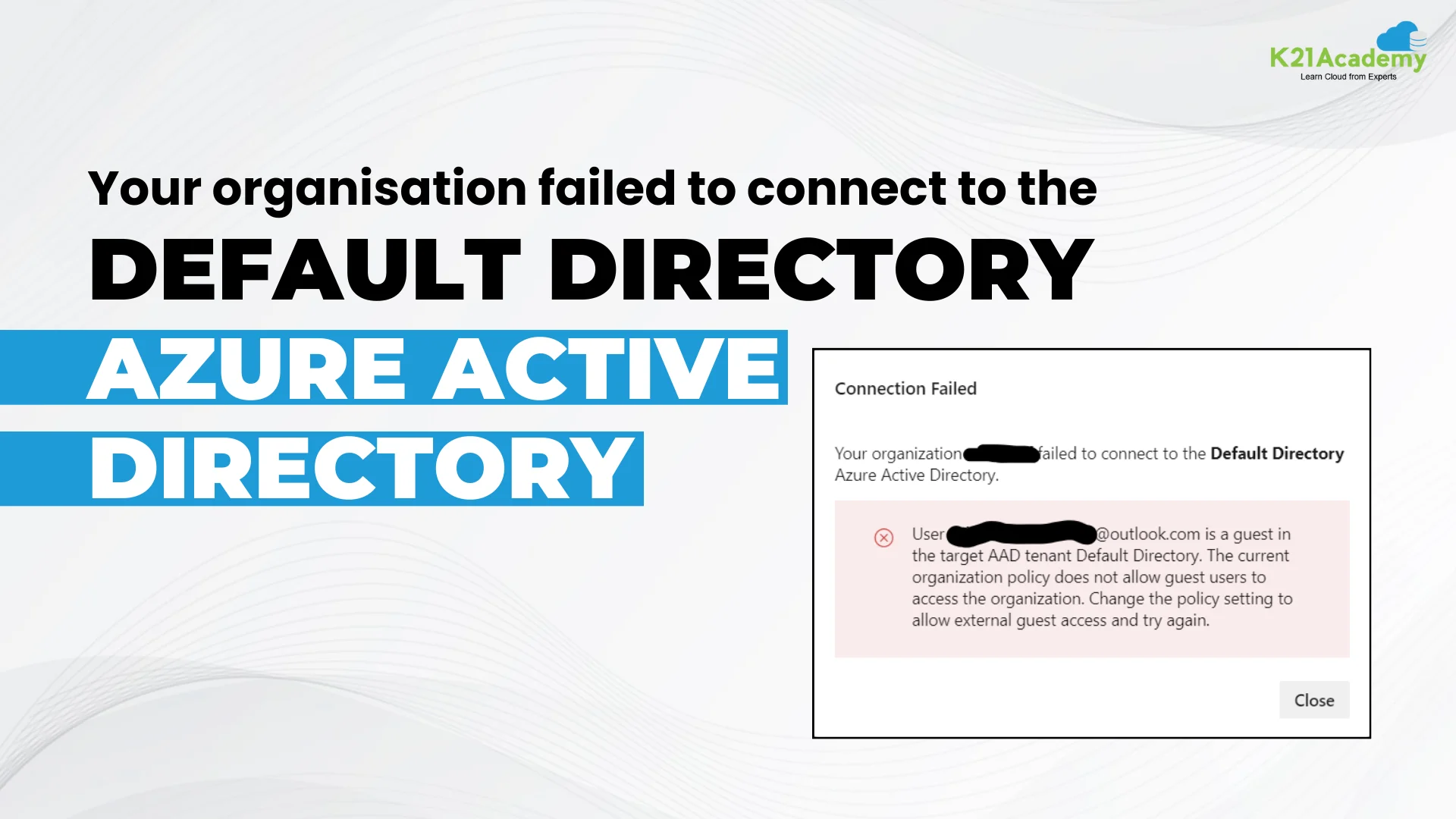




In this error blog we will be covering the error faced of ‘failed to Connect to the default directory Microsoft Entra tenant’ with the Azure DevOps Organisation while connecting Azure DevOps account with Active directory.
So let’s understand the issue
- Background of the error
- The Error
- Cause of the error “connect to the Default Directory”
- Troubleshooting the error
- Conclusion
Background of the error
When we create a new Azure DevOps account, we connect our Active directory with our DevOps account. This connection benefits us to create Personal Access Token(PAT) or Service connection which benefits us to integrate Azure services. So when we don’t have the proper configuration achieved properly then we face issues of the connection between Active directory and Azure DevOps account. This results in failure of deployments of resources on Azure portal.
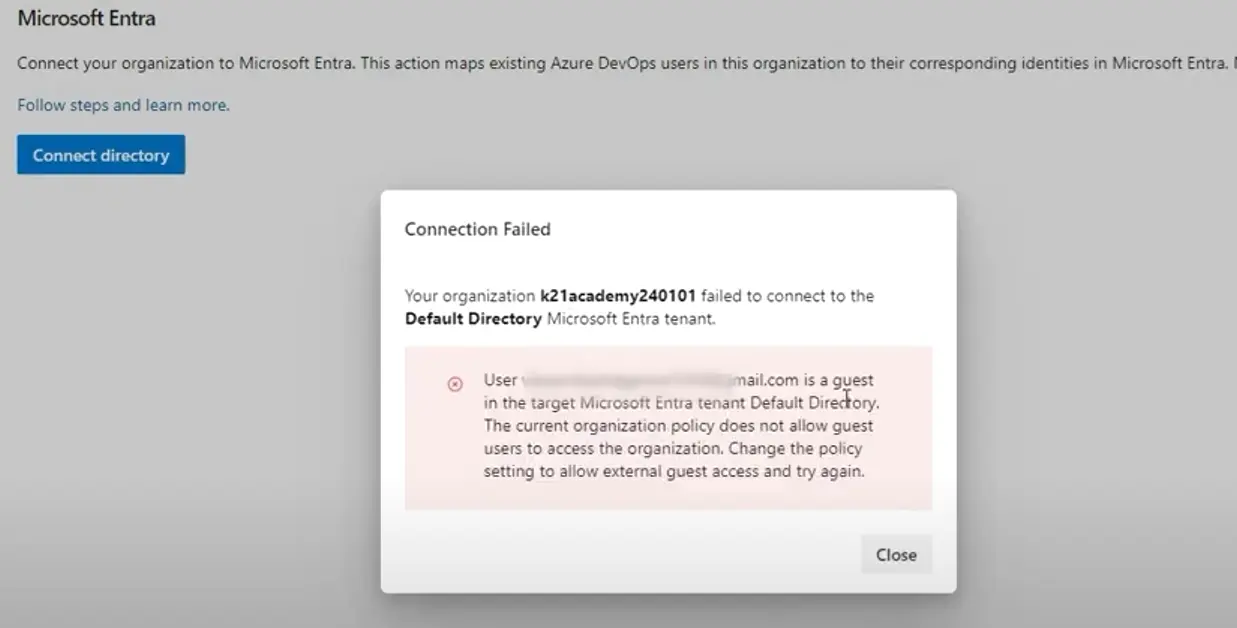
Error: Your organisation failed to connect to the Default Directory Microsoft Entra tenant
When you try to connect the Azure Active directory inside Azure DevOps account inside organisation settings. Then you will face error of Your organisation failed to connect to the Default Directory Microsoft Entra tenant. “User email is a guest in the target Microsoft Entra tenant Default directory. The current organization policy does not allow guest users to access the organization. Change the policy setting to allow external guest access and try again.” For your reference you will find image below.
Create free Azure DevOps Account? Click Here
Cause of the error “connect to the Default Directory”
The cause of the error is the directory you have select when you were creating Azure DevOps Organisation. At that point on the left pane in the drop down the directory selected by default is Microsoft Directory. So when you try to connect the Microsoft Entra inside organisation settings this will give error. The reason for the error is that according to directory you are trying to connect your DevOps account with Microsoft directory instead of your directory. So if you are not a working member inside Microsoft you can’t connect to their directory. Because in the end directory contains the user who are part of the that organisation.
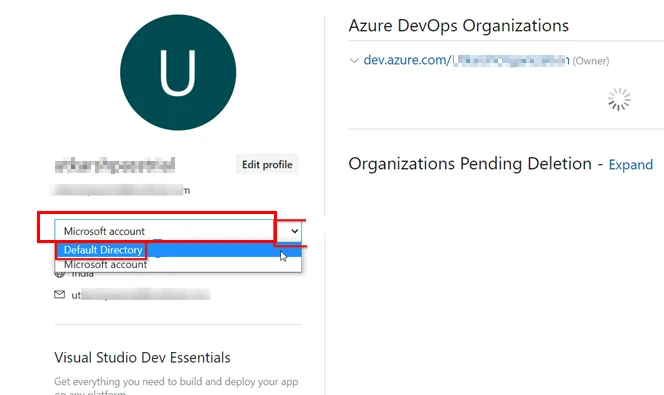
Here we can see by default Microsoft account is selected for directory.
Troubleshooting the error
To fix this error, as soon as you have created Azure DevOps account simply browse to url https://aex.dev.azure.com/ and you will land up on the page as given given below.
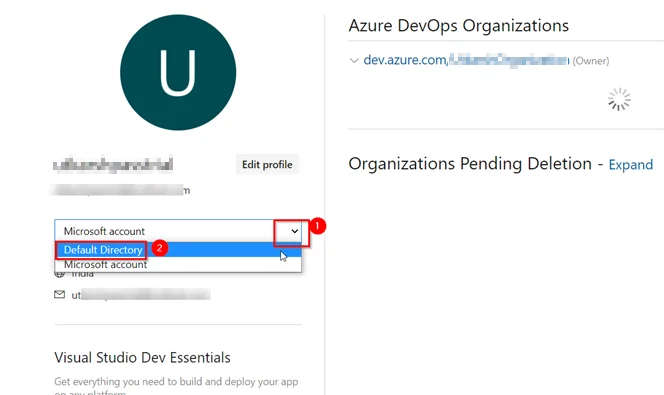
Now from the drop down select Default Directory and now proceed to Organisation settings and connect you Active directory. This will connect your Active Directory with Azure DevOps account.
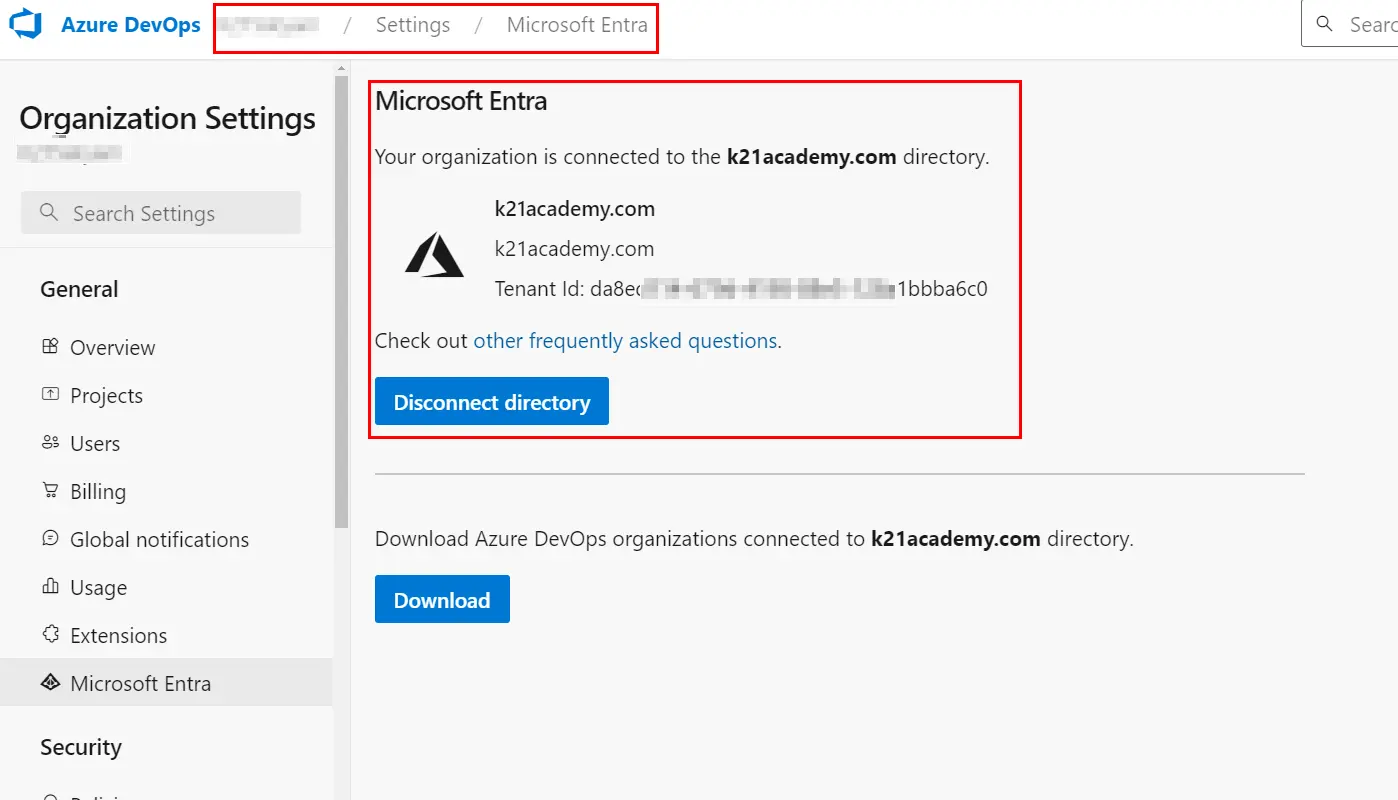
Conclusion
Final verdict for this error is that if you are new to Azure then you will find the solution somewhere or the other but the reason behind it will be hard to find. We tried to cover and make you understand the reason for this error too.
Frequently Asked Questions
Q1. How do I connect my organization to Azure AD?
Here are the Steps to connect my organization to Azure AD:
1. Inside Azure DevOps portal, go to Organisation settings on left bottom.
2. On left pane, Under General select Microsoft Entra.br> 3. Now you will get button of Connect Directory , click on it.
Q2. How do I access Azure Active Directory?
To access your Active Directory simply follow the steps given below:
1. Browse URL https://portal.azure.com and login with your credentials.
2. Click on the search bar, enter the text Microsoft Entra.
3. Click on the option shown in drop down just below to search bar showing Azure Active Directory and there is your active directory.
Q3. Still showing Azure Devops not able to connect to Azure active directory.
Follow the steps to resolve this issue:
1. On Azure DevOps portal, click on Organisation settings
2. Under Security select policies on left pane.
3. Under User policies heading, enable the option of External guest access.
Once these are done retry to connect
Related Posts
- How to Create Azure DevOps Account
- Azure Pipelines for CI/CD
- How to enable parallelism to Azure DevOps Account
- Microsoft Azure Certification Path
- Microsoft Azure DevOps Training: Step By Step Activity Guides/Hands-On Lab Exercise
- Microsoft Azure DevOps Certification Exam: Everything You Need To Know
Next Task For You
Begin your journey toward Mastering Azure Cloud and landing high-paying jobs. Just click on the register now button on the below image to register for a Free Class on Mastering Azure Cloud: How to Build In-Demand Skills and Land High-Paying Jobs. This class will help you understand better, so you can choose the right career path and get a higher paying job.


![Microsoft Agentic AI Business Solutions Architect [AB-100] | K21 Academy](https://test.k21academy.com/wp-content/uploads/2025/11/Microsoft-Agentic-AI-Business-Solutions-Architect-AB-100-Exam-Overview1.png)