


In this blog, we are covering an overview of Azure Data Studio (ADS), its features, comparisons, the scope of settings, querying data, backup, and restoring a database.
Topics We’ll cover:
- What is Azure Data Studio
- Feature Of Azure Data Studio
- SQL Code Editor With IntelliSense
- Comparison Between ADS Ans SSMS
- Code Snippets
- Scope Of Settings
- File Locations
- Preview Feature
- Use Azure Data Studio To Connect And Query SQL Server
- Backup And Restore Database Using Azure Data Studio
What Is Azure Data Studio
ADS is a cross-platform database tool for any data professional like SQL Developer, DBA, PowerBI Developer, or any developers who are working directly or indirectly to work on the SQL server & PostgreSQL.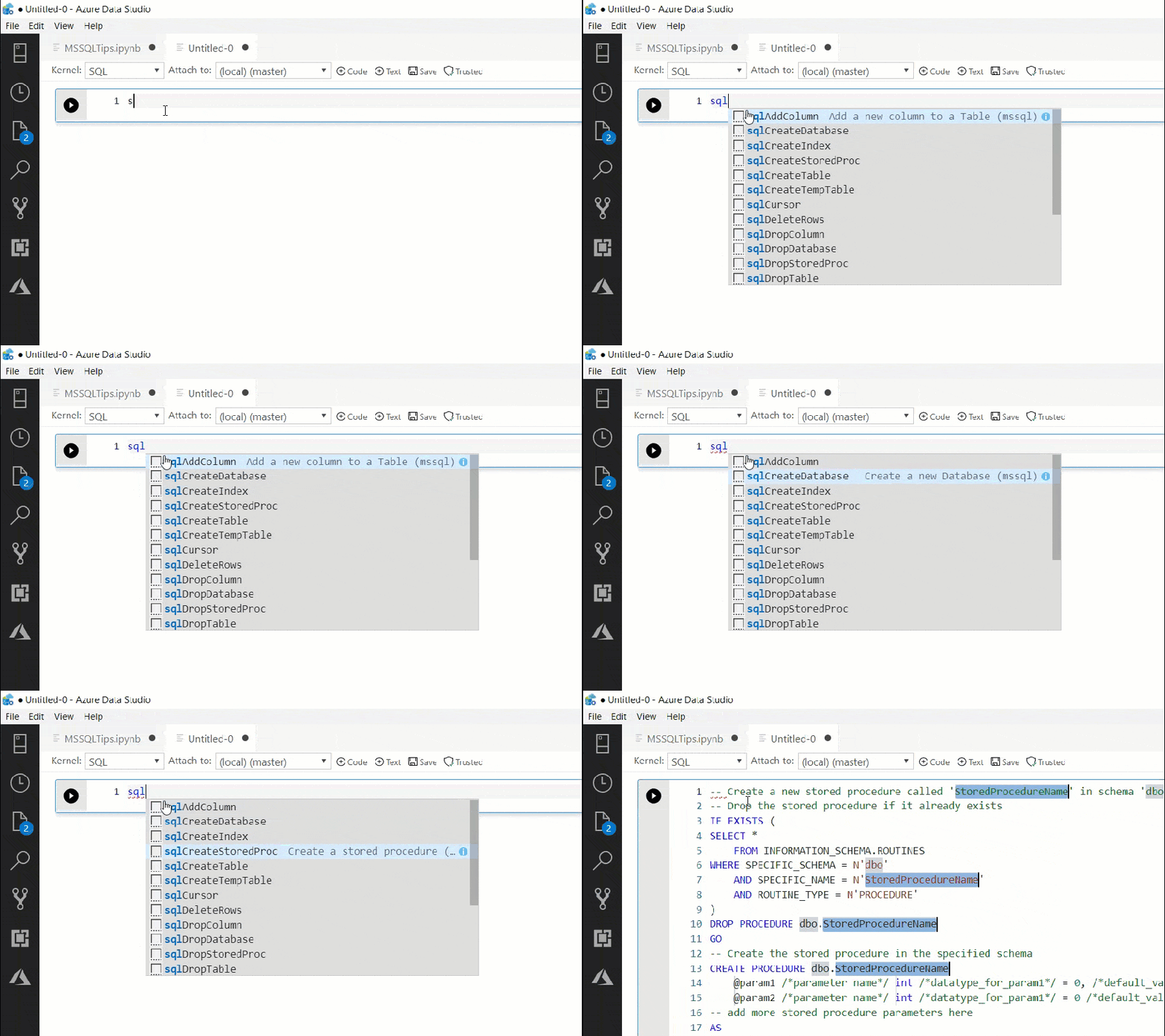
Azure Data Studio offers a modern editor experience with code snippets, IntelliSense, an integrated terminal, and source control integration. It’s engineered with the data platform user in mind, with the built-in charting of query result sets and customizable dashboards.
Features Of The ADS
- Cross-platform
- On-premises and cloud data platforms
- Modern editor experience IntelliSense
- Code Snippets
- Source Control integration
- Built-in charting in query resultset
- Design dashboard
- Marketplace
SQL Code Editor With IntelliSense
Azure Data Studio offers a modern, keyboard-focused SQL coding experience that makes your everyday tasks easier with built-in features, such as multiple tab windows, a rich SQL editor, IntelliSense, keyword completion, code snippets, code navigation, and source control integration (Git). Run on-demand SQL queries, and view and save results as text, JSON, or Excel.
Comparison Between Azure Data Studio And SSMS
Use ADS If You :
- Need the ability to quickly chart and visualize result sets.
- Can execute most administrative tasks via the integrated terminal using sqlcmd or PowerShell.
- Have a minimal need for wizard experiences.
- Don’t need to do deep administrative or platform-related configuration.
- Need to run on macOS or Linux.
Use SSMS If You :
- Need to make use of performance tuning advisors and dashboards.
- Use database diagrams and table designers.
- Need access to Registered Servers.
- Make use of live query stats or client statistics.
Code Snippets
Code snippets in Azure Data Studio are templates that make it easy to create databases and database objects. Azure Data Studio provides several T-SQL snippets to assist you with quickly generating the proper syntax. User-defined code snippets can also be created.
Scope Of Settings
- User – These settings apply globally to any instance of ADS you open.
- Workspace – Workspace settings are settings specific to a folder on your system, and are only available when the folder is open in the Explorer sidebar. Settings defined on this scope override the user scope.
File Locations
Depending on what platform you use
- Windows
%APPDATA%\azuredatastudio\User\settings.json - Mac
$HOME/Library/Application Support/azuredatastudio/User/settings.json - Linux
$HOME/.config/azuredatastudio/User/settings.json
Preview Feature In ADS
1.) On First Launch
If you’re a new user, you can select preview features when you launch ADS for the first time. On startup, a notification will appear in the bottom-right corner of the screen that gives you the option to enable or disable preview features. Select Yes (recommended) to enable preview features.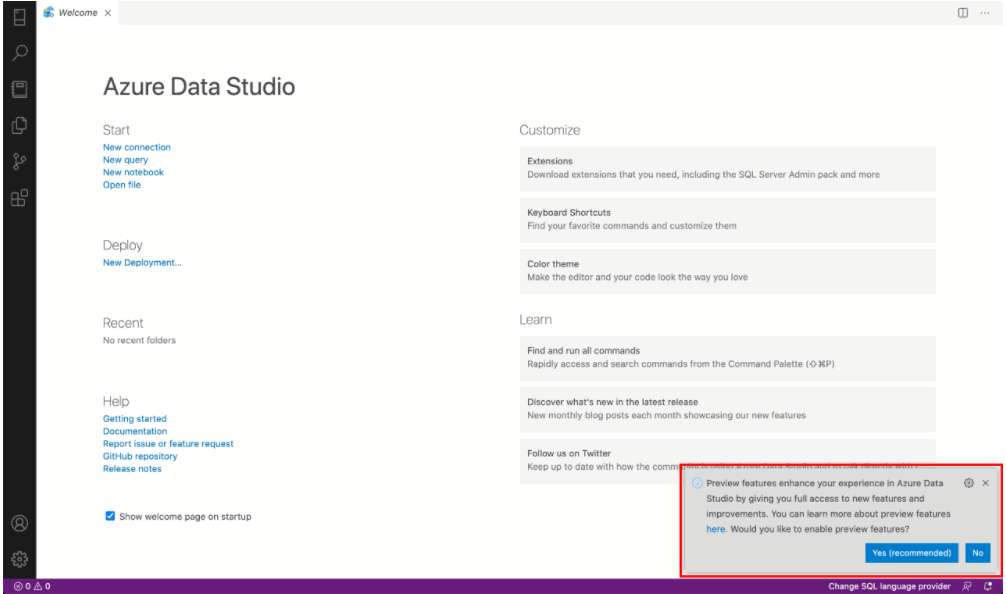
Use ADS To Connect And Query SQL Server
1. Start Azure Data Studio.
2. The first time you run Azure Data Studio the Welcome page should open. If you don’t see the Welcome page, select Help > Welcome. Select New Connection to open the Connection pane.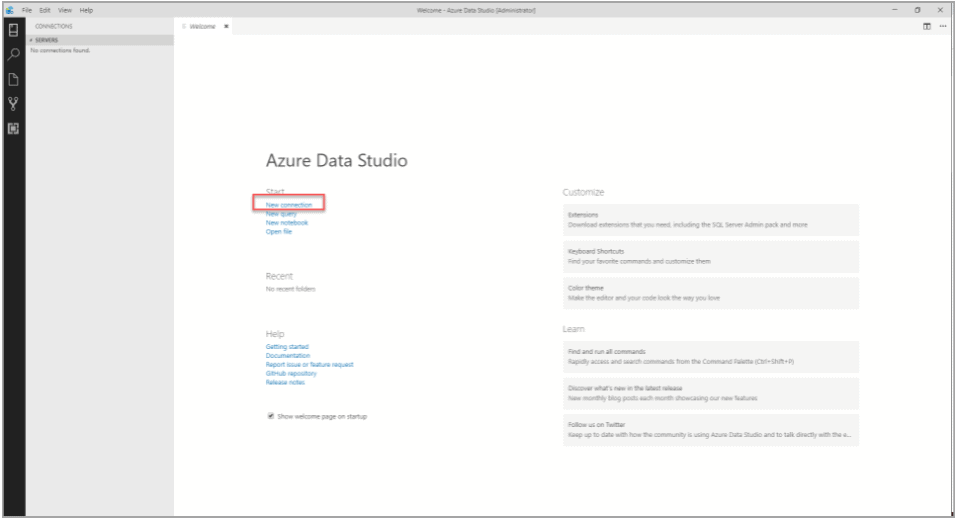
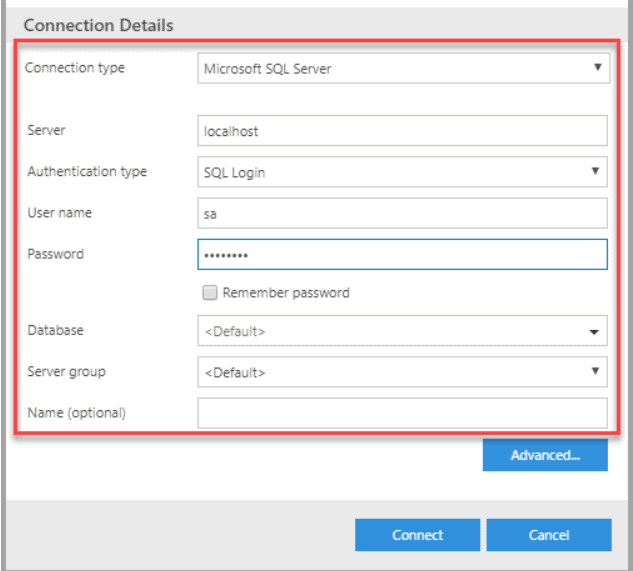
3. This article uses SQL Login, but Windows Authentication is supported. Fill in the fields as follows:
- Server Name: Enter server name here. For example, localhost.
- Authentication Type: SQL Login
- User name: the user name for the SQL Server
- Password: Password for the SQL Server
- Database Name: <Default>
- Server Group: <Default>
4. Then create a database.
5. Right-click on your server, localhost, and select New Query. Paste the below code into the query window and then select Run.
USE master
GO
IF NOT EXISTS (
 SELECT name
 FROM sys.databases
 WHERE name = N'TutorialDB'
)
 CREATE DATABASE [TutorialDB];
GO
IF SERVERPROPERTY('ProductVersion') > '12'
 ALTER DATABASE [TutorialDB] SET QUERY_STORE=ON;
GO
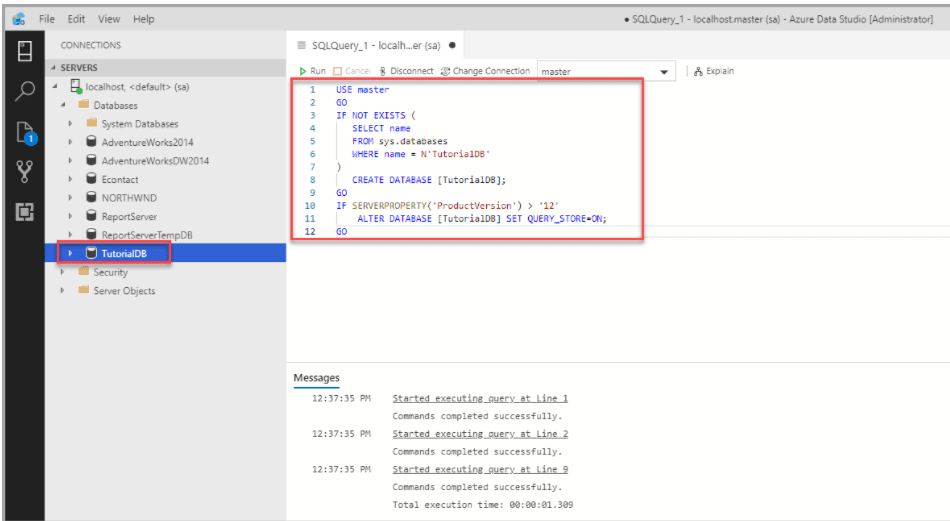
6. Create a table if The query editor is still connected to the master database, but we want to create a table in the TutorialDB database that we have created. Then Change the connection context to TutorialDB.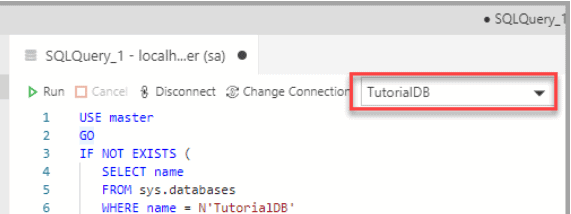
7. To view the data returned by a query Paste the below code into the query window and click Run.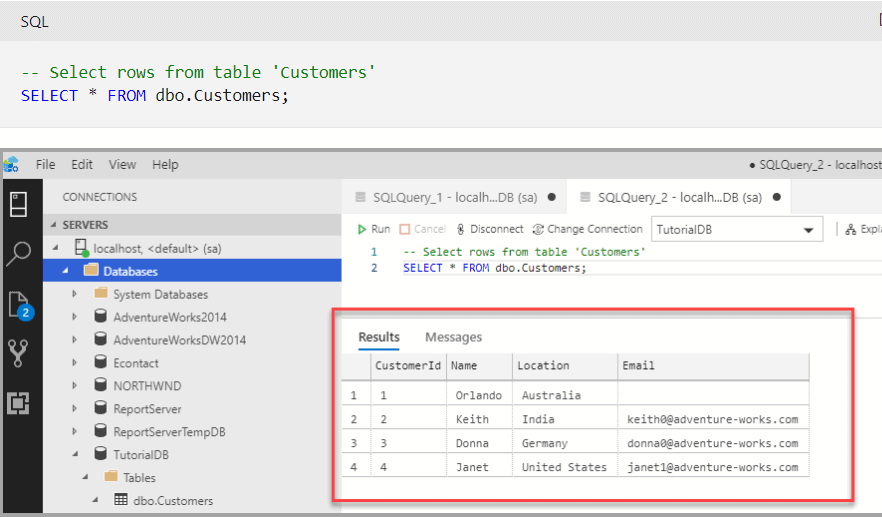
Backup And Restore Database Using ADS
a.) Backup
1. Open the TutorialDB database dashboard by opening the SERVERS sidebar. Then select Ctrl+G, expand Databases, right-click your database, and select Manage.
2. Open the Backup database dialog box by selecting Backup on the Tasks widget.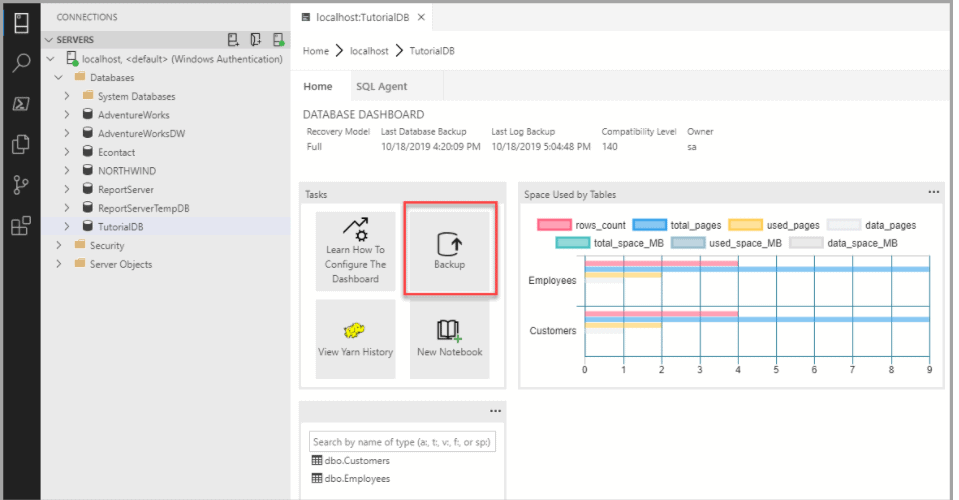
3. This tutorial uses the default backup options, so select Backup.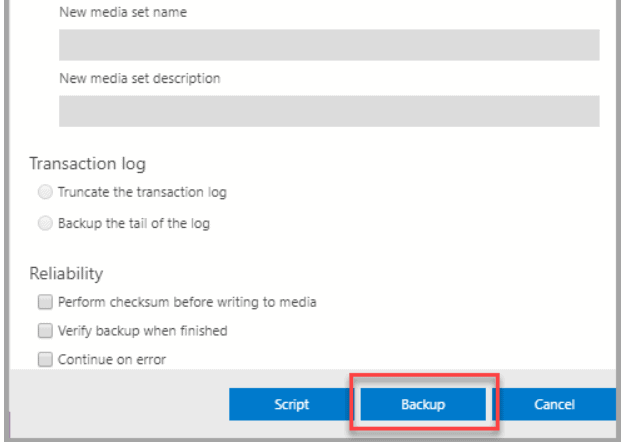
b.) Restore
1. Open the SERVERS sidebar by pressing Ctrl+G. Then right-click your server, and select Manage.
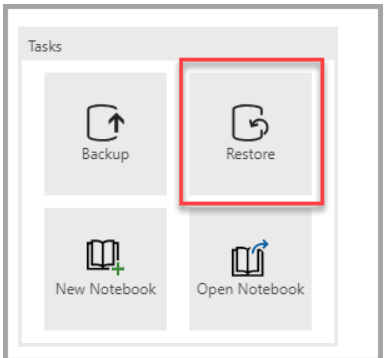
2. Open the Restore database dialog box by selecting Restore on the Tasks widget.
3. Select the Backup file in the Restore from the box.
4. Select the ellipses (…) in the Backup file path box, and select the latest backup file for Database.
5. Enter your database name in the Target database box in the Destination section to restore the backup file to a new database. Then select Restore.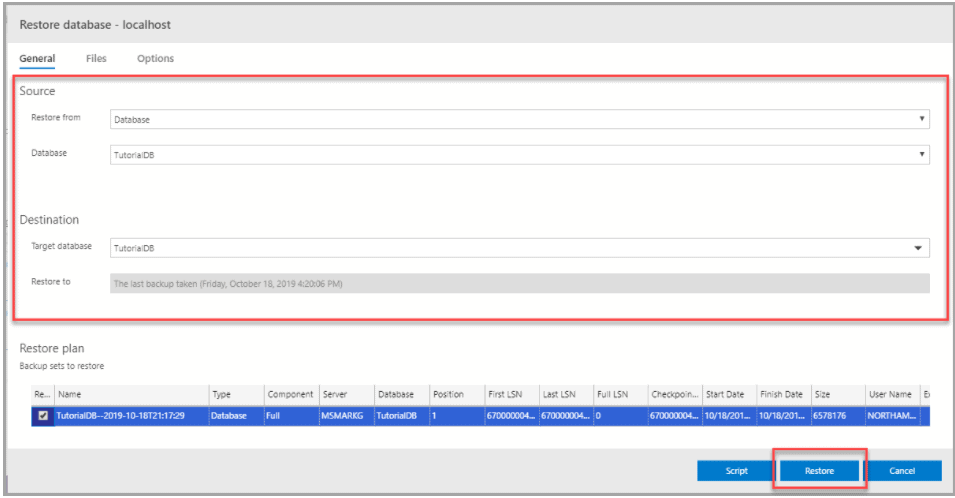
6. To view the status of the restore operation, select Ctrl+T to open the Task History.
Frequently Asked Questions
Q. Does Azure Data Studio work only with Azure Databases?
No. It’s a hybrid tool built for both on-premises and cloud data services.
Q. When should I use Azure Data Studio versus SQL Server Management Studio?
For more information, including what tool to use when, use cases, and features check the above comparison
Q. Is Azure Data Studio open source?
Yes, the source code for Azure Data Studio and its data providers is open source and available on GitHub. The source code for the front-end Azure Data Studio, which is based on Microsoft Visual Studio Code, is available under an end-user license agreement that provides rights to modify and use the software, but not to redistribute it or host it in a cloud service. The source code for the data providers is available under the MIT license.
You Should Also Try
- Exam DP-300: Microsoft Azure Database Administrator Associate
- Microsoft Certified Azure Database Administrator Associate(Hands-On Labs)
- Azure SQL Deployment Options | SQL Managed Instance | SQL Database| SQL On VM
- Schedule And Automate SQL Server DB Replication
Next Task For You
We will cover all the exam objectives related to how to perform migrations, Hands-On Labs, and practice tests in our Azure Database Administrator training program. If you want to begin your journey towards becoming a Microsoft Certified: Azure Database Administrator Associate by checking our FREE CLASS.

![Microsoft Agentic AI Business Solutions Architect [AB-100] | K21 Academy](https://test.k21academy.com/wp-content/uploads/2025/11/Microsoft-Agentic-AI-Business-Solutions-Architect-AB-100-Exam-Overview1.png)