



This blog post covers a brief overview of the topics covered and some common questions asked on Day 6 Live Interactive training on Docker and Kubernetes Certification i.e. CKA / CKAD and CKS.
This will help you to learn Docker & Kubernetes and prepare you for these certifications and get a better-paid job in the field of Microservices, Containers and Kubernetes.
In the Day 5 CKA Live session we covered an overview of Multi-Stage Dockerfile, Docker Volume, Docker Networking. And in this week, Day 6, we covered Docker Compose, Docker Swarm, Docker service. We also performed labs.
Docker Compose:
Docker Compose is a tool for defining and running multi-container Docker applications. With Compose, you use a Compose file to configure your application’s services. Then, using a single command, you create and start all the services from your configuration. Using Compose is basically a three-step process.
- Define your app’s environment with a Dockerfile so it can be reproduced anywhere.
- Define the services that make up your app in docker-compose.yml so they can be run together in an isolated environment.
- Lastly, run docker-compose up and Compose will start and run your entire app.
You must have Docker Engine installed on your system. If you don’t have already installed, Visit our Docker installation section of this tutorial.
Q/A’s asked in sessions are:
Q) How do we install Docker Compose?
Ans: First of all we need to grab the software. We can do this on Linux using Curl.
sudo curl -L "https://github.com/docker/compose/releases/download/1.23.2/docker-compose-$(uname -s)-$(uname -m)" -o /usr/local/bin/docker-compose
This downloaded the docker-compose tool to /usr/local/bin. Once downloaded, you must make the file executable. This can be done with:
sudo chmod +x /usr/local/bin/docker-compose
Finally, we can test that everything is working as it should by running:
$ docker-compose --version
docker-compose version 1.23.2, build 1110ad01
Looks good! Now we can move on to some examples of how docker compose can be used.
Q) How to create docker-compose.yml, and explain the steps?
Ans: Let’s create our docker-compose.yml
version: "3.9" # optional since v1.27.0
services:
  db:
    container_name: postgres-comose
    image: postgres
    ports:
      - 5432:5432
    networks:
      - compose-network
    environment:
      - POSTGRES_DB=docker-demo
      - POSTGRES_PASSWORD=mysecretpassword
  cache:
    container_name: redis-compose
    image: redis
    ports:
      - 6379:6379
    networks:
      - compose-network
  app:
    container_name: golang-compose
    # image: app-golang:1.0
    build:
      context: .
      dockerfile: Dockerfile
    ports:
      - 8080:8080
    restart: unless-stopped
    networks:
      - compose-network
    depends_on:
      - db
      - cache
    environment:
      - REDIS_HOST=redis-compose
      - DB_HOST=postgres-compose
      - MYNAME=REPOERNA
networks:
  compose-network:
    name: new-example-network
*Note: in the app service environment, we use REDIS_HOST and DB_HOST using Redis and Postgres container name
Okay, I will explain what we write. At the root of the file, we have:
- version define Compose release. Each release has different features and parameters that we can use. You can read the compatibility matrix of each version here. If you omit the versionby default, it will use version 1.
- services defined all services in our system. In our example, before we use Postgres, Redis, and golang app, those 3 services will be defined here.
- network define network will be used, if you haven’t created the network, it will be automatically created, and you can create more than one network here.
Inside services, there is the service name; we have DB, cache, and app. On every service, we will define a parameter that will be used on each service. these parameters are:
- container_name: defines name services container.
- image: define an image that will be used for creating the container.
- port: define port binding to exposed the port inside a container with the environment outside.
- networks: define a network that will be used by services.
- depends_on: define other services that needed by app services.
- environment: define environment variable inside the container.
In app service, instead of using an image, we will use build to build the image, below build there is context that define the location of Dockerfile that will be used to build the image and Dockerfile to define Dockerfile filename.
Docker Compose CLI Reference
Below mentioned docker-compose command will provide you way to manage Docker containers with docker-compose
build – Build images for services for which build is defined.
$ docker-compose build ## Build all services
$ docker-compose build web ## Build single service
up – Create docker containers with available services in docker-compose.yml file of current directory. Use -d switch to launch containers in daemon mode.
$ docker-compose up -d ## Create all containers
$ docker-compose up -d web ## Create single container
down – Stops and deletes all containers, network and associated images for the services defined in a config file
$ docker-compose down ## Restart all containers
$ docker-compose down web ## Restart single container
ps – Lists all containers created for the services defined in a config file with there status, port bindings and command.
$ docker-compose ps
exec – Executes a command to the running container. For example list files in container associated with web service.
$ docker-compose exec web ls -l
start – Starts stopped containers of the services defined in config file
$ docker-compose start ## Start all containers
$ docker-compose start web ## Start single container
stop – Stop running containers for the services defined in config file
$ docker-compose stop ## Stop all containers
$ docker-compose stop web ## Stop single container
restart – Restart containers of the services defined in config file
$ docker-compose restart ## Restart all containers
$ docker-compose restart web ## Restart single container
pause – Pause running containers for the services defined in config file.
$ docker-compose pause ## Pause all containers
$ docker-compose pause web ## Pause single container
unpause – Start paused containers for the services defined in config file.
$ docker-compose pause ## Start all paused containers
$ docker-compose pause web ## Start single paused container
rm – This will remove stopped containers for the services defined in config file.
$ docker-compose rm ## Start all paused containers
$ docker-compose pause web ## Start single paused container
Docker Swarm
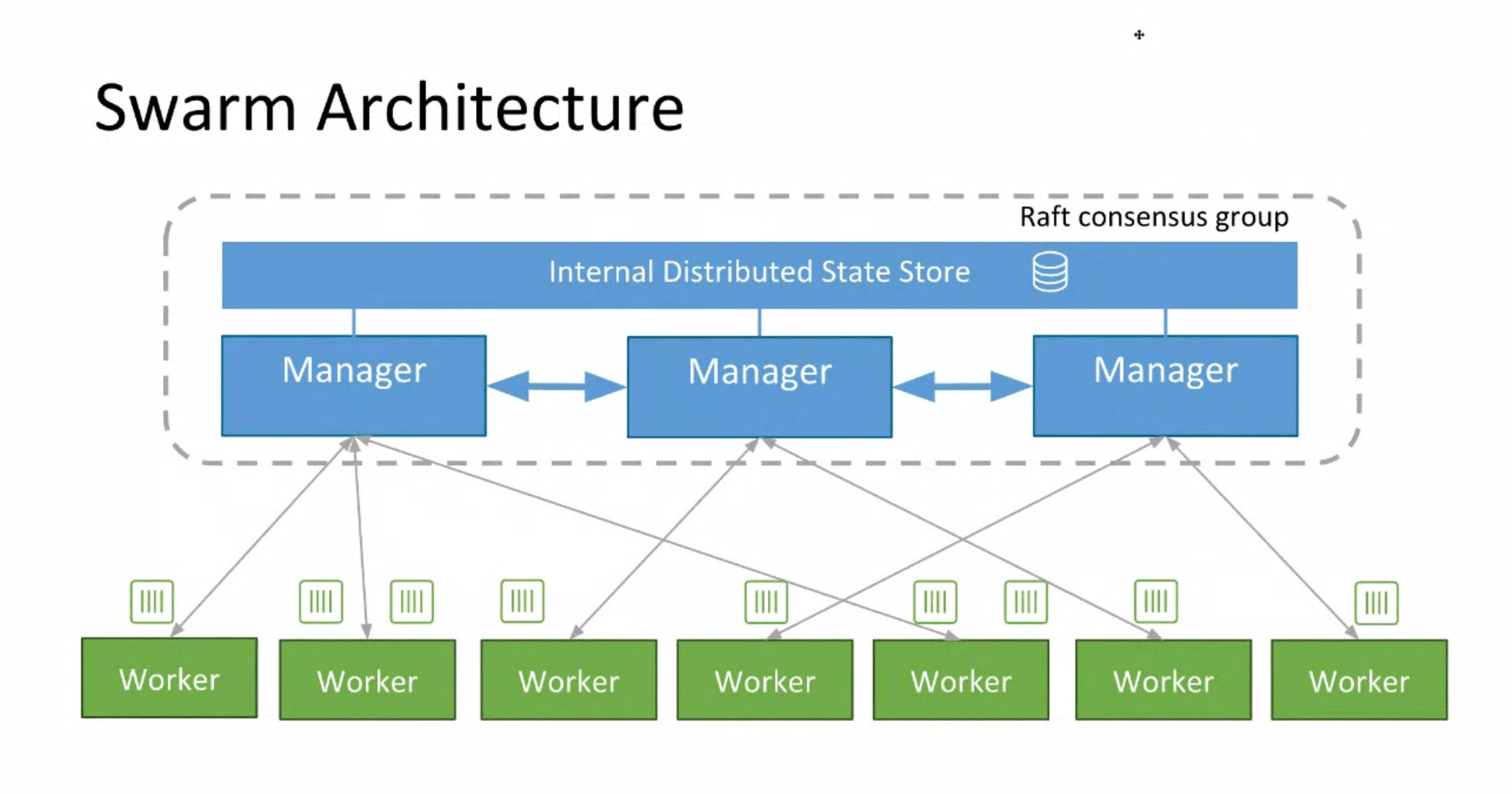
Swarm mode provides you with a small-scale but useful orchestration system for Dockerized apps. Apps can run in a decentralized fashion, with no one node being the master node, although you will need to designate at least one node as a manager for the cluster as a whole.
An app, or “service” in swarm mode parlance, is set up by describing the ideal state for the app—how many replicas to run, for example. The Docker engine then ensures that state is maintained across the cluster. Any changes, including rolling out a new version of an app, can be rolled out gradually across the cluster without having to shut down the entire application. To know more about Docker Swarm, you can visit to our blog Docker Swarm
Q/A’s asked in sessions are:
Q) Explain the Docker Swarm Architecture
Ans: Docker Swarm is a clustering and Orchestration tool for Containers which is inbuilt in Docker Engine for the distributed system which involves hundreds of containers. Docker Node, Docker Services, and Docker tasks are key components of Docker swarm architecture.
- Docker Node: It is the Docker Engine instance included in Docker swarm, has two kinds:
- Manager Node: Responsible for all orchestration and container management tasks required to maintain the system in the desired state such as maintaining the cluster state, scheduling the services and servicing the swarm mode HTTP endpoints.
- Docker Service: It is the task definition that needs to be executed.
Note: To know more about Docker Swarm, click here.
Q) What are the benefits of Docker Swarm Architecture
Ans: Below are the points shows the benefits of Docker Swarm Architecture:
- Decentralized design: we can manage swarm clusters through swarm command, It gives single p[oint of access to build entire swarm.
- It is very simple compared to Kubernetes.
- High Availability: Among the nodes available in swarm if master fails another worker node will take upcharge.
- Desired state Reconciliation: The swarm manager keeps track of the cluster state so that the desired and actual state is always the same.
- When we specify an over network to connect to your services, the swarm manager assigns addresses to the container on overlay network once we create /update the containers
- Rolling Updates: Service updates can be done incrementally swarm manager allows you to specify the delay between every update without any downtime.
Q) What is the need of Container Orchestration System?
Ans: To keep this simple, imagine that you had to run hundreds of containers. You can easily see that if they are running in a distributed mode, there are multiple features that you will need from a management angle to make sure that the cluster is up and running, is healthy and more. Some of these necessary features include:
- Health Checks on the Containers
- Launching a fixed set of Containers for a particular Docker image
- Scaling the number of Containers up and down depending on the load
- Performing rolling update of software across container
Q) How to create a Docker cluster with Docker swarm mode
Ans: Swarm mode requires at least three Windows, MacOS, or Linux hosts running Docker Engine. At least one host needs to be designated as a manager, with the others designated as workers. The manager needs to have a fixed IP address, and all nodes need to have open TCP ports 2377 and 7946, and UDP ports 7946 and 4789. A swarm is launched by running docker swarm init on the host you’ve chosen as manager:
docker swarm init --advertise-addr 192.168.xx.xx
where the address specified is the IP address for the manager machine. The Docker client will respond with a note about the commands to supply to add another worker. This involves running docker swarm join on the worker machine, along with a token—a long, complex character string—supplied by the manager. Once you’ve started the workers, run docker node ls on the manager to make sure that the manager and its workers are running.
Docker Service
When you deploy the service to the swarm, the swarm manager accepts your service definition as the desired state for the service. Then it schedules the service on nodes in the swarm as one or more replica tasks. The tasks run independently of each other on nodes in the swarm.
For example, imagine you want to load balance between three instances of an HTTP listener. The diagram below shows an HTTP listener service with three replicas. Each of the three instances of the listener is a task in the swarm.

Q/A’s asked in sessions are:
Q) How to deploy services in Docker swarm mode
Ans: To start a swarm-based Docker application, or “service,” you run the docker service create command on the manager:
docker service create --replicas 1 --name servicename imagename cmd
- –replicas indicates how many instances of the service to run.
- –name gives the service a distinct name, in this case servicename.
- imagename is the name of the image to pull from the repository for this service.
- cmd is a command to run within the image once it’s started, if any is needed.
Once you have services deployed, you can run docker service inspect on the manager to see details about the created services, and docker service ps to see details about each node’s service load.
Q) How to manage services in Docker swarm mode
Ans: Most of the time, a launched swarm should just work. But sometimes you need to change its behavior to meet demand or handle other circumstances.
Q) How to Scale a service
Ans: If you need more (or fewer) instances of a specific service, you can run docker service scale on the manager to do so:
docker service scale myservice=3=
The scaling process may take some time to complete; use docker service ls to see if the changes have taken effect. Note that if you set the replica count to 0, the number of replicas of the service is set to 0, but the service itself remains active.
Q) How to drain nodes in swarm
Ans: Sometimes you need to move replicas out of a specific node so that the node can be shut down or rebooted. To do that, log into the manager node and issue the command:
docker node update --availability drain nodename
The changes may take a moment to show up; use docker service ps to see if the service load for that node has been removed.
To restore the load for a specific node, use:
docker node update --availability active nodename
Again, unlike Kubernetes, Docker swarm mode does not include autoscaling. It is possible to build autoscaling mechanisms by hand that would issue the appropriate scaling commands to a Docker swarm, but swarm mode can’t handle this natively.
Q) How to update services in Docker swarm mode
Ans: If you have a new version of a specific service that you want to roll out across nodes, issue the following command from the manager node:
docker service update --image imagename:version servicename
This replaces every instance of the service servicename with the image described with imagename:version .You can roll back to the previous version of that service by issuing this command:
docker node rm <nodename>docker service update --rollback servicename
You can use other service update options to control how the update is rolled out—for example, if you want to delay the rollout by a specific amount of time:
Q) How to remove services in Docker swarm mode
Ans: If you need to remove a service from\a swarm, issue the following command from the manager:
docker service rm servicename
Note that if all nodes in a swarm are no longer running any services, that does not mean the swarm has been shut down. It just means the service count for the swarm is now zero.
Q) How to dismantle a swarm node?
Ans: To dismantle a swarm, you first need to remove each of the nodes from the swarm:
docker node rm <nodename>
where nodename is the name of the node as shown in docker node ls. After removing each node, you must demote the manager node:
docker node demote <nodename>
Once that’s done, the swarm no longer exists.
Related Post
- Kubernetes for Beginners
- How To Setup A Three Node Kubernetes Cluster For CKA: Step By Step
- Check out and Subscribe to our YouTube channel on “Docker & Kubernetes.”
- Certified Kubernetes Administrator (CKA) Certification Exam
- Certified Kubernetes Administrator (CKA) Certification: Step By Step Activity Guides/Hands-On Lab Exercise
Join FREE Class
Begin your journey towards becoming a Certified Kubernetes Administrator [CKA] from our Certified Kubernetes Administrator (CKA) training program. To know about the Roles and Responsibilities of a Kubernetes administrator, why learn Docker and Kubernetes, Job opportunities for Kubernetes administrator in the market. Also, know about Hands-On labs you must perform to clear the Certified Kubernetes Administrator (CKA) Certification exam by registering for our FREE CLASS.


![Microsoft Agentic AI Business Solutions Architect [AB-100] | K21 Academy](https://test.k21academy.com/wp-content/uploads/2025/11/Microsoft-Agentic-AI-Business-Solutions-Architect-AB-100-Exam-Overview1.png)


