




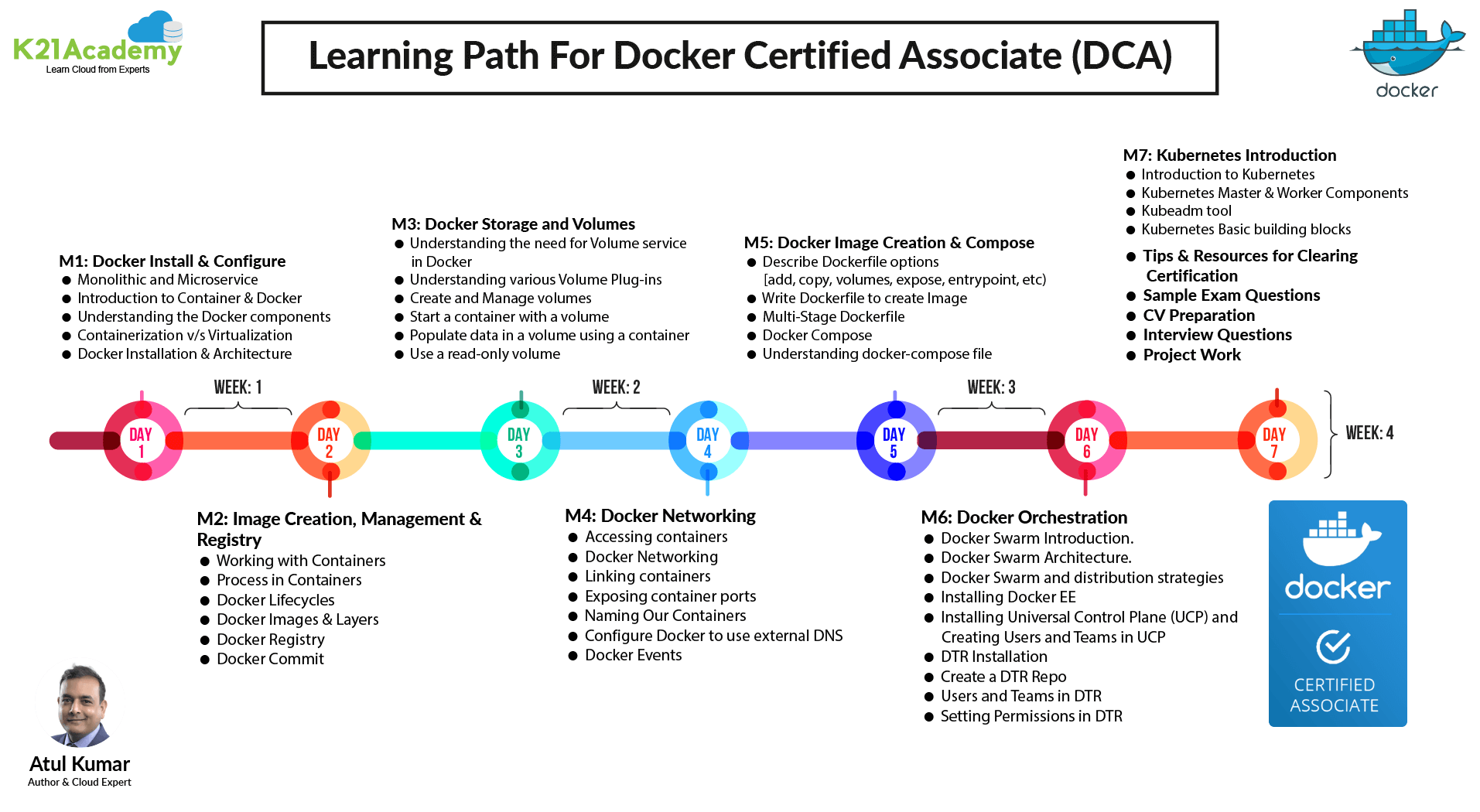
This blog post gives a walkthrough of the Step-By-Step Activity Guides of the Docker Certified Associate (DCA) Certification training program that you must perform to learn this course.
This post covers Hands-On Activity Guides that you must perform in order to learn Docker & Docker Swarm and clear the DCA certification exam.
Here is the list of our activity guides:
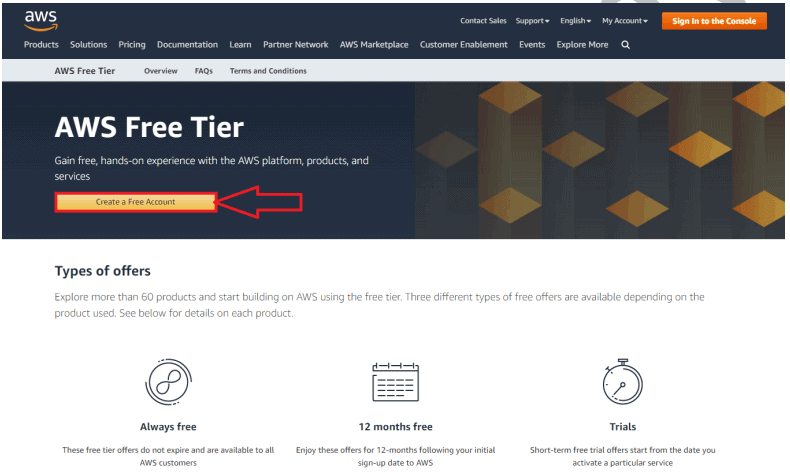
1) Register for AWS Free Tier Account And log into AWS Console
2) Creating & Connect to Ubuntu EC2 Instance
3) Docker Setup and installation on Ubuntu server
4) Working with Container
5) Working with Docker Image
6) Create an account on Dockerhub
7) Docker Networking (Bridge, Custom Bridge, Host Network)
8) Docker Storage (Host Path Mounting, Docker Volume, tmpfs mount)
9) Docker Private Registry
10) Working and Writing Dockerfile to create image
11) Working with Application Stack
12) Configuring External DNS, Logging, and Storage Driver
13) Working with Multi-stage Dockerfile
14) Docker Swarm Pre-requisites & Cluster Setup
15) Docker Service
16) Docker Service Placements and Constraints
17) Docker Secret
18) Docker Config
19) Docker Universal Control Plane (UCP)
20) Docker Swarm Maintenance
21) Bootstrap Kubernetes Cluster Using Kubeadm
22) Deploy an App on Pod & Basic Networking
Note: Know everything about the Docker Certified Associate Certification, and if it is right for you.
(click to enlarge)
Activity Guide 1: Register For AWS Free Trial Account
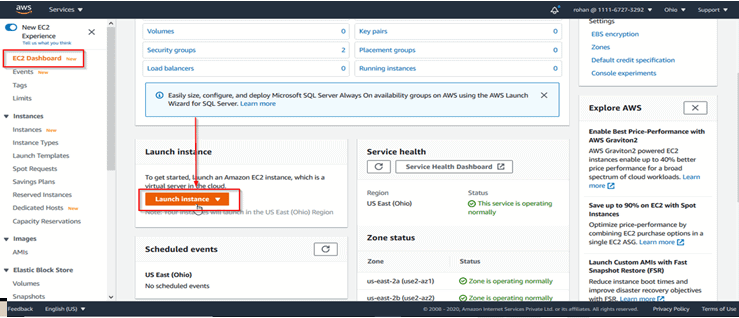
2: VM Creation Walkthrough
After creating an
Check out: Complete Guide on CKA Certification Exam
3: Docker Installation
Docker is a free and open platform for building, shipping, and running apps inside the containers. Docker allows you to easily deliver apps. You can handle your infrastructure the same way you manage your applications with Docker.
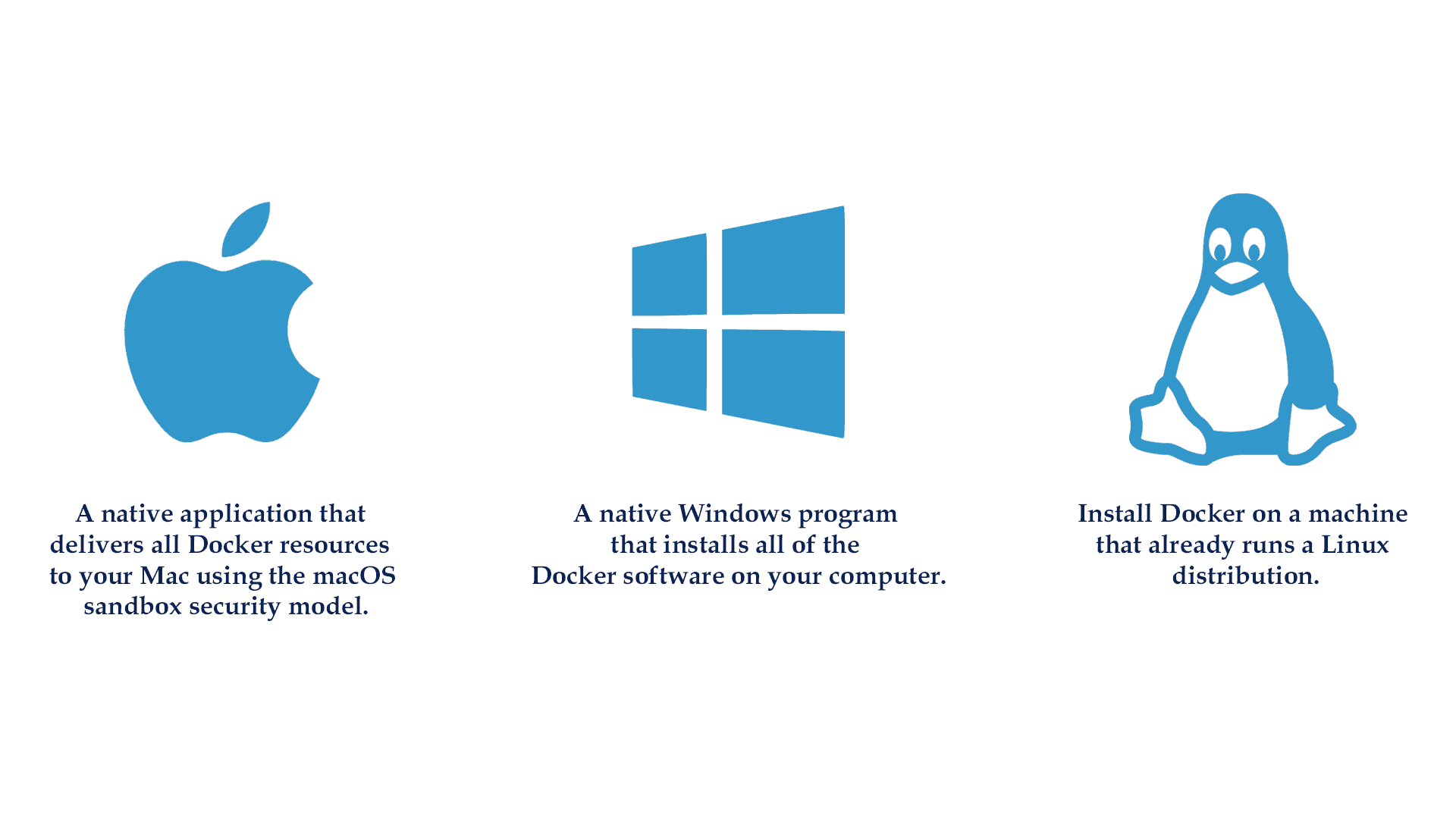
Docker is available for download and installation on Windows Os, Linux, and macOS.
To know how to install docker on your machine read our blog on Docker Installation.
4: Working with Docker Container
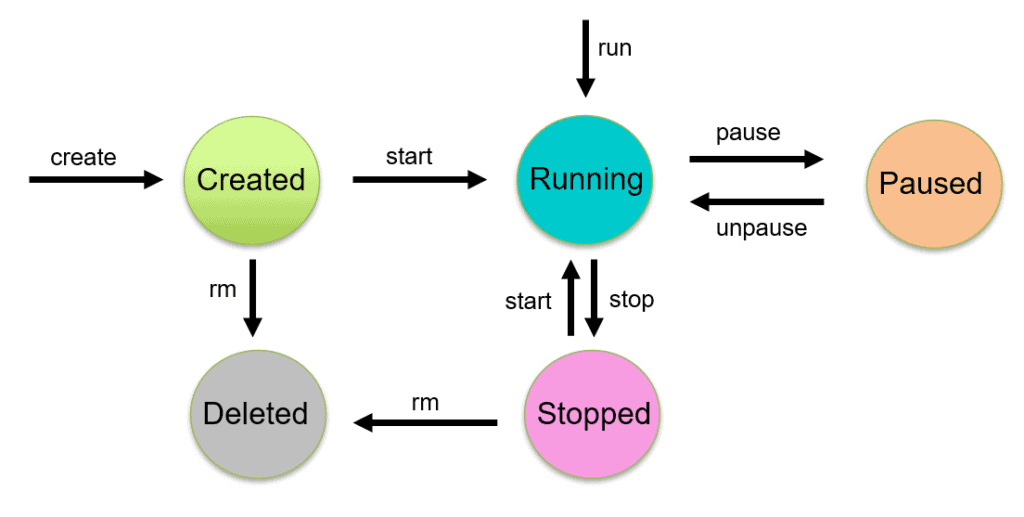
A Docker container is a version of an image that can be run. The Docker API and CLI can be used to build, start, stop, pause, and remove containers. You can mount storage to a container, link it to one or more networks, and even generate a new picture based on its current state.
In this Activity guide, we cover how to create/delete a container, the lifecycle of the container, Inspect container details, Listing containers, how to exec into a container.
Read our blog to get an idea of the Docker container.
Know more: about Container Orchestration and Management Options
Attention: Image Creation, Management, and Registry has the maximum weightage in the Docker Certified Associate exam. That is 20% of the total questions come from this section.
5: Working With Docker Images
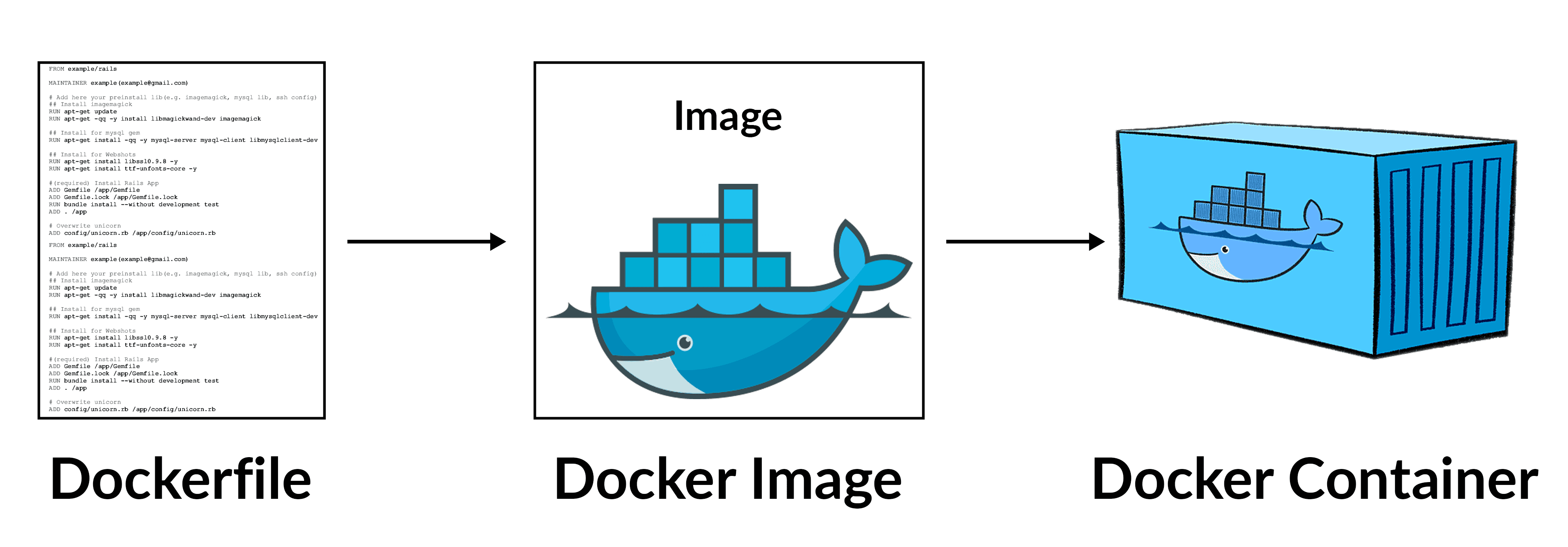
Docker images are the template that is used to create a docker container. Images are read-only templates with instructions for creating a Docker container. Docker image is a file, comprised of multiple layers, that is used to execute code in a Docker container.
In this Activity guide, we cover how to Create/Push an Image, how to Tag images, Inspect Image details, Listing out Images, Delete Images from Local repo.
Read our blog to get an idea of Docker Image
6: Create an account on Dockerhub

7: Docker Networking (Bridge, Custom Bridge, Host Network)
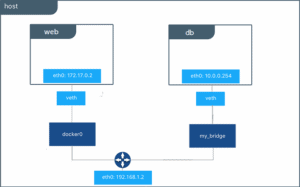
Networking in Docker is to connect the docker container to each other and the outside world so they can communicate with each other also can talk to Docker Host. The Docker bridge driver automatically installs rules in the host machine so that containers on different bridge networks cannot communicate directly with each other. When a container is in host network mode, it takes out any network isolation between the docker host and the docker containers, and it does not receive its own IP address. For example, if you use host networking and run a container that binds to port 80, the container’s application is available on port 80 on the host’s IP address.
8: Docker Storage (Host Path Mounting, Docker Volume, tmpfs mount)
9: Docker Private Registry
10: Configuring External DNS, Logging and Storage Driver
By default, a container inherits the DNS settings of the host Containers that use the default bridge network to get a copy of this file, whereas containers that use a custom network use Docker’s embedded DNS server, which forwards external DNS lookups to the DNS servers configured on the host.
In this Activity guide, we cover Verify the resolv.conf file content, Create/Update daemon.json to use external DNS for all containers, Restart Docker service, Start container with specific Logging driver, Verify present Storage driver configured.
Also checkout: Comparison between Docker vs VM, the difference of both the machines you should know.
11: Working with Dockerfile to create the image
Docker can read instructions from a Dockerfile and generate images for you automatically. A Dockerfile is a text file that contains all of the commands that a user may use to assemble an image from the command line. Users can use docker build to automate a build that executes multiple command-line instructions in a row.
In this Activity guide, we cover how to write dockerfile instructions to create a docker image, how to build an image, how to use the different options in dockerfile, reducing image size using Multi-stage build, Onbuild dockerfile.
Read more about Dockerfile
12: Working With Application Stack
When running Docker Engine in swarm mode, we can use a docker stack to deploy a complete application stack to the swarm.
Dockerfile is a document that contains all the commands a user could call on the command line to assemble an image. The docker build command builds an image from a Dockerfile.
In this Activity guide, we cover installing docker-compose, Build and run the application with docker-compose, Edit Compose file to add a bind mount.
Read our blog to know more about Docker Compose
Working with Multi-stage Dockerfile
At this point in our training program, you will be well versed with Docker commands. And only a few steps away from becoming a Docker Certified Associate.
Docker Swarm Pre-requisites & Cluster Setup
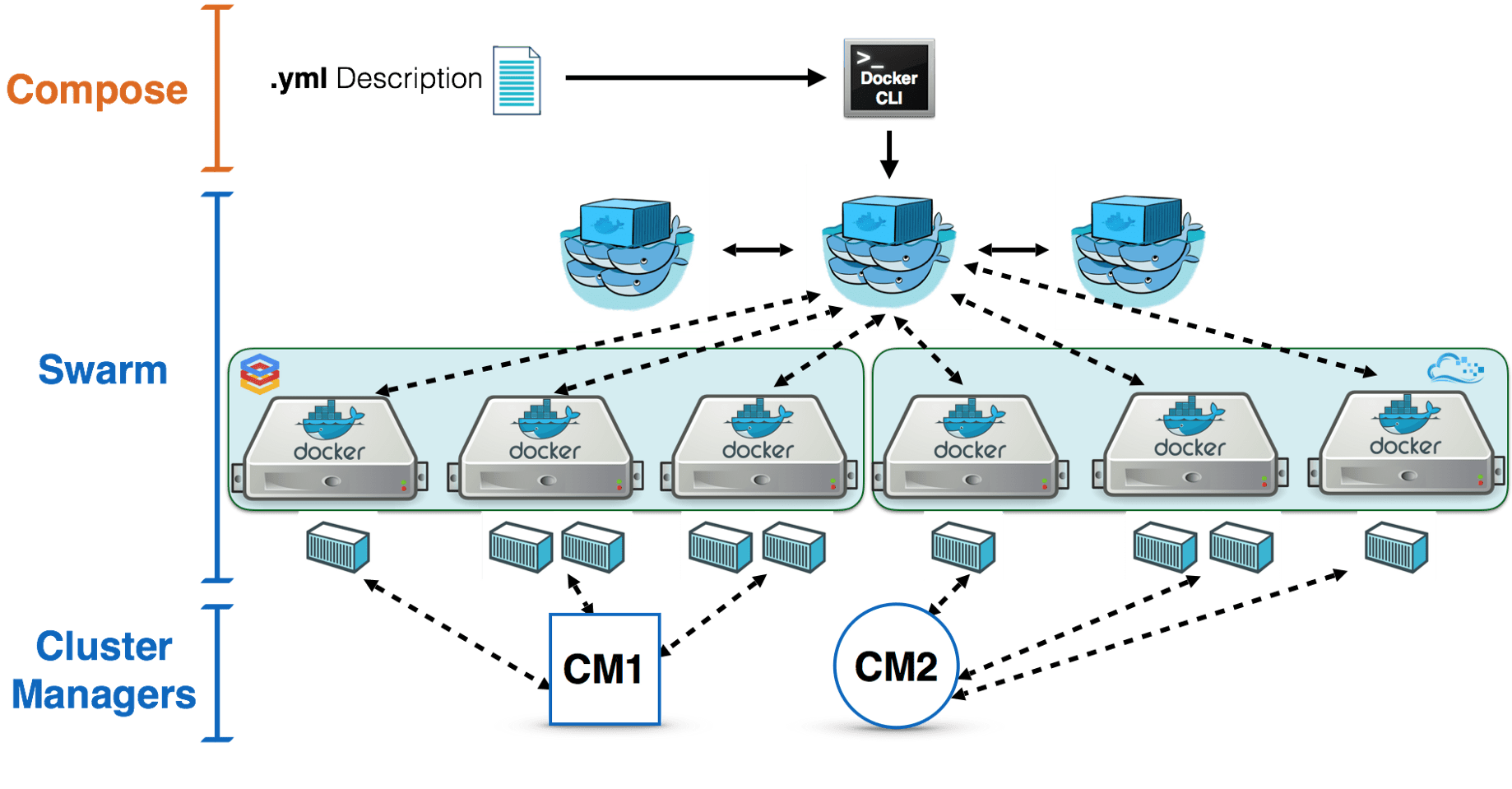
Docker Service
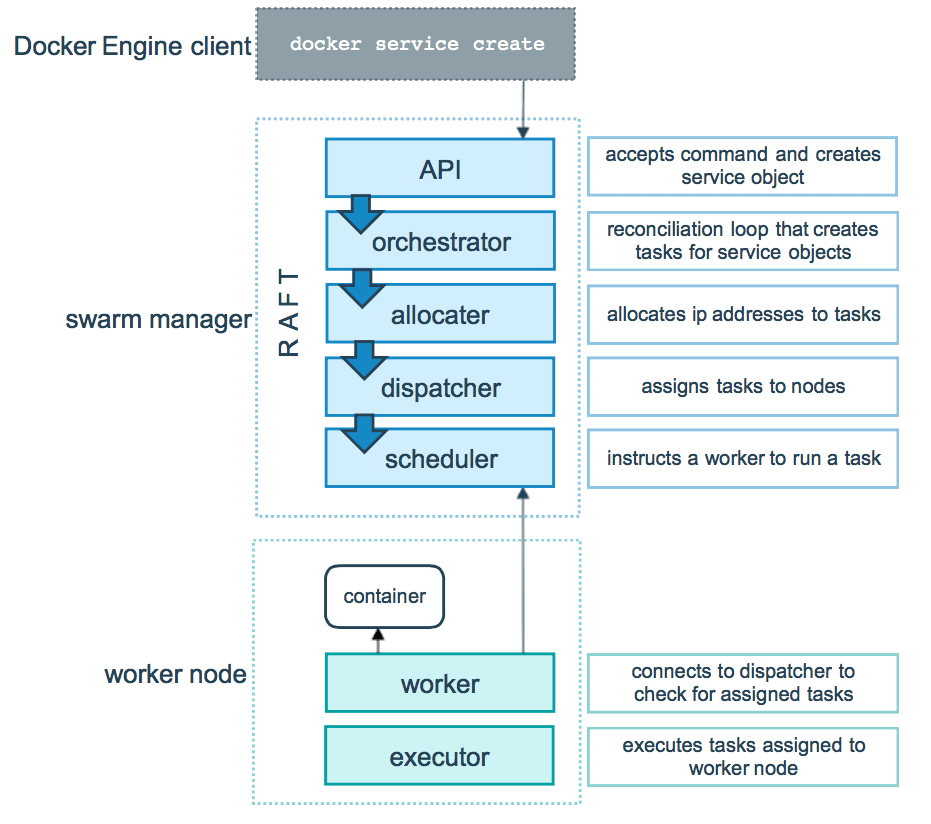
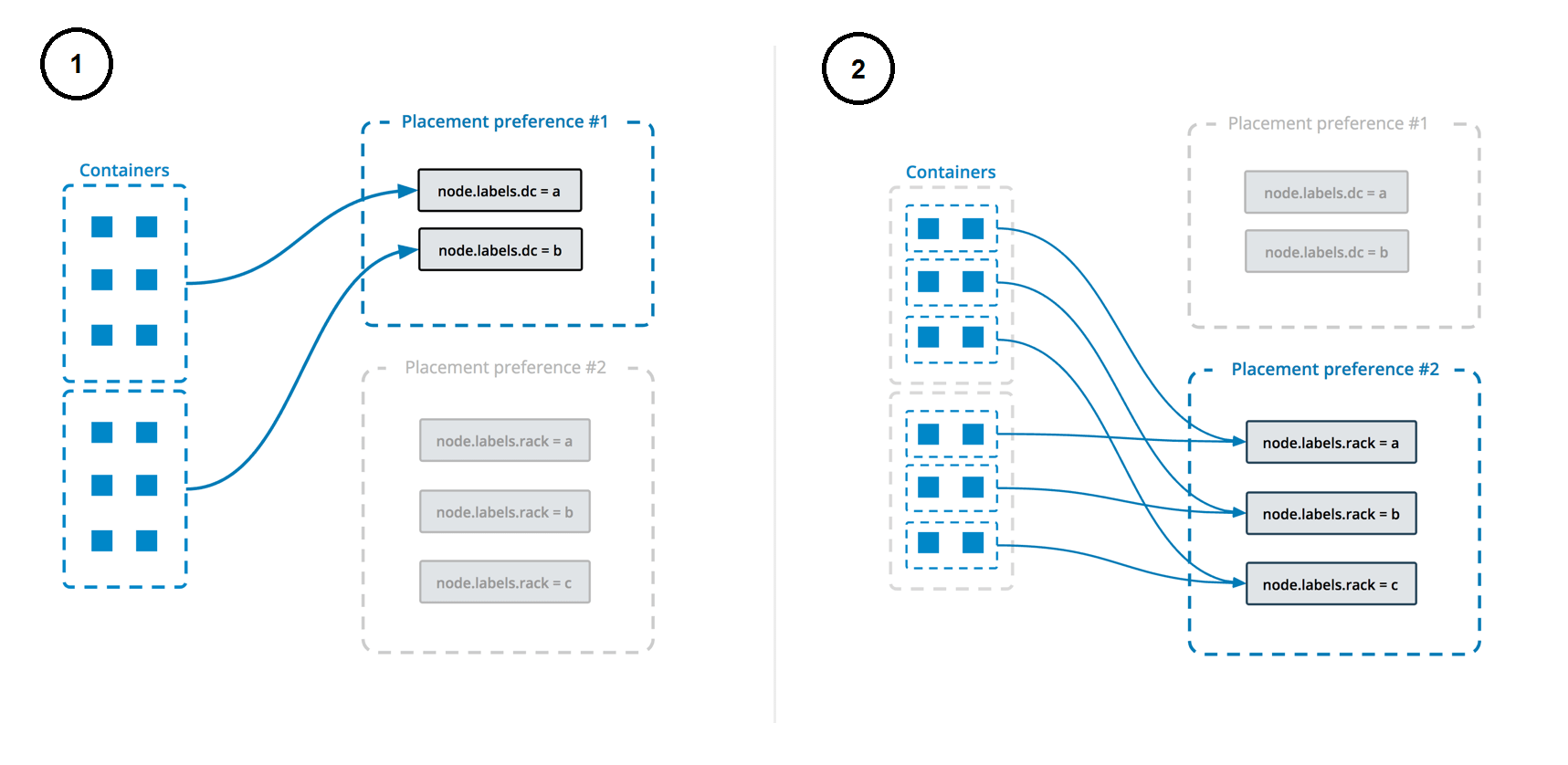
Docker Service Placements and Constraints
Docker Secret
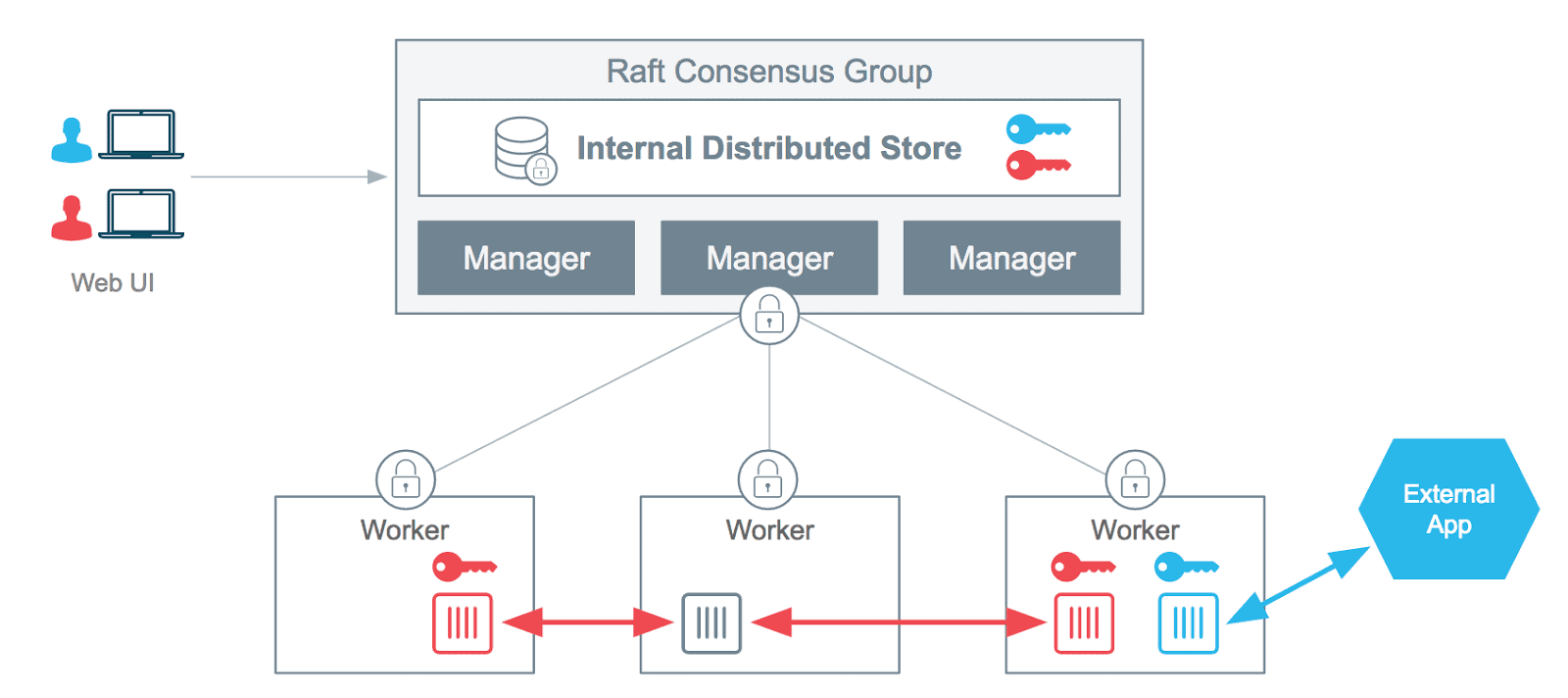
Docker Config
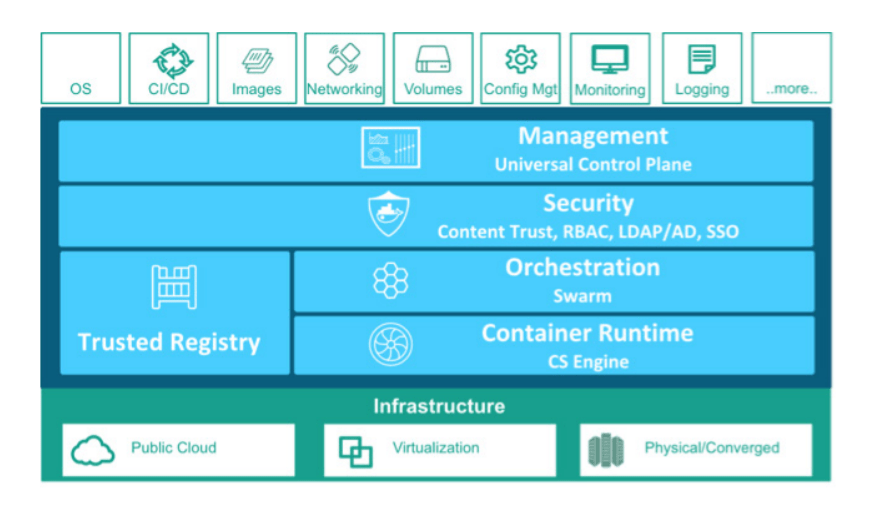
Docker Universal Control Plane (UCP)
Docker Swarm Maintenance
21: Bootstrap Kubernetes Cluster Using Kubeadm
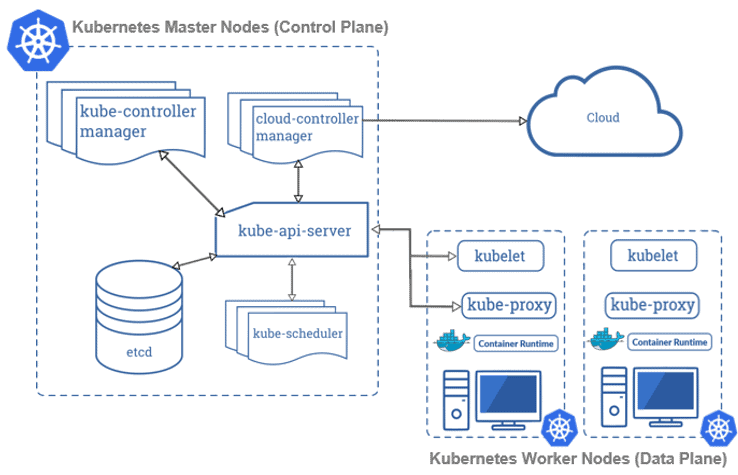
A Kubernetes cluster is a set of node machines for running containerized applications. At the highest level of Kubernetes, there exist two kinds of servers, a Master and a Worker node. These servers can be Virtual Machine(VM) or physical servers(Bare metal). Together, these servers form a Kubernetes cluster and are controlled by the services that make up the Control Plane.
In this activity guide, we cover how to bootstrap a Kubernetes cluster using Kubeadm, Installing kubeadm & kubectl packages, create cluster and join worker node to master, Install CNI plugin for networking.
To know how to install the Kubernetes cluster on your machine read our blog on Kubernetes Installation.
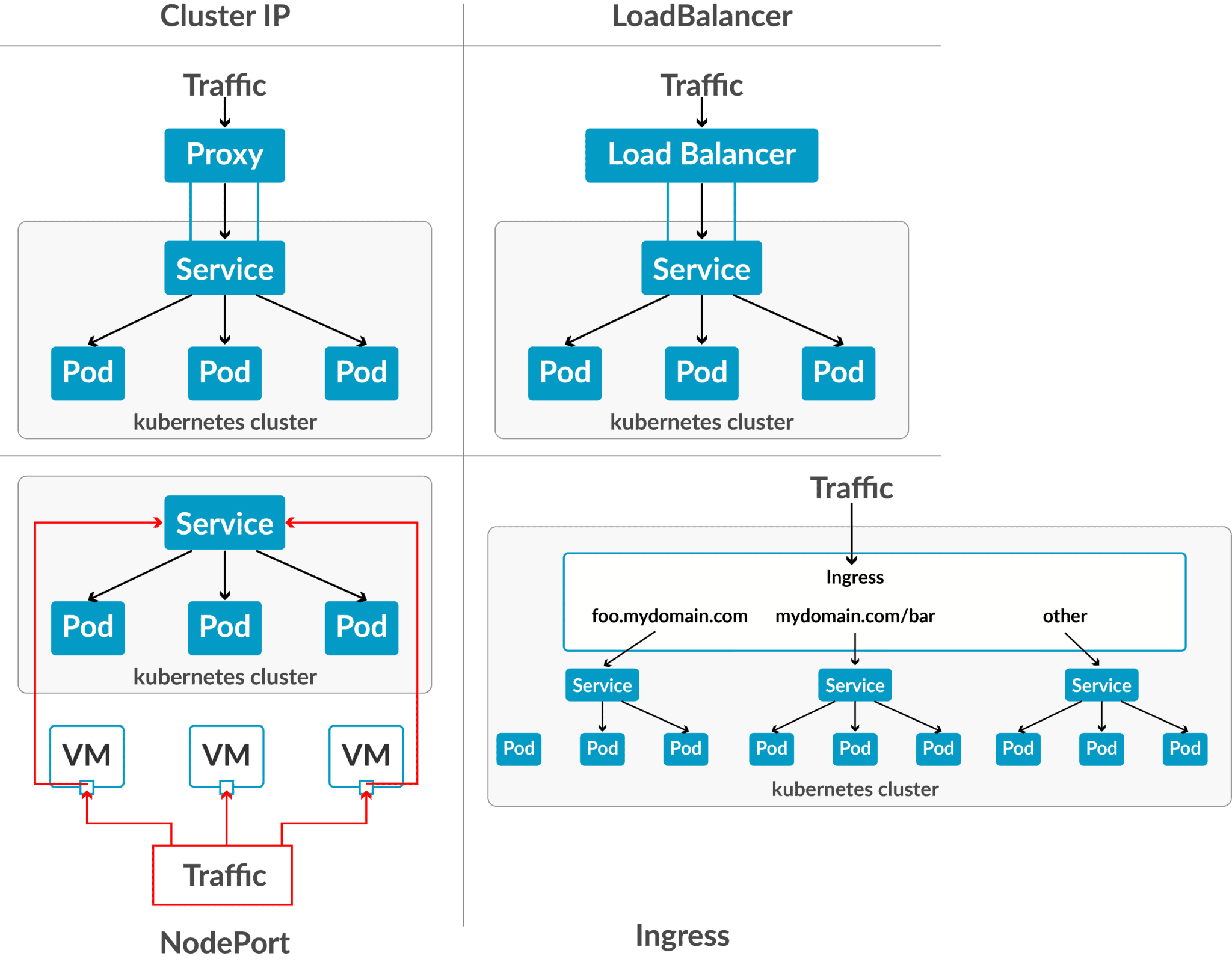
22:Deploy an App on Pod & Basic Networking
This completes our list of comprehensive 23 Step-by-step Hands-on Labs, which helps you get a better grasp on Docker topics. As a result of which you ace the Docker Certified Associate exam and shoot up your chances for a better job or a higher salary!
Related/References
- Docker Certified Associate [DCA]: Everything You Need to Know
- Containers for Beginners: What, Why, and Types
- Docker Architecture and Components
- Docker Vs. Virtual Machine
- Docker Container Lifecycle Management
- Docker Images: A Complete Guide For Beginners
- Docker Storage: Volume, Bind Mount, tmpfs, And NFS
- Docker Installation Overview
Next Task For You
If you are considering in-depth learning about Docker Certified Associate (DCA) in the coming days, then do join this waitlist… and don’t miss an opportunity to attend a free class and gain a plethora of insights on the basics of Docker and also the Docker Certified Associate Exam.


![Microsoft Agentic AI Business Solutions Architect [AB-100] | K21 Academy](https://test.k21academy.com/wp-content/uploads/2025/11/Microsoft-Agentic-AI-Business-Solutions-Architect-AB-100-Exam-Overview1.png)


