



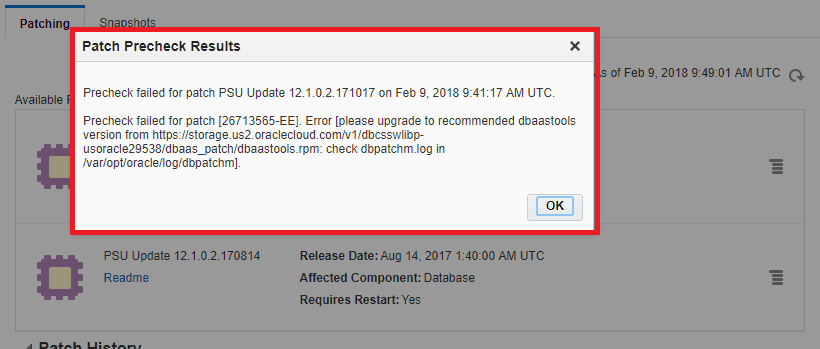
This post covers issue encountered by one of our Trainee from our Oracle Cloud Database Administration Course while running Precheck before applying the patch on Oracle Cloud, where he reported the error as “Patch application – Precheck Failed for patch PSU Update (due to dbaastools not updated)“
If you are new to Oracle cloud then please check Atul’s previous blog on Beginner to Expert Oracle Cloud DBA , 12 Point Check List, Even If You Are Not a DBA?
Error Message:
Trainee was trying to apply Patch using cloud console but while running Precheck, Trainee was getting error message as “ Patch application – Precheck Failed for patch PSU Update (due to dbaastools not updated).
Things Good to Know
Before proceeding Further, one should know the cloud patching methods. For Oracle Cloud, patching can be done in two ways:
1. Patching from Database Console (GUI).
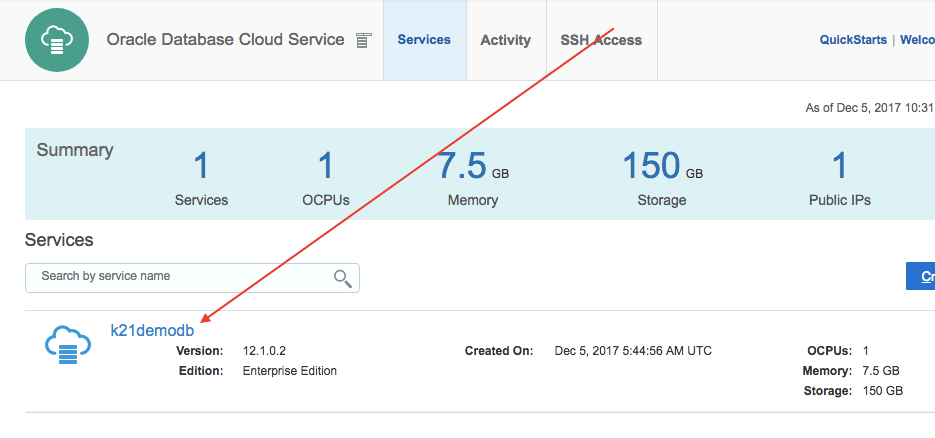
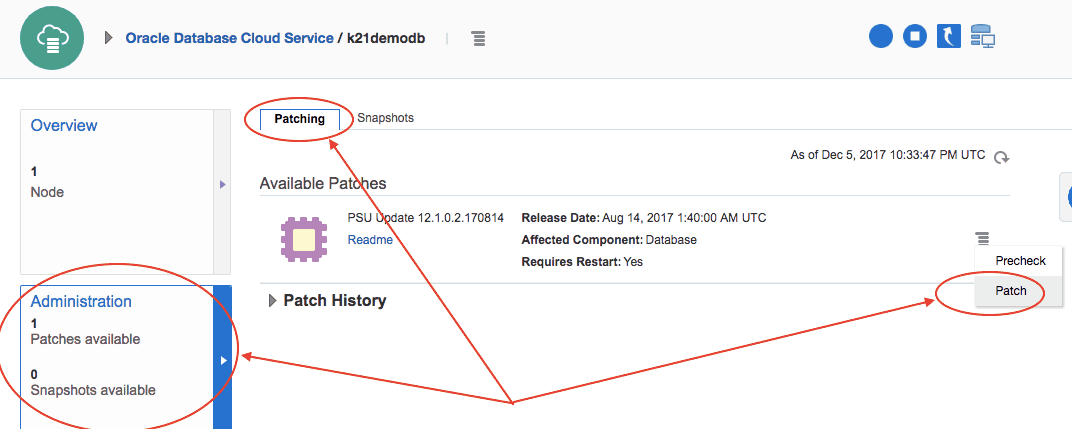
2. Patching from DBaaSCLI
The dbaascli utility provided on Oracle Database Cloud Service deployments to perform a variety of life-cycle and administration operations.
Using the dbaascli utility, you can perform operations like:
Root Cause:
As per latest update from Oracle Cloud that DBaaSCLI which is a cloud admin tool used for patching cloud database also be updated to the latest patch set release by the oracle, else you get an error as “Patch application – Precheck Failed due to dbaastools not updated”.
Fix: Upgrade the dbaastools version.
For Oracle documentation click here.
Steps to update the dbaastools .
Before you patch from dbaascli, you can update database Cloud Tooling
- Connect to Database instance using Putty (or Terminal from Mac) as >opc user
- Switch to root user as sudo –s
- Check if Cloud Tooling is available dbaascli dbpatchm –run -list_tools
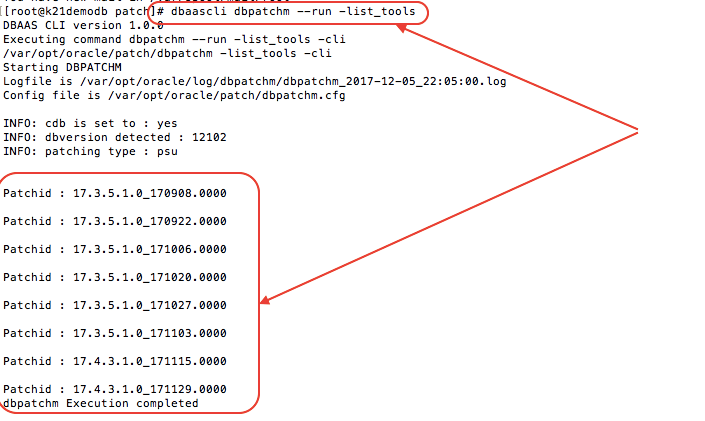
4. Check your current version of Cloud Tooling rpm –qa | grep –I dbaastools

5. Apply latest Cloud Tooling Patch dbaascli dbpatchm –run – toolsinst –rpmversion=patch-id
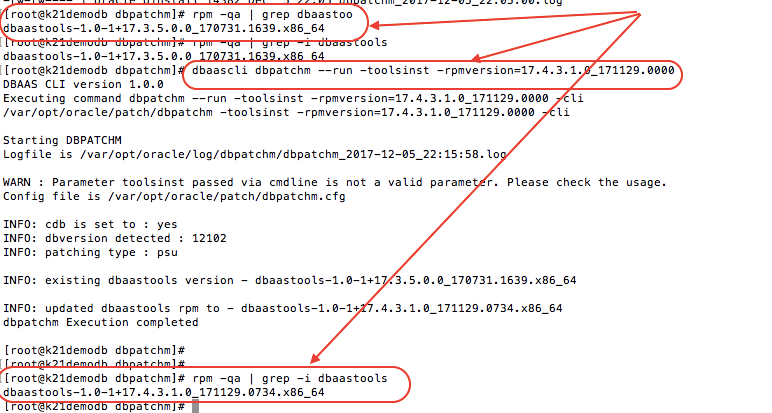
This will successfully upgrade the dbaastools and you will be able to apply the patch successfully.
Note: If you apply any patches from command line interface (dbaascli)it will not visible Under your GUI console.
If you want to learn more about Oracle Cloud and troubleshooting like above then check our Oracle Database Cloud Service (DBCS) Certification (1Z0-160), where we cover each and every topic required to clear your 1z0-160 certification with both a theoretical and practical approach.
Related/Further Reading
If you are just starting out in Cloud then I highly recommend you to go through these posts first
- Cloud Service Model: SaaS | PaaS | IaaS
- 12 Point Checklist for DBA for Beginner to Expert Cloud DBA (Facebook Live)
- If you are confused to pick Amazon AWS or Oracle Cloud then check this
- Check tasks performed by Oracle DBAs in Cloud here.
- Step by Step Activity Guides to Clear Oracle Database Cloud Certification (1Z0-160).
- Our Course Oracle Database Cloud Service (DBCS) Certification (1Z0-160)
Did You Start Your Cloud Journey?
NO! So your next task is to get yourself register for our FREE Webinar on Learn How To Build Your First Database On Cloud (PaaS) to start your cloud journey. Click on the image below to register for FREE.


![Microsoft Agentic AI Business Solutions Architect [AB-100] | K21 Academy](https://test.k21academy.com/wp-content/uploads/2025/11/Microsoft-Agentic-AI-Business-Solutions-Architect-AB-100-Exam-Overview1.png)